Where JavaScript Runs on Your Phone: A Practical Guide to Mobile JS Execution
Explore where JavaScript executes on mobile devices—from browsers to WebViews and PWAs. Learn testing methods, performance tips, and security considerations for iOS and Android.


On modern smartphones, JavaScript runs inside the browser engine for web pages and within hybrid apps via WebViews. It executes on-device, using the phone’s JavaScript engine (e.g., JavaScriptCore or V8) embedded in the browser or app runtime. No separate system-wide JavaScript service is required for standard web tasks.
Where JavaScript Runs on Your Phone
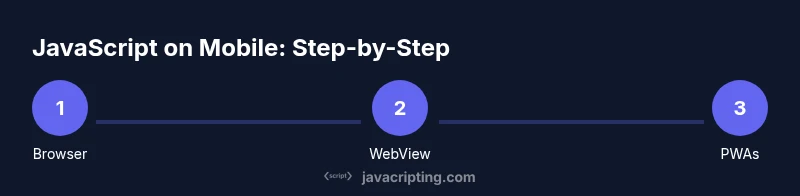
If you ask the question "where is javascript on my phone", the concise answer is that JavaScript executes inside two primary contexts: the browser engine that renders web pages and the WebView component used by many native apps. This means most mobile JavaScript runs on-device, within the same processes that handle the page or app UI. According to JavaScripting, the ability to run JavaScript on mobile devices has become a foundational capability across browsers, WebViews, and progressive web apps (PWAs). This block will demystify the exact environments and why they matter for performance, UX, and compatibility. You’ll also see how the same language behaves slightly differently depending on the host.
In short, understanding where javascript on my phone runs helps you optimize code paths, choose the right tooling, and anticipate platform-specific quirks. For aspiring developers, front-end enthusiasts, and professionals, this knowledge translates into better debugging and more reliable mobile experiences.
Tools & Materials
- Smartphone (iOS or Android)(Use a modern device with the latest OS.)
- Web browser (Chrome, Safari, or Firefox)(Keep it updated to the latest stable version.)
- Desktop development machine (optional for debugging WebViews)(Chrome DevTools or Safari Web Inspector for remote debugging.)
- USB cable or wireless debugging setup(Useful for deep debugging of WebView-based apps.)
- Test pages and code snippets(Prepare small HTML/JS examples to verify runtimes.)
Steps
Estimated time: 1-2 hours
- 1
Prepare testing environment
Set up a dedicated test page with simple JS, and ensure your phone has a stable internet connection. Having a baseline page helps you compare results across environments.
Tip: Use a minimal script like console.log('JS test') to confirm execution. - 2
Open a test page in a mobile browser
Load a clean HTML page on the device that runs small JavaScript on load. This validates that the browser’s JavaScript engine is active and correct.
Tip: Enable device data saving mode to avoid background distractions. - 3
Inspect console output via remote debugging
Connect the device to your desktop and use Chrome DevTools (Android) or Safari Web Inspector (iOS) to inspect the console, network, and JS execution.
Tip: Check for silent errors and confirm functions are defined in global scope. - 4
Test in a WebView context (native app)
If you have an app that uses a WebView (e.g., Cordova, Capacitor, or React Native with WebView), run the same test page inside the WebView and observe any differences.
Tip: Remember WebView environments can ship with different engine versions. - 5
Test a Progressive Web App (PWA) on device
Add the test page to home screen or launch as a PWA to see how service workers and offline caching interact with JS execution on mobile.
Tip: PWAs may expose different timing and resource constraints. - 6
Compare results across platforms
Run identical tests on Android and iOS browsers and WebViews to identify platform-specific quirks or performance gaps.
Tip: Document discrepancies to guide further optimization. - 7
Document findings and create a quick reference
Record the observed runtime behavior, supported APIs, and any caveats for future reference in your project notes.
Tip: Keep a changelog as engines update. - 8
Review and optimize
Based on results, refactor code to improve performance and reliability on mobile devices, and re-test after changes.
Tip: Aim for efficient DOM access and minimal layout thrashing.
Questions & Answers
Can JavaScript run on iPhones without Safari?
Yes. JavaScript runs in Safari’s engine and in WKWebView used by iOS apps. Both environments execute JS just like a browser. Differences come from the rendering engine version or available APIs.
Yes. JavaScript runs in Safari and WKWebView on iPhone, with minor differences depending on the engine version.
Is JavaScript slower on mobile devices?
Performance depends on the script, device, and context. Light scripts feel instant, while heavy computations can cause UI lag. Optimize and measure with real device testing.
Performance varies; light tasks are fast, heavy tasks can slow the UI.
What is WebView and why is it important for JS on phones?
WebView is a native component that renders web content inside apps. JavaScript runs inside that WebView, so its JS environment mirrors browser behavior but with app-specific constraints.
WebView lets apps run web content and JavaScript. It behaves like a browser, but within the app.
Do mobile browsers run JavaScript in a separate process?
Modern browsers isolate JavaScript in renderer processes per tab. This sandboxing improves stability and security on mobile too.
Yes, JS runs in isolated renderer contexts per page or tab.
Can I run JavaScript offline on my phone?
Yes, if the script is loaded from local assets or the PWA cache. Online resources are not required for local execution.
Yes, you can run local JS without internet if the files are stored on device.
Watch Video
What to Remember
- JS runs inside browser/WebView contexts on devices
- Testing on real devices is essential for accuracy
- WebView and native apps can differ from mobile browsers
- Plan for platform-specific quirks and optimize accordingly