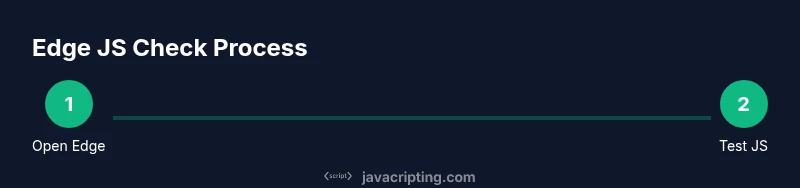
How to Check if JavaScript Is Enabled in Edge
Learn how to check if JavaScript is enabled in Edge with a clear, practical guide. Test with a simple page, verify browser settings, and troubleshoot extensions or policies that block scripts.


How to check if javascript is enabled in edge: This quick guide shows how to verify that JavaScript runs in Edge by testing a simple script on a page, reviewing Edge’s settings, and ruling out extensions or enterprise policies that block scripts. You’ll finish with a clear checklist of where to look and what to adjust.
What it means to check JavaScript in Edge
Edge, the Chromium-based browser, runs JavaScript by default. But misconfigurations, extensions, or policies can disable it, causing websites to appear broken. In this section, we explore what it means to check JavaScript status in Edge and why the task matters for developers and testers. According to JavaScripting, validating JavaScript readiness is a foundational step in web debugging and learning how to check if javascript is enabled in edge ensures your pages function as intended across environments. We’ll cover the anatomy of the test, where settings live, and how to differentiate between a true disablement and a user preference. You’ll learn what to look for in the UI, what to expect from the DevTools console, and how different environments (home, work, mobile emulation) can influence results. Knowing how to check if javascript is enabled in edge isn’t just about making a page render; it’s about ensuring accessibility, reliability, and consistent user experience. When JavaScript is off, dynamic features like form validation, interactive widgets, and AJAX calls fail to run, which can masquerade as broken markup. This is a critical skill for aspiring developers and frontend enthusiasts who want to ship robust code and demonstrate practical debugging workflows. The takeaway is simple: a reliable check is repeatable, scriptable, and environment-aware, with an explicit plan to verify status across Edge versions and user scenarios.
Quick tests to verify JavaScript in Edge
To quickly verify whether JavaScript is active in Edge, start with a live test in a minimal page. Create a small test page that writes to the DOM and logs a message to the console. For example, load the page below and open the Console panel (F12 or Right-click > Inspect):
<!doctype html>
<html>
<head>
  <title>JS Test</title>
</head>
<body>
  <div id="status">Loading…</div>
  <noscript>JavaScript is disabled for this site.</noscript>
  <script>document.getElementById('status').textContent = 'JavaScript is enabled';</script>
</body>
</html>
If you see the text change to 'JavaScript is enabled', JavaScript is running. If the noscript message shows or the div remains unchanged, JavaScript is likely blocked. Next, try a console test by opening DevTools (F12) and typing: console.log('JS check passed'). You should see the message in the Console. For broader verification, you can run a feature-detection test such as:
if ('querySelector' in document) {
  console.log('DOM APIs available');
}
These quick checks help you distinguish between a broad JavaScript problem and a script-specific failure.
How to inspect and adjust Edge JavaScript settings
Edge’s settings expose a dedicated JavaScript switch. To verify status, navigate to edge://settings/content/javascript or through the menu: Settings > Cookies and site data > JavaScript. Ensure the toggle is set to allowed (or on) for the sites you test. If the toggle is off, JavaScript will be blocked at the browser level. After changing the policy, reload the test page to confirm the change takes effect. If you manage multiple sites, consider testing with both a locally loaded file (file://) and a remote site to validate behavior in different contexts. This is where you confirm how to check if javascript is enabled in edge on a per-site basis, which is important for debugging and ensuring fallbacks work as expected. Remember to refresh your page after any change to confirm results, since some settings require an unload/reload to fully apply.
Extensions and policies that can block JavaScript
Extensions can aggressively block scripts or alter page behavior. Ad blockers, privacy-focused add-ons, and NoScript-like tools can interfere with JavaScript execution, especially on dynamic sites. Disable extensions temporarily to see if a script runs, then re-enable them one by one to identify the culprit. Enterprise environments can enforce policies that disable JavaScript at the browser level or selectively block it for security reasons. To see if a policy is in effect, visit edge://policy and edge://settings/content/javascript and compare the outcomes. If a policy blocks scripts, you’ll need to coordinate with IT or adjust allowed sites, ensuring you follow organizational security guidelines. This is a critical step in the process of how to check if javascript is enabled in edge, because policy-driven blocks require different remediation than user-level settings. For personal testing, use a fresh profile or portable edge instance to isolate the effect of extensions and policies, then re-test with the original profile once you’ve isolated the cause.
Create and run a lightweight test page locally
Creating a tiny, controlled test file helps you reproduce the issue outside of complex sites. Create a file named test.html with a minimal HTML structure and a small script that updates the DOM and logs to the console. Open it in Edge to observe actual script execution versus a blocked state. Keep the file simple to reduce interference from external assets. If the test page works, broader site failures are usually due to extensions, CSP headers, or mixed content restrictions. If not, you’ll know the problem is at the browser level or policy level and you can focus your troubleshooting there. This practical approach is a powerful way to verify how to check if javascript is enabled in edge across different environments. Ensure you save the file in a location you can easily access and re-open after changes.
Troubleshooting common issues and best practices
When you can’t rely on a single indicator, combine methods for a robust check. Use a minimal test page, DevTools console logging, and a per-site setting check to triangulate the cause. If the console shows errors like 'ReferenceError' or 'Uncaught TypeError', you may be dealing with a script that fails to load due to cross-origin issues, CSP, or a blocked resource. Clear browser cache and disable all extensions to verify a clean baseline. If Edge still blocks scripts on trusted sites, review enterprise policies and ensure they align with your organization’s security posture. Best practices include testing with a clean profile, validating on multiple Edge versions, and documenting the exact steps you took so you can reproduce the result later. This careful approach makes how to check if javascript is enabled in edge more predictable and repeatable for you and your team. Remember to re-enable any extensions or policies after testing and to keep Edge up to date for the latest compatibility improvements.
Tools & Materials
- Edge browser (Chromium-based)(Latest stable version installed)
- Test HTML page (local file)(Create a simple test.html to verify scripts)
- Text editor(Any basic editor (Notepad++, VS Code, etc.))
- Developer Tools (DevTools)(Open with F12 or Ctrl+Shift+I)
- Admin access (for policy checks)(If testing enterprise policies, you may need admin rights)
Steps
Estimated time: 15-20 minutes
- 1
Open Edge and prepare your testing environment
Launch Edge in a known-good profile and ensure you’re on a recent version. This establishes a clean baseline so you can reliably assess JavaScript behavior across environments.
Tip: Use a fresh profile or guest mode to minimize extension interference. - 2
Run a simple in-page test
Create or load a tiny HTML page that writes to the DOM and logs to the console to confirm JavaScript execution.
Tip: Check both DOM changes and console messages to verify execution. - 3
Inspect JavaScript settings
Navigate to edge://settings/content/javascript and confirm the switch is enabled for the sites you test.
Tip: Remember some sites prompt per-site permissions; verify global and site-specific settings. - 4
Test with DevTools
Open DevTools (F12) and test a basic script in the Console to verify live script execution.
Tip: If the console logs correctly, the JS runtime is active in the current context. - 5
Test with a local test file
Save a minimal test.html locally and load it in Edge to ensure no external assets are interfering.
Tip: Local files help eliminate CSP and cross-origin issues. - 6
Document results and next steps
Record whether JavaScript ran, any errors observed, and whether extensions or policies affected the outcome.
Tip: Create a quick checklist to reuse next time you test.
Questions & Answers
Is JavaScript enabled by default in Edge?
Yes, JavaScript is enabled by default in Edge for typical user environments. However, it can be disabled by browser settings, extensions, or enterprise policies, which is why a structured check is important.
In most cases, Edge runs JavaScript by default, but you should verify settings and extensions if you see missing functionality.
Why doesn’t my JavaScript test page run in Edge?
Common causes include a disabled JavaScript setting, an extension blocking scripts, or an enterprise policy. Start by testing in a clean profile and disabling extensions, then check edge://settings/content/javascript and edge://policy for rules.
If your test page isn’t running, start with a clean profile and check extensions and policies.
How can I disable JavaScript on Edge for testing?
Disable JavaScript temporarily via edge://settings/content/javascript for testing. For per-site testing, adjust site permissions. Remember to re-enable after testing to restore normal browser behavior.
You can turn off JavaScript in Edge briefly via settings and then re-enable after testing.
Will disabling JavaScript affect all sites equally?
Disabling JavaScript can affect all sites globally or only specific sites if per-site permissions are used. Some sites rely heavily on scripts for core functionality, while others degrade gracefully.
Disabling JS can affect many sites; always test with both global and per-site settings.
Can corporate policies override user settings in Edge?
Yes. Enterprise policies can override user preferences and block JavaScript regardless of local changes. Check edge://policy to see enforced rules and coordinate with IT to adjust as needed.
Enterprise policies can override user settings, so policy review is essential in managed environments.
Watch Video
What to Remember
- Verify via a clean profile to avoid extension interference
- Use both DOM and Console tests for reliable results
- Check both global and per-site JavaScript settings
- Test with a local file to remove CSP and network factors
- Document findings to reproduce results later