Where Are JavaScript Settings in Firefox
Learn where to locate and adjust JavaScript settings in Firefox, from standard privacy controls to advanced tweaks. This practical guide covers per-site permissions, content blocking, and safe enablement.


In Firefox, JavaScript settings are not consolidated under a single switch. You adjust them through standard Privacy & Security controls and, for advanced changes, via about:config where the javascript.enabled toggle exists. Most users will manage site permissions and content blocking, while power users can apply global changes safely by testing in a controlled way.
Understanding how Firefox handles JavaScript
Firefox treats JavaScript as a core part of the web experience, but it doesn 7t expose a single globe switch in the standard settings. Instead, you manage JavaScript behavior through a mix of privacy controls, site permissions, and advanced preferences. For most users, the practical starting point is to explore Content Blocking and Per-Site permissions, then move to about:config only if necessary. This structure helps balance usability with privacy and performance while keeping your browsing experience smooth.
Key takeaway: Most JS-related controls live in Privacy & Security, Site Settings, and, for power users, about:config. This layered approach lets you tailor JavaScript execution without breaking sites.
Where the standard UI hides JavaScript influence
In the typical Settings panel you won 4t find a global JavaScript toggle. Instead, you access privacy and site controls that influence how JavaScript executes on sites you visit. Open the Firefox menu, choose Settings (or Preferences on macOS), then navigate to Privacy & Security. Review Content Blocking presets, check the Settings button under Site Permissions, and observe how some blocks can indirectly limit JavaScript-loaded trackers, ads, and dynamic scripts. This workflow helps you adjust behavior without breaking site functionality.
Takeaway: The standard UI focuses on privacy and per-site permissions rather than a universal JS switch, aligning with Firefox s privacy philosophy.
Advanced controls: about:config and the javascript.enabled toggle
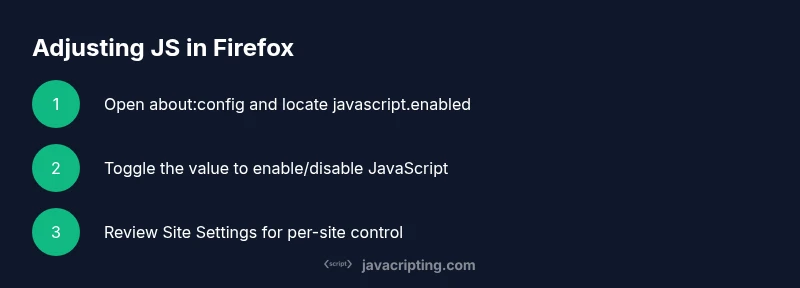
For advanced users, Firefox exposes a global switch in about:config called javascript.enabled. Access about:config by typing it into the address bar and confirming any warnings. Use the search bar to locate javascript.enabled, then toggle its value with a double-click. Remember that this change affects all sites and can break functionality on some pages; always test after changing.
Note: Editing about:config is powerful but risky; keep a backup of your current preferences before making changes.
Per-site permissions and site settings
Firefox also provides per-site controls through the Site Settings panel. Click the shield icon in the address bar when on a site to view permissions and blocking behavior for that specific site. If a site relies heavily on JavaScript, you can choose to allow or block certain features on a per-site basis without altering global JS behavior. This granular control helps you balance security with usability.
Practical tip: Use per-site permissions for sites you trust and leave the global settings conservative for unknown sites.
Practical workflows and examples
A practical workflow begins with a conservative Privacy & Security profile (Standard content blocking), then tests the experience on a few representative sites. If a site fails to function due to JS loading, revert to default and evaluate whether a per-site exception or a temporary global change is warranted. For debugging, use Developer Tools (Console, Network) to inspect JS-related errors and isolate the script causing trouble.
Example: If a site requires third-party scripts that are blocked by Content Blocking, temporarily create a Site Setting exception for that domain rather than disabling JS globally.
Troubleshooting, safety tips, and best practices
If you e experiencing breakage after changing JS settings, revert changes one at a time and re-test. Always back up preferences before making global edits in about:config. Prefer per-site adjustments to maintain broad compatibility, and reserve global toggles for scenarios like testing privacy configurations or debugging complex pages.
Warning: Disabling JavaScript entirely can render many sites unusable; only do so for testing or privacy experiments and revert when finished.
Authority sources
For deeper understanding, consult trusted sources:
- https://developer.mozilla.org/en-US/docs/Web/JavaScript
- https://www.mozilla.org/en-US/firefox/add-ons/working-with-l environment
- https://www.w3.org/standards/webdesign/
Tools & Materials
- Firefox browser (latest version)(Ensure you are on the current release for accurate settings paths.)
- Computer with internet access(Needed to access about:config and Firefox Settings.)
- Backup plan(Bookmark important pages and consider exporting prefs if available.)
- Optional: JavaScript debugging extension(Helpful for advanced troubleshooting.)
Steps
Estimated time: 12-20 minutes
- 1
Open about:config
In the Firefox address bar, type about:config and press Enter. Confirm the warning dialog to proceed. This is the gateway to advanced JavaScript preferences.
Tip: Only change other values after you confirm the change you want to make. - 2
Find javascript.enabled
Use the search field in about:config to locate javascript.enabled quickly. This is the global switch for JavaScript execution.
Tip: If you don t see the preference, your Firefox version may handle JS differently. - 3
Toggle the preference
Double-click javascript.enabled to toggle between true (JS allowed) and false (JS disabled). Test all sites afterward to gauge impact.
Tip: Start with a small, reversible change. - 4
Check Site Settings
Visit a site and click the shield icon to open Site Permissions. Review what is allowed or blocked per-site, focusing on JavaScript-related behavior.
Tip: Per-site tweaks can fix issues without global changes. - 5
Review Content Blocking
Open Settings > Privacy & Security > Content Blocking and pick Standard or Strict to influence how scripts load across sites.
Tip: Note that stricter modes can break functionality on some sites. - 6
Test and iterate
Browse several pages to confirm whether changes improve privacy or performance without breaking essential features.
Tip: Keep changes separated and documented. - 7
Reset if needed
If things go wrong, restore defaults in about:config or reset Content Blocking to Standard.
Tip: Back up your current config before reset. - 8
Consider a safer approach
For day-to-day use, prefer per-site allowances and official Firefox privacy settings over global JS toggles.
Tip: This minimizes risk and maintains compatibility.
Questions & Answers
Can I disable JavaScript in Firefox entirely?
Yes, via about:config by setting javascript.enabled to false; however, this may break many sites. Use it for testing or privacy experiments and revert when done.
Yes, you can disable JavaScript globally through about:config, but it will likely break many sites; proceed with caution.
Is there a per-site JavaScript control in Firefox?
Firefox does not have a universal per-site JS toggle in the main settings. Use Site Settings for per-site permissions and Content Blocking for site-wide behavior; about:config is global.
There isn t have a simple per-site switch in the main UI. Use Site Settings and Site Permissions; for broad changes, use about:config.
Will changing JavaScript settings affect privacy?
Disabling or limiting JavaScript can reduce tracking but may break functionality. Always test after changes and balance privacy with usability.
Yes, it can improve privacy but may break some features; test carefully.
How do I reset changes to default in Firefox?
Use Restore Defaults in about:config or reset Privacy & Security settings to their default state. This helps undo risky changes.
You can reset changes by restoring defaults in about:config or by resetting privacy settings.
What are the risks of editing about:config?
Misconfigurations can degrade browsing performance or security. Always back up before editing and make small, reversible changes.
Editing about:config can cause issues if you undo; proceed slowly and back up first.
Where can I find Content Blocking settings?
Content Blocking is located in Settings > Privacy & Security > Content Blocking. This is the primary place to adjust how Firefox handles trackers and scripts.
Content Blocking is in Privacy & Security; adjust it there to affect how scripts load.
Watch Video
What to Remember
- Know where JavaScript settings live in Firefox.
- Use about:config for global toggles with caution.
- Utilize per-site permissions to balance functionality and privacy.
- Content Blocking can indirectly affect JavaScript loading.
- Test changes methodically and revert if issues arise.