How to Make JavaScript Run on Page Load
Learn how to reliably run JavaScript when a page loads. Compare DOMContentLoaded, window.onload, and defer, with clear examples, best practices, and debugging tips for modern web apps.


By the end of this guide, you will know how to run JavaScript as soon as a page loads, using the appropriate event or attribute. You’ll compare DOMContentLoaded, window.onload, and the defer attribute, and apply a pattern that avoids race conditions and brittle timing. This quick answer highlights the safest and most reliable approach for typical websites.
Why Running JavaScript on Page Load Matters
how to make javascript run on page load is a common goal for developers who want reliable UI initialization. Running JavaScript as soon as a page loads helps ensure that interactive elements initialize correctly, improves perceived performance, and provides a consistent user experience across devices. When you ship scripts that run earlier or later than the DOM is ready, you risk UI glitches, flicker, or race conditions where code runs before the elements it expects exist. According to JavaScripting, mastering page load behavior is foundational for reliable UI initialization. In practice, you’ll decide whether your code needs the DOM, images, fonts, or other resources, and choose the right loading strategy to satisfy those needs. This foundation is not just about a single line of code; it shapes how you structure initialization, how you manage dependencies, and how you communicate with teammates about expectations. By understanding the timing of script execution, you can create components that initialize predictably, recover gracefully from errors, and adapt to both traditional multi-page sites and modern single-page applications. Below, we’ll explore concrete approaches, trade-offs, and examples you can apply today.
Approaches to Run on Page Load
There are several reliable approaches to run JavaScript on page load, and choosing the right one depends on what your code needs from the page. JavaScripting analysis shows that DOMContentLoaded is the most common choice for code that depends on the DOM, while window.onload fires after all assets—including images and fonts—finish loading. If your script does not touch the DOM or you want to avoid delaying rendering, you can place your code in a script tag with the defer attribute, or attach your handler to DOMContentLoaded but keep it lightweight. Each method has trade-offs in timing, performance, and compatibility, so understanding them helps you design initialization flows that feel fast and robust. In practice, many teams start with DOMContentLoaded, add defer where possible, and reserve window.onload for non-DOM tasks that truly must wait for every resource to finish. The following examples illustrate how these choices play out in real-world code and how to structure initialization so it’s easy to maintain and test. how to make javascript run on page load
Practical Examples: Simple vs Complex Apps
To illustrate, here are three representative patterns for running code on page load. The first waits for the DOM, the second waits for all assets, and the third shows how to structure scripts when you use defer. The goal is to keep initialization predictable and isolated so you can test and reuse it across pages.
// Example 1: DOMContentLoaded
document.addEventListener('DOMContentLoaded', function() {
  // Initialize UI that relies on the DOM
  initUI();
  console.log('DOM is ready');
});// Example 2: window onload (waits for all assets)
window.addEventListener('load', function() {
// Initialize features that require images/fonts to be loaded
initImages();
loadAnalytics();
});<!-- Example 3: Defer + DOMContentLoaded pattern -->
<script src="app.js" defer></script>// app.js
document.addEventListener('DOMContentLoaded', () => {
initUI();
});These patterns demonstrate how timing affects initialization and why you might choose one approach over another depending on dependencies and performance goals. When you combine defer with a DOM-ready handler, you get the fastest initial paint while preserving predictable DOM access. how to make javascript run on page load
Common Pitfalls and Debugging Techniques
Even when a pattern seems straightforward, real-world pages have quirks. If you load scripts dynamically, or if your HTML is updated after a user action, the ready state may shift and your code can run at the wrong moment. A common pitfall is assuming that onload fires after DOMContentLoaded; in practice, onload waits for all resources, which may delay initialization and create a visible lag. Another issue is global scope pollution; attaching to window can overwrite existing handlers. Use modular patterns, like IIFEs, and export your initializer as a named function.
Debugging tips:
- Use console logs with clear labels (e.g., DOM_READY, RESOURCES_LOADED) to trace timing.
- Test with network throttling to see how load and defer interact under slow connections.
- Check the browser’s Network and Performance tabs to verify the order of events.
According to JavaScripting, robust initialization relies on explicit timing decisions and lightweight handlers that don’t block rendering. Avoid heavy work in onload handlers and prefer asynchronous operations where possible.
Best Practices for Modern Web Apps
In modern web applications, the goal is to initialize quickly, correctly, and maintainably. Prefer DOMContentLoaded for code that manipulates the DOM and keep the initialization code modular. Use the defer attribute on script tags for scripts that don’t rely on DOM being immediately available, and reserve window.onload for non-DOM tasks that truly require all assets to finish. For larger apps, structure initialization as a dedicated module that exposes an init() function and returns a promise when ready; this makes composition with other modules and tests much easier. Avoid global variables; pass dependencies through function parameters and use feature detection to adapt to browser capabilities. Finally, document your assumptions about load order in comments or developer notes so teammates understand why a specific pattern was chosen for a given page. how to make javascript run on page load
Testing and Edge Cases Across Environments
A robust testing approach includes checking load timing across devices, browsers, and network conditions. Test with both DOM-based and resource-heavy pages to understand how your initialization behaves when assets load slowly or fail to load. Verify that dynamic content loaded after the initial HTML (e.g., content inserted by frameworks or AJAX) also triggers the appropriate initialization sequence. Test failure scenarios where scripts fail to load due to network errors or 404s and ensure there’s a graceful fallback. Consider accessibility implications; ensure that any UI changes triggered on load don’t disrupt users who rely on screen readers or keyboard navigation. Finally, automate these checks with lightweight tests that simulate user navigation, route changes, and partial page updates. JavaScripting analysis shows that systematic testing helps catch timing-related bugs before they reach production.
SPA and Advanced Scenarios
Single-page applications (SPAs) present a unique challenge: page content can change without a full page reload, so you must hook into route changes, virtual DOM updates, or framework lifecycle events to re-run initialization when needed. A common approach is to trigger your initializer after the router confirms a new view is mounted, or to listen for custom events that signal view readiness. If you rely on fetch or dynamic content, ensure your initialization runs after the content exists in the DOM. For code-splitting or lazy-loaded modules, expose a controlled startup sequence so modules initialize in a defined order. The JavaScript landscape continues to evolve with new APIs for scheduling work and coordinating between modules; adapt by keeping initialization idempotent, idempotent, and focused on a single concern. The JavaScripting team recommends using a consistent startup pattern across the app to reduce bugs and improve maintainability.
Tools & Materials
- Modern browser (Chrome/Edge/Safari/Firefox)(Supports addEventListener, DOMContentLoaded, defer, and module scripts)
- Code editor(VS Code, WebStorm, or similar for editing HTML/JS)
- Local server (optional but recommended)(Useful to test modules, fetch, and SPA routing)
- Sample HTML/JS files(Starter templates to experiment with load timing)
Steps
Estimated time: 15-25 minutes
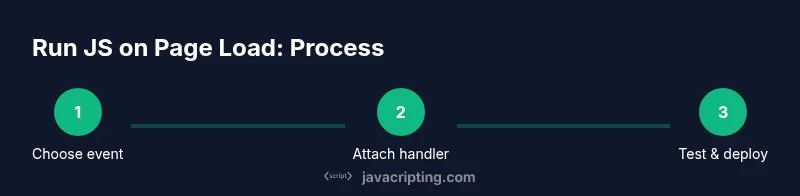
- 1
Choose the right load event
Identify whether your code needs DOM access, assets, or both. Decide between DOMContentLoaded, window.onload, or a deferred script, and plan a minimal, testable initializer.
Tip: Start with DOMContentLoaded for most DOM-dependent logic; keep work inside the handler to a small, testable scope. - 2
Create a reusable initializer
Encapsulate startup logic in a function like initApp() that can be called from multiple load strategies without duplicating code.
Tip: Make the initializer idempotent so it can be safely invoked multiple times without adverse effects. - 3
Attach the handler appropriately
If you rely on the DOM, attach to DOMContentLoaded. If you need all assets, use window.onload. For non-blocking behavior, consider defer.
Tip: Keep event handlers lightweight to avoid blocking UI rendering. - 4
Consider script loading attributes
Use defer for scripts that don’t require DOM readiness before parsing, and async for independent scripts that don’t touch the DOM immediately.
Tip: Avoid mixing defer and async on the same critical path unless you’ve clearly mapped dependencies. - 5
Test across scenarios
Test with slow networks, large images, and dynamic content to verify timing and correctness of initialization.
Tip: Use browser throttling features and console timing to observe event order. - 6
Refactor for maintainability
Document the chosen approach, extract reusable utilities, and ensure consistency across pages and SPAs.
Tip: Add comments that explain why a particular load strategy was chosen for a given page.
Questions & Answers
What is the difference between DOMContentLoaded and window.onload?
DOMContentLoaded fires when the HTML document has been completely loaded and parsed, without waiting for stylesheets or images. window.onload fires after all resources, including images and subframes, have finished loading. This timing difference affects when your initialization code can safely run.
DOMContentLoaded runs when the document is ready; window.onload waits for all resources, including images, to load.
Should I always use DOMContentLoaded?
Not always. If you need to work with loaded images or fonts, you may prefer window.onload. For most UI initialization that touches the DOM, DOMContentLoaded is the safest default.
Depends on what your code needs; DOMContentLoaded is the common default for DOM-dependent logic.
How do I run code on every page load in a SPA?
In SPAs, you should hook into the framework or router's lifecycle events to re-run initialization when the view changes, rather than relying on a full page load.
In SPAs, tie your startup to route changes or view mounting events.
Are there performance concerns with onload?
Yes. Onload waits for all assets, which can delay interaction readiness. Favor DOMContentLoaded for responsiveness, and defer heavy work when possible.
Onload can delay interactivity; prefer DOMContentLoaded for faster readiness.
What about older browsers?
Most older browsers support DOMContentLoaded and defer scripts, but always test and provide fallbacks for environments with limited features.
Test in older browsers and provide safe fallbacks.
Can I run code before the DOM is ready?
In general, avoid running code before the DOM is ready unless you create elements dynamically or load scripts before the DOM is constructed. Use a smaller, well-scoped initial script.
Running code before the DOM is rarely necessary and can cause issues.
Watch Video
What to Remember
- Choose the appropriate load event for reliable timing.
- Prefer DOMContentLoaded for DOM-ready logic.
- Avoid blocking the UI with heavy work during load.
- Use defer for scripts not dependent on DOM readiness.
- Test across browsers and SPA scenarios.