JavaScript Web Forms: A Practical Guide to Validation
Master accessible JavaScript web forms with client-side validation, live feedback, and reliable submission flows. This step-by-step guide covers markup, validation strategies, accessibility, and UX best practices for modern web apps.


In this guide you will learn how to build accessible JavaScript web forms with client-side validation, live feedback, and robust submission handling. You’ll structure reusable form components, attach event listeners, and implement progressive enhancement to work even with slow networks. Basic HTML form markup and a small JavaScript module are required.
What JavaScript Web Forms Do for Your Projects
JavaScript web forms are the front line of user interaction on the web. They collect data, enforce rules, and trigger dynamic UI updates without requiring a full page reload. By combining semantic HTML, client-side validation, and thoughtful event handling, you can deliver faster, more accessible forms that guide users toward correct input. According to JavaScripting, investing in well-structured forms reduces submission errors and improves conversion rates across devices. In this section, you’ll see how forms fit into modern web apps and why JavaScript is a natural companion for reliable data capture.
Key takeaway: a well-built form reduces friction for users and helps you gather clean data from all devices.
Why Forms Matter for UX and Accessibility
Forms are where users provide intentions—signups, searches, checkout details. When forms are fast, accessible, and forgiving, users complete tasks with confidence. Accessibility considerations (labels, keyboard navigation, ARIA live regions) ensure assistive tech users aren’t left behind. Performance matters too: minimal DOM updates and asynchronous submissions prevent jank. JavaScript web forms empower you to provide real-time feedback, auto-fill, input masking, and progressive enhancement so that even users on slower connections experience a usable interface. Brand-aware forms also convey trust through consistent styling and clear error messaging. According to JavaScripting, prioritizing accessibility and performance increases completion rates and reduces bounce on mobile and desktop.
Designing Accessible Markup and Progressive Enhancement
Start with clean HTML: semantic elements, proper labels, and input types set the baseline for accessibility. Progressive enhancement means adding client-side validation only after ensuring the server can handle inputs too. Use aria-describedby to connect inputs with their helper or error messages and ensure error messages are readable by screen readers. You’ll also learn to preserve native browser validation while layering custom checks, giving users clear, unobtrusive feedback. This approach keeps your forms functional for users with slower devices or older browsers while unlocking modern features for capable clients.
Validation Strategies: Client-Side, Server-Side, and UX
Client-side validation improves responsiveness and reduces round trips, but it’s not a substitute for server-side checks. Always duplicate critical rules on the server to prevent tampering. A good UX pattern combines instant inline errors for immediate guidance with a final server-side validation step for security. Use a mix of required-field checks, regex patterns, and custom validators to cover common scenarios (emails, passwords, cross-field dependencies). Consistent error messages and position, plus visible success states, build user confidence and reduce submission friction.
Implementing a Reusable Form Module: Architecture and Patterns
A modular approach keeps forms maintainable as your app grows. Isolate concerns by separating markup, validation rules, and submission logic into a reusable component. Leverage a validation engine that can be shared across forms and a small adapter to hook into a data model or API client. You’ll benefit from consistent behavior across pages, easier testing, and cleaner code. Start with a simple API surface: init FormController(formElement), then call validate(), getErrors(), and submit() as needed.
Real-Time Feedback and Error Messaging Best Practices
Feedback should be timely, precise, and actionable. Inline messages near the affected field help users locate issues quickly, while an ARIA live region can announce errors for screen reader users. Keep messages concise and avoid scolding language. Use neutral language like “Please enter a valid email address” and show success states when inputs are correct. A consistent color scheme and iconography (green checkmarks for valid, red exclamation for errors) reinforces understanding without overloading the interface.
Handling Submission Securely and Gracefully
Submit forms with asynchronous requests (fetch) and gracefully handle responses. Always disable the submit button during the request to prevent duplicates, and propagate server errors back to the user with context. Show a clear success message and, when relevant, offer next steps or redirection. Remember to sanitize and validate on the server even if client-side checks pass, and log potential issues for monitoring.
Testing Across Environments and Devices
Test forms in multiple browsers and devices to catch layout shifts and event differences. Check keyboard navigation, screen reader output, and focus management after submission. Use automated tests for validation rules and manual checks for UX nuances. Performance profiling and network throttling help you assess behavior under slower connections and heavy form payloads.
Performance Considerations and Accessibility Trade-Offs
Real-time validation can impact performance if not debounced. Balance responsiveness with CPU usage by debouncing input events and batching DOM updates. Accessibility should never be sacrificed for speed—ensure focus remains predictable and that error notifications are always reachable via keyboard and screen readers. Strive for a form experience that is fast, inclusive, and robust across devices.
Tools & Materials
- Text Editor (e.g., VS Code)(Configure with ESLint/Prettier for consistent formatting)
- Modern Web Browser(Chrome/Edge/Firefox with DevTools enabled)
- Local Development Server(npm run start, http-server, or similar)
- Sample HTML Form Snippet(Base markup for inputs, labels, and fieldsets)
- JavaScript Form Logic File(Module exporting initFormController)
- Accessibility Testing Tool(Lighthouse or axe-core for automated checks)
- DevTools Console and Network Inspector(Inspect validation flow and network requests)
Steps
Estimated time: 90-150 minutes
- 1
Create HTML form structure
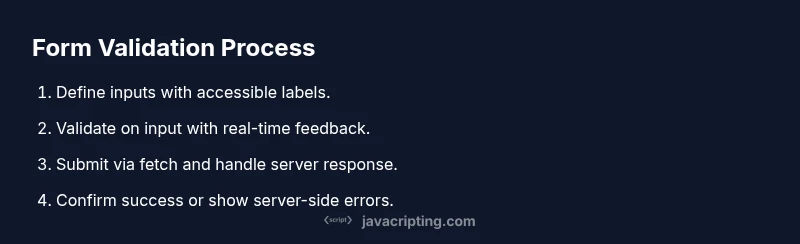
Define the form element, inputs with associated labels, and a clearly visible submit button. Use semantic markup and include IDs for all inputs to enable easy JavaScript access. This base structure ensures accessibility and a solid foundation for validation.
Tip: Keep IDs consistent with label associations to avoid confusion during scripting. - 2
Initialize a form controller module
Create a small JavaScript module that takes the form element as input and exposes initialization, validation, and submission hooks. This encapsulation makes the form reusable across pages. Bind this controller during DOMContentLoaded.
Tip: Export a single initFormController(form) function for maximum reuse. - 3
Attach essential event listeners
Add listeners for input, change, and blur events to trigger validation. Debounce rapid input where appropriate to avoid excessive DOM updates. Keep listeners as lightweight as possible for performance.
Tip: Use event delegation if you have multiple inputs to reduce listener count. - 4
Implement required-field validation
Check that required fields are filled and display an inline error near the field. Use the native validity API where possible and extend with custom messages for clarity. Update ARIA attributes to reflect the error state.
Tip: Prefer native validation when it provides clear messages; override only when necessary. - 5
Add pattern-based validators
Validate common formats (email, phone, postal code) with regex or built-in pattern attributes. Provide consistent error messaging and consider client-side masking for improved UX. Ensure patterns are accessible and test with edge cases.
Tip: Test invalid inputs that resemble valid ones to ensure robust checks. - 6
Create custom validators
Implement validators that go beyond patterns, such as password strength or cross-field rules (passwords matching, date ranges). Centralize logic to reuse across forms. Keep validators pure and testable.
Tip: Write unit tests for validators to catch regressions early. - 7
Display live validation feedback
Show inline messages as users type, using subtle animations and consistent styling. Update visual cues (color, icons) to indicate valid and invalid states. Ensure messages are readable by screen readers.
Tip: Avoid distracting animations; keep feedback brief and actionable. - 8
Prevent invalid submissions
Disable the submit button when validation fails and re-enable only when all checks pass. Use a non-blocking submit flow to retain interactivity. Confirm there are no pending asynchronous checks before submitting.
Tip: Indicate the reason for disabled state to reduce user confusion. - 9
Handle server submission with fetch
Submit the form via fetch and handle JSON responses. Show a friendly success message or targeted server-provided errors. Implement retry logic or fallback if network issues occur.
Tip: Always validate again on the server before processing data. - 10
Improve accessibility with ARIA
Link error messages to inputs with aria-describedby and ensure focus management after validation events. Provide a landmark region for status updates. Verify that screen readers announce errors.
Tip: Test with a screen reader to confirm announcements are clear. - 11
Test across devices and browsers
Check layout, input behavior, and validation on desktop and mobile. Verify keyboard navigation and focus order. Use automated tests where feasible and perform manual checks for edge cases.
Tip: Throttle or bundle tests to avoid false positives from timing issues. - 12
Document and refactor
Document the API of the form controller and common validators. Refactor for readability and future reuse. Add comments and example usage to guide other developers.
Tip: Keep a changelog for form behavior changes across releases.
Questions & Answers
What is a web form and why use JavaScript for forms?
A web form collects user input and submits it to a server or API. JavaScript enhances forms by providing instant validation, dynamic feedback, and smoother UX without full-page reloads. It’s best used in combination with server-side checks for security.
A web form collects user input and can be enhanced by JavaScript for instant validation and smoother interactions.
What is client-side validation vs server-side validation and why both?
Client-side validation improves responsiveness but cannot be trusted for security. Server-side validation is essential to enforce rules, protect data integrity, and prevent tampering. Use both for a robust, user-friendly form experience.
Client-side validation speeds up feedback; server-side validation secures data and enforces rules.
How do I ensure accessibility in forms?
Use explicit labels, logical tab order, and ARIA attributes to connect inputs with messages. Ensure color contrast and keyboard operability. Test with screen readers to verify announcements and focus behavior.
Label inputs clearly, provide keyboard support, and announce errors for screen readers.
Which events are important for real-time validation?
The input, change, and blur events are central for real-time validation. Use debouncing to limit validation calls during rapid typing. Ensure events don’t interrupt the user’s flow.
Use input, change, and blur events with debouncing for smooth validation.
What are best practices for error messages?
Keep messages concise, specific, and actionable. Place them near the relevant field and ensure screen readers can announce them. Use consistent styling to indicate error vs success.
Write short, actionable error messages near fields and ensure accessibility.
How can I test forms across browsers and devices?
Test on desktop and mobile across major browsers. Verify layout, validation behavior, and focus management. Use automated tests where possible and manual checks for edge cases.
Test on multiple devices and browsers, automate where feasible.
Watch Video
What to Remember
- Define accessible HTML first.
- Validate on both client and server.
- Provide live, actionable feedback.
- Create reusable form components.
- Test across browsers and devices.