How to call a JavaScript function when a button is clicked
Learn how to call a JavaScript function when a button is clicked using inline handlers and addEventListener. This step-by-step guide covers setup, passing arguments, event objects, accessibility, debugging, and best practices for robust, maintainable code.


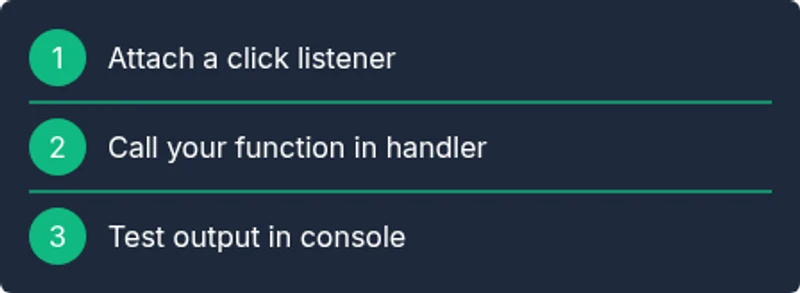
To call a JavaScript function when a button is clicked, attach an event listener to the button and call the function inside the handler. Use either the inline onclick attribute for simple cases or the addEventListener method for modern, scalable code. This guide covers both approaches, shows practical examples, and explains accessibility considerations and common pitfalls.
How to call javascript function when button is clicked: Understanding Button Events
A button in the DOM is an interactive element that can emit events when users interact with it. The most common event is 'click', which you can respond to by running a JavaScript function. According to JavaScripting, button-driven interactions are central to modern front-end development, and mastering this pattern is foundational for accessible, responsive interfaces. The click event travels from the button up through the DOM, and your handler receives an event object with useful details like the event type and target element. Understanding this flow helps you write robust handlers that work across browsers and assistive technologies.
-No further text-
Inline onclick vs. addEventListener: Pros and Cons
Inline handlers (onclick attributes) are quick for tiny demos but tend to become unmanageable in larger apps. They couple markup to behavior, which hurts maintainability and testing. addEventListener is the preferred pattern in modern development because it keeps HTML clean, enables multiple listeners, and works well with dynamically created elements. It also aligns with progressive enhancement and accessibility goals by centralizing event management and allowing deliberate focus handling and ARIA considerations.
Basic setup: HTML and a simple handler
<button id="helloBtn">Click me</button>
<script>
  function greet() {
    alert('Hello, world!');
  }
  // Inline approach would be: <button onclick="greet()">Click me</button>
</script>
The simplest approach demonstrates the core idea: an element that users interact with, a function you want to run, and a mechanism to connect them. This block will set the stage for more robust patterns like addEventListener.
Using addEventListener for clean, scalable code
<button id="sayHiBtn">Say Hi</button>
<script>
  function sayHi(name){
    console.log('Hi, ' + (name ?? 'there') + '!');
  }
  const btn = document.getElementById('sayHiBtn');
  btn.addEventListener('click', () => sayHi('Developer'));
</script>
Using addEventListener keeps your HTML free of JS logic, makes it easier to remove listeners when components unmount, and supports adding multiple listeners for the same event type. It also works with dynamically created elements via delegation (see later sections).
Passing arguments to the click handler
<button id="greetBtn" data-name="FrontendFan">Greet</button>
<script>
  const btn = document.getElementById('greetBtn');
  btn.addEventListener('click', function(event){
    const name = event.currentTarget.dataset.name || 'Friend';
    greet(name);
  });
  function greet(n){ console.log('Hello, ' + n + '!'); }
</script>
Data attributes on the button (data-name) provide a lightweight way to pass information to the handler without hard-coding values in the function. This pattern scales nicely when the same handler services multiple controls.
Working with the Event object and preventing defaults
<a id="download" href="/resume.pdf">Download resume</a>
<script>
  document.getElementById('download').addEventListener('click', function(e){
    e.preventDefault(); // stop navigation for demonstration
    console.log('Download prevented for demo.');
  });
</script>
The event object (the parameter you receive in the handler) contains details like type, target, and currentTarget. Use preventDefault() to stop the browser’s default action when appropriate (useful for links that should trigger an app flow instead of navigating). This technique helps you control behavior precisely and maintain accessibility when altering native actions.
Accessibility and keyboard activation
Buttons are inherently focusable and activate with Space/Enter keys, which is essential for accessibility. Always use a native <button> element or role="button" with proper keyboard handling. If you manipulate focus programmatically, ensure you don’t disrupt a user’s navigation flow. Provide visible focus styles and clear, concise labels so screen readers can announce the action. In practice, prefer semantic HTML and avoid repurposing non-button elements as interactive unless you implement full keyboard and ARIA support.
Debugging common issues and patterns
Common issues include forgetting to attach the listener after the element is added to the DOM, using an incorrect selector, or accidentally removing a listener. Console logs and breakpoints help you verify that the event fires and that the correct function runs. Verify that your handler is defined in the right scope and that the element has the expected id or class. If you’re dynamically rendering, attach listeners after rendering or use event delegation on a parent container.
Advanced patterns: delegation, once, and cleanup
Event delegation attaches a single listener to a parent element to handle events from all its descendants. This approach is efficient when you have many buttons or dynamically created buttons. The addEventListener options include { once: true }, which automatically removes the listener after the first invocation. Cleanup is important in frameworks with component lifecycles—remove listeners when a component unmounts to prevent memory leaks.
Best practices and quick reference snippets
For production code, prefer addEventListener, avoid inline handlers in large apps, and separate concerns by keeping HTML markup clean and JS logic in scripts. Reuse handler functions, use data attributes for parameters, and test across browsers for compatibility. Below are quick, copy-paste-ready references you can adapt to your project:
- Basic click listener: element.addEventListener('click', handleClick);
- Passing data: element.dataset.foo or function handleClick(e, data) { ... }
- Delegation: parent.addEventListener('click', (e) => { if (e.target.matches('.child')) { ... } });
Tools & Materials
- Text editor(VS Code or preferred editor)
- Modern web browser(Chrome/Firefox with DevTools)
- Sample HTML file(Include a button element to test the handler)
- Sample JavaScript file(Separate logic from HTML when possible)
- Live server(Optional for quick local testing)
- Accessibility checker(Lighthouse or axe for audits)
Steps
Estimated time: 20-40 minutes
- 1
Prepare HTML button
Create a button element with a unique identifier so you can target it from JavaScript. This ensures reliable selection and avoids naming conflicts in your DOM. Also consider a descriptive label for accessibility.
Tip: Use a clear, unique id like 'actionBtn'. - 2
Define the function to run
Write a plain JavaScript function that performs the action you want when the button is clicked. Keep it small and focused to improve testability.
Tip: Keep function pure if possible; avoid side effects in the handler. - 3
Attach an event listener
Select the button in the DOM and attach a 'click' listener that calls your function. This decouples your markup from behavior and supports dynamic content.
Tip: Prefer addEventListener over inline handlers for scalability. - 4
Test the click interaction
Click the button in the browser and verify the expected output (alert, console log, etc.). Confirm there are no errors in the console.
Tip: Check for typos in the selector and function name. - 5
Pass arguments if needed
If your function needs data, pass it via the listener using data attributes or closures. Avoid global state when possible.
Tip: Data attributes provide a lightweight parameter mechanism. - 6
Handle the event object
Accept the event object in your handler to access details like target and preventDefault when appropriate.
Tip: Use event.currentTarget to refer to the element with the listener. - 7
Ensure accessibility
Verify the button remains focusable and keyboard accessible. Provide visible focus styles and proper labeling.
Tip: Let native button semantics handle keyboard activation. - 8
Clean up listeners if needed
If you are in a framework or dynamic component, remove listeners when not needed to prevent leaks.
Tip: Use a cleanup function or lifecycle method to unregister. - 9
Use delegation for many buttons
If you have many buttons, attach a single listener to a common parent and filter events. This improves performance.
Tip: Match by class or data-attribute in the handler. - 10
Document and test
Document the expected behavior and write small tests or manual tests to ensure it works across scenarios.
Tip: Include edge cases like disabled buttons or dynamic content.
Questions & Answers
What is the difference between inline onclick and addEventListener?
Inline onclick ties markup to behavior and is simpler for tiny demos, but it scales poorly and is harder to test. addEventListener separates concerns, allows multiple listeners, and is more flexible for dynamic content.
Inline handlers mix markup and logic, while addEventListener keeps behavior in JavaScript for easier maintenance and testing.
How can I pass parameters to the function on click?
Use data attributes on the button or closures inside the handler to pass parameters. Example: btn.addEventListener('click', () => greet(name)); or read name from btn.dataset.name.
Pass parameters with data attributes or closures so the handler stays clean and reusable.
Can a single handler manage multiple buttons?
Yes. Use event delegation or a shared class and inspect event.target to determine which button was clicked, then perform the appropriate action.
You can handle many buttons with one listener by checking which element fired the event.
Why doesn’t my click handler fire?
Common causes include incorrect selector, the element not in the DOM when listeners attach, or the handler being removed unexpectedly. Check console for errors and verify selector timing.
If the handler isn’t firing, double-check the element selection and ensure you attach listeners after the element exists in the DOM.
How do I remove a click listener?
Keep a reference to the handler function, then call element.removeEventListener('click', handler). This is important for cleanup in frameworks and dynamic UIs.
Store the function in a variable and unregister it when needed.
Is it accessible to trigger on keyboard?
Yes, using a proper <button> element ensures default keyboard support. Avoid turning non-buttons into clickable elements unless you implement full keyboard handling and ARIA roles.
Use semantic buttons to preserve built-in keyboard support and accessibility.
Watch Video
What to Remember
- Attach a listener to the button for reliable clicks
- Choose addEventListener over inline handlers for maintainability
- Pass data to handlers with data-attributes or closures
- Leverage the Event object to access details and control defaults
- Ensure accessibility and clean up listeners when components unmount