How to Create a File in JavaScript: Node and Browser
Learn step-by-step how to create and save files with JavaScript in Node.js and browser environments, with practical code examples, encoding tips, and best practices.


By the end of this guide you will know how to create a file with JavaScript in both Node.js and browser environments. You’ll see concise code examples, decide when to use the filesystem API or Blob-based downloads, and understand common pitfalls. This steps-based approach helps you write files reliably while handling encoding and permissions.
Why you might need to create a file in JavaScript
According to JavaScripting, many modern apps need to generate and persist data from within JavaScript. This guide explains how to create a file in javascript for both Node.js and browser environments, so you can log activity, export results, or prepare downloadable content. Whether you are building a server-side tool or a front-end workflow, understanding file creation helps you automate tasks and share data reliably. You will learn when to write to disk with Node.js and when to offer a file as a download from the browser, with practical code examples and cautionary notes about encoding and permissions.
Environments: Node.js vs Browser
JavaScript runs in different contexts, and so does file creation. In Node.js, the filesystem is accessible and designed for server-side tasks. In browsers, the environment is sandboxed, so you generate data in memory and offer it to users as downloads rather than writing to disk. This section helps you choose the right approach, sets expectations for APIs, and previews the common code patterns you’ll see in the examples.
Node.js basics: the fs module
Node.js uses the fs module to interact with the filesystem. You can read, write, append, and monitor files using both callback-based and promise-based APIs. The built-in path module helps normalize file paths, so your code works across operating systems. Encoding matters: specify utf8 for text to avoid character misinterpretation and ensure cross-platform compatibility.
Writing files with fs.writeFile vs fs.writeFileSync
fs.writeFile is asynchronous and non-blocking, which is preferable for I/O operations in a server. fs.writeFileSync is synchronous and easier to reason about, but it blocks the event loop, which can degrade performance under load. For most web services, prefer writeFile with proper error handling and retries when necessary.
Writing text vs binary data
Text is commonly stored in utf8, but you may need binary data for images, PDFs, or compiled assets. In Node.js, you can pass a Buffer for binary content, or supply a string with encoding. In the browser, you typically create a Blob with a specific mime type and then trigger a download or create an object URL to reference it.
Handling directories and permissions in Node
Writing to a file path can fail if the directory doesn’t exist or you lack write permissions. Create directories as needed (using fs.mkdir with { recursive: true }) and check permissions prior to writing. Handling errors gracefully—such as catching ENOENT or EACCES—keeps your app robust in production environments.
Browser approach: Blob, File, and download
Browsers don’t let JavaScript write directly to disk. Instead, you can assemble content in memory, create a Blob, and offer a downloadable link with a URL created from URL.createObjectURL(blob). You can also use the File system access API in some environments, but it’s not universally supported. The result is a smooth, zero-install download experience for end users.
Generating and downloading files on the client
To initiate a download in the browser, create a Blob from your content, generate a temporary URL, and trigger a click on a hidden anchor tag. You can also construct CSV, JSON, or text content and allow users to save it locally. Always consider user experience: set a suggested filename and ensure content-type headers or blob mime types reflect the data.
Encoding, character sets, and UTF-8 considerations
Always decide on an encoding—utf8 is the most common for text data. When writing binary data, avoid coincidental encoding conversions. In the browser, ensure your generated strings are properly encoded before turning them into a Blob. In Node, specify the encoding when you pass a string to fs.writeFile or convert data to a Buffer with the correct encoding.
Practical example: create a log file in Node
This example shows how to create a log file named app.log and write an initial line. It demonstrates async writing with proper error handling and a small helper for appending lines. You’ll see how to format timestamps and ensure the file is created if it does not exist.
Practical example: generate and download a CSV in the browser
Create a small CSV in memory and make it downloadable without a server round-trip. The approach uses a string with comma-separated values, converts it into a Blob with text/csv MIME type, and attaches a temporary download link to initiate the save. This pattern is common for client-side data export features.
Testing, debugging, and common pitfalls
Test in multiple environments to catch browser-specific behavior and filesystem quirks in Node. Common issues include encoding mismatches, missing directories, and permissions errors. Use try/catch blocks, inspect error codes, and log meaningful messages to diagnose failures quickly.
Tools & Materials
- Node.js(Needed for server-side filesystem access via fs module.)
- Code Editor(Examples and snippets for quick iteration (e.g., VSCode).)
- Browser with JavaScript runtime(Used for Blob/download approach and client-side tests.)
- Text content to write(Sample data like logs, JSON, or CSV to persist.)
- Optional: NPM or Yarn(Helpful for managing project dependencies.)
Steps
Estimated time: 60-90 minutes
- 1
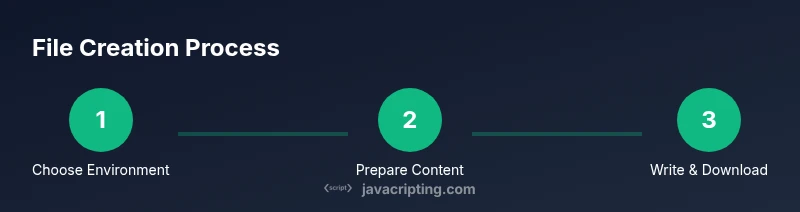
Decide the target environment
Determine whether you are writing on the server with Node.js or triggering a client download in the browser. The environment dictates which APIs you’ll use and how the file will be saved or delivered.
Tip: Choose Node.js when you need persistent disk files; choose browser for user downloads. - 2
Plan the file name and content
Create a deterministic file name and define the content format (text, JSON, CSV, or binary). Align encoding with the content type to avoid corruption.
Tip: Use a timestamp in the filename to prevent collisions. - 3
Set up Node.js fs API (if using Node)
Import the fs module and, if needed, the path module. Decide between asynchronous or synchronous methods based on your app’s I/O profile.
Tip: Prefer asynchronous APIs in servers to keep the event loop responsive. - 4
Write content to a file (Node)
Use fs.writeFile or fs.promises.writeFile to save content. Handle errors and ensure the directory exists before writing.
Tip: Always specify encoding when writing text to avoid character issues. - 5
Prepare browser-side content (if using browser)
Assemble the data in memory, choose a Blob type like text/plain or text/csv, and decide the MIME type that matches your data.
Tip: Keep data transformations pure to simplify debugging. - 6
Trigger a download in the browser
Create an object URL from the Blob, attach it to an anchor tag with a download attribute, and programmatically click it.
Tip: Revoke the object URL after the download completes to free memory. - 7
Handle errors gracefully
Wrap I/O operations in try/catch or catch callbacks, log meaningful messages, and provide user-friendly feedback.
Tip: Validate inputs to avoid writing invalid or harmful content. - 8
Test across environments
Run Node tests locally and verify browser downloads on multiple browsers to catch environment-specific quirks.
Tip: Use small, repeatable test cases before integrating into larger apps. - 9
Validate the saved content
Read back the file (Node) or parse the downloaded blob (browser) to ensure data integrity.
Tip: Check encoding and line breaks for consistency. - 10
Clean up and document
Comment the approach and document edge cases so future developers can extend or maintain the code easily.
Tip: Include examples for both Node and browser usage in your docs.
Questions & Answers
Can I create files directly in the browser with JavaScript?
Not directly to disk. You can generate in-memory content, then offer a download via Blob or File and a trigger link. Some environments may allow limited file access via the File System Access API, but support varies by browser.
In the browser, you can't write files directly to disk everywhere, but you can create downloads using Blob or the File System Access API where supported.
What is the difference between fs.writeFile and writeFileSync in Node.js?
writeFile writes asynchronously and won't block the event loop, ideal for servers. writeFileSync blocks the thread, useful for simple scripts but not for high-concurrency servers.
Asynchronous writing is better for servers; synchronous blocks the thread and can hurt performance.
How do I specify encoding when writing a file in Node?
Pass an encoding option such as 'utf8' when writing text. For binary data, pass a Buffer and omit a text encoding.
Specify utf8 for text writes; for binary, use a Buffer without a text encoding.
How can I trigger a download of a generated CSV in the browser?
Create a CSV string, make a Blob with text/csv MIME type, generate a URL with URL.createObjectURL, and click a hidden link with a download attribute.
Turn your CSV string into a blob and simulate a click on a link to download.
What are common pitfalls when creating files in JavaScript?
Encoding mismatches, missing directories in Node, and sandbox limitations in browsers are common. Validate inputs and handle errors gracefully.
Watch out for encoding issues, missing directories, and browser sandbox limits.
Watch Video
What to Remember
- Decide environment first: Node vs browser.
- Use the right API for the task (fs vs Blob/download).
- Encode text properly to avoid corruption.
- Handle errors and permissions explicitly.
- Test across environments for consistent results.