Making a JavaScript Game: A Practical Guide
Learn how to make a JavaScript game from scratch with a practical, step-by-step approach. This guide covers game loops, canvas rendering, input handling, debugging, and browser performance for smooth, playable results.


In this guide you will learn how to make a javascript game from scratch using plain JavaScript and the HTML canvas. You’ll set up a simple game loop, render sprites, handle user input, and add basic collision detection. We'll cover essential concepts, recommended workflows, and practical tips to get your game running in a browser.
What you will build and why
This article walks you through making a javascript game from scratch using vanilla JavaScript and the HTML5 canvas. The project focuses on a small, playable core that you can expand later, making the journey from beginner to capable game developer approachable. The goal is to deliver a concrete, shareable result you can build on—no heavy engines needed. As you read, you’ll see the keyword making a javascript game appear naturally as you follow practical steps and examples. According to JavaScripting, starting with a minimal, playable core reduces frustration and accelerates learning. The JavaScripting team found that learners who finish a complete loop with player input, simple rendering, and basic scoring gain confidence to tackle more complex mechanics. By keeping the scope tight and the code modular, you’ll gain transferable skills for future projects and feel empowered to iterate quickly in the browser.
Core game loop concepts
A game loop is the heartbeat of any interactive application. In browser games, you’ll typically use requestAnimationFrame to drive your update-draw cycle. The loop reads input, updates the world state, then renders the scene. You’ll often separate game logic (physics, collisions, AI) from rendering to keep code clean and testable. Key ideas include delta timing (dt) to ensure consistent movement across devices, a fixed update step for physics when needed, and interpolation for smooth visuals. By understanding these concepts, you’ll avoid common pitfalls like jerky motion or inconsistent game speed. This chapter also introduces common patterns such as a scene manager, a player object, and a simple enemy or obstacle system that you can extend as your project grows.
Game architecture you can reuse
Successful JavaScript games live in modular, maintainable structures. Essentials include an input module to capture keyboard and touch events, a world/state module to manage objects and physics, a rendering module to draw on the canvas, and a resource manager for assets like sprites and sounds. A tiny scene graph or state machine helps you toggle between menus, levels, and game over screens without chaos. Keeping concerns separated makes it easy to swap out graphics, modify controls, or try a different game idea without rewriting core logic. This section provides a starter architecture you can adapt for your own projects, including naming conventions and folder layouts that scale with your ambitions.
Example: Building a simple canvas-based game
Here’s a minimal, runnable setup that creates a canvas, starts a game loop, and draws a moving square. This example demonstrates the essential components: canvas initialization, an update loop, and rendering. You can paste this into an index.html and main.js to see a working prototype. Remember to expand from this core with your own sprites, input, and scoring logic as you progress.
<!-- index.html -->
<!doctype html>
<html>
  <head>
    <meta charset="utf-8" />
    <title>Canvas Game</title>
  </head>
  <body>
    <canvas id="gameCanvas" width="800" height="600"></canvas>
    <script src="main.js"></script>
  </body>
</html>// main.js
const canvas = document.getElementById('gameCanvas');
const ctx = canvas.getContext('2d');
let last = performance.now();
let x = 100, y = 100, speed = 120; // px/s
const keys = {};
window.addEventListener('keydown', (e) => { keys[e.key] = true; });
window.addEventListener('keyup', (e) => { keys[e.key] = false; });
function loop(now) {
const dt = (now - last) / 1000;
last = now;
// update
if (keys['ArrowRight'] || keys['d']) x += speed * dt;
if (keys['ArrowLeft'] || keys['a']) x -= speed * dt;
if (keys['ArrowDown'] || keys['s']) y += speed * dt;
if (keys['ArrowUp'] || keys['w']) y -= speed * dt;
// wrap
if (x > canvas.width) x = 0; if (x < 0) x = canvas.width;
if (y > canvas.height) y = 0; if (y < 0) y = canvas.height;
// render
ctx.clearRect(0, 0, canvas.width, canvas.height);
ctx.fillStyle = '#34d399';
ctx.fillRect(x - 15, y - 15, 30, 30);
requestAnimationFrame(loop);
}
requestAnimationFrame(loop);This example shows how to set up a canvas-based game loop, input handling, and simple rendering. Expand the logic gradually by adding more objects, collisions, and scoring, then refactor into modules for reusability.
Input handling and basic physics
Handling input is foundational for any interactive game. Start with simple keyboard controls, mapping keys to movement or actions. As you add physics, consider gravity, friction, and collision response to create a believable world. For beginners, a straightforward physics loop—update positions based on velocity, then apply constraints—keeps behavior predictable. You’ll also learn to normalize input across devices by handling both keyboard and touch or mouse input. This helps ensure your game plays well on desktops and mobile devices alike. Remember, clean input handling reduces confusion and makes gameplay feel responsive and fair.
Debugging and testing your game
Debugging is where many games either shine or stall. Use browser devtools to inspect the rendering canvas, log crucial state changes, and profile frame rates. Add lightweight assertions during development to catch impossible states early. Create small, isolated test cases for movement, collisions, and scoring rules. Use console outputs strategically rather than littering code with prints. Regularly test on multiple devices and screen sizes to catch responsiveness issues and performance regressions early.
Performance tips for browser-based games
Performance matters for a smooth player experience. Minimize allocations in the hot path, avoid creating new objects in tight loops, and reuse arrays where possible. Use image atlases to reduce texture switches, and consider offscreen canvases for complex draw steps. When supporting older devices, feature-detect capabilities instead of assuming WebGL, and fall back gracefully to 2D canvas. Finally, benchmark on representative devices to identify bottlenecks tied to CPU, GPU, or memory usage.
Next steps for continued learning
After building a basic playable prototype, plan a roadmap for learning more advanced topics like animation states, modular game engines, and audio integration. Explore online resources, practice with small projects, and gradually introduce more complex mechanics such as enemy AI, power-ups, and level design. Join communities to share progress, get feedback, and stay motivated. The journey from a simple canvas game to a polished experience is about consistent practice and incremental improvements.
Publishing and sharing your game
When you’re ready to share your work, publish your project on a static hosting platform like GitHub Pages or Netlify. Minify your JavaScript, optimize assets, and provide clear instructions for running the game locally. Add a public README with build steps, a short gameplay overview, and licensing information. Consider a simple landing page to showcase the core loop and a screenshot gallery. Sharing early, even as a rough prototype, invites feedback that helps you iterate faster.
Tools & Materials
- Text editor (e.g., Visual Studio Code)(Create a project folder with index.html and main.js)
- Web browser (Chrome/Firefox/Edge)(Test rendering, input, and performance)
- HTML5 Canvas element(The core rendering surface for 2D games)
- Local server (optional)(Helpful for testing fetch/assets and live reload)
- Graphics assets or sprites (optional)(Start with simple shapes or public-domain sprites)
Steps
Estimated time: 2-4 hours
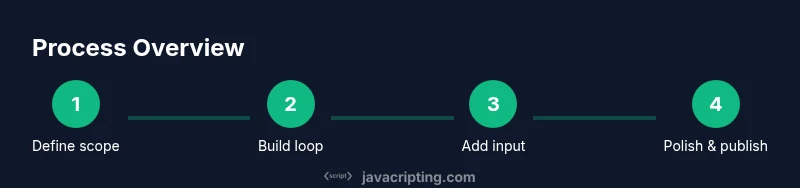
- 1
Define project scope and setup
Create a new project folder and an index.html with a canvas element. Initialize a main.js file and a simple script tag to load it. Outline a tiny core: a player rectangle, movement controls, and a basic score. This step sets the foundation for the full game loop and keeps scope manageable.
Tip: Keep the first playable loop extremely small; it’s easier to reason about when you can see movement and rendering. - 2
Create the canvas and game loop
Get the canvas context and build a loop using requestAnimationFrame. Compute delta time (dt) for consistent movement across devices, then clear and redraw each frame. This creates the heartbeat of your game.
Tip: Store the last timestamp to compute dt; beware of large dt if the tab loses focus. - 3
Add player input
Attach keyboard listeners for arrow keys or WASD. Update the player position based on input in the loop. Keep input handling separate from rendering for clean, testable code.
Tip: Normalize input to a maximum speed; clamp values to avoid runaway motion. - 4
Implement basic game objects
Create a few simple objects with positions and velocities. Update their state and render them. Start with a single movable square and expand with additional elements like obstacles or an enemy.
Tip: Define a simple object schema (x, y, vx, vy, size) to keep growth predictable. - 5
Add simple collision and scoring
Add collision checks between objects and implement a scoring rule when collisions occur or goals are met. Keep the logic modular so you can swap in different rules later without touching rendering.
Tip: Use axis-aligned bounding box (AABB) collisions for a straightforward start. - 6
Debug, test, and optimize
Use browser devtools to diagnose performance, inspect frames per second, and verify input timing. Refactor hot-path code and reduce allocations in the update loop.
Tip: Profile with the Performance tab and set up small, repeatable test cases. - 7
Refine visuals and UX
Improve rendering with simple sprites or shapes, add a score display, and implement a basic game-over screen. Consider keyboard accessibility and responsive canvas sizing.
Tip: Canvas scale and CSS size can affect sharpness; use devicePixelRatio for crisp rendering. - 8
Publish and iterate
Host your game on a static site, provide clear instructions, and invite feedback. Use feedback to guide the next features or levels you’ll implement.
Tip: Include a quick-start guide and a changelog to help others reproduce and review your game.
Questions & Answers
What is the best starting point for a JavaScript game?
Begin with a tiny core: a movable player in a canvas, a simple update-draw loop, and basic input. This keeps the project approachable while delivering a playable result quickly.
Start with a tiny core: a movable player in a canvas and a simple loop to keep things manageable.
Canvas vs WebGL: which should you use?
For beginners, canvas 2D is the simplest starting point. WebGL offers advanced graphics but adds complexity. Switch to WebGL later if performance becomes a concern or you want richer visuals.
Begin with canvas 2D; move to WebGL later if you need more complex graphics.
Do I need frameworks to make a JavaScript game?
No. You can build a complete game with vanilla JavaScript and the canvas API. Frameworks can help for larger projects, but they’re not required for a solid first game.
You can start with vanilla JS; frameworks can help later, but they’re not required.
How do I handle keyboard and touch input?
Use keydown/keyup listeners for keyboard input and touch or mouse events for mobile. Normalize inputs so movement feels consistent across devices.
Listen for both keyboard and touch events, then normalize inputs for consistency.
How should I test my game across browsers?
Test in major browsers (Chrome, Firefox, Edge) and check responsive layouts. Use feature detection and polyfills if you need to support older browsers.
Test across major browsers and use feature detection to stay compatible.
What are common mistakes beginners make?
Overcomplicating early logic, failing to modularize code, ignoring performance, and not separating game logic from rendering. Start simple and scale gradually.
Common mistakes include overbuilding early and not modularizing code. Start simple.
Watch Video
What to Remember
- Define a clear, minimal playable core.
- Separate game logic from rendering for maintainability.
- Iterate with small, testable features and frequent feedback.
- Test across browsers and devices for consistency.
- Publish early to invite constructive feedback and growth.