How to Enable JavaScript in Chrome on Android: Step-by-Step
A practical guide to enable JavaScript in Chrome on Android, with clear steps, testing tips, and security best practices for safer mobile browsing.


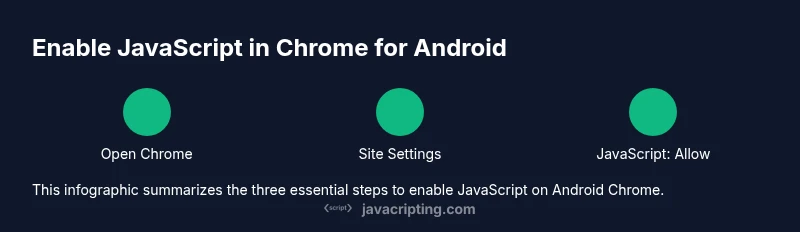
In this guide you will learn how to enable JavaScript in Chrome on Android. You’ll review why JavaScript matters for modern websites, locate the correct Chrome settings, and apply the steps safely. This quick answer gives you the essentials: open Chrome, access Site settings, and toggle JavaScript to Allow. Then verify by reloading a test page.
Why enabling JavaScript matters on Android with Chrome
JavaScript is the backbone of modern websites, powering interactive menus, maps, forms, and dynamic content. According to JavaScripting, enabling JavaScript in Chrome on Android isn’t just a convenience; it’s often essential to render pages as intended and to participate in online services like sign-in flows and real-time updates. Without JS, many sites degrade into text-only layouts, broken sliders, or missing modal dialogs, making it hard to accomplish everyday tasks on mobile. That said, enabling JavaScript can increase exposure to certain risks, particularly from malicious scripts or poorly secured sites. The goal is to strike a balance: keep the feature enabled for trusted sites, while using Chrome’s built-in controls to manage permissions and reduce exposure. In this section we cover the role of JS, how Chrome handles it on Android, and why thoughtful configuration matters for usability and security.
Quick check: Is JavaScript already enabled?
One quick way to assess your current status is to visit a site that relies on JavaScript and observe whether interactive elements work. If menus, drop-downs, modal dialogs, and embedded widgets respond smoothly, JavaScript is likely enabled. If pages feel static or features don’t load, you may need to adjust settings. Remember that some websites degrade gracefully when JS is disabled, but most modern sites won’t offer full functionality. If you’re unsure, test with two or three popular sites you visit regularly. As you test, keep an eye out for console-like cues (in-browser hints or error messages) that indicate blocked scripts. Regular checks help ensure you’re not surprised by a broken page when you need a feature the most.
Understanding the settings path in Chrome on Android
Chrome on Android exposes JavaScript control under Site settings, with a global toggle that affects all sites. The exact labels may vary slightly by version, but the typical path is: open Chrome’s menu (the three dots) > Settings > Site settings > JavaScript. Some builds present JavaScript directly within a broader Content or Permissions section. If you don’t see a global switch, look for a per-site permissions area where you can allow or block JavaScript for individual domains. Knowing the layout helps you move quickly when you need to adjust permissions for a new site or re-evaluate older favorites.
Step-by-step to enable JavaScript (global setting)
This section explains the recommended flow to enable JavaScript in Chrome on Android for most users. You’ll find the exact path to the global setting and the typical toggle state. If you notice a per-site list, remember that global on/off often governs those per-site choices as well. After you complete these steps, you should reload pages to confirm that interactive elements load correctly and that pages render as intended. If you rely on certain sites that use advanced features, keeping JavaScript enabled with sensible site-specific permissions is the best approach.
Testing and validating your setup
After enabling JavaScript, verify the effect by visiting a few JS-heavy pages such as maps, forms, or social widgets. If the page behaves as expected—animations run, menus respond, and dynamic elements load—your change worked. For thorough testing, clear the page cache and reload, then try unloading the page and reloading a second time to ensure consistency. If you still encounter issues, re-check the site’s permission list and confirm that JavaScript is Allowed globally. Testing across multiple sites helps confirm that your configuration is robust under real-world use.
Security tips and privacy considerations
Enabling JavaScript improves usability but can introduce security concerns if you visit untrusted sites. Practice safe browsing by keeping Chrome up to date, enabling automatic updates, and sticking to trusted domains for sensitive tasks like banking. Consider using Chrome’s Enhanced Safe Browsing mode if available, and review site permissions periodically. You can also disable JavaScript temporarily for high-risk sites and re-enable after completing the task. These practices help you gain functionality without compromising safety.
Troubleshooting common issues
If JavaScript seems enabled but certain sites don’t load features, try a few common fixes. First, reload the page and clear the browser cache; stale scripts can cause failures. Second, ensure you aren’t using any data saver or privacy features that block scripts. Third, verify that the site isn’t using a non-standard port or additional content restrictions that impact script loading. Finally, if problems persist, compare behavior with another browser to determine whether the issue is site-specific or device-related.
When to use alternative browsers or per-site exceptions
Some users find that certain sites work better with alternative browsers, or that per-site exceptions improve compatibility. If you regularly visit sites that rely on heavy scripts and a single browser configuration isn’t enough, consider trying a secondary browser with different default permissions. When using per-site exceptions, only permit JavaScript for trusted sites, and avoid broad allowances. This strategy preserves security while maintaining functionality where you need it most.
Performance impacts and maintenance
JavaScript is a fast-moving landscape. Enabling it across many sites can increase data usage and power consumption, especially on lower-end devices. Regularly review which sites have JavaScript allowed and remove unnecessary exceptions. Keeping Chrome updated helps ensure scripts run efficiently and safely. Occasional audits of your permission settings can prevent drift that leads to unexpected behavior on popular sites.
Final checks and ongoing best practices
Conclude your setup by performing a quick round of tests on essential sites (mail, maps, commerce) to confirm full functionality. Maintain awareness of security implications and stay updated on Chrome’s privacy settings. Revisit your JavaScript permissions whenever you install new apps or profiles that might alter browser behavior. By combining practical configuration with regular checks, you’ll enjoy a smooth browsing experience on Android without compromising safety.
Tools & Materials
- Android smartphone with Chrome installed(Ensure you are using the latest stable Chrome version)
- Stable internet connection(Wi-Fi or mobile data for loading pages during testing)
- Access to Chrome Settings(Know how to reach Site settings quickly)
- Target test sites(Prepare a few trusted sites that use JS heavily)
Steps
Estimated time: 6-8 minutes
- 1
Open Chrome on Android
Tap the Chrome icon to launch the browser and ensure you’re connected to the internet. This prepares you to access the permissions panel where JavaScript can be managed.
Tip: Use a stable connection to prevent interruptions during the setup. - 2
Open the browser menu
Tap the three-dot menu in the upper-right corner to reveal Chrome’s quick actions and settings. Access to the right menu path is essential for navigating to Site settings.
Tip: If you don’t see Settings, scroll the menu or look for a gear icon. - 3
Go to Site settings
From Settings, find Site settings (or Content under some versions) and tap it. This is where JavaScript permissions are controlled globally by default.
Tip: Label names may vary; search for JavaScript or Content on older builds. - 4
Open JavaScript settings
Tap JavaScript to view the current global permission. Some devices show a single toggle; others show an on/off switch per-site later.
Tip: If you see per-site permissions, focus on the global option first. - 5
Set JavaScript to Allowed
Toggle the JavaScript setting to Allowed (or enable the switch). This enables scripts across sites by default while you test for exceptions as needed.
Tip: If it’s already on, skip this step and proceed to testing. - 6
Test with a JS-heavy site
Open a site known to rely on JS (maps, forms, or media content) and verify that features load and respond properly.
Tip: If a site still loads poorly, reload the page and recheck the setting. - 7
Review per-site permissions
If the interface shows per-site rules, review trusted sites and remove any unnecessary allowances to minimize risk.
Tip: Keep allowances to a minimum and revoke if a site demonstrates unusual behavior.
Questions & Answers
Is JavaScript enabled by default on Android Chrome?
Most Chrome installations enable JavaScript by default, but it can be disabled by user or device policies. If pages fail to load interactive features, check the Site settings and toggle JavaScript to Allowed.
Most users will have JavaScript enabled by default, but you should verify the setting if pages don’t load interactive elements.
Where is the JavaScript setting in Chrome on Android?
Open Chrome, tap the three-dot menu, go to Settings, then Site settings, and select JavaScript. The exact labels may vary by version, but the path is usually clear.
Go to Chrome’s menu, then Settings, Site settings, and JavaScript to adjust the global permission.
What if a site doesn’t work after enabling JS?
Reload the page, clear the cache, and recheck the JavaScript toggle. If issues persist, try another browser to distinguish site-specific problems from device configuration.
Reload and clear cache, then test again. If it still fails, try a different browser to rule out site issues.
Can I enable JavaScript for only some sites on Android?
Some Chrome versions support per-site JS permissions within Site settings. Prefer global Enable, and use per-site exceptions sparingly for trusted sites.
You can sometimes allow JS per-site, but keep most sites under the global setting for safety.
What are security tips when enabling JavaScript?
Keep Chrome updated, browse trusted sites, and monitor permissions. Consider using Safe Browsing features and avoiding sensitive actions on untrusted sites.
Stay updated, trust only sites you know, and use safety features to reduce risk.
Watch Video
What to Remember
- Enable JavaScript in Chrome Android for full site functionality.
- Use Settings > Site settings > JavaScript to manage permissions.
- Test multiple sites to confirm behavior after changes.
- Be mindful of privacy and security when enabling JS.
- If blocked, consider per-site exceptions or alternative browsers.