Generate PDFs with JavaScript: A Practical Guide for Devs
Learn how to generate PDFs in JavaScript for browser and Node.js using pdf-lib, jsPDF, and Puppeteer. This hands-on guide covers setup, code examples, fonts, images, and deployment considerations to produce portable, accessible PDFs.


By the end of this guide, you’ll be able to generate PDFs in JavaScript for both browser and Node environments. We’ll compare tools like pdf-lib, jsPDF, and Puppeteer, show code samples, and highlight best practices for fonts, images, and layout. You’ll learn when to generate client-side versus server-side PDFs.
Why generate PDFs in JavaScript?
In modern web apps, generating PDFs on the client or server helps deliver customizable reports, invoices, tickets, or ebooks without round trips to a backend service. This is especially useful for user-generated content, dynamic forms, and offline apps. The landscape includes client-side libraries like jsPDF and pdf-lib, as well as server-side approaches using headless browsers like Puppeteer. By choosing the right approach, you can balance performance, security, and development velocity. According to JavaScripting, a pragmatic start is to prototype with a lightweight client-side library before moving to server-side generation for heavy documents. The JavaScripting team found that most small documents can be generated entirely in the browser, which reduces latency and server load while preserving a smooth UX. Additionally, consider your users' needs: if your app works offline, browser-based PDF creation shines; if you need pixel-perfect rendering of complex HTML, a headless browser for server-side generation may be more reliable. Finally, plan for accessibility, fonts, and embedding images to ensure PDFs render well across platforms and devices.
Choosing the right tool: pdf-lib vs jsPDF vs Puppeteer
Choosing the right tool depends on your use case. pdf-lib excels at programmatic PDF composition, editing existing PDFs, and embedding fonts or images, all in pure JavaScript. jsPDF is straightforward for quick client-side documents and basic layouts, with a large plugin ecosystem. Puppeteer offers server-side, headless rendering of HTML/CSS into PDFs, which is ideal for pixel-perfect invoices or reports that mirror web pages. When deciding, consider: runtime (browser vs Node), document complexity, fonts and images, and whether you need HTML rendering. JavaScript tooling also affects bundle size, performance, and security posture. JavaScript developers should think about browser compatibility, licensing of fonts, and how PDFs will be consumed across devices. Based on JavaScripting research, most teams start with a lightweight client-side approach and scale to server-side rendering as needed to handle heavy layouts and fonts. This phased strategy minimizes risk while preserving UX responsiveness and developer velocity.
Practical client-side example with pdf-lib
The pdf-lib library lets you create, modify, and export PDFs entirely in the browser. Below is a minimal example to create a one-page document with text and a basic style. You can run this in a modern browser or in a Node environment with bundling.
import { PDFDocument, StandardFonts, rgb } from 'pdf-lib';

async function createPdf() {
  const pdfDoc = await PDFDocument.create();
  const font = await pdfDoc.embedFont(StandardFonts.TimesRoman);
  const page = pdfDoc.addPage([595.28, 841.89]);
  const { width, height } = page.getSize();

  const fontSize = 24;
  page.drawText('Hello, JavaScript PDFs!', {
    x: 50,
    y: height - 4 * fontSize,
    size: fontSize,
    font,
    color: rgb(0, 0.3, 0.7),
  });

  const pdfBytes = await pdfDoc.save();
  // Trigger a download in the browser
  const blob = new Blob([pdfBytes], { type: 'application/pdf' });
  const link = document.createElement('a');
  link.href = URL.createObjectURL(blob);
  link.download = 'example.pdf';
  document.body.appendChild(link);
  link.click();
  document.body.removeChild(link);
}
This snippet demonstrates creating a document, embedding a standard font, drawing text, exporting to PDF, and enabling a user download. To expand, you can add more pages, images, or complex layouts. Also, note that you should handle user permissions and asynchronous interactions when integrating this into a real app.
Handling fonts, images, and layouts in PDFs
Fonts are central to legibility and portability. With pdf-lib (and similar tools), you typically embed fonts rather than rely on system fonts, ensuring consistent rendering across devices. For images, encoding assets as base64 or loading them as binary data lets you embed logos or diagrams directly into PDFs. When laying out content, plan for page breaks, margins, and alignment so the final document looks polished on screens and printouts. If you need exact HTML rendering, consider Puppeteer on the server side to render a styled page and convert it to PDF, which preserves CSS-based layout and typography across environments. Always test PDFs on multiple devices to catch differences in rendering engines and font support. For large documents, consider streaming approaches or chunked generation to keep memory usage under control. The main idea is to choose increases in fidelity (fonts, images) while balancing performance and user experience.
Performance, security, and deployment considerations
Performance matters for responsive apps. Client-side PDF generation can be fast for small documents but may consume memory on large files. For heavy documents, generate on the server with Puppeteer or a headless browser to leverage server resources and preserve rendering fidelity. Security is another factor: avoid exposing sensitive data in client-side PDFs and ensure trusted fonts and assets are used. If you deploy server-side generation, sandbox the environment, keep dependencies up to date, and monitor for library vulnerabilities. Packaging tools (bundlers) help optimize your build by tree-shaking unused features, which reduces download sizes for browser-based generation. Accessibility should also be considered: provide tagged PDFs and meaningful document structure to assistive technologies. Finally, validate cross-browser compatibility and test on different operating systems to ensure consistent results.
Common mistakes and debugging tips
- Underestimating font licensing and embedding issues; always verify font licenses for web and PDF usage.
- Forgetting to encode images or fonts properly; ensure binary data is loaded and embedded correctly.
- Skipping error handling in async PDF generation; wrap promises and provide fallbacks in UI.
- Ignoring accessibility; add semantic structure and alt descriptions for images when possible.
- Not testing on all target platforms; PDFs may render differently on mobile vs desktop. Debug by inspecting PDF byte streams with small, incremental changes and validating the final output with multiple PDF viewers.
Tools & Materials
- Node.js installed (LTS recommended)(Make sure npm or yarn is available for package management)
- Package manager (npm or yarn)(Used to install pdf-lib/jsPDF or Puppeteer)
- A modern browser for client-side testing(Chrome/Edge/Firefox for testing PDFs in the browser)
- Sample content/assets (text, images, fonts)(Include assets you plan to embed in PDFs)
- Node environment for server-side rendering (optional)(If you plan to use Puppeteer for server-side PDFs)
Steps
Estimated time: 45-90 minutes
- 1
Decide where PDFs will be generated
Evaluate your app’s needs to determine client-side vs server-side PDF generation. Consider document complexity, offline requirements, and rendering fidelity. This step sets the architecture for the rest of the guide.
Tip: Start with a small client-side prototype to confirm feasibility before adding server-side rendering. - 2
Install the chosen library
Install pdf-lib for client-side composition or Puppeteer for server-side rendering using npm or yarn. Verify the installation by listing the package in your project and running a quick import test.
Tip: For client-side experiments, use a bundler like Vite or Webpack to simplify imports. - 3
Create a simple PDF document
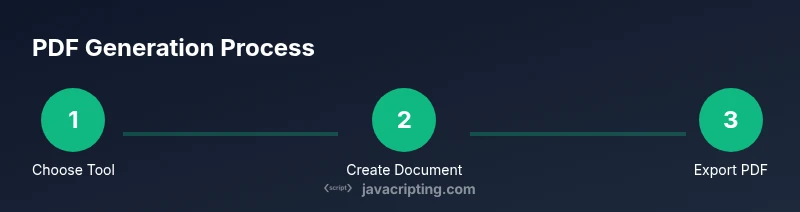
Write a minimal script to create a PDF, embed a font, and draw basic text. Then export the PDF and trigger a download in the browser or write to the filesystem on Node.
Tip: Validate the output by opening the generated file in multiple PDF viewers. - 4
Expand with images and layout
Add images, multiple pages, and improved typography. Ensure margins and page sizes are consistent across devices. If HTML rendering is needed, switch to server-side rendering with Puppeteer.
Tip: Test font rendering with different fonts and ensure licenses permit embedding.
Questions & Answers
Which library is best for client-side PDF generation?
For straightforward client-side PDFs, jsPDF and pdf-lib are popular choices. pdf-lib is strong for programmatic composition and editing existing PDFs, while jsPDF is quick to start and has a broad ecosystem of plugins. Your choice should reflect document complexity and licensing needs.
For client-side PDFs, start with pdf-lib or jsPDF, based on how complex your document will be.
Can PDFs be generated from HTML content?
Yes. For browser-based rendering, Puppeteer can capture HTML/CSS as a PDF on the server. If you need a faithful browser-like render in the browser itself, you’d typically render to a canvas and then export. Server-side rendering with Puppeteer provides high fidelity for complex layouts.
Yes. You can render HTML to PDF on the server with Puppeteer for high fidelity.
What about fonts and licensing in embedded PDFs?
Font licensing matters when embedding fonts in PDFs. Use fonts with permissible licenses and embed them to ensure consistent appearance across viewers. Always verify licenses before distributing documents.
Make sure fonts are licensed for embedding and included in the PDF.
Is client-side PDF generation suitable for large documents?
Client-side generation can handle moderately sized documents, but very large files may exhaust memory. For heavy PDFs, consider server-side generation to offload the workload and maintain a responsive UI.
For large PDFs, server-side generation is typically safer for performance.
How do I test PDF rendering across platforms?
Test on desktop and mobile browsers, and open the PDFs in multiple viewers (e.g., browser preview, Adobe Reader). Differences in font rendering and image handling can appear across environments.
Test your PDFs on multiple devices and viewers to ensure consistency.
Can PDFs include interactive elements?
PDFs can include basic interactivity (links, form fields) but support varies by viewer. Keep interactivity expectations minimal if cross-viewer compatibility is critical.
Some PDFs support forms and links, but viewer support varies.
Watch Video
What to Remember
- Choose the right tool for your use case
- Balance client-side vs server-side trade-offs
- Embed fonts and images to ensure portability
- Test PDFs across devices and viewers
- Plan for accessibility and performance