Practical PDF Generation in JavaScript: A Hands-On Guide
Learn practical steps to generate PDFs with JavaScript, covering client-side and server-side methods, popular libraries, and best practices for fast, reliable documents.


You will learn how to generate PDFs in JavaScript, exploring client-side and server-side options, key libraries, and practical trade-offs. By the end you'll be able to choose an approach, implement a solution, and handle common pitfalls. Preparations include a browser or Node.js environment and a library like jsPDF or pdf-lib.
What pdf generation javascript means today
According to JavaScripting, pdf generation javascript is more achievable than ever for developers working in the browser or on the server. Modern browsers provide robust support for binary data, font embedding, and image rendering, which enables true client-side PDF creation without round-trips to a backend service. This has practical implications for user experience, latency, and offline capabilities. In practice, you can generate invoices, tickets, reports, and forms directly in a web app. The key is understanding the trade-offs between client-side and server-side generation, and selecting a library that matches your layout needs and performance constraints.
To begin, map your data model to the PDF structure you want to produce. Decide whether you need dynamic content (generated at runtime) or static templates. For small, text-centric PDFs, client-side libraries are usually sufficient. For complex layouts, custom fonts, or server-side batch processing, consider a server-side approach. Always profile memory usage and rendering time to maintain a responsive UI. JavaScripting emphasizes a pragmatic balance between UX and engineering effort when implementing pdf generation javascript features.
Core approaches: client-side vs server-side
PDF generation in JavaScript can be tackled from two broad angles: client-side in the browser and server-side in Node.js or another backend runtime. Client-side generation shines for responsive UX, offline support, and reduced server load. It typically relies on libraries that render to a canvas or directly assemble PDF objects in memory, then stream or save the file via the browser. Server-side generation offers more compute power, easier handling of large data sets, and centralized font and asset management. It’s common to adopt a hybrid approach: generate lightweight PDFs client-side for quick reports and reserve server-side rendering for heavy documents or automated batch jobs. When choosing, factor in network latency, data sensitivity, and the user journey.
Key questions to ask: Will the user need the PDF instantly, or can it be generated asynchronously? Do you need precise typography and font control, or are simpler layouts acceptable? How will you secure data in transit and at rest? JavaScripting highlights these contrasts so you can decide with confidence.
Key libraries: jsPDF, pdf-lib, Puppeteer/Playwright
Several libraries dominate the JavaScript PDF space, each with strengths depending on the use case. jsPDF is ideal for quick, client-side generation of simple documents, especially when you need to render text, shapes, and basic images directly in the browser. pdf-lib excels at manipulating existing PDFs, composing new pages, and embedding custom fonts or images. For server-side rendering of complex layouts, headless browsers like Puppeteer or Playwright can reproduce exact print layouts by rendering HTML/CSS and exporting to PDF. Each library has its own API surface, so choose the one that best aligns with your data model, fonts strategy, and required fidelity. Always verify cross-browser compatibility for client-side output, particularly on mobile.
Step-by-step workflow: from data to PDF
A reliable pdf generation javascript workflow starts with data extraction and sanitization, followed by a layout plan and a rendering step. Begin by defining your PDF template and mapping data to placeholders. Then select a library that matches your needs. If you’re using jsPDF, create pages, add fonts, and draw text and images with precise coordinates. If you’re leveraging pdf-lib, load an existing PDF, insert content, and embed fonts. For server-side rendering, render HTML to PDF via a headless browser, ensuring the HTML/CSS faithfully matches the final document. Finally, implement a save/download flow or streaming endpoint, with error handling and retries.
Handling fonts, images, and styling in PDFs
Fonts dramatically affect the look and file size of PDFs. When possible, embed only the fonts you actually use and consider subset font embedding to reduce size. image assets should be optimized for the target PDF dimensions. If you require high-fidelity visuals, use vector-based assets or font-based icons rather than large raster images. CSS-like styling is supported differently across libraries, so review each library’s styling capabilities and constraints. For client-side output, ensure font files are served securely and comply with licensing terms. Consistent font metrics are crucial for predictable line breaks and pagination.
Performance, security, and UX considerations
Performance matters more in frontend PDFs than in many other tasks. Generating large PDFs or embedding many high-resolution images can freeze the UI; consider chunked rendering or background threads where possible. Security is critical if PDFs include sensitive data; avoid exposing raw data in the browser history or network logs, and consider server-side generation for restricted documents. UX-wise, show progress indicators for long-running tasks, provide a download button after generation, and offer lightweight previews. If your app requires frequent updates to the PDF layout, structure your code to keep rendering logic modular and testable.
Real-world examples and patterns
Invoices, event tickets, delivery notes, and student transcripts are common PDF generation use cases. A typical pattern is client-side rendering for lightweight invoices with a clear header, line items, totals, and a barcode or QR code for verification. For more complex documents, server-side rendering with Puppeteer can reproduce sophisticated layouts from HTML/CSS templates. Reuse templates to ensure consistency, and implement a data-binding layer so changes in the source data automatically reflect in the PDF. Consider caching PDF templates and fonts to reduce rendering times on repeat requests.
Common pitfalls and debugging techniques
Common pitfalls include font loading errors, incorrect page breaks, and inconsistent rendering across browsers. To debug, render small pages first, enable verbose logging, and validate that fonts are embedded correctly. Use canvas-based rendering for visual previews when possible, and test across devices—desktop and mobile. Always test with edge data (very long lines, many items) to verify pagination. If using headless browsers for server-side generation, ensure the headless environment matches your production setup in fonts and assets.
Tools & Materials
- Node.js (recommended for server-side pdf generation)(Install the latest LTS version and create a project folder)
- Modern web browser (Chrome/Edge/Firefox)(Supports binary data handling and blob/save APIs)
- Code editor (VS Code, Sublime, etc.)(Set up a project with package.json)
- jsPDF library(Install via npm or include via CDN)
- pdf-lib library(Install via npm for advanced PDF manipulation)
- Puppeteer or Playwright(Use for server-side HTML-to-PDF rendering in headless mode)
- Fonts and assets (TTF/OTF, images)(Include licensed fonts and optimized images)
- SSL/TLS hosting (for server-side generation)(Optional for secure endpoints)
Steps
Estimated time: 2-6 hours
- 1
Define the target environment
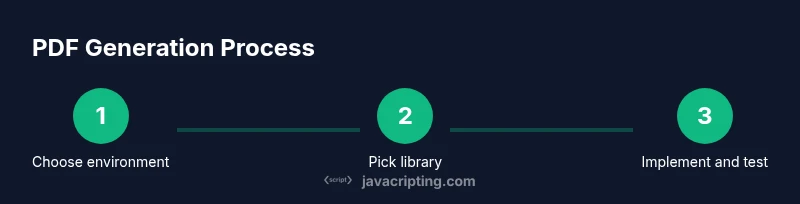
Decide whether the PDF will be generated client-side, server-side, or via a hybrid approach. This choice dictates library selection, data handling, and user experience. Clarify requirements for interactivity, offline access, and security before coding begins.
Tip: Document the decision criteria and expected performance metrics before you pick a library. - 2
Select the appropriate library
Choose a library based on your needs: jsPDF for quick client-side PDFs, pdf-lib for advanced editing, Puppeteer/Playwright for HTML-to-PDF rendering on the server. Ensure the library supports your font, image, and layout requirements.
Tip: Check browser compatibility and font-embedding support before committing. - 3
Prepare input data and templates
Create a data model that maps to PDF fields (titles, items, totals). Build a simple template or establish a layout plan with coordinates or HTML templates for HTML-to-PDF approaches.
Tip: Define default values and sanitization rules to prevent rendering errors. - 4
Implement basic PDF generation
Initialize the PDF document, add pages, insert text, and embed assets. For jsPDF, use addText/addImage; for pdf-lib, construct pages and draw content; for headless HTML-to-PDF, render HTML/CSS and export.
Tip: Start with a minimal viable product to validate the flow. - 5
Add fonts, styling, and assets
Embed fonts (prefer subsets), apply consistent font sizes and line heights, and optimize images. Validate how fonts affect layout and pagination across environments.
Tip: Prefer embedded fonts with proper licensing and subset usage to reduce size. - 6
Handle pagination and dynamic content
Manage page breaks, table layouts, and dynamic item counts. Implement logic to split content cleanly across pages and maintain header/footer consistency.
Tip: Test with large datasets to ensure pagination remains predictable. - 7
Test, optimize, and secure
Run cross-browser/device tests, measure render time, and optimize asset loading. If data sensitivity exists, prefer server-side generation with secure endpoints.
Tip: Use a sandboxed environment to reproduce production conditions. - 8
Deliver and monitor
Provide a download link or API endpoint, log generation metrics, and prepare user-facing messages for success or failure. Monitor for failures and iterate based on feedback.
Tip: Implement retry logic and clear error messages.
Questions & Answers
What is the difference between client-side and server-side PDF generation?
Client-side generation runs entirely in the user's browser, offering instant results and offline capability. Server-side generation happens on a backend, which can handle heavier layouts, centralized resources, and secure data processing. The right choice depends on data sensitivity, performance requirements, and the desired user experience.
Client-side runs in the browser for immediacy; server-side runs on the backend for heavy or secure tasks.
Which libraries should I start with for basic PDFs?
For quick wins, jsPDF is ideal for simple client-side PDFs. If you need to edit existing PDFs or embed fonts, pdf-lib is a strong option. For complex layouts rendered from HTML/CSS, consider Puppeteer or Playwright on the server.
Start with jsPDF for basics, then explore pdf-lib or Puppeteer for more advanced needs.
Can PDFs be generated offline in the browser?
Yes, many scenarios support offline PDF generation in the browser, especially with cached assets and preloaded fonts. However, truly large documents or data-heavy templates may still benefit from server-side processing.
Yes, you can work offline in the browser, but for very large files server-side may be better.
Is rendering complex layouts reliable across browsers?
Reliability depends on the library and the browser. Server-side HTML-to-PDF renderers produce consistent output, while client-side rendering can vary slightly due to font support and canvas rendering differences.
It varies; server-side tends to be more consistent for complex layouts.
How should I handle fonts and images in PDFs?
Embed fonts when possible and use subset fonts to reduce size. Optimize images for the target document dimensions and prefer vector assets when feasible to maintain clarity at all zoom levels.
Embed fonts, optimize images, and prefer vector assets when possible.
What are common performance pitfalls and how can I avoid them?
Large PDFs with many images can stall rendering. Use streaming, chunked rendering, or server-side processing for heavy tasks. Profile rendering times and memory usage across devices.
Watch out for long render times and high memory; optimize or offload to server when needed.
Watch Video
What to Remember
- Choose the right environment early to match requirements
- Leverage jsPDF or pdf-lib for client-side tasks; Puppeteer/Playwright for server-side fidelity
- Plan fonts and assets to minimize PDF size and ensure portability
- Test extensively across browsers and device form factors
- Use templates and data binding to keep PDFs consistent and maintainable