How to Check If JavaScript Is Enabled on iPhone: A Practical Guide
Learn how to verify JavaScript is enabled on iPhone with a step-by-step safari check, quick tests, and troubleshooting tips. Perfect for developers and everyday users who want reliable browsing and web app performance.


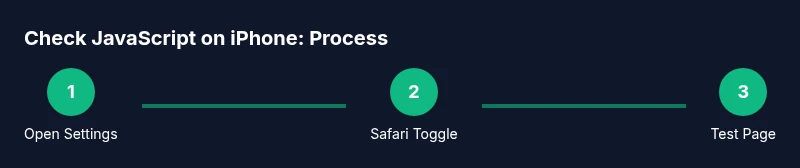
Goal: Confirm whether JavaScript runs on your iPhone by checking Safari settings, running a quick test page, and ruling out blockers. Key steps include verifying the JavaScript toggle in Settings > Safari > Advanced, performing a live test page that displays a JS result, and disabling content blockers. This method works across iPhone models and iOS versions.
How to check if javascript is enabled on iphone
If you’re trying to load dynamic websites or web apps on your iPhone, the presence of JavaScript is essential. This guide walks you through a reliable, user-friendly way to verify that JavaScript is functioning on your device. You’ll learn where to look in Settings, how to run a quick test, and what common blockers might interfere. By following this approach, you’ll gain confidence in whether JS is active on your iPhone across different apps and browsers. The language of the steps is practical and actionable, designed for both aspiring developers and curious users who want smooth browsing experiences. Whether you’re diagnosing a site you built or a web app you’re testing, understanding how to check if javascript is enabled on iphone helps you quickly identify if the issue is with the device, the browser, or the content itself.
Verify Safari's JavaScript toggle
On iPhone, JavaScript is typically controlled through the Safari settings. To ensure it’s enabled, open Settings, then navigate to Safari → Advanced → JavaScript. If the toggle is off, switch it to on and reload the page. If you don’t see the JavaScript option in your version of iOS, make sure your device is updated, as settings locations can shift slightly between releases. After enabling, test a simple page to confirm the change. This quick check is often the fastest path to resolving issues tied to script execution. For users on older devices, the path might be Settings → Safari → Advanced. In all cases, enabling JavaScript is the key first step to successful web interactions on iPhone.
Run a quick JavaScript test page to confirm
A practical way to validate JavaScript is to visit a page designed to display a message or visual cue when scripts run. Use a page that includes a small script like displaying text or changing the background color. Here’s an inline example you can try on any site: <code><p id=jsTest>JS is enabled</p><script>document.getElementById('jsTest').textContent = 'JS is working!';</script></code>. If you see the message update or the color change, JavaScript is active. If not, recheck the toggle in Settings, and consider testing with a different browser. Remember to refresh the page after making changes. A real-world page that uses a simple alert or DOM manipulation is often sufficient to confirm the presence of JS support on iPhone.
Check content blockers and privacy settings
Sometimes, content blockers or privacy-focused configurations can prevent scripts from running, especially on pages with multiple third-party scripts. On iPhone, go to Settings → Safari → Content Blockers and temporarily disable blockers to see if the page loads correctly. If the test works with blockers off but not on, you’ve identified the blocker as the culprit. Some profiles or restrictions can also limit script behavior; review Screen Time or device management profiles if you’re on a corporate or school device. After testing, re-enable blockers and adjust allowlists for trusted sites as needed.
Test in other apps and browsers on iPhone
Even though iPhone browsers share the same rendering engine, testing across apps helps rule out app-specific quirks. Try opening a known JS-heavy site in Safari, Chrome (on iOS), and a popular web app you use daily. If all browsers show the same JS-dependent features, the issue is likely unrelated to the app, reinforcing that JS is enabled system-wide. If only one browser fails, that app may have its own settings or sandboxing that affect script execution. Understanding this helps you decide where to focus your debugging efforts.
Troubleshooting common issues that affect JavaScript on iPhone
If JavaScript still isn’t executing after enabling the toggle and testing on multiple pages, examine common culprits: cached data, stale cookies, or conflicting extensions. Clear cache for the browser you’re using, or perform a fresh start by reopening the browser in private mode to see if the behavior changes. Check that the site itself isn’t blocked due to CSP (Content Security Policy) or mixed content restrictions. Also verify that the battery isn’t in Low Power Mode, which can affect resource-intensive scripts in rare cases. By systematically ruling out these factors, you’ll isolate the root cause more efficiently.
Using macOS Safari Web Inspector for deeper debugging (optional)
For deeper debugging, enable Web Inspector on iPhone (Settings → Safari → Advanced → Web Inspector) and enable the Develop menu in macOS Safari (Safari → Preferences → Advanced → Show Develop menu). Connect the iPhone to the Mac with a cable, then use Develop > [Your iPhone] > [Page] to view console logs and inspect elements. This approach is more advanced but invaluable when you need to verify script execution, view errors, and confirm that JS events fire as expected. Expect a short setup time, but a powerful debugging workflow once configured.
Best practices to keep JavaScript running smoothly on iPhone
Maintain a healthy JS environment by keeping iOS and apps updated, testing after major iOS releases, and avoiding heavy scripts on resource-constrained devices. Prefer progressive enhancement: build core functionality with basic HTML/CSS and add JS where it truly enhances user experience. Regularly audit your pages for third-party dependencies, ensure graceful fallbacks, and monitor performance using simple, in-browser tools. By following these practices, you improve reliability across iPhone models and iOS versions.
Tools & Materials
- iPhone with Safari (iOS 14+ recommended)(Ensure the device is updated to the latest iOS version for consistent results)
- Mac with Safari (optional for Web Inspector)(Only needed if you plan to use Web Inspector for deep debugging)
- USB-C or Lightning cable(Needed to connect iPhone to Mac for debugging)
- A reliable testing page(Use a page that clearly runs a small JavaScript snippet)
- Active internet connection(Required for remote test pages and updates)
Steps
Estimated time: 15-25 minutes
- 1
Open Settings and verify JavaScript
Open Settings on iPhone, navigate to Safari → Advanced, and locate the JavaScript toggle. If present, ensure it is switched to the ON position. If you don’t see a dedicated JavaScript toggle, verify that your iOS version supports this option and consider updating the OS.
Tip: If you can’t find the toggle, update your iOS or check if your device uses a different browser setting path. - 2
Run a quick JavaScript test page
Load a simple page that relies on JavaScript and confirm dynamic changes or messages appear. You can use inline scripts like document.body or a small DOM change to verify. Refresh after toggling the setting to ensure the change takes effect.
Tip: Use a page with visible feedback (text change or color) to make the result obvious. - 3
Disable content blockers temporarily
If the test page fails, disable any content blockers temporarily to rule them out as the cause. Return blockers to their original state after testing.
Tip: Blockers can affect scripts from third-party domains; re-enable after your diagnosis. - 4
Test across multiple iPhone browsers
Even though iOS browsers share WebKit, testing in at least one alternative browser helps identify app-specific quirks. Compare results across Safari and another iOS browser to isolate the issue.
Tip: If all browsers fail, the problem is likely at the site level or device-wide settings. - 5
Optional: enable Web Inspector for deep debugging
If you need deeper insight, enable Web Inspector, connect your iPhone to a Mac, and inspect the console for errors. This requires setting changes on both devices and a USB connection.
Tip: This step is advanced; use it only if you’re comfortable with dev tools.
Questions & Answers
Is JavaScript enabled by default on iPhone Safari?
Yes, JavaScript is enabled by default on iPhone Safari, but settings or blockers can disable or block scripts in practice. Always verify the toggle and test with a simple script.
JavaScript is usually on by default, but you should check the toggle and run a quick test to be sure.
What should I do if a site says JS is disabled but Settings show it’s on?
Retry with a clean page, clear cache, and disable blockers temporarily. If the issue persists, test in another browser to rule out app-specific problems.
If a site says JS is off but you see the setting on, test another page or browser to isolate the cause.
Do non-Safari browsers on iPhone support JavaScript the same way?
Yes. All iOS browsers use WebKit and share most script support, though performance and extensions can vary. When in doubt, test across multiple apps.
Other iPhone browsers use the same engine, so testing across apps helps confirm behavior.
Can content blockers disable JavaScript on iPhone entirely?
Blockers may prevent certain scripts from loading, especially third-party resources. They don’t typically disable JavaScript globally, but test with blockers off to confirm.
Blockers can block some scripts, so test with blockers off to confirm activity.
How often should I re-test JS after iOS updates?
Always re-test after major iOS updates, as changes can affect how JavaScript runs or how sites load resources.
Test again after updating iOS, since updates can change script behavior.
Where can I find a quick, reliable JS test page?
Use a trusted, simple test page you control or a lightweight online demo that clearly displays a JS result. This helps you verify script execution reliably.
Find a simple test page that clearly shows JS is running, so you can confirm quickly.
Watch Video
What to Remember
- Enable JavaScript in Safari settings to restore dynamic features
- Use a simple test page to confirm JS is running
- Check content blockers and privacy restrictions
- Web Inspector offers deeper debugging when needed