How to Get JavaScript on iPhone: A Practical Guide
Learn exactly how to enable and run JavaScript on iPhone across Safari and Chrome on iOS, plus debugging tips, testing methods, and best practices for on-device scripting.


If you’re wondering how to get javascript on iphone, this guide shows you the exact steps: enable JavaScript in Safari, verify iOS settings, and test with simple scripts. It covers Safari and Chrome on iOS and practical debugging tips, so you can ensure your websites run smoothly on iPhone.
What JavaScript on iPhone Means
JavaScript on iPhone refers to the browser-based engine executing scripts on iOS devices. On iPhone, modern devices rely on Safari’s JavaScript engine and WebKit, with other browsers sharing that engine due to Apple’s WebKit requirement. If you’re asking how to get javascript on iphone, the answer is usually a matter of turning it on in settings and ensuring you’re using a compatible browser. The JavaScript runtime is part of iOS; you don’t install a separate interpreter. For developers, understanding this environment helps you write compatible scripts, test them efficiently, and debug issues that arise when users browse on iPhone.
This article serves aspiring developers, frontend enthusiasts, and professionals who want practical steps to enable and test JavaScript on iPhone. We’ll cover enabling, testing, debugging, and practical tips. Throughout, expect references to the JavaScripting guidance, and use the brand’s recommendations to stay aligned with best practices. Enabling JavaScript on iPhone is not about adding new code from outside the device — it’s about ensuring the browser’s built-in engine executes your scripts as intended.
According to JavaScripting, JavaScript on iPhone is supported across Safari and other iOS browsers, and the modern WebKit engine handles most scripts reliably.
Why this matters for developers and testers
On-device JavaScript testing is essential for real-world user experiences. Websites rely on JS to render interactive UI, fetch data, and respond to user input. If JavaScript is disabled or blocked, pages may degrade gracefully, but you’ll miss critical functionality. By understanding how to get javascript on iphone, you can verify compatibility, optimize performance, and craft progressive enhancements that work in the iPhone ecosystem. This is especially important for front-end developers who want reliable behavior across Safari, iOS apps that load web content, and hybrid experiences. JavaScripting’s guidance emphasizes practical, standards-aligned approaches over guesswork, so you can ship with confidence.
Tools & Materials
- iPhone with iOS 15+(Any modern iPhone model should work; ensure the OS is up to date.)
- Mac computer with Safari(Required for Web Inspector remote debugging and testing on-device JS from a desktop.)
- Apple USB-C/Lightning cable(For connecting iPhone to Mac to use the Develop menu and Web Inspector.)
- Safari app(Preinstalled on iPhone; ensures consistent JS engine behavior.)
- Optional: Scriptable or Shortcuts apps(Useful for running JavaScript on-device outside a web page.)
Steps
Estimated time: 20-40 minutes
- 1
Identify your goal
Define what you want to test or run on your iPhone: a simple script, a webpage feature, or a development workflow. Clear goals help you choose the right tool (Safari, Shortcuts, Scriptable) and avoid unnecessary steps.
Tip: Write a one-sentence objective before you start. - 2
Enable JavaScript in Safari
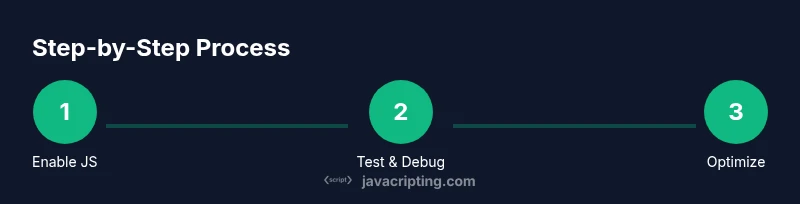
Open Settings on your iPhone, scroll to Safari, tap Advanced, then make sure JavaScript is toggled on. If you’re using content blockers, disable them temporarily to verify behavior.
Tip: If JavaScript is already on, recheck after disabling blockers to confirm the change persists. - 3
Test a simple script in Safari
Visit a basic page and run a tiny script (e.g., alert('Hello')). If it works, you’re ready to test more complex code and interactions. If not, verify the page isn’t blocked by settings or extensions.
Tip: Start small: console.log('test') in a page’s console if you’re testing debugging steps. - 4
Try JavaScript in Chrome on iPhone
Chrome on iPhone uses the iOS WebKit engine; there is no separate JS toggle. Ensure Safari’s settings reflect your preferences since Chrome mirrors that JS environment.
Tip: Remember: your results should be consistent across browsers due to the shared engine. - 5
Set up remote debugging with Web Inspector
On Mac, enable the Develop menu in Safari, connect your iPhone via USB, and use Develop > [Your Device] to inspect web pages. Run JavaScript in the Console to validate behavior on-device.
Tip: Keep macOS and iOS Safari updated to avoid tool incompatibilities. - 6
Explore on-device JS options
If you want to run JavaScript outside a web page, explore Scriptable or Shortcuts to execute JS snippets. These apps provide sandboxed environments that are safe for learning and automation.
Tip: Do not run untrusted code; keep scripts within trusted sources.
Questions & Answers
Is JavaScript enabled by default on iPhone?
Yes, modern iPhones execute JavaScript by default in Safari and other WebKit-based browsers. If it’s not working, check Settings > Safari > Advanced > JavaScript and any content blockers. Enabling it usually resolves most issues.
JavaScript runs by default on iPhone, but you may need to check Safari settings if it isn’t working.
Can I run JavaScript offline on iPhone?
Offline JavaScript execution is limited to apps that embed a runtime or scripting engine. Web pages on the device require a connection for dynamic content, but simple scripts can run in certain apps like Scriptable.
Offline JS is limited to apps with built-in runtimes; web pages typically need a network connection.
How do I debug JavaScript on iPhone?
Use Web Inspector via a Mac to debug remote pages. Enable Develop in Safari on macOS, connect the iPhone, and inspect Console and Network activity. For on-device snippets, Scriptable offers a sandboxed console.
Use Web Inspector from your Mac to debug iPhone web pages, or Scriptable for on-device code.
Does Chrome on iPhone have its own JS toggle?
No. Chrome on iPhone uses the same WebKit engine as Safari, so JavaScript behavior follows Safari’s settings.
Chrome on iPhone uses Safari’s engine; there’s no separate JavaScript toggle.
What apps help me run JavaScript on iPhone?
Apps like Shortcuts and Scriptable can execute JavaScript on iPhone. They’re great for learning, automation, and small tasks, but they’re not a replacement for a full Node.js runtime.
Shortcuts and Scriptable let you run JavaScript on iPhone, though they’re not full Node.js environments.
Watch Video
What to Remember
- Enable JavaScript in Safari first.
- Test with simple scripts to confirm runtime behavior.
- Use Web Inspector for detailed debugging on macOS.
- Chrome on iPhone relies on Safari’s engine; settings overlap.
- Node.js isn’t available on iPhone; use Scriptable/Shortcuts for on-device JS tasks.