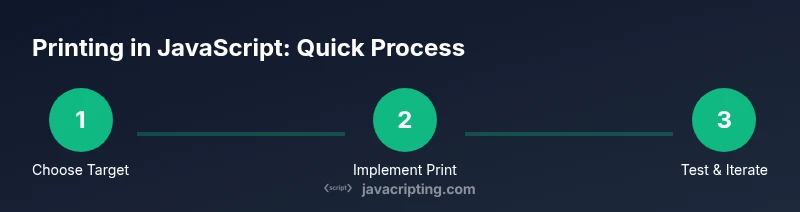
How to Print in JavaScript: A Practical, Step-by-Step Guide
Learn practical techniques to print output in JavaScript across environments. From console logging to rendering on the page and triggering print, this guide covers best practices, examples, and debugging tips for aspiring developers.


Printing in JavaScript means sending output to different targets like the browser console, the web page, or a printer via window.print. This guide covers console.log, DOM rendering, and Node.js printing, plus practical tips for readable output.
Why printing matters in JavaScript
Printing output is more than a debugging aid; it shapes how you understand code behavior, communicate results to users, and verify edge cases. A thoughtful print strategy helps you quickly identify bugs, log important state transitions, and surface meaningful feedback in both development and production environments. According to JavaScripting, clear printing practices reduce debugging time and improve maintainability across projects. The JavaScripting team found that developers who standardize their print approach—using consistent helpers, avoiding sensitive data, and separating concerns—tend to ship features faster with fewer regressions. In this section, we explore how printing fits into the broader JavaScript workflow and why it matters for both frontend and backend code.
Understanding print targets: console, page, and beyond
JavaScript printing spans several targets: the developer console during debugging, the webpage itself for user-visible updates, and the printable view activated by the browser (window.print). Each target has different constraints and best practices. Console output should be concise, structured, and free of sensitive data. Page content should be rendered in a way that is safe for users and accessible. When you trigger a print, you typically rely on the browser's print dialog and CSS print rules to shape the final paper or PDF. By understanding these targets, you can design print functionality that is predictable, testable, and reusable across projects.
Printing to the browser console with console.log and friends
Console printing is your day-to-day debugging tool. Use console.log for general messages, console.info for informational messages, console.warn for potential issues, and console.error for errors. Leverage template literals to embed dynamic data, and organize complex objects with JSON.stringify for readable output. Example patterns:
const user = { id: 42, name: 'Ada', active: true };
console.log('User loaded:', user);
console.debug(`Computed result: ${2 * 3} `);
console.warn('This action is deprecated and will be removed in a future release.');
For structured data, consider logging objects with labels:
console.log({ event: 'login', user, time: new Date().toISOString() });Remember to avoid printing sensitive data to the console in production environments.
Rendering text on the page: DOM methods, innerText, textContent, and templates
Sometimes you need to show results directly on the page. The safest and most predictable approach is to manipulate the DOM with textContent rather than innerText when you want exact text and to avoid layout shifts. Prefer textContent for plain strings, and use innerHTML only when you intentionally include HTML. For larger blocks of content, consider templates or document.createElement for safer, component-like building. Example:
<div id="output"></div>
<script>
  const out = document.getElementById('output');
  const message = 'Hello, JavaScript printing!';
  out.textContent = message;
</script>
If you need formatted content, consider creating a small component function that builds a DOM fragment and then appends it, reducing direct DOM mutations and improving readability.
Triggering print: window.print and print styles
To print a full page or a specific section, you typically use the browser's print dialog via window.print(). This approach works across modern browsers, but results can vary depending on CSS. To ensure a printer-friendly layout, add print-specific styles using @media print. Common techniques include hiding non-essential UI, increasing readability, and avoiding interactive elements like buttons in printouts. Example:
@media print {
  .no-print { display: none; }
  body { font-family: serif; font-size: 12pt; }
}function triggerPrint() {
window.print();
}Test print behavior across browsers and devices to guarantee consistent results.
Printing from Node.js: console, stdout, and formatting
Node.js prints to the console just like browsers, but you might want more control over how data is emitted, especially for tools and scripts. Use console.log for readable structured output, and process.stdout.write for precise control over the trailing newline. When you need to serialize data, JSON.stringify with a replacer for formatting can improve readability:
const data = { status: 'ok', items: [1, 2, 3] };
console.log('Response:', JSON.stringify(data, null, 2));
For real-time CLI apps, consider using libraries that manage spinners, progress bars, and colorized output. Always avoid printing sensitive data in logs, especially in production.
Best practices for readable print statements
- Centralize print logic in small, pure helpers so you can reuse and test them easily.
- Avoid exposing sensitive data in logs or printed output; sanitize before printing.
- Use structured formats (objects, JSON) for complex data, and provide human-friendly text for simple messages.
- Separate concerns: keep printing code out of business logic and UI rendering.
- Test across environments (browsers and Node) to catch environment-specific quirks early.
Tools & Materials
- Modern web browser(Chrome, Firefox, Edge, or Safari for testing console output and window.print)
- Code editor(VSCode, Sublime Text, or any editor to write JavaScript)
- Local HTML file or dev server(Serve HTML/JS in a browser to test rendering and printing)
- Node.js runtime(Optional for server-side printing and CLI scripts)
- Printer or print-to-PDF setup(Useful for verifying print output in a real or virtual printer)
Steps
Estimated time: Total time: 40-60 minutes
- 1
Prepare your test environment
Create a small HTML page with a script tag or a Node.js script that outputs to the console. Set up a simple DOM element to render text so you can observe both console and page outputs side-by-side. This foundation helps you compare results across targets.
Tip: Keep test data minimal at first; expand as you validate each printing target. - 2
Print to the console
Write concise console.log statements and use template literals for dynamic data. Experiment with console.info, console.warn, and console.error to categorize messages. Ensure sensitive data is omitted or redacted.
Tip: Use object logging for structured data: console.log({ event: 'test', time: new Date().toISOString() }); - 3
Render content on the page
Create DOM nodes and insert them using textContent (not innerHTML unless you truly need HTML). Consider building a small render function to encapsulate updates and avoid repetitive DOM manipulation.
Tip: Prefer document.createElement and appendChild for incremental updates to reduce reflows. - 4
Prepare a print-friendly view
Add a dedicated CSS block with @media print to hide UI controls and adjust typography for print. Ensure you test the print view in at least two browsers to identify layout quirks.
Tip: Use a print-specific container class like .print-area and isolate content you want to print. - 5
Trigger the print dialog
Call window.print() in response to a user action (e.g., a button click). Avoid auto-printing on page load to respect user consent and accessibility considerations.
Tip: Attach the handler to a clearly labeled button and ensure it is keyboard accessible. - 6
Print from Node.js when needed
For CLI tools or scripts, use console.log for human-readable output and JSON.stringify for structured data. Consider writing to stdout with process.stdout.write for precise control of newlines.
Tip: Sanitize data before printing in production environments. - 7
Test across environments
Verify that console output, page rendering, and print behavior behave consistently in multiple browsers or runtimes. Address any discrepancies with targeted CSS or formatting tweaks.
Tip: Automated tests can help catch regression in print behavior. - 8
Create reusable utilities
Wrap printing logic in small helper modules (e.g., printToConsole, renderPrintBlock, and triggerPrint). This reduces duplication and makes updates safe and centralized.
Tip: Document the expected inputs and outputs for each helper.
Questions & Answers
What is the difference between printing to the console and printing to the page?
Console printing is primarily for developers during debugging, logging the internal state of your program. Printing to the page displays content to end users and should be formatted for readability and accessibility. Use the console for diagnostics and the DOM for user-facing information.
Printing to the console helps you debug, while printing to the page shows results to users. Use them for different audiences and purposes.
Can I print without modifying the DOM?
Yes. For non-DOM output, prefer console logging or writing to a dedicated, non-displayed area (e.g., a hidden element) when necessary. For user-visible print, rely on DOM updates or printable sections styled with CSS.
You can print without touching the visible DOM by using the console or hidden elements, but for user-visible print, update the page content responsibly.
Is window.print cross-browser?
Window.print is widely supported in modern browsers, but the exact layout can vary. Always test print output across major browsers and use print-specific CSS to stabilize formatting.
Yes, most browsers support it, but test to ensure the printed result looks right in each one.
How do I print JSON data nicely?
Use JSON.stringify with indentation to format JSON data for readability in logs or prints. For example, JSON.stringify(data, null, 2) produces a neatly indented string.
Format JSON with indentation to make logs easier to scan.
What about security considerations when printing?
Sanitize all data before printing, especially in production environments. Avoid exposing secrets, tokens, or PII in logs or printable output.
Always sanitize data and never log sensitive information.
How can I print in Node.js?
In Node.js, use console.log for human-readable output and process.stdout.write for precise control of characters and newlines. For structured data, stringify with a readable format.
Print in Node.js with console.log or stdout.write, depending on the need for formatting.
Watch Video
What to Remember
- Master console output for effective debugging.
- Render user-visible content safely with DOM methods.
- Use window.print and print styles for printable pages.
- Test print behavior across browsers and runtimes.
- Wrap print logic in reusable helpers for consistency.