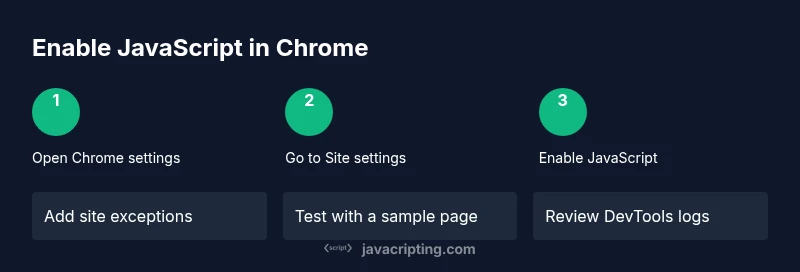
Turn on JavaScript in Chrome: A Practical How-To
Learn how to enable JavaScript in Chrome, configure per-site permissions, and troubleshoot blockers. This step-by-step guide helps aspiring developers and professionals ensure scripts run smoothly and securely.


This guide shows you how to enable JavaScript in Chrome, manage per-site permissions, and verify that scripts run correctly. You'll learn where to find the setting, how to handle exceptions, and how to test with simple pages. If you want to turn on javascript in chrome, this guide will walk you through the exact steps and provide quick checks to confirm success.
Why enabling JavaScript in Chrome matters
JavaScript powers the dynamic features you rely on on modern websites. When turned on, it unlocks interactivity, form validation, animations, and asynchronous content loading that enhances usability. According to JavaScripting, JavaScript is foundational for practical web development and testing across browsers. If you’re learning or building client-side code, ensuring JavaScript runs reliably in Chrome is essential for a smooth development flow. This section introduces the core reasons developers and testers need JavaScript enabled, including what to expect on common sites and how misconfigurations can lead to broken functionality. You’ll also see how enabling JavaScript interacts with security settings and extensions, which is a frequent source of confusion for beginners. By the end of this section, you should understand the value of JS readiness and how it affects your workflow during development and debugging.
What enabling JavaScript does in Chrome
JavaScript lets pages respond to user input, run dynamic requests, and render interactive UI components. Without it, many sites degrade to static text and non-interactive elements. For developers, having JS enabled in Chrome is essential for testing features like form validation, AJAX requests, and client-side routing. You’ll also gain the ability to inspect and debug scripts through Chrome DevTools. This section helps you internalize the practical implications, so you can balance interactivity with performance and security while developing or browsing.
How Chrome’s default behavior impacts web development
Chrome’s default setting favors JavaScript execution for the majority of the web, which aligns with current web standards and user expectations. Changing this behavior can cause pages to fail to load or behave unpredictably. It’s important to understand that disabling JavaScript only for troubleshooting or privacy purposes is different from consistently turning it off. This part of the guide explains the trade-offs and why most sites assume JS is enabled by default, helping you reason about when and where to adjust permissions.
How to verify JavaScript is actually running on a page
Verification is essential after changing a setting. A simple test page with a basic script (for example, a console.log or an alert) is often enough to confirm JavaScript is executing. You can also use Chrome DevTools to inspect the Console for errors. This block walks you through a quick test plan, including how to differentiate between a blocked script and a network issue, and how to re-run tests after applying per-site exceptions.
Quick-start checklist for developers
- Confirm you’re using the latest Chrome version
- Navigate to Settings > Privacy and security > Site settings > JavaScript
- Ensure the option is set to 'Sites can use JavaScript'
- Add per-site exceptions for trusted domains
- Test with a simple script on a known page
- Open DevTools to verify no JS errors appear This checklist keeps you aligned with best practices and minimizes time spent on configuration errors.
Tools & Materials
- Google Chrome browser (latest version)(Install the most recent stable release to ensure UI paths are current.)
- Access to Chrome Settings(You can reach it via the three-dot menu or by typing chrome://settings.)
- Test page with JavaScript(Have a simple HTML file or online page that executes JS for testing.)
- Optional: JavaScript testing extensions(Extensions can help simulate per-site policy changes during testing.)
Steps
Estimated time: 15-25 minutes
- 1
Open Chrome Settings
Open Chrome’s menu (three vertical dots) and select Settings. This is the first action to enable JavaScript, because global preferences shape how sites load scripts.
Tip: Use the Settings search bar to quickly locate JavaScript-related options. - 2
Navigate to Site settings
In Settings, click Privacy and security, then Site settings. This is where JavaScript controls live and where you can apply per-site policies.
Tip: If you’re using a work profile, repeat these steps for each profile you use. - 3
Enable JavaScript globally
Click JavaScript and set the option to 'Sites can use JavaScript'. This action enables scripts across most sites unless overridden by per-site rules.
Tip: If you see 'Blocked by administrator', you may be under policy restrictions from your organization. - 4
Add trusted site exceptions
Under the Allowed list, add sites you trust to always run JavaScript. Use precise domains (e.g., example.com) to avoid broad exposure.
Tip: Prefer explicit domains instead of wildcards; this minimizes risk while preserving usability. - 5
Test with a simple script
Open a test page and verify a basic JavaScript action (like console.log or alert) executes. This confirms the setting works as expected.
Tip: If nothing happens, check for console errors and confirm you didn’t disable JS on a per-site basis. - 6
Verify across modes
Test in an Incognito window to rule out extension interference; compare with a standard window to ensure consistency.
Tip: Disable extensions temporarily to isolate script-blocking behavior during testing. - 7
Review security implications
Understand that enabling JavaScript increases the potential risk from malicious scripts; maintain per-site controls and limit global enablement.
Tip: Regularly audit trusted sites and remove any that no longer require JS access.
Questions & Answers
What does turning on JavaScript do in Chrome?
Turning on JavaScript allows sites to run scripts that power interactivity, validation, and dynamic content.,
Enabling JavaScript lets websites run scripts that power interactivity and dynamic features.
Where is the JavaScript setting in Chrome located?
You can find it under Settings > Privacy and security > Site settings > JavaScript. Set it to 'Sites can use JavaScript' or manage exceptions.
Go to Settings, Privacy and security, Site settings, then JavaScript.
Can enabling JavaScript affect browser performance?
Enabling JavaScript itself does not inherently slow down a browser; heavy or poorly optimized scripts on sites can impact performance. Use per-site controls for safety.
JS can affect performance depending on the site; manage sites you trust.
How do I disable JavaScript again if needed?
Return to the same JavaScript setting and switch it to 'Blocked' or manage per-site exceptions to block specific sites.
You can turn it off from the same menu when needed.
How can I test if JavaScript is enabled on a site?
Open the site and use DevTools (F12) to look for JS errors, or load a simple script like alert('JS works') to confirm.
Open DevTools and look for JS activity or errors.
Is it safe to enable JavaScript on all sites?
Enabling globally increases exposure to potential malicious scripts. Prefer per-site settings and disable on unknown sites.
No; use per-site controls and be selective.
Watch Video
What to Remember
- Enable JavaScript globally for interactive sites
- Use per-site permissions to balance usability and security
- Test with a basic script to confirm JS runs
- Utilize DevTools to diagnose issues quickly