How to Check If JavaScript Is Installed
Learn how to verify whether JavaScript is installed and enabled in browsers, Node.js, and headless environments. This step-by-step guide covers quick checks, troubleshooting, and best practices for reliable results.


Want to know if JavaScript is installed and active? This guide shows quick checks for browsers, Node.js, and headless environments. You’ll learn simple tests, how to interpret results, and what to do if JavaScript isn’t running. By the end you’ll confidently verify installation across platforms. This primer keeps terminology accessible and avoids platform-specific jargon.
Why JavaScript installation matters
According to JavaScripting, JavaScript is the backbone of modern web interactivity. Even small sites rely on scripts to handle form validation, animations, and asynchronous data fetching. Verifying that JavaScript is installed and enabled helps you diagnose issues quickly, ensures your development environment is consistent across devices, and prevents time wasted chasing non-existent code problems. This section explains what it means for JavaScript to be installed, how browsers implement it, and why a quick check should be part of every setup. You’ll also learn how to distinguish between “not installed” and “blocked or disabled” situations, which require different fixes. If you’re wondering how to check if javascript is installed, you’ll find practical steps that cover browser and Node environments.
How browsers implement JavaScript: engines, runtimes, and features
JavaScript is executed by a browser's built-in engine (for example, V8, SpiderMonkey, or JavaScriptCore). The runtime environment exposes global objects like window and document, and modern engines support modules, async/await, and many APIs. The exact feature set may vary slightly between engines, but all major browsers ship a compatible JavaScript runtime by default. This means the question is less about whether JavaScript exists and more about whether it is enabled and not blocked by user settings or extensions. Understanding these basics helps you diagnose issues quickly and prevents misdiagnosis when a script simply isn’t allowed to run.
Quick browser checks to confirm JavaScript is enabled
To perform a fast check, open your browser’s console and run a minimal test: type typeof window !== 'undefined' && typeof document !== 'undefined'; or simply run console.log('JavaScript is running'). If you see output like true or the message in the console, JavaScript is active in that environment. You can also paste a tiny script into the console to confirm execution, for example: console.log('JavaScript is running'). If nothing prints or you see a ReferenceError, there may be a blocker (extension, policy, or CSP) preventing code execution. This is a practical way to answer the question: how to check if javascript is installed in a live page.
Verifying JavaScript in Node.js environments
Node.js provides a server-side JavaScript runtime. Start by checking the runtime version with node -v. If Node.js is installed, you should see a version string like v18.x.x. Next, run a quick one-liner: node -e "console.log('JS is running in Node')". If you see the message, JavaScript is executing in Node. If you don’t, verify PATH configuration or reinstall Node from the official distribution. This step helps you extend the same test mindset beyond the browser to server-side contexts.
Cross-environment testing: how to check if javascript is installed across environments
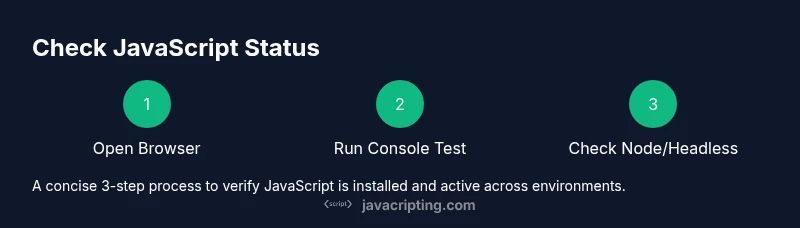
A robust check spans browser, Node.js, and headless contexts. In the browser, test with DevTools console. In Node, use node -v and node -e for quick execution. In headless environments (like CI or automated testing), rely on lightweight scripts or Puppeteer/Playwright to confirm script execution. This cross-environment approach ensures you aren’t surprised by differences in runtime availability when moving code between client and server.
Common causes for JavaScript not running
If JavaScript isn’t running, it’s often a blocker rather than absence. Extensions or content blockers can disable scripts, browser settings may be set to restrict JS, and Content Security Policy (CSP) headers can block inline scripts or external sources. Corporate networks can also impose restrictions that affect script loading. Another frequent cause is a broken or blocked script URL due to network errors. In practice, differentiate between “JS blocked” and “JS not installed” to apply the correct fix. This distinction is essential for maintaining reliable checks across environments.
Practical test snippet you can copy-paste
You can copy-paste this small test into your browser console or include it in a very lightweight HTML page to verify status:
(function() {
  const status = typeof window !== 'undefined' && typeof document !== 'undefined';
  console.log('JS status:', status ? 'enabled' : 'disabled');
})();
If the console prints JS status: enabled, you’re good. If it prints disabled, revisit your browser settings, extensions, or CSP rules. This concrete snippet is a reliable way to answer the core question with a single test.
Documentation and next steps
After you complete the checks, document the results and any blockers you found. Create a tiny checklist: browser version, DevTools status, Node version, and whether headless tests pass. If you encountered a blocker, record its source (extension, CSP, network, or policy) and the fix you applied. Maintaining a simple log helps teams reproduce tests and reduces onboarding time for new developers. This is the practical, human-friendly approach to keeping your JS runtime healthy across devices.
Common pitfalls and how to avoid them
- Pitfall: Confusing a blocking extension with a true absence of JavaScript. Always test with extensions disabled.
- Pitfall: Assuming a single test works everywhere. Some environments (like headless CI) require explicit headless checks.
- Pitfall: Ignoring CSP or network policies. Always review headers and network rules when tests fail.
- Pitfall: Not testing across multiple browsers. Different engines may expose different quirks.
Adopt a disciplined, cross-environment testing routine to avoid these common mistakes and ensure consistent results across platforms.
Tools & Materials
- Web browser (Chrome, Firefox, Edge, or Safari)(Ensure JavaScript execution is enabled in browser settings.)
- Browser DevTools/Console access(Open via F12 or right-click > Inspect; use the Console tab for tests.)
- Node.js installed(Verify with 'node -v'; test with 'node -e "console.log(\'JS is running in Node\')"'.)
- Text editor or snippet runner(Helpful for editing or saving test snippets.)
- Internet connection(Useful for fetching resources or updates during checks.)
Steps
Estimated time: 15-30 minutes
- 1
Open a browser and access DevTools
Launch your preferred browser and open Developer Tools (F12 or Right-click > Inspect). Ensure the Console tab is visible to run tests. Why: You’ll validate JavaScript status in a real browser environment and see immediate feedback.
Tip: Open DevTools early to quickly test multiple snippets as you document results. - 2
Check for a global window object in Console
In the Console, type and run: typeof window !== 'undefined' ? 'available' : 'unavailable'. If you get 'available', the browser’s JS runtime is accessible. Why: A missing window object suggests a blocked or non-running JS context.
Tip: If you see 'undefined', try a different page or disable extensions that might block scripts. - 3
Run a simple test script in the Console
Enter: console.log('JavaScript is running') and press Enter. You should see the message in the console. Why: Direct output confirms execution of JavaScript code in that environment.
Tip: If logs don’t appear, check console filtering settings or try a different browser. - 4
Create and load a minimal HTML file with a script
Create a tiny HTML file containing a script tag that logs a message, then open it in the browser. Why: This tests the full HTML-to-script pipeline in a real page load.
Tip: Serve the file from a local server to mimic real-world loading conditions. - 5
Verify Node.js status
Open a terminal and run node -v to confirm Node.js is installed. Then run node -e "console.log('JS running in Node')" to confirm execution. Why: Node.js validates a server-side JavaScript runtime independent of the browser.
Tip: If Node isn’t found, reinstall from the official site or fix PATH settings. - 6
Test in a headless environment
Use a lightweight headless test (like Puppeteer) to ensure scripts run in headless Chrome. This mirrors CI environments where no GUI is present. Why: Some environments block interactive prompts yet still run JavaScript, so headless checks are essential.
Tip: Start with a simple script to verify basic execution before adding complex logic. - 7
Diagnose common blockers
If tests fail, inspect extensions, site permissions, CSP headers, or network blocks. Temporarily disable extensions and re-test. Why: Blockers are a frequent cause of false negatives in JS checks.
Tip: Document the blocker and the remediation steps for future runs. - 8
Document results
Record outcomes for each environment tested (browser version, Node version, headless status) and note any anomalies. Why: Documentation ensures reproducibility and helps onboarding.
Tip: Create a short, shareable report or checklist that your team can reuse. - 9
Review and repeat as needed
Periodically re-run checks after updates or policy changes to confirm JavaScript remains enabled and unblocked. Why: Regular checks prevent drift and ensure consistent behavior across environments.
Tip: Automate recurring checks in CI to catch issues early.
Questions & Answers
Do all browsers support JavaScript by default?
Yes, all major browsers include a JavaScript engine by default. If JS seems unavailable, check browser settings, extensions, or CSP policies.
All major browsers run JavaScript by default. If it doesn't work, check settings, extensions, or CSP.
What should I do if the quick browser test shows 'JS is not running'?
Investigate extensions, disable script blockers, review site permissions, and verify CSP headers. Re-run tests after each change.
If the test shows JS not running, check extensions and site permissions, then test again.
How can I enable JavaScript in Chrome?
In Chrome, go to Settings > Privacy and security > Site settings > JavaScript, and allow it for the site or globally as appropriate. Reload the page and test again.
Open Chrome settings, navigate to JavaScript, and enable it for the site or all sites, then refresh.
Can you test JavaScript in headless mode?
Yes. Use headless browsers (like Puppeteer or Playwright) or simple Node scripts to verify JS execution without a GUI.
You can test JS without a browser UI using headless tools like Puppeteer.
Why would Node.js report that JavaScript isn’t running?
If Node isn’t installed or PATH is misconfigured, commands won’t run. Reinstall Node and ensure the PATH includes the node binary.
If Node can’t run, check installation and PATH, then try again.
Is JavaScript installed by default on mobile browsers?
Yes, most mobile browsers include a JavaScript engine by default, though performance and permissions can vary.
Mobile browsers generally have JavaScript enabled by default, with some performance considerations.
Watch Video
What to Remember
- Test JavaScript status across multiple environments.
- Use a minimal test snippet to confirm execution.
- Differentiate blockers from absence of JS.
- Document results and remediation steps for reproducibility.