How to Disable JavaScript: A Practical Guide
Learn safe, reversible methods to disable JavaScript in modern browsers for testing performance, privacy, and debugging. This guide covers global and per-site blocking, extensions, testing, and how to re-enable without losing settings.


Goal: You will learn safe, reversible ways to disable JavaScript in web browsers to test performance, privacy, and debugging. According to JavaScripting, you can block scripts at the browser level or per-site, using built-in settings or trusted extensions. This guide covers global vs. site-specific blocking, how to revert changes, and potential impacts on site functionality.
Why disabling JavaScript matters
JavaScript is central to modern web interactivity, but there are valid reasons to explore sites with scripts turned off. You might want to test page load times without the overhead of executing dozens of scripts, verify that critical content remains accessible, or understand how a site behaves under weak network conditions. Understanding the differences helps you optimize performance and design resilient user experiences. According to JavaScripting, appreciating how pages render without JavaScript supports better front-end decisions and more robust progressive enhancement. By practicing deliberate control over scripts, you can identify which features are essential and which are optional from a user perspective.
Global vs per-site blocking: What to choose
Global blocking disables JavaScript across every site until you re-enable it. This approach is simple and ideal for a broad baseline test or privacy hardening, but it often breaks major functionality on many web apps. Per-site blocking lets you selectively disable scripts on a handful of pages you’re testing, preserving normal behavior elsewhere. This targeted approach reduces friction, makes it easier to compare differences, and is generally safer for day-to-day browsing. For most workflows, start with per-site blocking to isolate the site you’re evaluating, then fall back to global blocking if you need a deeper baseline.
Browser-by-browser blockers: where to find the settings
Blocking JavaScript by browser varies slightly, but the paths are intuitive:
- Chrome: Settings → Privacy and security → Site settings → JavaScript → Blocked (or customize per site).
- Firefox: Preferences → Privacy & Security → Permissions → Settings under JavaScript handling, or use NoScript for per-site control.
- Edge: Settings → Cookies and site permissions → JavaScript → Blocked.
- Safari: Safari → Preferences → Security → uncheck Enable JavaScript. Adjustments apply to all sites or per site via Experimental Features (macOS). These options are designed to be reversible, so you can iterate quickly.
Using extensions for script blocking
Extensions can provide per-site control with a single click. NoScript (Firefox) remains a trusted choice for granular block rules, while uBlock Origin offers dynamic filtering that can block or allow scripts per site. When using extensions, enable them only for the sessions where you need JS blocked, and remember to whitelist sites you rely on. Keep in mind that some extensions may cause conflicts with site functionality or privacy policies; test thoroughly before rolling changes into a workflow.
Testing pages safely: how to verify behavior
After blocking JavaScript, reload a representative set of pages and observe differences in layout, content, and interactivity. Use browser DevTools to check the Console for script errors, Network tab to confirm which scripts are blocked, and the Elements panel to verify if critical content remains visible. Document the changes you observe and compare against the original behavior with JS enabled. This disciplined approach helps you distinguish essential content from script-driven features and informs progressive enhancement decisions.
Reverting changes: how to re-enable JavaScript
Return settings to their default state or re-enable JavaScript site-by-site. If you used an extension, disable or uninstall it, then clear per-site rules. For a global reset, re-open your browser settings and restore the previous configuration. After re-enabling JS, revisit the same pages to confirm that full functionality returns and that no residual blockers remain. This ensures quick, safe toggling between testing modes.
Common pitfalls and best practices
Disabling JavaScript can break many sites that rely on dynamic content, forms, and media players. Use per-site blocking for targeted testing, not blanket global disables unless you’re performing a controlled experiment. Always re-check accessibility and keyboard navigation, and document results for future reference. If a site relies on progressive enhancement, you should still verify content accessibility and readability when scripts are blocked. Finally, keep a log of changes and revert steps so teammates can reproduce your tests.
Tools & Materials
- Web browser(s)(Chrome, Firefox, Edge, and/or Safari for cross-browser testing)
- Extensions or add-ons(NoScript (Firefox), uBlock Origin (dynamic filtering), or equivalent)
- Developer Tools(Built-in DevTools to inspect console, network, and DOM)
- Notes/documentation(Keep a testing log of pages and outcomes)
Steps
Estimated time: 30-60 minutes
- 1
Define your testing goal
Clarify which sites or flows you will test without JavaScript and what outcomes you expect to observe. This focus helps you avoid wandering through unrelated pages.
Tip: Write down at least two specific journeys (e.g., homepage, signup) you will compare with JS on vs off. - 2
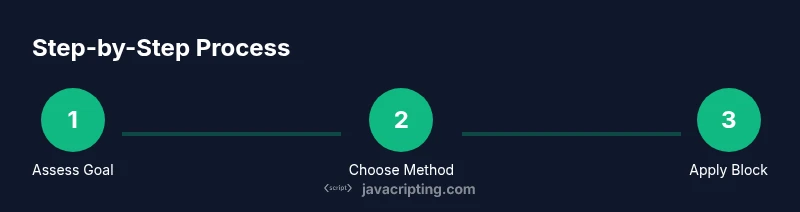
Choose blocking method
Decide whether to block JavaScript globally or on a per-site basis. Per-site blocking minimizes disruption to your daily browsing while still letting you test key pages.
Tip: Start with per-site blocking on a few representative sites before attempting global disable. - 3
Open browser settings
Navigate to the JavaScript control within your chosen browser. This is where you will apply the block rules or enable exceptions for specific sites.
Tip: Back up your current preferences before making changes. - 4
Apply the block
Set JavaScript to blocked globally or add sites to the blocked list. If using an extension, enable dynamic filtering for the sites you’re testing.
Tip: Document which sites you blocked and via which method (native settings vs. extension). - 5
Test page behavior
Reload pages and observe layout, content visibility, and interactivity. Use DevTools to inspect errors and blocked requests.
Tip: Check both desktop and mobile views if relevant to your test. - 6
Verify accessibility and content
Ensure essential information remains accessible without scripts. Verify forms, navigation, and headings are usable via keyboard and screen readers.
Tip: Note any content that becomes inaccessible and consider improvements. - 7
Re-enable and compare
Re-enable JavaScript and compare results with the previous run. Update your notes with any discrepancies and plan follow-up tests if needed.
Tip: Reset per-site rules to avoid carryover into other tasks.
Questions & Answers
Can I disable JavaScript for all sites at once?
Yes. Global blocking is possible in most browsers, but it often breaks core site functionality. Use per-site blocking first to minimize disruption. Revisit global blocking only for controlled testing.
Yes, you can globally disable JavaScript, but it often breaks many sites. Start with per-site blocking to test specifically.
Will disabling JavaScript break accessibility?
Some accessibility features rely on JavaScript for dynamic behavior. Check that essential content remains navigable and readable without scripts, and test with assistive technologies when possible.
Disabling JS can affect accessibility; verify content remains usable with assistive tech.
Can I disable JavaScript per site without extensions?
Yes. Most browsers allow per-site rules via site settings. Extensions make this easier but aren’t required for simple per-site blocking.
You can block JS per site using built-in settings without extensions.
What should I test after blocking JavaScript?
Test for content visibility, form accessibility, navigation, and dynamic content loading. Compare with the baseline where JavaScript is enabled to spot differences.
Test layout, forms, and navigation to see what changes without JS.
How do I re-enable JavaScript quickly?
Return to your blocking settings and toggle JavaScript back on, or reset site permissions to defaults. Reload affected pages to verify full functionality resumes.
Just re-enable JavaScript in settings and reload the pages.
Are there safer alternatives to disable JS for testing?
Yes, use feature flags or tainting techniques in a staging environment to selectively enable/disable features without fully blocking scripts.
Use feature flags or staging environments for safer testing.
Watch Video
What to Remember
- Block JavaScript safely and reversibly
- Prefer per-site blocking for testing accuracy
- Verify accessibility after blocking scripts
- Re-enable JS and compare results to baseline