How to Stop JavaScript on a Page: A Practical Guide
Learn safe, practical methods to stop JavaScript on a page using browser controls, DevTools, and extensions. Explore per-site blocking, testing strategies, accessibility considerations, and best practices for re-enabling JavaScript.


To stop JavaScript on a page, use browser controls to disable JS globally or per-site, or pause scripts via DevTools or extensions. This is useful for testing graceful degradation, accessibility, and performance when scripts fail or load slowly. In this article, you’ll learn exact steps, safety considerations, and practical tips to do it safely.
What stopping JavaScript on a page entails
According to JavaScripting, stopping JavaScript involves preventing client-side scripts from executing on a page, either globally or for a subset of sites. This practice is not about breaking the web; it's a controlled experiment that reveals how content behaves without interactivity, helps verify graceful degradation, and highlights where progressive enhancement is essential. It’s important to recognize that many websites rely on JavaScript for navigation, form validation, dynamic content, and accessibility features. When you stop JavaScript, you’re testing how a page serves information and core actions without reactive behavior. This knowledge is invaluable for debugging, accessibility audits, and performance tuning. In this guide, you’ll learn practical techniques to stop JavaScript on a page safely, without corrupting data or leaving you stuck with a nonfunctional screen. You’ll also see how to document results, compare user experiences, and re-enable in seconds. For example, this is a guide on how to stop javascript on a page to compare experiences with and without scripts.
Browser-level options to disable scripts
Most modern browsers let you control JavaScript at either a global level or per-site. This section covers the main options so you can pick the approach that fits your goals. Remember that blocking JavaScript can significantly alter page behavior, so use it for testing rather than everyday browsing. According to JavaScripting, starting with browser settings is the most straightforward path for most users. The exact menus vary by browser, but the core idea is the same: locate JavaScript control, and choose either jS disabled globally or add site-specific exceptions. This approach is especially helpful when you want to quickly validate a page’s fallback content or reduce surprises from heavy client-side logic during audits.
Using browser extensions to pause or block JS
Extensions can provide on-demand control over JavaScript without changing browser-wide settings. Options range from script blockers to general ad blockers with custom rules. When you need a quick test or an isolated environment, an extension can pause or block scripts on demand so you can observe how a page behaves with limited interactivity. Popular choices include general-purpose blocking tools and NoScript-style solutions. Use extensions sparingly on production sites to avoid masking real issues. Always verify that your extension’s behavior aligns with your testing goals and document any differences observed.
Temporarily pausing JavaScript through DevTools
DevTools offers powerful ways to halt script execution without altering browser preferences. Open Developer Tools (F12 or Right-click > Inspect), then use the Command Menu (Ctrl+Shift+P or Cmd+Shift+P on Mac) and type Disable JavaScript. Press Enter to apply. You can re-enable by issuing the same command or by reloading the page with the DevTools panel closed. This technique is ideal for debugging pull-based failures, race conditions, or performance bottlenecks caused by scripts. It lets you quickly simulate a JS-disabled environment while preserving the ability to re-enable just as fast.
Disabling JavaScript for a single page
If your goal is to test a single page, per-site blocking is often enough and minimizes disruption for the rest of your browsing. In Chrome-based browsers, you can add an exception under Site settings > JavaScript and specify the exact URL. Other browsers offer similar per-site controls under privacy or site permissions. This approach is particularly useful for validating progressive enhancement and ensuring core content remains accessible when scripts don’t run.
Network and offline testing for blocking external scripts
Another practical angle is to simulate a page load with certain scripts blocked by network conditions. In DevTools, you can turn on Offline mode or throttle network requests to observe how a page behaves when external resources fail to load. Blocking external scripts can reveal dependencies on third-party services, such as analytics or ads, and help you assess the impact on performance and content accessibility. This technique complements per-site blocking by focusing on resource-level failures rather than full JavaScript disablement.
Graceful degradation and accessibility considerations
Blocking JavaScript should not sabotage essential content or navigation. Use semantic HTML, progressive enhancement, and the noscript element to convey important information when scripts are unavailable. Plan for keyboard and screen-reader access, ensure forms have server-side fallbacks, and maintain meaningful page structure. Accessibility testing is crucial when JS is blocked so you can deliver a usable experience to all users, including those with disabilities or older devices. Plan-based design is the backbone of predictable user experiences when scripts are off.
Security and privacy implications of blocking JavaScript
Blocking JavaScript can improve privacy by reducing data collection and hostile scripts, but it can also hide legitimate site functionality. Be mindful that some sites rely on third-party scripts for essential features like authentication, payments, or real-time updates. Always test critical workflows and ensure you have a way to re-authenticate and complete tasks securely. The end goal is a safer browsing experience without compromising core functionality.
Performance and debugging trade-offs when JS is blocked
When you stop JavaScript, rendering can be faster for certain pages, but you may lose interactive responsiveness. The trade-off often reveals bottlenecks in resource loading, parsing, and render-blocking behavior. Use this as a diagnostic tool rather than a permanent configuration. Document the performance differences you observe and use those insights to guide optimizations or to implement progressive enhancements on the site.
Re-enabling JavaScript quickly and safely
Returning to normal browsing means restoring JavaScript execution. In most cases, you can simply re-enable via DevTools, browser settings, or the extension you used, then reload the page. Verify that interactive features work as expected and that any test data you altered is cleaned up. Document the exact steps you took to re-enable, so you can repeat the process reliably in future scenarios.
Common pitfalls and troubleshooting tips
Blocking JS can unintentionally break site functionality, especially on complex web apps. Watch for broken forms, broken navigation, and missing dynamic content that relies on client-side logic. If a page becomes unusable, revert to a known-good state by re-enabling JavaScript and reloading. When testing, start with a small, reversible change to isolate impact, and always keep a clear checklist of what you blocked and why.
Quick comparison: disable vs not disable
Blocking JavaScript is a deliberate debugging and testing technique, not a permanent user setting. Compare two conditions: with JS enabled and with JS blocked, noting differences in content, interactivity, and performance. Use a consistent set of test scenarios and document outcomes to guide your decisions about progressive enhancement and accessibility strategies.
Final recap: practical pathways to stop javascript on a page safely
In practice, you’ll often combine global or per-site blocking with DevTools testing and lightweight extensions to create controlled environments. Focus on preserving core content and ensuring fallbacks work. The goal is to understand how a page behaves without scripts and to use that insight to improve resilience and accessibility for all users.
Tools & Materials
- Web browser (Chrome/Firefox/Safari/Edge)(Ensure you have the latest version for the most reliable DevTools and settings.)
- DevTools access(Open with F12 or right-click > Inspect; used for on-the-fly testing.)
- Optional: Script-blocking extension(Examples: NoScript, uBlock Origin; useful for quick toggling.)
- Test pages or sites(Use a staging site or a local page to avoid affecting your live work.)
Steps
Estimated time: 15-30 minutes
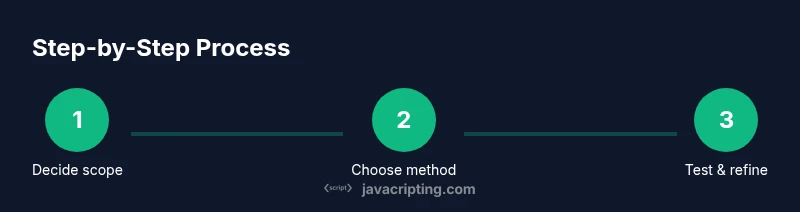
- 1
Define blocking scope
Decide whether you want to disable JavaScript globally or only for a specific site. Clarify testing goals (e.g., layout, navigation, forms) to guide your method.
Tip: Write down one concrete outcome you expect when JS is blocked. - 2
Open browser settings
Access the browser's settings or preferences panel to locate JavaScript controls. If you’re unsure where to find them, use the browser’s search or help feature.
Tip: Back up current settings before making changes in case you need to revert quickly. - 3
Navigate to JavaScript controls
Go to the site permissions or privacy section and locate JavaScript or scripting settings. The label may vary (e.g., 'JavaScript', 'Scripting', or 'Content settings').
Tip: Know that some browsers group scripts under ‘Content’ or ‘Security’ sections. - 4
Disable JavaScript globally
Choose the option to disable JavaScript for all sites. This is a blunt instrument, so be prepared for widespread changes to page rendering.
Tip: Expect many sites to render differently or become unusable; use for testing, not regular browsing. - 5
Add per-site exception
If your aim is selective testing, add an exception for the target site while leaving others on. This minimizes disruption.
Tip: Test both a site with and without the exception to compare results. - 6
Reload the page
Refresh the target page to apply changes. Ensure all styles and content reflow as expected under the new conditions.
Tip: If content is missing, check if it’s content rendered by JS or a style/render path that requires JS. - 7
Open DevTools for quick pause
Launch DevTools to access on-demand script control. Use the Command Menu to find 'Disable JavaScript' and apply it.
Tip: If the command isn’t available, try a different browser or update DevTools. - 8
Pause JavaScript via DevTools
Execute the 'Disable JavaScript' command to pause execution without altering global settings. This is ideal for debugging specific interactions.
Tip: Revisit the command to re-enable when done testing. - 9
Use an extension for ad-hoc blocking
Enable a script-blocking extension for quick toggling during a test session. Keep settings minimal to avoid masking issues.
Tip: Document which scripts were blocked to reproduce results. - 10
Simulate offline/resource-blocking
In Network conditions, set offline or block specific resources to observe behavior when external scripts fail to load.
Tip: This helps identify third-party dependencies and their impact on UX. - 11
Re-enable JavaScript when finished
Return to your previous configuration and reload the page to restore full functionality.
Tip: Always verify core interactions after re-enabling. - 12
Review accessibility and critical functions
Check that essential content remains reachable without JS and add fallbacks where needed.
Tip: Ensure there are non-JS alternatives for navigation and data entry.
Questions & Answers
What happens to a webpage when JavaScript is disabled?
Disabling JavaScript can affect interactivity, navigation, and form validation. Some content may still render, but dynamic features will be unavailable. Always verify core content delivery and provide non-JS fallbacks.
Disabling JavaScript can break interactivity, navigation, and dynamic features. Check what content remains accessible and ensure fallbacks exist.
Can I disable JavaScript for only one site?
Yes. Most browsers let you set per-site JavaScript permissions, so you can disable scripts for a specific site while leaving others unaffected.
Yes, you can disable JavaScript for a single site while keeping it enabled elsewhere.
Is it safe to block JavaScript on a page?
Blocking JavaScript is generally safe for testing, but it can affect functionality. Use it as a debugging tool and revert back when finished.
It's usually safe for testing, but it can break some features—re-enable when done.
What tools can help stop JavaScript without changing code?
Browser settings, DevTools, and script-blocking extensions provide practical ways to stop JavaScript without editing site code. Use them to study how pages behave with and without scripts.
Browser controls and DevTools let you pause or block scripts without changing code.
How do I re-enable JavaScript quickly?
Return to your previous blocking configuration, re-enable JavaScript, and refresh the page. Check that interactive features are functioning again.
Just re-enable JS in the same way you blocked it and refresh.
Will blocking JavaScript affect accessibility?
Blocking JS can impact accessibility if content relies on scripts for navigation or dynamic updates. Always test with assistive tech and provide non-JS fallbacks.
Yes, some accessibility features may depend on JavaScript; ensure fallbacks exist.
Watch Video
What to Remember
- Define scope before blocking JS.
- Use progressive enhancement for accessibility.
- Test both blocking and re-enabling to verify impact.
- Document blocked resources for reproducibility.