How to Fix JavaScript Errors on iPhone
Learn practical steps to diagnose and fix JavaScript errors on iPhone. Debug with Safari Web Inspector, apply compatibility fixes, and verify across iPhone models for a durable mobile JavaScript experience.


You can fix JavaScript errors on iPhone by identifying the error type, reproducing it on Mobile Safari, and applying targeted fixes. Use Safari’s Web Inspector for remote debugging, check for iPhone-specific constraints, and implement feature checks, polyfills, or code edits as needed. Verify across iPhone models and clear caches to confirm the fix.
Why iPhone JavaScript Errors Are Different
JavaScript on iPhone runs inside Mobile Safari's WebKit engine, which enforces stricter defaults in some web APIs and differs from desktop environments. Small timing quirks, network variability, and the way iOS caches scripts can surface errors that you might not see on desktop browsers. According to JavaScripting, troubleshooting JavaScript on iPhone often hinges on understanding Mobile Safari behavior and debugging workflows. The JavaScripting team found that most issues stem from a mix of compatibility gaps and execution timing. In practice, you should treat mobile debugging as a focused subset of desktop debugging—start with clear reproduction steps, then isolate the failure mode before implementing a fix.
Common Error Types You'll See on iPhone
On iPhone, JavaScript errors often come from compatibility gaps, asynchronous code, or resource loading problems. Typical messages include TypeError: undefined is not a function, ReferenceError: x is not defined, and SyntaxError: Unexpected token. Network-related failures like failed to fetch or CORS blocks can appear when mobile networks degrade or third-party scripts are blocked by iOS Content Security Policies. Remember that some errors are transient and device-specific, so reproduce on the target iPhone model and iOS version to confirm.
Quick Diagnosis with Safari Web Inspector
To diagnose on an iPhone, you’ll primarily rely on Safari Web Inspector accessible from a connected Mac. Enable the Develop menu in Safari, connect the iPhone via USB, and open the inspected page from the Develop menu. Use the Console for runtime errors, Network for resource loading, and Sources to locate the offending code. If you see a failed network request, inspect headers, status codes, and caching behavior. Remote debugging helps you capture logs from the exact device where users encounter the error.
Reproducing the Issue Across Devices and Networks
Don’t assume a bug behaves the same on every iPhone. Reproduce the issue on multiple devices (different models and iOS versions) and across different network conditions (Wi‑Fi vs cellular). Document precise steps and capture any console output. If you can reproduce locally, you can apply fixes more confidently. When you lack a device, use an emulator only for initial scoping, then validate on real devices before release.
Compatibility Strategy: Polyfills and Feature Detection
When an API isn’t available or behaves differently on iPhone, adopt feature detection instead of browser‑level guessing. Use polyfills to bridge missing functionality, or implement a lightweight fallback path. Tools like polyfill.io or core-js let you conditionally load shims without bloating your bundle. Keep polyfills up to date and test critical features (Promises, fetch, Array methods) across iOS versions to prevent regressions.
Step-by-Step Fixes for Common Scenarios
Scenario A: A function is not defined on iPhone. Confirm the script loaded correctly and that the function exists before invoking it. Scenario B: A call to an API is blocked by the browser due to mixed content or CSP. Switch to HTTPS, or guard calls behind a feature check. Scenario C: An ES6 feature isn’t supported. Transpile to ES5 and polyfill where needed. Remember to test after every change to verify stability.
Testing and Verification on iPhone After Applying Fix
After applying fixes, re‑test the page on the same iPhone and at least one additional device. Clear caches, reload the page, and verify that the previous error no longer appears in the console. Verify that critical paths (network requests, user interactions) behave as expected. Continuously monitor for regressions as soon as you deploy a fix.
When to Seek Help and Tools to Use
If the issue remains elusive, consult collaborative debugging resources and check third‑party script loaders for conflicts. Tools such as Remote Web Inspector logs, network profiling, and error tracking can illuminate root causes. When appropriate, reach out to your team or community forums with a concise reproduction and device details.
Best Practices for Long‑term Stability
Adopt a mobile‑first approach: test regularly on iPhone, manage dependencies carefully, and keep polyfills limited to what you need. Rely on feature detection, guard clauses, and graceful fallbacks to ensure your site remains usable even on older iOS versions. Document known issues and maintain a short rollback plan for critical deployments.
Common Mistakes to Avoid on Mobile Debugging
Avoid assuming that desktop fixes transfer directly to iPhone. Mobile browsers have different hazards: network throttling, CSS/JS minification issues, and cross-origin policies. Always validate fixes with real devices and respect memory constraints to keep performance snappy.
Quick Checklist Before Deploying to Production
Before releasing, run a final cross-device test, ensure polyfills load conditionally, prune unnecessary polyfills, verify that all critical user flows work offline, and confirm that error reporting doesn’t leak sensitive data.
Real-world Examples (Hypothetical)
Example 1 shows a missing API on iPhone resolved by a feature-detection guard and a small polyfill. Example 2 demonstrates a failed network request fixed by enforcing HTTPS and retry logic with backoff. These are illustrative scenarios to guide your debugging process.
Tools & Materials
- Mac computer with Safari(Enable Develop menu and remote debugging)
- iPhone with tested app(Test with the exact iOS version where users encounter the error)
- USB-C or Lightning cable(Connect device to Mac for Web Inspector)
- Text editor / IDE(Edit code and re-run quickly)
- Browser polyfills or libraries(polyfill.io, core-js for compatibility)
- Network access for testing(Test under Wi‑Fi and cellular)
Steps
Estimated time: 60-90 minutes
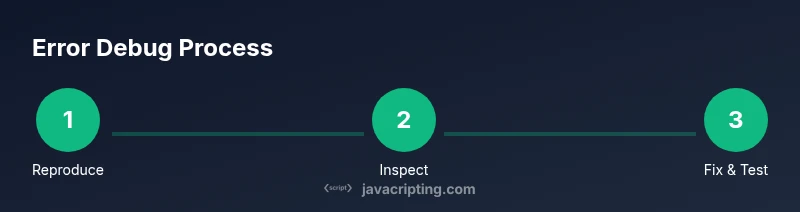
- 1
Reproduce the error on iPhone
Capture a clean reproduction of the fault on the target device. Note the exact user action that triggers the error and log any visible messages.
Tip: Document steps precisely to avoid missing context later. - 2
Connect to Safari Web Inspector
Enable the Develop menu in Safari, connect the iPhone via USB, and open the page from the Develop menu. This gives you live logs and network data from the device.
Tip: Ensure the iPhone trusts your computer to enable debugging. - 3
Check Console and Network logs
Inspect runtime errors in Console and review failed network requests in Network. Look for undefined functions, null refs, or blocked requests.
Tip: Filter for errors only to quickly spot the root cause. - 4
Isolate failing code with feature checks
Add guards to confirm API availability before use. If a feature is missing, branch to a safe fallback.
Tip: Prefer progressive enhancement over hard failures. - 5
Apply compatible fixes or polyfills
Transpile code to a compatible syntax (ES5) and load polyfills when necessary. Keep changes small and test incrementally.
Tip: Limit polyfills to what’s needed to minimize bundle size. - 6
Test across devices and networks
Re-run the fix on multiple iPhone models and network conditions. Ensure consistent behavior and no new errors appear.
Tip: Use remote or real devices for coverage.
Questions & Answers
Why do some JavaScript errors appear only on iPhone?
iPhone uses Mobile Safari's WebKit, which has unique constraints and timing differences that can reveal issues desktop tests miss. Device-specific APIs and network handling contribute to this behavior.
Some errors show up only on iPhone because Mobile Safari has unique constraints and timing. It's common to see device-specific issues due to APIs and networks.
Can I fix issues without modifying the codebase?
If you don’t control the code, you can still influence behavior by applying polyfills, updating libraries, or implementing safe fallbacks at runtime. Collaboration with the code owner is ideal.
If you don't control the code, you can still apply polyfills and fallbacks, or ask the owner to update dependencies.
Is Safari Web Inspector sufficient for debugging on iPhone?
Web Inspector is powerful for mobile debugging, but sometimes you’ll need additional tools or remote logs. Combine it with step-by-step reproduction and network profiling for best results.
Safari's Web Inspector is powerful, but use it with other checks and remote logs for full insight.
How can I verify fixes quickly on iPhone?
Reproduce the issue after applying changes, clear caches, and test across at least two iPhone models. Automated checks can help maintain consistency.
Reproduce the fix, clear caches, and test on multiple iPhones to confirm.
What should I avoid when debugging on mobile?
Avoid heavy console logging in production, rely on robust error handling, and don’t assume desktop fixes transfer to mobile without testing.
Don’t rely on desktop fixes without testing on mobile; keep logging minimal in production.
Watch Video
What to Remember
- Identify error type and reproduce on iPhone
- Use Safari Web Inspector for targeted debugging
- Apply feature checks and polyfills where needed
- Test across devices and networks for stability
- Document results and monitor post deploy