How to Get JavaScript Code from a Website: A Practical Guide
Learn safe, ethical ways to locate and understand JavaScript code from websites using browser tools. Step-by-step methods cover inline scripts, external files, dynamic loads, and licensing considerations for learning and debugging.


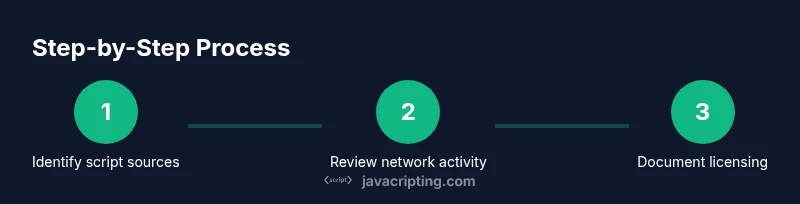
According to JavaScripting, this guide teaches safe, legal ways to locate and understand JavaScript code on websites using browser tools. You’ll learn to distinguish inline scripts from external files, inspect network activity, and identify dynamic code while respecting licensing terms. The approach emphasizes learning how the web works, not copying proprietary logic, and sets you up for effective debugging and secure development.
Understanding how to get javascript code from website
When you set out to understand a site's JavaScript, you’re learning how behavior is implemented, not just grabbing code. This guide covers practical, ethical ways to locate and understand the code that runs in the browser. By the end, you’ll know how to identify inline scripts, external .js files, and dynamic code loaded at runtime, and you’ll understand when it’s appropriate to reuse snippets. The core goal is to learn concepts, not to copy proprietary logic. For aspiring developers, this topic is essential for debugging, security audits, and learning modern JavaScript patterns. The phrase how to get javascript code from website captures the activity we’ll perform, including inspecting sources, decoding minified blocks, and respecting licensing and attribution rules. Throughout, expect concrete steps, safe practices, and examples you can try on test pages.
In practice, you’ll balance curiosity with caution: you’re here to learn how the web works, not to undermine someone’s intellectual property. You’ll gain a toolkit for recognizing where code lives, how it’s loaded, and how to verify it’s permissible to reuse in your own projects. This foundation helps you become more effective at debugging, performance analysis, and secure development.
Why people study code from websites and what counts as legitimate use
Many developers study website JavaScript to learn patterns, debugging techniques, and performance tricks. The legitimate goal is often to understand how a feature is implemented so you can replicate or improve it in your own projects, rather than copying another site’s proprietary logic. When in doubt about reuse, seek permission, consult the site’s license, or rely on public-domain patterns. This mindset protects both you and the original authors while fostering responsible learning and better coding habits.
What you will not gain from copying code alone
Relying on code snippets without context can lead to brittle implementations. Even when you copy a technique, you need to adapt it to your own app architecture, environment, and security requirements. This means validating dependencies, understanding browser compatibility, and testing across devices. The goal is to translate insights into robust, own-implemented solutions rather than a verbatim clone.
Tools you’ll use and the ethical boundaries you’ll observe
To study JavaScript responsibly, you’ll use browser developer tools, documentation, and your own editor. Always respect licenses, avoid redistributing code as-if-it-were yours, and credit sources when you do reuse publicly licensed snippets. This section sets the stage for practical, hands-on techniques in the following sections and helps you cultivate a research discipline that serves both learning and professional integrity.
Real-world mindset: learning workflows over shortcuts
Treat each script as a learning artifact. Focus on what the code does, how it interacts with the DOM, and how network requests fetch resources. Build small experiments in a safe environment, like a local HTML file or a dummy project, so you can observe effects without impacting real sites. This disciplined approach yields durable JavaScript knowledge and improves debugging skills.
Key takeaway: build your own understanding first
Before you rely on copied code, rebuild the logic from the ground up. This reinforces concepts and teaches you how to adapt patterns to your own codebase. The iterative process—inspect, understand, reimplement—transforms passive observation into active skill growth.
Practical transition: from inspection to implementation
Once you understand a technique, translate it into a reproducible pattern you can reuse in your own projects. Document the approach, name the pattern, and create a small, tested example. This habit makes you a better learner and a more capable developer, aligning with best practices in JavaScript development.
Tools & Materials
- Modern web browser with built-in Developer Tools (Chrome/Edge/Firefox)(You’ll use Elements/Sources/Network panels to locate and inspect scripts.)
- Stable internet connection(Needed to reload pages and fetch external script files.)
- Text editor or IDE(Used to paste, format, and annotate discovered code.)
- Access to a test page or permission to study a site(Always work on non-production pages or with explicit permission.)
- Notes/documentation tool(Helpful for recording findings, licenses, and attribution details.)
- Familiarity with JavaScript basics(Helps you interpret patterns, syntax, and common APIs.)
Steps
Estimated time: 30-60 minutes
- 1
Prepare your workspace
Open a clean browser session and a local editor. Create a dedicated folder for your study notes and copied code snippets. This keeps your experiments organized and avoids mixing new findings with unrelated work.
Tip: Set up a small HTML page locally to experiment with copied code before integrating it elsewhere. - 2
Enable Developer Tools
Launch your browser’s Developer Tools (often F12 or Ctrl/Cmd+Shift+I). Familiarize yourself with the Elements, Sources, and Network panels, as they are your primary sources of truth for discovering JavaScript.
Tip: Keep the DevTools docked in a consistent position to speed up workflow. - 3
Identify script references in HTML
In the page’s HTML, locate <script> tags. Note whether they point to external files via src attributes or contain inline JavaScript within the tag body. External files are typically easier to study in full.
Tip: Right-click a script tag and choose 'Open in new tab' to view the raw file quickly. - 4
Inspect the Sources panel for external files
Switch to the Sources panel and browse the loaded JavaScript files. Look for common paths, library names, and the order in which files are loaded. This helps you map the code to page behavior.
Tip: Use the filter or search feature to find keywords like function names or event handlers. - 5
Use the Network tab to locate JS assets
Reload the page with the Network tab open and filter by JavaScript. This reveals all script requests, their URLs, and timing. Click individual requests to view the response and headers.
Tip: Initiator information helps you understand which page feature triggered a script load. - 6
Check for dynamic loading and inline scripts
Some code loads at runtime via dynamic imports, eval, or new Function. Inspect event handlers and dynamic script insertion points in the DOM to catch these patterns.
Tip: Search for strings like 'import', 'eval', or 'src' additions in the DOM. - 7
Decode minified or obfuscated code
Minified scripts are compact and difficult to read. Use the Pretty Print feature in DevTools and, if available, source maps to recover readable structure.
Tip: If no source maps exist, you may still deduce functionality by tracing function names and call graphs. - 8
Document licensing and attribution
Before copying or reusing code, verify license terms. Document the source, license type, and attribution requirements. If licensing is unclear, avoid reuse and seek permission.
Tip: Keep a note of license URLs and any required attributions for future reference. - 9
Practice on a safe site or mock project
Apply what you learn on a local mock site or a learning sandbox. Rebuild simple features using your own code inspired by what you observed, rather than copying wholesale.
Tip: This practice reinforces understanding and reduces risk when working on real projects.
Questions & Answers
Is it legal to copy JavaScript code from a website for my own project?
Copyright and licensing govern code use. Some scripts are freely reusable under open licenses; others are proprietary. Always check the license, terms of service, and attribution requirements before reusing code.
Licensing determines reuse rights. If in doubt, use open-source or write your own code.
What is the difference between viewing page source and DevTools?
Page source shows the initial HTML, while DevTools reveals the live DOM, loaded resources, and runtime behavior. DevTools is essential for tracing dynamic loading and debugging.
DevTools shows what’s actually running in the page, not just what was written in the HTML.
Can I always access minified JavaScript easily?
Minified code is harder to read. Use the Pretty Print feature and look for source maps if available to recover structure.
You can often improve readability with pretty printing, but maps aren't always provided.
How should I approach licensing and attribution when reusing code?
Identify the license, comply with attribution requirements, and avoid removing license notices. If licensing is unclear, don’t reuse the code and seek permission.
Always respect licenses and credit the original authors when required.
What about code loaded dynamically via eval or import()?
Dynamic code is loaded at runtime and may not appear in initial HTML sources. Inspect network activity and runtime scripts to locate it.
Dynamic loading happens at runtime, so you may need to track it through network and execution traces.
Watch Video
What to Remember
- Identify whether code is inline or external.
- Use DevTools to locate script URLs and entry points.
- Respect licenses and attribution when reusing code.
- Practice on safe environments to build solid skills.