How to See JavaScript Code in Chrome: Practical Guide
Learn practical, step-by-step methods to view and inspect JavaScript in Chrome DevTools, including the Sources panel, breakpoints, source maps, and console tracing for effective debugging.


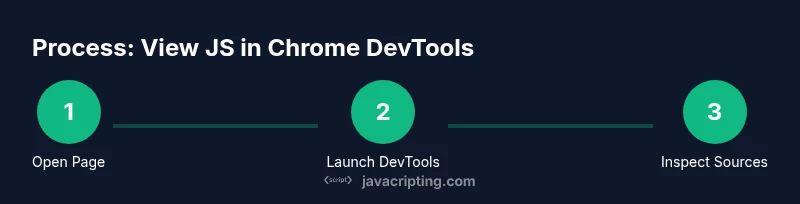
Goal: learn how to see javascript code in chrome by using DevTools panels such as Sources, Network, and Console. You’ll inspect loaded scripts, set breakpoints, and trace execution without altering the page. This quick answer outlines the essential steps and prerequisites for beginner to advanced debugging. Additionally, you’ll learn to enable pause on exceptions, view minified sources, and use pretty-print to read code more easily.
Prerequisites and Setup
To embark on how to see javascript code in chrome, you first need a plan and a ready environment. This section covers what you should have before you start: a stable Chrome browser, a test page with JavaScript, and a target scenario you want to understand. According to JavaScripting, success starts with clarity about what you want to observe: which file is executing, what variables change, and when events fire. Ensure you are testing on a page you control or have permission to inspect; private or production pages can complicate debugging due to minified code, obfuscated bundles, or content security policy restrictions. Next, launch Chrome DevTools by pressing F12 or right-clicking on the page and choosing Inspect. If you’re new, take a moment to familiarize yourself with the top-level tabs: Elements, Console, Sources, Network, and Performance. You don’t need all of them at once, but knowing their purposes helps you focus.
Chrome DevTools Overview: Your Debugging Playground
Chrome DevTools is the essential toolkit for seeing how JavaScript runs in the browser. The interface groups tools by purpose: Elements helps you inspect the DOM, Console lets you run ad-hoc code, Sources is where you view and set breakpoints, Network shows requests and responses, and Performance helps you profile runtime efficiency. For the task of seeing javascript code in chrome, you’ll spend most time in Sources and Console, but a quick look at Network can also reveal how assets load and map to specific scripts. The key is to start with a concrete goal—e.g., “I want to pause when a function named render is called”—then orient your tool usage toward that objective.
Locate Your JavaScript in the Sources Panel
Open DevTools and navigate to the Sources tab. In the left pane, you’ll see a file navigator organized by domain, project, and loaded scripts. Expand the folders until you find the JavaScript file(s) that power the page you’re debugging. If the code is bundled or minified, look for source maps or a related source file name. Double-click a file to view its contents in the center editor. If you’re unfamiliar with the bundle structure, use the Search in Resources feature (Ctrl/Cmd+P) to locate a function name or string literal, then jump to the defining line. This is the core step for the manual inspection of the actual code executing in the browser.
Understanding Minified vs Pretty-Printed Code
Modern web apps often ship minified JavaScript to reduce file size. Minified code is hard to read, so DevTools offers Pretty Print (the { } button) to reformat it with indentation and line breaks. Pretty printing does not change how the code runs; it only improves readability. After enabling pretty print, you can set breakpoints on the reformatted lines. If the project uses source maps, DevTools will map the pretty-printed code back to the original sources, providing a clearer debugging context. Keep in mind that some modern bundles use multiple layers of transpilation, so you may still need to locate the original source via Source Maps.
Setting Breakpoints: Pause and Inspect
Breakpoints are the primary mechanism to pause code execution and inspect runtime state. In the Sources panel, click the line number to set a breakpoint at the start of a function or a critical branch. When the page executes and hits that line, execution pauses, and DevTools reveals local variables, the call stack, and the current scope. You can also set conditional breakpoints by right-clicking a line and selecting “Add conditional breakpoint,” then entering a JavaScript expression that determines when the pause should occur. This is especially helpful for elusive bugs that only appear under certain data or user interactions.
Breakpoint Types: Conditional, Function, and DOM Breakpoints
Beyond basic line breakpoints, Chrome DevTools supports several specialized types. Conditional breakpoints pause only when your condition is true, reducing noise from frequent hits. Function breakpoints pause when a named function is called, which is useful for tracing entry points without scanning code. DOM breakpoints pause when specific DOM mutations occur, enabling you to see how changes in the page structure influence JavaScript behavior. Mastery of breakpoint types lets you quickly isolate the exact moment and context of a bug.
Inspecting Variables and Call Stack
When execution is paused, DevTools exposes a panel with the current call stack and the values of local and closure variables. You can hover over variables in the editor to see tooltips, add watch expressions to monitor selected values, and use the Scope pane to explore the function contexts. The Call Stack shows how the code arrived at the current point, which helps you trace the sequence of function invocations. If a value looks unexpected, step over or step into lines to watch how it changes across frames.
Using Console for Real-Time Debugging
The Console is not just for logging. While debugging, you can evaluate expressions in the console to inspect live values, test hypotheses, and call functions in the current scope. Use console.log judiciously during development; prefer breakpoints for steady-state inspection and use console for ad-hoc checks. You can also capture and replay console output with Preserve log, which is useful when reloading a page or navigating through frames. Console also supports breakpoints in conjunction with scripts, allowing you to test code paths interactively.
Tracing Network Activity and Source Maps
Network activity reveals when scripts are loaded, in what order, and whether any bundles are served from cache. In Chrome DevTools, the Network tab shows each request with timing, status, and response size. For JavaScript debugging, correlate Network entries with the exact script in Sources by selecting a request and viewing its response. If the page uses transpiled code, source maps provide a mapping from the minified bundle to original sources. When source maps are available, Chrome can show you the original TypeScript or ESNext files, improving readability and traceability.
Source Maps and Transpiled JavaScript
Source maps are a bridge between your running code and the original source files. When enabled, they map minified or transpiled code back to the original sources, such as TypeScript or modern JavaScript features. Without maps, debugging feels like reading a black box; with maps, you can set breakpoints in your own code and see exact correspondences between runtime execution and source files. If maps are not available, rely on the minified bundle but use naming patterns, comments, and webpack configurations to locate the right sections. Ensure source maps are loaded by the browser from the server, and inspect the Sources panel for a “webpack:///” or similar mapping.
Practical Walkthrough: From Page Load to Breakpoint
Imagine you’re debugging a page that renders a list after an API call. Start by opening DevTools and going to Sources. Locate the API function that triggers the render; set a breakpoint at the line where the data is assigned. Refresh the page to hit the breakpoint on load, then step through line by line. Observe the network request in Network, verify the response in the Preview tab, and inspect variable values in Scope. Use Console to log relevant values and validate assumptions. This practical workflow translates theory into observable behavior, making JavaScript debugging concrete.
Common Pitfalls and Quick Tips
Many developers rely too heavily on console.log statements, which can clutter output and miss timing issues. Always complement logging with breakpoints and a targeted search for where the code path begins. Minified code can obscure logic; remember to use Pretty Print and Maps to original sources. Do not forget to clear or disable breakpoints after finishing a debugging session to avoid slowing down page performance. Finally, ensure you test in an environment that mirrors production behavior to catch environment-specific bugs.
Best Practices for Sustainable Debugging
Adopt a repeatable debugging workflow: reproduce, isolate, inspect, and verify. Keep a small set of reusable breakpoints for common features and document the purpose of each. Use Source Maps whenever possible and maintain a robust mapping strategy in your build process. Create a habit of checking Network timing and payloads as part of every bug hunt. Regular practice with real pages builds clever intuition about JavaScript behavior under different conditions.
Conclusion and Next Steps
This guide equips you with the core techniques to see and reason about JavaScript code in Chrome. Practice on diverse pages, experiment with different breakpoint types, and gradually extend your toolkit with performance profiling and advanced console usage. The goal is not just to read code, but to understand how it behaves in real-world scenarios. By integrating these habits into your daily workflow, you’ll gain confidence in diagnosing and solving client-side issues quickly.
Tools & Materials
- Chrome browser (latest stable)(Ensure automatic updates are enabled for security and compatibility.)
- Test page with JavaScript you control(Use a page you can reload freely to reproduce bugs.)
- DevTools keyboard shortcut(Open with F12 or Cmd+Opt+I (Mac).)
- Code editor (optional)(Useful for editing and saving changes to test hypotheses.)
- Notes app or document(Track breakpoints, observations, and fixes.)
Steps
Estimated time: 30-45 minutes
- 1
Open the target page and launch DevTools
Navigate to the page you want to inspect, then open Chrome DevTools. This sets the stage for all subsequent observations. Use your preferred method to bring up the panel quickly.
Tip: Use Ctrl/Cmd+Shift+I to reopen DevTools if it’s closed during debugging. - 2
Switch to the Sources panel
Click the Sources tab to access the file navigator, the editor, and the breakpoints controls. This is where you will locate the JavaScript file(s) powering the page.
Tip: If you don’t see your script, enable the “Page” scope in the left pane or use the search feature to find a function name. - 3
Find the relevant JavaScript file
Browse domain folders or use the search (Ctrl/Cmd+P) to locate the file containing the logic you want to debug. If your code is bundled, look for source maps or a probable entry point.
Tip: Include a bookmark for frequently used files to speed up debugging in future sessions. - 4
Enable Pretty Print for minified code
If the code appears compressed, click the {} Pretty Print button to reformat. This improves readability and makes breakpoints easier to place.
Tip: Pair Pretty Print with a source map when available to map back to the original source. - 5
Set a breakpoint at a critical line
Click the line number to set a breakpoint where key data is processed or where decisions are made. Breakpoints pause execution to inspect state.
Tip: Start with a breakpoint at the function entry point to capture initial state. - 6
Refresh the page to trigger the breakpoint
Reload the page to trigger the breakpoint. Execution will pause at the breakpoint and you can inspect variables and the call stack.
Tip: If the breakpoint misses, try a conditional breakpoint or place another breakpoint downstream. - 7
Inspect variables and call stack
Examine local and closure variables in the Scope panel and follow the call stack to understand the path taken to reach the current point.
Tip: Add watch expressions for values you care about to monitor them continuously. - 8
Use Console for real-time checks
In the Console, evaluate expressions from the current scope or call functions to test behavior without reloading the page.
Tip: Preserve log to retain messages after page reloads. - 9
Correlate with Network activity and source maps
Check the Network tab to see script loading order and responses. If source maps exist, verify mappings in Sources for easier debugging.
Tip: Filter network requests by type to isolate JavaScript files quickly. - 10
Experiment responsibly and iterate
Make small, incremental changes to test hypotheses. Re-run the workflow to verify fixes and avoid introducing new issues.
Tip: Document every change and its observed effect for future reference.
Questions & Answers
Can I view JavaScript code from a page I didn’t author?
Yes. DevTools lets you inspect loaded scripts and understand how a page works, even if you didn’t write the code. Some parts may be minified or obfuscated, which can limit readability.
Yes, you can inspect loaded scripts with DevTools, though minified parts may be hard to read.
What does Pretty Print do in DevTools?
Pretty Print reformats minified code to be readable without changing behavior. It helps you locate logic more quickly and set meaningful breakpoints.
Pretty Print formats minified code so you can read and debug it more easily.
Are source maps necessary for debugging TypeScript in Chrome?
Source maps connect the running JavaScript to your original TypeScript or ESNext source. They make debugging intuitive; without maps, you may debug an intermediary file instead of your actual source.
Source maps link runtime code to your original TypeScript, making debugging precise.
How do I preserve logs across page reloads?
Enable Preserve log in the Console to keep logs after a refresh. This is helpful for tracing what happened during a page load.
Turn on Preserve log to keep useful messages after reloads.
Can I set breakpoints on a function rather than a line?
Yes. You can set breakpoints at function entry points or on specific lines. Function breakpoints pause when the targeted function is invoked, regardless of where the call happens.
Yes, you can attach a breakpoint to a function to pause when it runs.
Watch Video
What to Remember
- Master Chrome DevTools for JavaScript visibility
- Use breakpoints and pretty print effectively
- Leverage Console, Network, and Source Maps together
- Build a repeatable debugging workflow