Troubleshooting javascript not working on iPhone: Quick Guide
Learn practical steps to fix JavaScript issues on iPhone Safari. This troubleshooting guide covers common causes, debugging tips, polyfills, and when to escalate for lasting fixes.


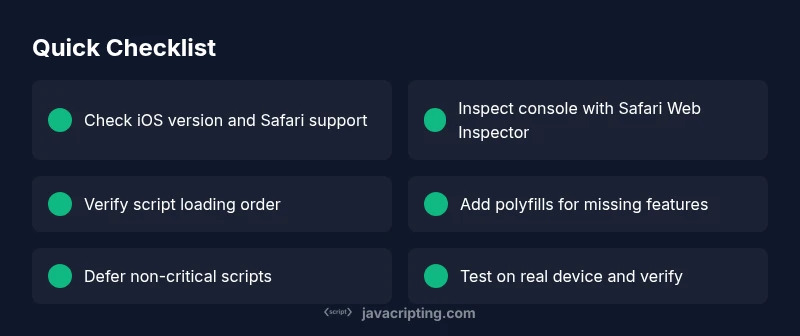
Most likely, your JavaScript isn’t working on iPhone due to Safari’s quirks or missing compatibility. Start with these quick steps: check iOS/Safari version, enable remote debugging, verify script loading order, and ensure polyfills for older devices are in place. If needed, defer non-critical scripts to rule out blocking. Commonly affected features include ES modules, modern APIs, and third-party scripts. Use developer tools on an iPhone to view console logs and network requests.
Why javascript not working on iphone
According to JavaScripting, many developers encounter the frustrating reality that javascript not working on iphone isn’t always a bug in their code. On iPhone devices, Safari’s behavior and the iOS security model can mask or delay script execution. You might see some parts load while others stall, or you may not see any errors at all, which makes diagnosing harder. This guide walks you through practical checks to uncover the root cause quickly and get your app back to a responsive state. By approaching the problem methodically, you can differentiate between a mobile-only issue and a broader browser compatibility problem.
The key is to frame the issue as a process: reproduce, observe, isolate, implement, and verify. With patience, you’ll be able to identify the exact scenario where javascript not working on iphone occurs and apply a precise fix rather than a guess. Keep your audience in mind as you test, because the user experience on iPhone matters just as much as on desktop, and mobile users expect seamless interactivity.
Common causes on iPhone Safari
The iPhone’s Safari engine supports most modern JavaScript features but not every environment is identical. One of the most frequent culprits behind javascript not working on iphone is outdated iOS or WebKit, which can fail to execute newer syntax or APIs. Another common factor is content blockers or privacy settings that inadvertently block third-party scripts or tracking requests. Additionally, incorrect script loading order, non-deferred assets, or dynamic imports can fail silently on mobile if the network slows or the browser throttles resources. Finally, runtime errors from syntax issues or unsupported APIs can surface only on iOS when a feature is unavailable. Understanding these categories helps narrow down where to look first when diagnosing the problem.
Quick checks you can perform now
To move fast when javascript not working on iphone, start with basic verifications that don’t require heavy tooling. Ensure the page loads fully and that script tags load in the expected order. Open a test page on iPhone Safari to confirm basic interactivity works, then compare with a feature-rich page to spot regressions. Check the console for errors using remote debugging, inspect network requests to verify that script files are delivered, and confirm that CSP rules aren’t blocking inline scripts. If you’re not seeing any errors, you might still have a rendering or timing issue that requires deeper inspection.
Diagnostic flow you can follow
A solid diagnostic flow for javascript not working on iphone is symptom → diagnosis → solution. Start with simple, verifiable symptoms (e.g., buttons not responding, animations stalled). Move to diagnosis by checking compatibility, console errors, and script order. Apply a focused solution, then re-test the device. If issues persist, iterate with progressive enhancements, ensuring each change is independently testable.
Step-by-step fixes for the most common cause
Here is a practical sequence to fix the most common root cause behind javascript not working on iphone: first, update the device OS and Safari to the latest stable release; second, add polyfills or transpile code to support older Safari versions; third, review script loading order and defer non-critical scripts; fourth, enable remote debugging and inspect console errors and network activity; fifth, verify there are no content blockers preventing script loading; sixth, implement a graceful fallback for features that won’t run on older iOS. Each step should be tested before moving to the next to isolate the exact fix.
Testing and verification on a real device
Testing on a real iPhone is essential when debugging javascript not working on iphone. Use Safari's Web Inspector from a desktop to inspect console logs, network requests, and DOM mutations. Compare the behavior against a known-good environment, such as a newer iPhone or an updated iOS build. Reproduce the issue with exact steps, then re-run the test after each fix to verify improvements. If issues persist, consider isolating the problematic feature in a minimal repro and sharing that with teammates for a second pair of eyes.
Safety, blockers, and common mistakes
Always respect user privacy and security settings while debugging. Do not disable essential protections or permissions, and never force-disable blockers without user consent during testing. Common mistakes include assuming mobile behavior mirrors desktop, ignoring network timing, and neglecting progressive enhancement for older devices. Document every change and test thoroughly across devices to prevent a regression on javascript not working on iphone in the future.
The JavaScripting team's verdict and next steps
The JavaScripting team recommends a disciplined debugging approach: verify OS/browser version, ensure compatibility with polyfills, validate load order, and use remote debugging to catch silent failures. Keep tests small and reversible, and prioritize fixes that improve accessibility and performance on iPhone users. By following these steps, you’ll reduce the time to resolution and improve overall reliability for mobile users who rely on JavaScript in Safari.
Steps
Estimated time: 45-75 minutes
- 1
Reproduce the issue on the iPhone
Open the page on an iPhone and perform the actions that fail. Note the exact features that don’t respond, and capture any visible errors or visual glitches. Create a minimal repro if possible to isolate the problem.
Tip: Document device model, iOS version, and Safari build for precise reproduction. - 2
Check environment compatibility
Review whether the page uses features that may not be supported by the iOS version in question. Compare with caniuse data to identify likely gaps and plan polyfills accordingly.
Tip: If targeting older devices, plan progressive enhancement and graceful fallbacks. - 3
Review script loading and timing
Ensure scripts load in the correct order and that critical scripts aren’t blocked by network delays. Check for missing modules, incorrect defer/async usage, and module vs nomodule patterns.
Tip: Test by removing non-essential scripts to confirm whether timing is the root cause. - 4
Enable remote debugging and inspect logs
Connect the iPhone to a desktop and use Safari Web Inspector to view console logs, network requests, and DOM updates. Look for blocked requests, CSP issues, or runtime errors.
Tip: Check both console messages and network tab to capture the full failure context. - 5
Apply fixes incrementally
Add polyfills or adjust code paths to support older Safari. Defer non-essential features and verify improvements with each change.
Tip: Test after each change to clearly attribute the impact of a single fix. - 6
Verify fix and document
Reload the page on the iPhone and confirm that the issue no longer reproduces. Create a brief changelog and share it with the team for future reference.
Tip: Include a regression test to prevent reintroduction of the issue.
Diagnosis: Users report that JavaScript does not run on iPhone in Safari; interactive elements fail or render incorrectly without clear errors.
Possible Causes
- highOutdated iOS or Safari engine (WebKit) version
- highMissing or unsupported JavaScript features on older Safari
- mediumContent blockers or privacy settings blocking scripts
- mediumIncorrect script loading order or deferred loading issues
- lowRuntime errors due to syntax or API usage
Fixes
- easyUpdate iPhone to the latest iOS/Safari and retest
- mediumAdd polyfills or transpile code to support older Safari versions
- easyReview script loading order, defer non-critical scripts, and use proper module handling
- easyCheck for and adjust content blockers or privacy settings during testing
- easyUse Safari Web Inspector for remote debugging to capture errors and network issues
Questions & Answers
Why is my JavaScript not working on iPhone in Safari?
Outdated iOS, unsupported features, content blockers, or load-order issues commonly cause javascript not working on iphone. Update, polyfill, and test with remote debugging to isolate the root cause.
Common reasons include outdated iPhone software, missing polyfills, or blocked scripts. Use remote debugging to pinpoint the issue.
How can I test JavaScript on iPhone without a device?
Use Safari's Web Inspector with a Mac to debug actions on an iPhone, or rely on Xcode's iOS Simulator for initial checks before device testing.
You can test using a Mac's Safari Web Inspector or an iOS Simulator before testing on a real device.
Which Safari features are most likely to fail on older iOS versions?
Older iOS versions may lack support for newer JavaScript APIs. Plan progressive enhancement and polyfills for broader compatibility.
Older iOS versions may miss newer APIs, so plan fallbacks and polyfills.
Should I polyfill every feature?
Polyfills help when you need broader support, but prioritize essential features first and test performance impact before broad adoption.
Use polyfills for essential features only, and test performance impacts.
What if content blockers block my scripts?
Content blockers can prevent script loading. During testing, disable blockers or whitelist your domain to confirm whether blockers are the cause.
Blockers can stop scripts from loading; disable or whitelist to verify the cause.
When should I escalate to professional help?
If issues persist after applying standard fixes and affect multiple users or critical features, seek professional debugging assistance.
If it still won’t fix after best practices, get professional help.
Watch Video
What to Remember
- Diagnose mobile issues with a structured flow.
- Keep Safari compatibility in mind and polyfill when needed.
- Use remote debugging to surface hidden errors.
- Defer non-critical scripts to improve mobile load performance.
- Document fixes and verify with real-device testing.