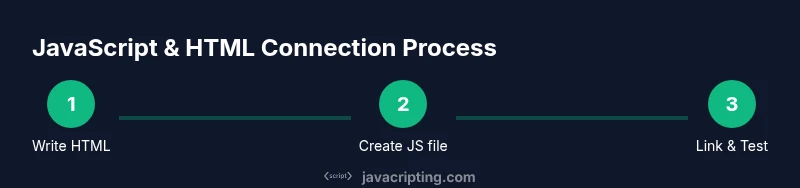
How to Connect JavaScript with HTML
Learn practical, step-by-step techniques to connect JavaScript with HTML using inline, internal, and external scripts. Explore DOM access, event handling, loading strategies, and best practices for robust, accessible web pages.


By the end of this guide you will know how to connect JavaScript with HTML using script tags, external files, and DOM APIs. You’ll learn where to place scripts, how to load them efficiently, and how to wire basic events to update the page. This approach applies to inline, internal, and external scripts for maintainable web apps.
Why Connecting JavaScript with HTML Matters
In modern web development, JavaScript and HTML are two halves of the same user experience. HTML lays out the structure, while JavaScript adds behavior, interactivity, and responsiveness. When you connect the two effectively, you create pages that respond to user input, update content on the fly, and remain maintainable as the codebase grows. According to JavaScripting, the most successful projects treat JavaScript as a companion to HTML rather than an afterthought, so the DOM remains a predictable surface for updates. This approach strengthens accessibility and performance, because you can minimize reflows and keep scripts away from critical rendering paths.
To begin, understand that JavaScript accesses HTML elements through the Document Object Model (DOM). The DOM is a live representation of the document, exposing elements as objects with properties and methods. Your code reads and writes these objects, triggering DOM mutations that the browser paints on screen. The result? Interactive features such as sliders, tabs, form validation, and content filtering, all without reloading the page. The goal is to separate concerns where HTML handles structure and semantics, CSS handles presentation, and JavaScript handles behavior. When this separation is respected, you’ll find debugging easier and collaboration smoother, because responsibilities are clearly divided.
The Basic Connection: Script Tags and Placement
There are several reliable ways to connect JavaScript with HTML, each with its own use cases. You can place JavaScript inline within a script tag, include a small internal script block, or link to an external JS file. For small demos, inline scripts can be convenient, but for real apps external files are preferred for caching, maintainability, and collaboration. The browser executes scripts in the order they appear unless told otherwise by attributes such as defer or async. A modern pattern is to place an external file with a <code><script src=
external-file
etc. The exact approach you choose will affect load time, render performance, and debugging workflow.
Inline Script vs Internal Script vs External File: Pros and Cons
Each connection method has trade-offs. Inline scripts are simple and immediate but clutter HTML and hinder caching. Internal scripts live in the page, which can be useful for small tweaks but reduce modularity. External files promote reuse, better caching, and clearer separation of concerns, but require an extra HTTP request. A balanced approach is to use external scripts for most logic, and reserve small inline handlers for tiny, highly specific tasks. Always ensure that external scripts are loaded after the DOM is ready unless you strictly need to run early.
External JavaScript: Setting Up and Structuring Projects
A robust project places JavaScript in its own directory and uses clear naming conventions like <code>script.js</code> or <code>app.js</code>. A typical structure:
- index.html
- assets/
- css/
- js/
- app.js
- utilities.js
Link external files with a standard script tag: <code><script src="assets/js/app.js"></script></code>. For better performance, load scripts with <code>defer</code> or <code>async</code> depending on dependencies. If you’re using modules, declare <code>type="module"</code> and organize code into import/export boundaries. JavaScripting analysis shows that consistent module boundaries improve maintainability and reduce coupling across features.
DOM Access: Selecting Elements and Manipulating Content
Interacting with the DOM is the core of connecting JavaScript to HTML. You access elements with selectors like <code>document.querySelector</code> or <code>document.getElementById</code>, then change properties such as <code>textContent</code>, <code>innerHTML</code>, or <code>style</code>. Always check for nulls when an element might not exist yet. Example:
<div id="message">Hello</div>
<script src="assets/js/app.js"></script>const msg = document.getElementById('message');
if (msg) {
msg.textContent = 'Welcome to the site!';
}This approach keeps your HTML semantic while your JavaScript drives dynamic updates.
Event Handling: Responding to User Interactions
Events are the lifeblood of interactivity. Use addEventListener to attach handlers for clicks, input changes, or keyboard events. This pattern avoids inline handlers and makes behavior easier to test. Example:
<button id="btn">Click me</button>const btn = document.getElementById('btn');
if (btn) {
btn.addEventListener('click', () => {
alert('Button clicked!');
});
}Group related event logic into modules or hooks to keep code maintainable, and debounce high-frequency events when appropriate.
Loading Strategies: Async, Defer, and Module Scripts
Loading strategies shape performance. The <code>defer</code> attribute ensures scripts run after the document finishes parsing, preserving render path performance. The <code>async</code> attribute loads scripts asynchronously and executes as soon as they’re ready, which can disrupt DOM-dependent code if order matters. Modules (<code>type="module"</code>) enable import/export and scope isolation, which is ideal for large apps. Choose based on dependencies and execution order to avoid race conditions.
Debugging, Testing, and Common Pitfalls
Debugging starts with the browser console. Check for 404 errors on script files, ensure correct paths, and verify loading order. Common pitfalls include manipulating DOM before it exists, relying on global variables, and blocking the UI with long scripts. Use <code>document.addEventListener('DOMContentLoaded', ...)</code> or <code>defer</code> to guarantee the DOM is ready. Unit tests and small, isolated examples accelerate learning.
Accessibility and Semantics When Updating the Page
Dynamic changes should preserve accessibility. Announce updates to screen readers with ARIA live regions when content changes dramatically, ensure focus management when new elements are added, and keep color contrast high for dynamic UI changes. Semantic HTML remains essential; JavaScript should enhance, not replace, meaningful HTML structure. This approach benefits all users and aligns with best practices JavaScripting advocates.
Tools & Materials
- Text Editor(VS Code or any modern editor)
- Web Browser(Chrome/Edge/Firefox for debugging)
- HTML File(index.html or similar starter page)
- JavaScript File(assets/js/app.js or script.js)
- Local Server (optional)(Live Server extension or http-server for testing module loading)
Steps
Estimated time: 30-45 minutes
- 1
Create an HTML skeleton
Write a minimal HTML document with a root element and a script reference. This establishes the structure you will manipulate with JavaScript.
Tip: Use <!DOCTYPE html> and the proper meta viewport tag for responsive behavior. - 2
Add a script tag to load JavaScript
Place a script tag at the end of the body or use defer to load after parsing. Point src to your external JS file.
Tip: Prefer external files for maintainability and caching; avoid inline handlers for scalable apps. - 3
Create an external JavaScript file
Create a separate JS file and link it from HTML. Keep logic modular and grouped by feature.
Tip: Organize functions by responsibility and export modules when using type='module'. - 4
Access DOM elements safely
Use document.querySelector or getElementById to grab elements, then check for null before manipulating.
Tip: Cache frequently used selectors to minimize DOM queries and improve performance. - 5
Add a basic event listener
Attach a click handler or input listener to respond to user actions.
Tip: Detach listeners if elements are removed to prevent memory leaks. - 6
Test load order and behavior
Open the page in a browser and verify that scripts run after the DOM is ready. Check for console errors.
Tip: Use DOMContentLoaded to run code that requires the DOM if you don’t use defer. - 7
Refactor and optimize
Review your code for readability, modularity, and accessibility. Replace inline handlers with event listeners.
Tip: Add comments and consider future modularization as the project grows.
Questions & Answers
What is the difference between inline, internal, and external scripts?
Inline scripts run directly in the HTML file, which can be convenient for tiny tasks but hinders caching and reuse. Internal scripts live in the page and share global scope with other code, which can complicate maintenance. External scripts are loaded from separate files, enabling better caching, modularity, and collaboration. Choose external scripts for most projects, and reserve inline snippets for very small, isolated tasks.
Inline scripts run in the page, internal scripts live in the page scope, and external scripts live in separate files for reuse and caching.
Where should I place script tags in HTML?
Place scripts after the DOM elements they interact with, or use the defer attribute to postpone execution until after parsing. If the script depends on the DOM, defer or place the tag at the end of the body. For most dynamic features, external files with defer are recommended.
Put scripts where they can safely access DOM elements, typically with defer or at the bottom of the body.
Why isn’t my JavaScript running after the DOM has loaded?
The code may be executing before the DOM exists. Use DOMContentLoaded, or place the script with the defer attribute to ensure it runs after parsing. Also verify the script is loaded with the correct path and that there are no blocking errors in the console.
This usually happens if the script runs before the DOM is ready; use DOMContentLoaded or defer to fix it.
What is the difference between defer and async attributes?
Both defer and async affect load order. defer executes after parsing completes and preserves script order, making it safer for DOM-dependent code. Async loads asynchronously and executes as soon as ready, possibly out of order, which can break dependencies. Use defer for most scripts that rely on the DOM and async for independent scripts.
Defer runs after parsing in order; async runs as soon as ready and may run out of order.
How do I access HTML elements from JavaScript?
Use document.querySelector, document.querySelectorAll, or document.getElementById to obtain element references. Then read or set properties like textContent or innerHTML. Always handle null checks and consider caching selectors for performance.
Grab elements with querySelector or getElementById, then modify their properties.
Can I include JavaScript in HTML without separate files?
Yes, you can include JavaScript inline with a script tag, but this is not recommended for larger projects due to maintainability and caching concerns. Use it sparingly for quick demos and keep most logic in external files.
Inline JS is possible but not ideal for bigger projects; external files are better.
Watch Video
What to Remember
- Connect JavaScript to HTML via script tags and DOM APIs.
- Prefer external scripts for maintainability and performance.
- Use addEventListener for robust interactivity.
- Manage load order with defer/async or module scripts.
- Prioritize accessibility when updating the DOM.