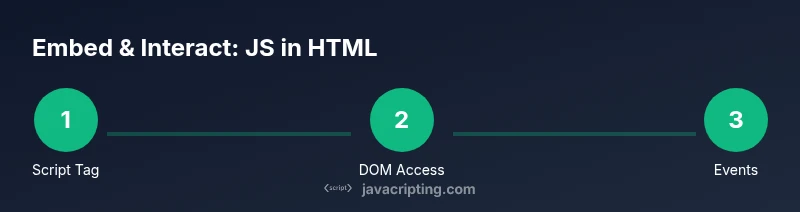
How to Use JavaScript in HTML
Learn how to embed JavaScript in HTML with script tags, external files, and DOM interactions. This educational, step-by-step guide covers best practices, loading strategies, debugging, and accessible code for aspiring developers.


Embed JavaScript in HTML using <script> tags, inline or external files, and modern loading strategies. You can access the DOM, handle events, and organize code with modules. This guide walks you through practical steps to run JS on your pages.
Embedding JavaScript with the <script> tag
If you're wondering how to use javascript in html, start with the <script> tag. The most common pattern is to place code directly inside a script element or to reference an external file. In practice, you want your scripts to run after the DOM is ready, so many developers add the script at the end of the body, or use defer in the tag. According to JavaScripting, the decision between inline and external scripts depends on project size and caching considerations. Here is a minimal example:
<!doctype html>
<html>
  <head><meta charset="utf-8"><title>JS in HTML</title></head>
  <body>
    <p id="demo">Waiting...</p>
    <script>
      document.addEventListener('DOMContentLoaded', function(){
        document.getElementById('demo').textContent = 'Hello from JavaScript!';
      });
    </script>
  </body>
</html>
Linking to External JavaScript files
For larger projects, external files are preferred. Create a file named app.js, then reference it with <script src="app.js" defer></script> to ensure the script loads after the HTML parsing. Using defer helps you keep HTML parsing unblocked while still applying scripts when ready. JavaScripting analysis shows that external files improve caching and maintainability. Example:
<!doctype html>
<html>
  <head><meta charset="utf-8"><title>External JS</title><script src="app.js" defer></script></head>
  <body><p id="demo2">Text</p></body>
</html>
Accessing the DOM from JavaScript
Once your script runs, you can read and modify the DOM using standard APIs like document.querySelector and document.getElementById. This is the core of how to use javascript in html: select elements, inspect their properties, and alter content or styles in response to user actions. A common pattern:
const p = document.querySelector('#demo');
p.textContent = 'DOM access works!';
This approach keeps your code readable and reusable across components.
Event Handling Essentials
Reacting to user input is central to interactive pages. Use addEventListener to attach events without polluting global scope. For example, a click on a button can trigger updates to the DOM or fetch data. Always remove listeners if you’re dynamically creating or destroying elements to avoid memory leaks. Example:
<button id=\"btn\">Click me</button>
<script>
  document.getElementById('btn').addEventListener('click', function(){
    alert('Button clicked!');
  });
</script>
JavaScript Modules and Loading Strategies
As projects grow, organize code using modules. Use type="module" scripts to enable import/export syntax and scope encapsulation. Modules load asynchronously by default, and defer is not required. For pages that rely on a module, ensure a proper server or a local server during development. Example:
<script type="module" src="main.js"></script>Debugging and Tools
Debugging is a skill you develop. Use browser DevTools Console to print messages and inspect objects. Breakpoints, watchers, and network panels help you diagnose timing and data flow. Keep code clean and commented to make debugging easier for yourself and teammates. Pro tip: use console.log judiciously and remove debug logs from production.
Common Pitfalls and How to Avoid Them
Avoid blocking the main thread by placing heavy computations in Web Workers or deferring noncritical scripts. Do not inline large blocks of code inside HTML; prefer external files for maintainability. Remember to validate user input and handle errors gracefully to prevent runtime crashes.
Minimal Working Example
Here's a compact, working HTML file you can copy:
<!doctype html>
<html>
  <head>
    <meta charset="utf-8">
    <title>Minimal JS in HTML</title>
    <script defer src="/js/app.js"></script>
  </head>
  <body>
    <p id="demo">Original</p>
    <button id="change">Change Text</button>
  </body>
</html>
And in app.js:
document.addEventListener('DOMContentLoaded', () => {
  document.getElementById('change').addEventListener('click', () => {
    document.getElementById('demo').textContent = 'Updated by JS';
  });
});
Performance, Accessibility, and Best Practices
Performance improves when you load scripts asynchronously or defer parsing until after the HTML. Accessibility considerations require that interactive elements are keyboard accessible and that dynamic updates have appropriate ARIA roles if needed. Use semantic HTML where possible and keep styles separate from logic.
Tools & Materials
- Modern web browser(Chrome/Firefox/Edge/Safari)
- Text editor(VS Code, Sublime Text, etc.)
- Basic HTML/CSS knowledge(Structure, tags, attributes)
- External JS file(App.js or script.js)
- <script> tag(Inline or external usage)
Steps
Estimated time: 25-40 minutes
- 1
Create a project folder and index.html
Set up a simple HTML skeleton to host JavaScript. This ensures you have a stable base to test scripts.
Tip: Use a consistent folder structure (js/, index.html). - 2
Add a script tag in HTML
Insert a <script> tag in the body to run code after the DOM loads. Decide between inline or external depending on scope.
Tip: Place inline scripts at the end of body or use defer. - 3
Write a small DOM example
Select an element with document.getElementById and modify its content to see immediate results.
Tip: Start with a paragraph id 'demo'. - 4
Move code to an external file
Create app.js and link it via <script src="app.js" defer></script> for cleaner code.
Tip: Keep file names descriptive and under 100 lines. - 5
Attach an event listener
Use addEventListener to respond to user actions rather than inline handlers.
Tip: Prefer 'click' event for buttons. - 6
Use type="module" for organized code
Split code into modules and import/export where appropriate.
Tip: Serve files from a local server for module loading. - 7
Test and debug
Open DevTools, check Console and Network tabs for errors and loading issues.
Tip: Refresh after changes to verify updates. - 8
Refactor and optimize
Review code for redundancy and readability; add comments.
Tip: Comment complex logic and edge cases.
Questions & Answers
Can I include JavaScript directly in HTML?
Yes, you can place code inside a <script> tag in HTML. For larger projects, external files are recommended for maintainability.
Yes. You can put code in a script tag or link to an external file.
What is the difference between inline and external scripts?
Inline scripts run immediately where placed; external scripts can be cached by the browser and kept separate from HTML.
Inline scripts run where you place them; external scripts are cached and easier to manage.
When should I use defer vs async?
Use defer when scripts rely on the DOM; use async for independent scripts that do not depend on DOM readiness.
Use deferred scripts if you need the DOM ready; asynchronous ones run as soon as they load.
Is inline event handling recommended?
Inline handlers are discouraged for maintainability; prefer addEventListener in external scripts.
Inline events work but are harder to manage; prefer addEventListener.
How do I debug JavaScript in the browser?
Open DevTools, use Console, breakpoints, and Network tab to diagnose problems.
Open DevTools to debug with Console and breakpoints.
Do I need to use modules in HTML?
Modules help organize code; you can start with classic scripts and migrate later to type="module".
Modules help organize code; you can start with regular scripts and move to modules.
Watch Video
What to Remember
- Embed JS using <script> tags (inline) or external files.
- Prefer external files with defer to improve load times.
- Manipulate the DOM with document.querySelector and related APIs.
- Attach events with addEventListener for clean code.
- Debug effectively with browser DevTools.