Making Games with JavaScript: A Practical Guide
Learn how to make games with JavaScript using HTML5 Canvas, input handling, and a simple game loop. Step-by-step instructions, practical examples, and reusable patterns for future projects.


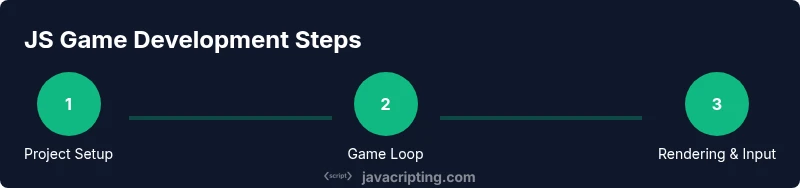
In this guide you will learn how to build small, interactive games using JavaScript and HTML5 Canvas. You'll set up a simple project, implement a game loop, handle input, and render graphics. By the end you'll have a playable game and a reusable pattern for more projects and experiments. Right from the start you'll see results.
Why making games with javascript is accessible to beginners
If you’re new to programming, creating a game with javascript offers immediate feedback and a clear goal. The browser canvas provides a simple surface for rendering, and JavaScript is flexible enough to iterate quickly. According to JavaScripting, practical JavaScript game projects accelerate learning and build confidence quickly. You can start with a tiny, self-contained project and gradually add features. This approach lowers the barrier to entry compared to more abstract simulations, and it helps you connect theory to real interactive results. In this guide you’ll follow a complete, hands-on workflow so you can move from concept to playable prototype in a weekend or less. As you progress, you’ll learn not just code, but the patterns and discipline of building interactive experiences that feel responsive and fun.
Core technologies you’ll use: Canvas, sound, and input
The core trio for most 2D browser games is the HTML5 Canvas for rendering, the Web Audio API for sound (optional but impactful), and input handling for player interaction. Canvas gives you a bitmap surface to draw shapes, sprites, and text. Sound adds feedback and immersion without demanding heavy assets. Input handling—keyboard, mouse, or touch—lets players control the game. This combination is powerful yet approachable for beginners making games with javascript. As you grow, you’ll layer in assets and more advanced logic, but the basics keep you focused and productive.
Setting up a tiny project: files and structure
A small project keeps the learning loop tight. Create an index.html that hosts a canvas element, a main.js file for game logic, and a styles.css for visuals. A simple folder structure looks like: index.html, src/main.js, assets/ for images and sounds, and css/styles.css. Start with a minimal example that clears the canvas each frame and draws a single shape. This reduces cognitive load, so you can experiment with timing, input, and rendering without being overwhelmed by boilerplate. As you refine, you can modularize your code into separate files or modules.
Building your first game loop: timing and frames
The game loop is the heartbeat of any browser game. Use requestAnimationFrame for smooth visuals synchronized to the display refresh rate. The loop typically updates game state (position, velocity, collisions) and then renders the scene. A consistent delta time (dt) between frames helps your game run at the same speed on different devices. Start with a tiny loop that moves a ball and bounces it off walls, then incrementally add player control and simple AI. This pattern—update then render—keeps logic predictable and testing straightforward.
Rendering with HTML5 Canvas: drawing shapes and text
Canvas lets you draw lines, rectangles, circles, and images. Begin with clearRect to reset the surface, then compose each frame by drawing the player, enemies, and UI. You’ll learn to use paths for custom shapes, measureText for dynamic UI, and globalAlpha for transparency. Text rendering is useful for scores, messages, and tutorials. As you gain confidence, you can add sprites and simple physics. The result is a visually responsive experience that reinforces your programming patterns.
Handling input: keyboard, mouse, and touch
Responsive input is essential for playability. Start with basic keyboard handling (e.g., arrow keys or WASD) to move a player. Extend to mouse or touch to aim or tap actions. Debounce rapid inputs and clamp motion to screen bounds. A well-structured input system decouples controls from game logic, making it easier to reuse across projects. This flexibility is particularly valuable when you migrate from a single demo to a small, polished game.
Simple collision and game rules: pong/brick example
A gentle introduction to game rules is to build a Pong- or Brick-style mechanic. Implement axis-aligned bounding box (AABB) collision to detect hits between shapes, then respond by reversing velocities or updating scores. Particle effects or simple audio feedback can make collisions feel satisfying. Keep the logic modular so you can swap in different shapes, speeds, or levels. This concrete pattern helps cement the idea of rules-driven gameplay in JavaScript.
Organizing your code: modules and patterns
As your project grows, structure matters. Use modules or small objects to separate rendering, input, physics, and game state. Encapsulate constants (speeds, gravity) in a single place, and expose a simple API for updating and drawing. This organization pays dividends when you add new features or start new projects. You’ll find that reusable patterns—loop, render, and input handling—translate well across games with javascript.
Debugging and performance tips for games
Browser games can demand performance tuning. Use the browser’s developer tools to profile CPU time and memory and to inspect drawing calls. Minimize reflows by limiting DOM interaction and batching canvas operations. Prefer requestAnimationFrame over setInterval to keep animation smooth, and throttle or debounce heavy computations. Small, deliberate optimizations add up in a game loop running at 60fps.
Adding polish: assets, audio, and UX
Assets such as simple sprites, color palettes, and sound effects dramatically improve perceived quality. Start with lightweight assets to keep the iteration loop fast. Use audio cues for actions (button presses, collisions) to reinforce feedback loops. Polish also means clear UI prompts, accessible controls, and responsive scaling so the game feels good on different devices. You’ll practice balancing visuals with performance, a critical skill for real-world projects.
Deploying and sharing your JavaScript games
Publishing a web game is as simple as hosting the folder on a static site or GitHub Pages. Ensure your canvas scales well across devices and that assets load correctly. Provide a short README that explains how to run the game locally and what the controls are. Sharing your project publicly invites feedback and accelerates learning, turning a weekend prototype into a portfolio piece.
Next steps: expanding to more complex games
Once you’re comfortable with the basics, explore more complex topics: multiple game objects, physics, level design, and data-driven configurations. Consider adding a simple level editor, more sophisticated collisions (circle-rectangle, circle-circle), or a tiny physics integration. The key is to keep building small, iterating often, and reusing the patterns you learned for making games with javascript. The JavaScripting team recommends continuing with hands-on game projects to solidify JavaScript skills.
Tools & Materials
- Code editor (e.g., Visual Studio Code)(Install with JavaScript/TypeScript support and live server extension for easy testing)
- Modern web browser (Chrome/Firefox/Edge)(Developer tools enabled for debugging and profiling)
- HTML5 Canvas API knowledge(Core rendering surface; no external library required)
- Assets folder (images, sprites, sounds) (optional)(Adds polish but not required for a working prototype)
- Local server setup (optional)(Serves files reliably; useful when loading modules or assets)
Steps
Estimated time: 3-6 hours
- 1
Create project skeleton
Create index.html, src/main.js, and css/styles.css. Add a canvas element to the HTML and link your scripts. This establishes a minimal framework to start drawing and updating game state.
Tip: Keep the HTML minimal at first; focus on wiring up the canvas and script references. - 2
Initialize the canvas
In your main.js, grab the canvas element and set its width and height. Create a render loop that clears the canvas each frame. This prepares a clean slate for drawing every tick.
Tip: Use window.addEventListener('resize', ...) to adapt canvas size for different screens. - 3
Build a basic game loop
Implement a function update(dt) and a function render() that are called each frame via requestAnimationFrame. Track a simple object’s position and velocity to see motion.
Tip: Compute dt from the previous timestamp to normalize movement across devices. - 4
Handle player input
Set up keyboard listeners for movement and actions. Map keys to a player object’s velocity and ensure input is decoupled from rendering.
Tip: Ignore input while paused to prevent glitches during state transitions. - 5
Draw a simple scene
Render shapes or a sprite on the canvas. Start with a square or circle representing the player, and clear the frame before each draw.
Tip: Use context.save() and context.restore() to isolate transforms and styles. - 6
Add basic collision logic
Implement AABB collisions with walls or simple objects. Reverse velocity or bounce when a collision occurs.
Tip: Keep collision code modular so you can reuse it for different object types. - 7
Introduce scoring and rules
Add a score variable and conditions to win or lose. Display the score on the canvas or in the DOM.
Tip: Separate game rules from rendering to keep logic testable. - 8
Refactor into modules
Split code into modules or clearly named objects: input, physics, render, and game state. This improves maintainability.
Tip: Encapsulate constants (speed, gravity) in a single config object. - 9
Add sound and polish
Integrate optional audio feedback and sprite assets to enhance immersion. Keep file sizes small for quick testing.
Tip: Load assets asynchronously and provide fallbacks if audio is blocked. - 10
Test across devices
Test on desktop, tablet, and phone to ensure input, scaling, and performance are acceptable. Adjust canvas scaling for readability.
Tip: Use devicePixelRatio to balance crispness and performance. - 11
Prepare for deployment
Bundle your assets, minify scripts, and test locally with a static server. Create a README with controls and how to run.
Tip: Check cross-browser compatibility and accessibility basics. - 12
Share your playable prototype
Host the game on a static site or GitHub Pages. Gather feedback and plan improvements or new features.
Tip: Document what you learned so you can reuse the approach in future games.
Questions & Answers
What is the minimum setup to start making games with JavaScript?
You need a code editor, a modern browser, and a tiny HTML page with a canvas element. Start by wiring up a simple game loop and render a shape on the canvas.
All you need to start is a code editor, a browser, and a canvas on a basic HTML page.
Do I need TypeScript to make games with JavaScript?
No. You can begin with plain JavaScript. TypeScript can help as projects grow, but it’s not required for initial games.
You can start with JavaScript now; TypeScript is optional for beginners.
How should I approach learning effectively?
Learn by building small projects, refactoring, and reusing patterns from one game to another. Practice is the fastest path to mastery.
Practice by building small projects and reusing patterns across games.
Can I publish a simple browser game?
Yes. Host the static files on a platform like GitHub Pages or a simple static site. Ensure it loads quickly and includes basic instructions.
Yes, you can publish your browser game on a static site with a quick setup and simple instructions.
What if I want 3D graphics later?
You can transition gradually by learning WebGL or libraries like Three.js, but start with 2D canvas to solidify fundamentals first.
When you’re ready, you can explore 3D with WebGL or libraries like Three.js after mastering 2D basics.
Watch Video
What to Remember
- Start small and iterate often
- Canvas + JS suffice for many 2D games
- Structure code early for reuse
- Test across devices and browsers
- Share your prototype to accelerate learning