Format JavaScript: Best Practices for Clean, Consistent Code
Learn practical guidelines to format JavaScript, standardize indentation, semicolons, quotes, and line length, and how to enforce consistency with modern tooling for reliable, readable code across projects.


By the end, you’ll format JavaScript with a consistent style across projects, making code easier to read and maintain. This guide covers classic formatting rules, indentation, semicolons, trailing commas, and line length, plus practical tooling like Prettier and ESLint to enforce the rules automatically. You’ll learn how to apply these standards in Vanilla JS, Node, and frontend frameworks, with tips to balance rigor and flexibility.
What format javascript means in practice
Formatting JavaScript is about applying a shared style to code so people can read and modify it without confusion. If you want to learn how to format javascript consistently across projects, you’re in the right place. According to JavaScripting, a robust formatting policy reduces cognitive load and slows drift in large codebases. This guide introduces practical rules for indentation, line length, semicolons, and quotes, plus the tooling that helps enforce them. By standardizing formatting, teams can focus on logic and features rather than debating whitespace. JavaScripting Analysis, 2026, notes that organizations adopting automated formatting see fewer style disputes and faster code reviews.
Core formatting rules for you to adopt
A practical formatting policy centers on a few universal decisions you should document and apply consistently. Start with indentation (two or four spaces), a maximum line length, and a clear rule for spaces around operators. Decide whether to require semicolons in all statements, and set a default for trailing commas in multiline structures. Choose a quotation style (single or double) and stick to it. Finally, align your code comments with your formatting rules so explanations read as smoothly as the code itself.
Indentation, line length and spacing
Indentation provides visual hierarchy: it should reflect block structure, not personal preference. Pick a standard like 2 spaces for most projects, and ensure all editors honor it via configuration. Line length helps scanning and reduces horizontal scrolling; a common target is 80–100 characters per line, with automatic wrapping by the editor when needed. Spacing around braces, after commas, and around operators improves readability and reduces churn during reviews. Consistency is the key; even minor misalignments can distract readers and slow development.
Semicolons, trailing commas, and parentheses
Semicolon usage is a classic debate; many teams prefer optional semicolons but enforce a single rule in code style. If you opt for semicolons, apply them consistently, including in return statements and object literals. Trailing commas in multiline literals (arrays, objects, and function parameters) simplify diffing and reordering items. Parentheses in arrow functions and immediately invoked function expressions (IIFEs) should follow your chosen conventions to avoid noise in diffs and confusion for readers.
Tools to enforce formatting in your workflow
Automated tools remove guesswork and keep your codebase in check. Prettier provides opinionated formatting that normalizes whitespace, line breaks, and punctuation across JavaScript files. ESLint adds linting rules that verify your formatting choices align with project conventions and catches accidental style drift. EditorConfig can harmonize editor defaults across teams and environments. Combine these with a pre-commit hook (e.g., Husky) to auto-format on commit and prevent inconsistent changes from entering the repository.
Integrating formatting into team workflows
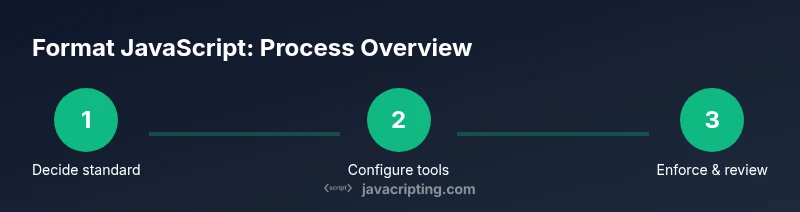
Adopt formatting as a first-class team decision with written guidelines included in CONTRIBUTING.md or a shared style guide. Encourage contributors to run local formatters before committing and to rely on CI checks for any deviations. Regularly review formatting changes in pull requests and celebrate consistency as a collaborative achievement. By integrating tooling and process, teams can focus more on features and less on formatting debates, ensuring a smoother onboarding experience for new members.
Tools & Materials
- Code editor with linting support (e.g., VS Code)(Enable Prettier and ESLint extensions, auto-format on save if possible)
- Node.js and npm (or yarn)(Install local dev dependencies for tooling)
- Prettier(Config file: .prettierrc.js or similar; integrated with editor)
- ESLint(Config file: .eslintrc; include plugins/rresolvers as needed)
- EditorConfig(Helps maintain consistent editor settings across environments)
- Git hooks (e.g., Husky)(Run formatters on commit; prevents drifting changes)
Steps
Estimated time: Total: 40-60 minutes
- 1
Choose a formatting standard
Decide on indentation width, line length, semicolon policy, and quote style. Document these choices in a shared style guide and commit the document so every contributor follows the same rules.
Tip: Start with two-space indentation and a 100-character line length as a baseline. - 2
Configure your editor and projects
Set up editor settings to enforce your choices. Create a project-level configuration for Prettier and ESLint so new files inherit the same rules automatically.
Tip: Use a common .prettierrc and .eslintrc configuration across the team. - 3
Decide on semicolon and trailing comma policy
Agree whether to require semicolons and apply trailing commas in multiline literals. Update linting rules accordingly to avoid mixed messages.
Tip: Trailing commas simplify diffs when adding items in lists. - 4
Set quotes and string consistency
Pick a quote style and enforce it with linting rules. Ensure template literals are used for multi-line strings where appropriate.
Tip: Template literals are great for multi-line content and embedding expressions. - 5
Install and wire tooling
Install Prettier and ESLint, add npm scripts for format and lint, and integrate into a pre-commit hook to catch drift before it lands.
Tip: Add a script like npm run format to keep formatting easy and repeatable. - 6
Automate formatting in CI/PR
Configure CI to run format-lint checks on pull requests and provide actionable feedback. This ensures ongoing alignment with the team’s standards.
Tip: Fail the build if formatting deviates, but offer a quick auto-fix suggestion in the PR comment.
Questions & Answers
What is the purpose of formatting JavaScript code?
Formatting makes code easier to read and maintain. It reduces cognitive load and helps teams avoid style debates by providing a shared set of rules.
Formatting helps teams stay aligned and makes code easier to read.
Which tools enforce formatting in a JavaScript project?
Common choices are Prettier for formatting and ESLint for linting. Together, they enforce style rules automatically in most editors and CI pipelines.
Prettier formats and ESLint validates the rules.
Should I enforce semicolons or rely on ASI (automatic semicolon insertion)?
Choose a policy and apply it consistently. If you decide to require semicolons, enforce it with ESLint; if you prefer ASI, document that decision clearly.
Always apply one clear rule and enforce it.
What line length should I use for JavaScript files?
A practical target is 80–100 characters per line. Adjust within your team’s needs and use auto-wrapping where available.
Aim for readability with a sensible line length.
How do I introduce formatting standards to a new project?
Add a CONTRIBUTING guide with formatting rules, provide sample configurations, and ensure CI checks validate the style early.
Document rules and validate them automatically.
Can formatting impact performance?
Formatting itself doesn’t affect runtime performance; it improves readability and reduces human error during maintenance.
Formatting improves readability, not runtime speed.
Watch Video
What to Remember
- Define a single formatting standard per project.
- Automate formatting to reduce drift and disputes.
- Document decisions for easy onboarding.
- Integrate tooling into CI and PR workflows.
- Use consistent indentation, line length, and quotes.