Do You Add JavaScript to HTML or CSS? A Practical Guide
Learn where to place JavaScript in your web pages, how it interacts with HTML and CSS, loading strategies, and best practices for performance and accessibility. This JavaScripting guide helps beginners and pros implement robust, interactive pages.


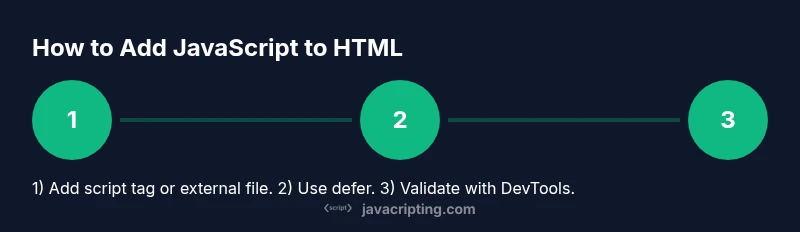
Do you add JavaScript to HTML or CSS? The answer is HTML. JavaScript is executed in the browser and powers interactivity, while CSS handles presentation. You include scripts with <script> tags or by linking external .js files. Place scripts where they won’t block rendering—prefer defer in the head or put them just before </body>. JavaScript cannot be embedded in CSS.
Why JavaScript belongs with HTML, not CSS
JavaScript is the engine that drives interactivity and dynamic behavior on the client side. It manipulates the HTML Document Object Model (DOM) to respond to user actions, fetch data, and update the page without reloading. CSS, by contrast, is the styling layer that defines color, layout, typography, and visual effects. Mixing behavior into CSS muddys responsibilities and can lead to maintenance headaches. As a practical rule, keep structure (HTML) separate from presentation (CSS) and keep behavior (JavaScript) in its own place or in a dedicated script file. According to JavaScripting, this separation clarifies code organization and makes debugging more straightforward for aspiring developers and frontend enthusiasts alike.
Key takeaway: When asking where to put JavaScript, think in terms of roles—HTML for structure, CSS for style, JavaScript for behavior. This alignment is foundational for scalable web apps and maintainable codebases.
How to embed JavaScript in HTML
There are two common ways to bring JavaScript into a web page:
- Inline scripts using the <script> tag directly in the HTML file.
- External scripts by linking a separate .js file with a script tag.
Inline scripts are useful for small, self-contained snippets, but they mix content with behavior. External scripts improve reuse and caching and keep HTML clean. When you use an external file, you reference its path in the src attribute. Modern practices favor placing the script at the end of the body, or using the defer attribute in the head to avoid blocking rendering.
Example:
<!doctype html>
<html>
  <head>
    <meta charset="utf-8">
    <title>Sample Page</title>
    <script src="scripts/main.js" defer></script>
  </head>
  <body>
    <h1>Hello World</h1>
  </body>
</html>
Inline alternative:
<!doctype html>
<html>
  <head>
    <script>
      document.addEventListener('DOMContentLoaded', () => {
        console.log('Inline script runs after DOM is ready');
      });
    </script>
  </head>
  <body>
    <h1>Inline Script</h1>
  </body>
</html>
Tip: Use external files for larger projects to improve caching and collaboration. For small demos, a tiny inline snippet can be acceptable, but avoid long inline scripts in production pages.
External scripts vs inline scripts
External scripts offer clear separation of concerns and faster caching across pages because the same file can be reused. They also scale well when multiple pages share code. Inline scripts can be convenient for quick experiments or page-specific logic, but they prevent caching benefits and can clutter markup. Accessibility and maintenance are easier when behavior lives in dedicated files.
When choosing between both approaches, aim for external scripts by default, and reserve inline snippets for small, page-specific helpers. JavaScript modules (type="module") enable clean, reusable code with explicit imports and exports, which further helps organization across larger projects.
Using defer and async for performance
Loading strategy matters because JavaScript can delay document parsing, affecting perceived performance. The defer attribute tells the browser to download the script in parallel with parsing, then execute it after the document has been parsed. Async downloads the script in parallel and executes as soon as it’s ready, which can disrupt DOM readiness for dependent code. For most sites, defer is the safe default.
When you use a module script (type="module"), the module is defer-like by default and supports import/export syntax, enabling modern structuring and lazy loading where appropriate. Consistently applying defer or module scripts reduces render-blocking and improves user experience. JavaScripting notes that loading strategy is a foundational performance optimization for frontend developers.
How JavaScript interacts with CSS (and why not embedded in CSS)
JavaScript and CSS operate in different layers of the rendering pipeline. JavaScript can read and modify CSS class names, inline styles, and computed styles via the DOM and CSSOM. However, JavaScript code should not reside inside CSS files or selectors. CSS is designed for presentation only; embedding logic there leads to confusion and maintenance hazards.
Best practices:
- Use JavaScript to add, remove, or toggle CSS classes on elements to trigger styles.
- Prefer CSS for presentation rules and JavaScript for interaction logic.
- Keep style sheets pure by avoiding style manipulation through CSS files alone; use JS to apply or switch classes instead.
As JavaScripting emphasizes, this separation helps you reason about behavior, appearance, and structure more clearly and supports accessibility and testing efforts.
Best practices for organization
A well-organized project reduces confusion and speeds up development. A typical setup might include:
- index.html for the main page(s)
- scripts/ folder containing modules and helper files
- styles/ folder for CSS
- assets/ for images and fonts
Tips for maintainability:
- Name files clearly (e.g., app.js, dom-utils.js).
- Group related functions into modules and import them where needed.
- Use a simple build step or task runner to bundle modules for production.
Following these patterns aligns with JavaScripting guidance and helps ensure the codebase remains approachable for newcomers and seasoned developers alike.
Debugging and testing basics
Browser developer tools are your primary debugging partner. Use the Console for logs and errors, Breakpoints to pause execution at critical moments, and network inspection to verify script loading. Start with a simple script to confirm the DOM is accessible, then progressively test interactions, async data flows, and event handling. Also validate cross-browser compatibility early in the development cycle.
Key debugging tips:
- Log meaningful messages with context, not generic 'Hello'.
- Check DOMContentLoaded vs load events to understand timing.
- Use strict mode ("use strict";) to catch common mistakes early.
JavaScripting highlights that a disciplined debugging workflow reduces surprises later in the project.
Accessibility and security considerations
Interactivity must be accessible and secure. Ensure dynamic updates are announced to assistive tech, and maintain keyboard operability for all controls. Sanitize and validate external data before injecting it into the DOM to prevent XSS risks. Implement Content Security Policy (CSP) headers and use Subresource Integrity (SRI) when loading third-party scripts.
Security note: Avoid inline scripts on production pages; prefer external files with proper integrity checks. Accessibility note: Always ensure focus management and obvious, reachable interactive elements so screen readers can interpret UI changes correctly.
Real-world examples: small snippets
Here are a couple of compact patterns you can adapt:
- Button click to reveal a message:
<button id="btn">Show Message</button>
<div id="msg" hidden>Hello from JavaScript!</div>
<script src="scripts/demo.js" defer></script>// scripts/demo.js
document.addEventListener('DOMContentLoaded', () => {
const btn = document.getElementById('btn');
const msg = document.getElementById('msg');
btn.addEventListener('click', () => {
msg.hidden = !msg.hidden;
});
});- Simple form validation:
<form id="signup">
  <input id="email" type="email" required>
  <button type="submit">Submit</button>
</form>
<script src="scripts/validate.js" defer></script>// scripts/validate.js
document.addEventListener('DOMContentLoaded', () => {
document.getElementById('signup').addEventListener('submit', e => {
const email = document.getElementById('email').value;
if (!email.includes('@')) {
e.preventDefault();
alert('Please enter a valid email address.');
}
});
});Note: These examples illustrate basic interaction concepts and can be extended with modules, tests, and accessibility enhancements. JavaScripting reinforces that incremental learning with small, practical tasks builds confidence and skills over time.
Tools & Materials
- Code editor(e.g., VS Code, Sublime Text, or Atom)
- Web browser with developer tools(Chrome, Firefox, Edge, or Safari)
- Local development server (optional)(For ES modules or advanced testing (e.g., live-server, http-server))
- Sample HTML and JavaScript files(Prepared in advance to speed up practice)
Steps
Estimated time: 15-25 minutes
- 1
Create an HTML file and add a script tag
Set up a basic HTML document and include a script reference, either inline or via an external file. This establishes the minimal working environment to observe how JavaScript can interact with the DOM. Ensure your file structure is clear and paths are correct.
Tip: Prefer an external script link with defer to avoid blocking HTML parsing. - 2
Create a separate JavaScript file
Level up by moving JavaScript into its own .js file. This improves readability, caching, and reuse across multiple pages. Keep related code in modules if your project grows.
Tip: Name the file clearly (e.g., app.js) and place it under a scripts/ directory. - 3
Link your JavaScript file with proper path
Link the external file in the HTML head or body using <script src='path/to/file.js' defer></script>. Verify the path is correct and that the page loads without 404 errors. Use browser network tools to confirm the file is fetched.
Tip: Prefer defer for stable load order and faster rendering. - 4
Use event listeners to run code after DOM is ready
Wrap your DOM-dependent code in a DOMContentLoaded listener to ensure elements exist before you manipulate them. This prevents errors on slower networks or complex pages.
Tip: Avoid executing code outside a DOM-ready wrapper when elements aren’t guaranteed to exist. - 5
Manipulate CSS classes to change visuals
Use classList.add/remove/toggle to apply CSS changes, keeping styling in CSS and leaving JavaScript as the control mechanism. This keeps your styling centralized and maintainable.
Tip: Prefer toggling a class rather than directly setting inline styles for maintainability. - 6
Test across browsers and devices
Open the page in multiple browsers and on different devices to confirm behavior remains consistent. Check for console errors, failed network requests, and layout shifts that affect usability.
Tip: Use responsive design mode to test on various viewport sizes. - 7
Progress to modules and performance tuning
As projects grow, refactor into ES modules (type='module'), use import/export, and measure load times. Consider performance optimizations like code-splitting and caching strategies.
Tip: Use module syntax for clean, scalable architecture.
Questions & Answers
Do you always put JavaScript in the head of the HTML document?
Not always. Placing scripts at the end of the body or using defer keeps the page rendering quickly. Use defer for scripts in the head whenever possible. Inline or module scripts should be chosen based on project needs and performance considerations.
You don’t always put scripts in the head; defer is usually better to avoid blocking rendering.
Can CSS contain JavaScript?
No. CSS is strictly for styling. JavaScript should live in script tags or external .js files. CSS cannot execute JavaScript, and placing logic in CSS makes maintenance harder.
No, CSS cannot run JavaScript.
What is the difference between defer and async?
Defer loads the script in parallel and executes after the HTML is parsed, preserving order. Async loads in parallel and may execute as soon as it’s ready, potentially out of order with other scripts. Choose defer for most page-load scenarios.
Defer waits until parsing is done; async might run before other scripts finish.
Should I inline small scripts for performance?
Inline scripts can be convenient for tiny helpers, but they bypass browser caching and can clutter HTML. Use external files for most logic and reserve inline snippets for tiny, page-specific tasks if needed.
Inline scripts are okay for tiny gigs, but external files are better for caching and reuse.
How can I test JavaScript loading order?
Use browser DevTools to inspect network activity and console logs. Check the order of script execution, ensure dependencies load in sequence, and verify that DOM elements exist before manipulating them.
Check in DevTools the order scripts run and confirm DOM readiness.
Are there security practices for loading scripts?
Yes. Use a robust Content Security Policy, serve scripts over HTTPS, and consider Subresource Integrity for external files. Avoid inline scripts on production pages and validate data before inserting it into the DOM.
Implement CSP and SRI, and avoid inline scripts on production.
Watch Video
What to Remember
- Place scripts using <script> tags or external files in HTML.
- Prefer defer for safe, non-blocking loading of JavaScript.
- Keep HTML, CSS, and JS responsibilities separated for maintainability.
- Use DOMContentLoaded or module scripts for robust initialization.
- Test across browsers and prioritize accessibility and security.