How to Enable JavaScript on Chrome: A Practical Guide
Learn how to enable JavaScript on Chrome with a practical walkthrough. Configure site permissions, verify scripts run, and troubleshoot common issues.


In this guide to how to enable javascript on chrome, you’ll learn the exact steps to turn JavaScript on, configure site permissions, and verify that scripts run correctly. You’ll access Chrome settings, adjust permissions for individual sites, and use a quick test to confirm everything works as expected. This article also covers common issues and safety considerations.
Why enabling JavaScript matters for Chrome users
JavaScript powers interactive features on most websites. Without it, forms may not submit, menus may not drop down, and multimedia content might fail to load. This section explains what JavaScript does in the browser, why Chrome sometimes blocks it, and how turning it on improves usability. According to JavaScripting, ensuring JavaScript is enabled is essential for interactive forms, embedded maps, media players, and dynamic content. The goal of this guide is to help aspiring developers, frontend enthusiasts, and professionals confidently enable JavaScript on Chrome. We'll cover desktop and mobile considerations, how to test status, and common pitfalls to avoid. If you rely on web apps or learning platforms, JavaScript must be active to ensure functionality and a smooth user experience.
Chrome's built-in protections and default settings
Chrome ships with strong security and privacy protections that can influence how JavaScript runs. By default, JavaScript is allowed on most sites, but you can customize site-by-site permissions. Some extensions or enterprise policies may override your preferences, so it helps to know where to check. We'll outline how these controls work, common causes for JavaScript seeming to be blocked, and how to distinguish between a site that prohibits scripts and a browser-wide setting that disables them.
How to check if JavaScript is currently enabled
The simplest way to confirm JavaScript is active is to visit a page with a script and observe behavior such as interactive forms or a simple alert. In Chrome, you can directly inspect the setting by typing chrome://settings/content/javascript in the address bar or navigating via Settings > Privacy and security > Site Settings > JavaScript. If the toggle is set to Allowed, you should see typical script-driven features. If you see a blocked message, review the per-site exceptions and any extensions that may block scripts.
What you will change: overview of the enabling process
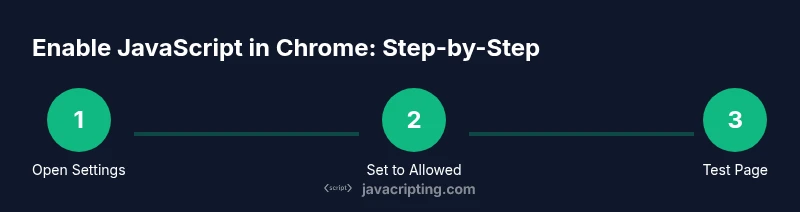
Enabling JavaScript in Chrome involves three core actions: locating the JavaScript permission, turning on the global setting, and managing per-site exceptions. This section provides a map of the steps and what each change accomplishes. You will learn where Chrome stores these permissions, how to reset them if something goes wrong, and how to verify changes without risking other browser settings.
Desktop instructions by OS
Chrome's settings are consistent across Windows, macOS, and Linux, but the exact navigation paths can differ slightly depending on your platform. On Windows and Linux, you typically find the JavaScript control under Settings > Privacy and security > Site Settings. On macOS, the path is similar, with minor UI differences. In all cases, ensure you are using the latest Chrome version to avoid inconsistencies. The concept remains the same: allow JavaScript, then test with a script.
Managing per-site permissions
Per-site controls let you enable JavaScript for trusted sites while keeping it blocked for others. This is useful for corporate environments, testing sites, or when you simply want to reduce risk. In Site Settings, you can add specific sites to the Allow list or remove them from the Block list. After adding, refresh the page to apply changes. Remember that some sites may use dynamic scripts loaded from CDNs, so you might see scripts run even if the main domain is restricted.
Troubleshooting common issues
If enabling JavaScript does not seem to take effect, the issue may be caused by extensions, outdated Chrome, or conflicting settings. Try disabling extensions one by one, clearing cache, and ensuring that Chrome is updated. Sometimes a mixed content warning or ad blockers can block script execution. By isolating the cause, you can re-enable JS safely while preserving security.
Testing and verification strategies
After enabling, verify by loading interactive pages or running a simple script in the console. Use the Network and Console panels in DevTools to check for errors. You can also use a basic test page that includes a small script. If you are a developer, consider creating a local HTML file that runs a script on load to ensure behavior is consistent across restarts.
Security and privacy considerations
Enabling JavaScript increases the surface area for potential attacks, so stay mindful of security best practices. Only enable on trusted sites, keep extensions to a minimum, and enable tracking protections. Regularly update Chrome to patch vulnerabilities, and consider a separate user profile for testing to avoid mixing personal data with testing activity.
Advanced tips for developers and power users
Power users can learn about advanced site settings like Content Security Policy, cross-origin scripts, and testing across browsers. You can use command-line flags to troubleshoot or experiment in a local environment, but avoid making global changes that expose you to risk. This section highlights practical tips for debugging and validating JavaScript behavior in Chrome, including how to reproduce issues quickly and document fixes for teams.
Tools & Materials
- Computer with Chrome installed(Ensure latest stable version (as of 2026) on Windows/macOS/Linux)
- Active internet connection(Needed to fetch updates and access settings online)
- Test page for JS verification(A page with a simple script or a tiny test file)
- URL to quick test page (optional)(Use a trusted page to verify script execution)
- Notes app or editor(Keep track of any site-specific exceptions you add)
Steps
Estimated time: 8-12 minutes
- 1
Open Chrome settings
Launch Chrome and open the settings interface. You can type chrome://settings/ in the address bar for quick navigation, or click the three-dot menu in the top-right and choose Settings.
Tip: Using the address bar reduces navigation time and lowers the chance of missing the right menu. - 2
Navigate to JavaScript settings
Go to Privacy and security, then Site Settings, and finally JavaScript. You can also type chrome://settings/content/javascript to reach the exact page.
Tip: If you don’t see JavaScript, your Chrome version may be outdated and needs updating. - 3
Set JavaScript to Allowed
Toggle the global JavaScript setting to Allowed. This enables scripts on most sites by default.
Tip: For testing, you can set to Allowed temporarily and revert after validation. - 4
Add per-site exceptions (optional)
In Site Settings, use the Add button under Allowed to specify trusted domains. This fine-tunes which sites get script execution.
Tip: Keep a list of trusted sites to avoid accidental exposure to untrusted sources. - 5
Reload the page to apply changes
Refresh the page you were testing to apply the new permissions. If needed, perform a hard refresh (Ctrl+F5 or Cmd+Shift+R).
Tip: Hard refresh ensures cached scripts are reloaded with the new permissions. - 6
Verify JavaScript is running
Load a page with a JavaScript feature or run a quick test script. Use DevTools Console to confirm there are no script errors.
Tip: Look for console messages like 'Script loaded' or test with an alert. - 7
Test on mobile (optional)
Repeat the steps on your mobile Chrome app to verify parity. Mobile browsers sometimes differ slightly in UI.
Tip: Mobile testing helps catch site-specific issues that only emerge on small screens. - 8
If issues persist, reset or review extensions
If enabling JavaScript fails, disable extensions one by one and re-test. Consider resetting site settings if needed.
Tip: Some extensions block scripts by design; isolating them helps identify the cause.
Questions & Answers
What should I do if the JavaScript setting is grayed out?
If the option is disabled or greyed out, you may be under an admin or enterprise policy that overrides user preferences. Contact your administrator or check chrome management settings. If you are the admin, review policy configurations and remove any conflicting restrictions.
The setting being greyed out usually means an admin policy is in place. Check with your administrator or review browser management settings.
Is enabling JavaScript safe?
Enabling JavaScript is safe on trusted sites when you manage permissions carefully and keep software up to date. Limit universal enablement, use per-site exceptions, and stay vigilant about unknown sites.
Yes, it's safe when you enable it for trusted sites and keep your browser current.
Will Chrome re-disable JavaScript after updates?
Occasionally, browser updates can reset preferences. After updating, recheck your JavaScript settings and reapply needed per-site permissions if required.
Sometimes updates reset your settings, so verify after updating.
How can I test if JavaScript is working?
Open a page with a simple script or use browser DevTools to run a console test. Look for successful script execution and absence of errors in the Console.
Test with a basic script and check the DevTools console for errors.
Does enabling JavaScript affect mobile Chrome differently?
Mobile Chrome follows similar steps for enabling JavaScript, but the UI may differ slightly. The concept remains the same: allow scripts and test on mobile sites.
Mobile Chrome uses similar steps; test on your device after enabling.
What if extensions block JavaScript even after enabling it?
Disable extensions one by one to identify the culprit. If an extension is required, adjust its permissions or switch to a trusted alternative.
Disable extensions to find the one blocking scripts and adjust accordingly.
Watch Video
What to Remember
- Enable JavaScript via Chrome settings and test.
- Use per-site permissions for security-conscious browsing.
- Verify with a test page or DevTools to confirm script execution.
- Troubleshoot extensions and updates if scripts do not run.
- Maintain security best practices while enabling essential features.