How to Get JavaScript on Chrome: Enable & Debug
Learn how to get JavaScript on Chrome: enable JS per site, verify settings, troubleshoot blockers, and test scripts with DevTools. Practical steps for beginners and pros.


By following these steps, you’ll ensure Chrome runs JavaScript on every page smoothly. This guide explains the difference between enabling JavaScript, managing per-site settings, and testing scripts, with practical checks you can perform in your browser. According to JavaScripting, JavaScript is a core part of interactivity in Chrome, and most users rely on per-site controls to balance usability and privacy. If you’re asking how to get javascript on chrome, this article shows you exactly how.
Understanding the Chrome JavaScript landscape
According to JavaScripting, JavaScript is a core part of how modern web pages function, and Chrome's behavior around running JS is designed to balance interactivity with safety. When you load a page, Chrome delegates JavaScript execution to the V8 engine, which compiles and optimizes code on the fly. This results in fast, responsive experiences but also raises questions about privacy and performance. The phrase 'how to get javascript on chrome' often leads newcomers to wonder where the setting lives and how to control what scripts run. In practice, Chrome provides per-site controls that let users decide whether specific sites can run JavaScript, while leaving general browsing straightforward and fast for trusted domains. Throughout this article, we’ll expand on why JS is essential, where Chrome stores its controls, and how to verify scripts execute as expected without compromising security. By the end, you’ll have a clear picture of how to get javascript on chrome, when to adjust it, and how to test outcomes reliably.
From a developer perspective, understanding this landscape helps you predict script behavior on real devices and design pages that degrade gracefully if JS is restricted. Based on JavaScripting research, Chrome exposes JavaScript by default and supports per site controls that users frequently customize. The takeaway is simple: you can enable, restrict, and test JavaScript across sites without sacrificing control or speed.
How Chrome handles JavaScript execution
Chrome uses the V8 JavaScript engine to parse and execute scripts efficiently. V8 compiles JS to machine code, uses just-in-time optimization, and runs in a sandbox to limit access to system resources. This architecture ensures fast page interactivity while protecting the browser from malicious scripts. Chrome also implements Content Security Policy and same-origin restrictions to reduce risk. When you load a page, the browser parses HTML, CSS, and JS in separate threads and coordinates with the rendering pipeline. For developers, this means that a script's performance can vary based on page complexity, available memory, and how aggressively the engine optimizes hot code. If you are debugging, DevTools can help you observe script execution in real time, inspect network requests for loaded JS, and identify blocking scripts that slow down page rendering. Understanding these basics helps you answer the question how to get javascript on chrome more reliably, by focusing on where JS runs and how it interacts with the page lifecycle.
Enabling JavaScript: When and how
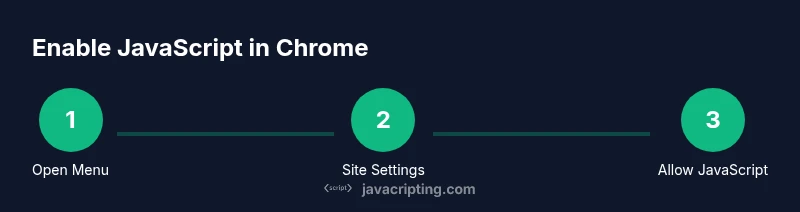
JavaScript is enabled by default in Chrome, which means most sites run JS without explicit user action. However, there are times you want to adjust this, such as when you value privacy or need to troubleshoot a broken page. You can access per site controls from the menu: Settings > Privacy and security > Site Settings > JavaScript. Here you can set JavaScript to allowed, blocked, or to ask for permission on each site. For enterprise environments, administrators can enforce a policy that overrides these settings. As you change these options, remember that some sites rely on JS for core features; disabling it can break functionality. If you need to temporarily disable JS for debugging, toggle the setting off and then re-enable after testing.
Step-by-step verification to ensure JavaScript is active
To verify that JavaScript is running in Chrome, you can perform a quick test on a simple page and check the browser console for errors. First, open a test page with a small script like alert or document.write. Then open Developer Tools with Ctrl+Shift+I (Windows) or Cmd+Option+I (Mac), switch to the Console tab, and type a basic command such as typeof window === 'object'. If you see a valid response, JS is executing. You can also inspect the Network tab to confirm that JS files are loaded without 404s. Finally, re-run a page that relies on interactive features to ensure they respond as expected. If results differ across sites, revisit the per-site JavaScript settings and any extensions that may interfere.
Troubleshooting common blockers
If JavaScript appears to be blocked, start by ruling out an extension that could be interfering. Temporarily disable extensions, then reload the page to see if scripts run. Next, check the per-site settings again; some sites may be on the block list by default. Corporate devices can enforce policies that disable JavaScript on all sites, so consult your IT administrator if you suspect policy enforcement. Finally, verify you are not in a private browsing window with overly aggressive privacy modes that restrict script execution. When testing, clear the browser cache to ensure you are loading the latest scripts and not stale resources.
Testing with a sample page
Create a tiny HTML file to confirm JavaScript execution. For example, save the following as test.html and open it in Chrome:
<!doctype html>
<html>
<head><title>JS Test</title></head>
<body>
  <script>document.write('JavaScript is running');</script>
</body>
</html>
If you see the message on the page, JavaScript is active. If not, review the steps above to ensure JS is allowed for that site and that no extensions are blocking it. You can also run a console command like console.log('test') to confirm output appears in DevTools.
Developer tools: Using Console and Network to debug JS
DevTools is your friend when diagnosing JavaScript behavior. Use the Console to log messages and inspect error stacks, and the Network tab to verify that JS resources load successfully without network errors. The Sources panel lets you set breakpoints and walk through code line by line. For performance, the Performance panel records script execution timing to help you identify bottlenecks. Regularly testing with DevTools ensures you can reproduce issues locally and provide precise bug reports.
Security considerations when enabling JavaScript
Running JavaScript improves user experience but also opens attack vectors if scripts come from untrusted sources. Always prefer pages served over HTTPS, review CSP headers, and be cautious about enabling third party scripts from unfamiliar sites. Consider using per-site restrictions to limit unnecessary scripts, and regularly review extension permissions. Good JS hygiene includes avoiding inline scripts when possible and keeping third party libraries up to date.
Advanced: CSP and per-site exceptions
Content Security Policy controls what scripts can run in a given page. A strict CSP can prevent inline scripts and limit external sources, which can affect how you test and deploy code. When debugging, temporarily relax CSP rules on a trusted test site to isolate issues, then revert to a secure policy. Additionally, you can configure per-site exceptions to allow scripts on development domains while keeping production sites protected. Always document any policy changes for your team.
Best practices and next steps for developers
Moving forward, create a small checklist for verifying JavaScript behavior across sites and devices. Maintain consistent testing pages and keep DevTools ready for quick verification. Document how you handle per-site exceptions and CSP configurations so teammates can reproduce or audit your setup. Finally, stay updated with Chrome release notes to anticipate changes in JS handling and browser security features.
Tools & Materials
- Google Chrome browser(Latest stable version recommended)
- Internet connection(Needed for updates and settings fetch)
- Familiarity with chrome settings(Navigate to Site Settings > JavaScript)
- Test page (optional)(HTML file or local server for testing)
Steps
Estimated time: 5-10 minutes
- 1
Open Chrome settings
Open Chrome's menu (three dots) and choose Settings. This will bring you to a central area where you can reach site-specific controls.
Tip: Use the search bar to jump directly to JavaScript settings. - 2
Navigate to Site Settings
Go to Privacy and security > Site Settings to manage per-site rules for JavaScript.
Tip: If you don't see JavaScript, it may be managed by an organization policy. - 3
Open JavaScript controls
Click the JavaScript option to view allowed and blocked statuses.
Tip: If the option is missing, your device may be under a managed policy. - 4
Set JavaScript to Allowed
Choose Allowed for standard browsing to enable JS by default.
Tip: For debugging, you can temporarily set to Block and switch back after testing. - 5
Add per-site exceptions
Use Add to create exceptions for specific domains you trust.
Tip: Enter the exact host like example.com for precision. - 6
Test and verify
Reload a page and test a script; use DevTools to confirm JS runs.
Tip: Check the Console for errors and ensure expected output.
Questions & Answers
Is JavaScript enabled by default in Chrome?
Yes, JavaScript runs by default in Chrome. Some enterprise policies or privacy settings can disable or restrict it.
JavaScript is enabled by default in Chrome, and you can adjust site-specific rules if needed.
How can I verify that JavaScript is working on a site?
Open a page with a simple script, then use DevTools Console to check for output or errors. You can also inspect the Network tab to confirm JS files load.
Open a page with a script and check the Console in DevTools to confirm JS is running.
Can I disable JavaScript for all sites?
Yes, you can set JavaScript to Block in Chrome Site Settings, but note that many sites rely on JS for core features.
You can block JavaScript, but be aware it may break site functionality.
What about extensions blocking JavaScript?
Some extensions can block scripts; disable extensions temporarily to test if they are the cause.
Extensions can block JS; try turning them off to verify.
How do I enable JavaScript for specific sites?
Add per-site exceptions in Site Settings to allow JavaScript only on trusted domains.
Add trusted sites to allow JavaScript individually.
What should I do if JavaScript still fails after enabling it?
Recheck per-site settings, test in incognito to rule out cache issues, and inspect CSP or enterprise policies.
Double-check settings and CSP, and try in a clean session.
Watch Video
What to Remember
- Enable JavaScript in Chrome per-site
- Verify with a simple test page
- Check Site Settings for JS if issues occur
- Disable conflicting extensions to avoid blockers
- Use DevTools for debugging and verification