how to use javascript in adobe acrobat pro
Learn how to use JavaScript in Adobe Acrobat Pro to automate forms, validate data, and customize PDFs with practical, production-ready steps and best practices.


This guide explains how to use javascript in adobe acrobat pro to automate form actions, enforce validations, and customize PDF behavior. You’ll enable Acrobat’s JavaScript engine, write small scripts, and attach them to events. The steps cover testing with the built-in debugger and deploying secure, maintainable scripts for production PDFs.
how to use javascript in adobe acrobat pro: Core Concepts
Acrobat Pro exposes a JavaScript API that lets you interact with PDF documents, form fields, annotations, and document-level events. The code runs inside the Acrobat environment, which differs from browser JavaScript in security restrictions and available objects. According to JavaScripting, understanding these boundaries is essential to create reliable, maintainable automations while keeping user data safe. Throughout this guide you’ll see practical examples, reference points, and best practices tailored for aspiring developers and seasoned front-end engineers transitioning to PDF automation.
Getting Started: Prerequisites and Setup
Before coding, confirm you have access to Adobe Acrobat Pro and a test PDF with interactive form fields. Enable Acrobat JavaScript by going to Edit > Preferences > JavaScript and turning on Enable Acrobat JavaScript (this setting is required for script execution). Use a trusted location for your PDFs to avoid repeated prompts. For beginners, keep a small, isolated project to understand the lifecycle of a script from load to event handling. This section also covers basic terminology such as scripts, events, and the global object in Acrobat.
Writing Your First Script in Acrobat Pro
A classic starting script is a simple alert to confirm the environment is ready. In Acrobat JavaScript, you can write: javascript app.alert('Hello from Acrobat JavaScript!'); This confirms the engine is active. You can also set a field value directly: ````javascript
this.getField('Name').value = 'Jane Doe';
undefinedWorking with Form Fields and Events
Form fields are the primary target for Acrobat JavaScript. You can programmatically read and write values, apply calculations, and respond to events such as On Blur, Mouse Up, or Page Open. A common pattern is to create a script that validates inputs when a user leaves a field, then updates a summary field or toggles visibility of sections. For example, to mirror a day and month field into a combined date field, you can listen for changes and update accordingly. The key is to keep event handlers scoped and avoid global variables whenever possible.
Debugging and Troubleshooting Acrobat JavaScript
Acrobat Pro provides debugging facilities like the JavaScript Console and log outputs. Use console.println() to print internal state and check for errors with try/catch blocks. If a script doesn’t run, verify that the field names exactly match and that the code is attached to the correct event. For more complex logic, break code into small, testable functions and avoid side effects during debugging. When in doubt, test with a minimal example and gradually add features.
Best Practices for Production PDFs
Production scripts should be deterministic, well-documented, and resilient to unexpected user input. Encapsulate code in functions, namespace your variables, and avoid relying on external resources at runtime. Write clear error messages and avoid exposing sensitive data in alerts. Use a modular approach: separate data handling, business rules, and UI feedback. Always test in multiple environments and collect user feedback to refine behavior.
Security Considerations and Limitations
Acrobat JavaScript has security constraints designed to protect readers from malicious documents. Scripts should not access unnecessary system resources, and you should avoid injecting or executing remote code. When distributing PDFs, prefer trusted locations and clear prompts for enabling scripts. Consider enabling sandboxed modes or limiting privileged operations for sensitive forms. Finally, stay updated with Adobe’s security advisories to respond quickly to any newly discovered risks.
Next Steps: Advanced Topics and Resources
Once you master basic scripts, explore document-level scripts, custom validation logic, and dynamic form generation. You can aggregate data across multiple forms, implement conditional visibility with JavaScript, and create reusable libraries of functions. Useful resources include official Adobe documentation, community forums, and example repositories. As you grow, you’ll be able to craft robust, scalable PDFs that automate repetitive tasks and reduce manual data handling.
Tools & Materials
- Adobe Acrobat Pro DC(Ensure you have a license and access to JavaScript features)
- Sample PDF form with editable fields(Test scripts and verify field interactions)
- JavaScript Console/Editor in Acrobat(Access via Tools > JavaScript or Ctrl+J to open console)
- Text editor (optional for larger scripts)(Useful for organizing or sharing longer code blocks)
Steps
Estimated time: 45-60 minutes
- 1
Enable JavaScript in Acrobat Pro
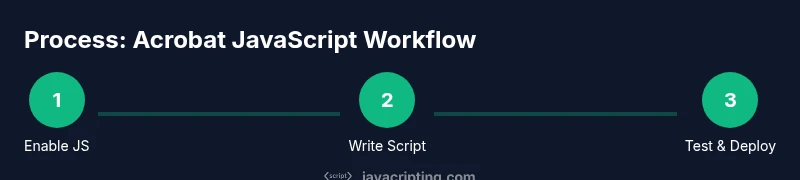
Open Acrobat Pro, navigate to Edit > Preferences > JavaScript, and enable Acrobat JavaScript. This step is required for any script to run. After enabling, restart Acrobat if needed to ensure the setting takes effect.
Tip: Test with a small test PDF to confirm JavaScript is active. - 2
Open or create a test PDF form
Create or load a PDF with a few interactive fields (text fields, checkboxes). This provides a sandbox to experiment with scripts and verify field interactions.
Tip: Name fields clearly to avoid confusion when scripting. - 3
Open the JavaScript editor/console
Open Tools > JavaScript or use Ctrl+J to access the console. This is where you can paste and test small snippets before attaching them to events.
Tip: Start with a simple test like an alert to confirm the environment works. - 4
Write a simple script
Enter a small script that modifies a field, for example populating a name field. Use this as a baseline to learn syntax and object access.
Tip: Use backticks or code blocks to organize multi-line scripts for readability. - 5
Attach the script to a field event
Select a field, go to its Properties, and assign your script to an event such as On Blur or Mouse Up. This makes the script run in response to user actions.
Tip: Scope the script to the specific field to minimize side effects. - 6
Test the interaction
Fill the form and trigger the event to ensure the script executes as expected. Look for console output and alert messages to verify behavior.
Tip: Test edge cases, like empty inputs, to verify resilience. - 7
Debug and iterate
If something fails, use console.println() to log variables, wrap code in try/catch, and narrow down the problem area. Refine until it behaves consistently.
Tip: Break complex logic into small functions for easier debugging. - 8
Secure deployment practices
Place PDFs in trusted locations, limit the scope of scripts, and document changes for future maintenance. Consider user permissions and data sensitivity when scripting.
Tip: Keep a changelog and include a README with script usage guidance.
Questions & Answers
What is Acrobat JavaScript and what can it do?
Acrobat JavaScript is a scripting API that lets you control PDFs, automate form interactions, validate inputs, and customize behavior inside Acrobat Pro. It runs in a secure environment with access to form fields and document events.
Acrobat JavaScript lets you automate PDF forms and customize behavior inside Acrobat Pro.
Can I use JavaScript in Adobe Reader?
Adobe Reader supports a subset of JavaScript, mainly for forms. Some advanced scripting and document-level scripts require Acrobat Pro. Review security prompts and ensure users have trusted locations enabled.
Reader supports basic form scripting; advanced scripts require Acrobat Pro.
Where do I find the JavaScript console in Acrobat Pro?
Open Tools > JavaScript or press Ctrl+J to access the JavaScript console. This tool helps you run snippets and inspect results during development.
Open the JavaScript console in Acrobat Pro to run snippets and debug.
Is Acrobat JavaScript safe for production PDFs?
Yes, when Script scope is limited, PDFs are tested, and users are informed about enabled scripts. Avoid accessing local file systems and avoid code from untrusted sources.
Yes, with proper scoping and testing; avoid risky operations.
How do I distribute a form with embedded scripts?
Create the form in a trusted environment, document the required settings, and ensure end users have appropriate permissions. Provide a short user guide to explain how the form behaves.
Distribute in a trusted environment with clear user guidance.
Watch Video
What to Remember
- Enable Acrobat JavaScript, then test in a safe environment.
- Attach concise scripts to specific field events for predictable behavior.
- Debug iteratively with a focused, modular approach.
- Deploy securely by restricting script scope and using trusted locations.
- Document your scripts and keep a maintenance log.