How to Remove JavaScript from PDFs: A Practical Guide
Learn how to remove embedded JavaScript from PDFs, disable script execution, and sanitize documents using Acrobat Pro, free editors, and safe workflows for secure sharing in 2026.


You can remove JavaScript from a PDF by deleting or disabling embedded actions, scripts, and JavaScript-based features. Start with a trusted tool like Adobe Acrobat Pro, then try alternative editors or command-line options to strip JavaScript while preserving content. This guide shows practical steps for securing PDFs and reducing script-based risks.
Why removing JavaScript from PDFs matters
Embedded JavaScript in PDFs can trigger auto-execution when a file is opened, potentially exposing users to security risks, data leakage, or unintended actions. For professionals handling sensitive documents, removing JavaScript reduces attack surfaces and makes compliance easier. This article explores how to get rid of javascript in pdf through practical tools and workflows that balance security with preserving document integrity. The JavaScripting team emphasizes that a disciplined approach to sanitizing PDFs improves trust with recipients and minimizes the chance of malicious scripts slipping through. The remainder covers concrete steps, recommended tools, and verification methods so you can confidently prepare PDFs for sharing in 2026.
What qualifies as JavaScript in a PDF
In a PDF, JavaScript may appear as standalone script blocks, actions attached to events, or open actions triggered when the document is opened. These scripts can reside in /JS objects, in /OpenAction, or within /AA (additional actions). Knowing where to look helps you remove or disable them without harming form fields or annotations. The types of scripts include calculations, form validations, and automated document behaviors. The goal is to identify and remove all script closures that could execute in a reader environment while leaving core content intact. While not every script is dangerous, even seemingly harmless scripts can be abused to harvest data or alter content after distribution.
Tools and approaches to remove JavaScript
There are multiple paths to strip JavaScript from PDFs, depending on your budget, the document’s complexity, and whether you need batch processing. The most reliable method uses a desktop PDF editor with robust JavaScript management features. Acrobat Pro provides built-in controls to inspect, delete, or disable JavaScript, while other editors offer comparable, though often briefer, capabilities. For power users or teams, command-line or library-based approaches can remove scripts by editing the PDF’s internal objects and stream data. Regardless of the method, you should:
- Keep a backup copy of the original file before making changes.
- Verify that only the JavaScript portions are removed and that critical content remains intact.
- Document the steps taken for auditing and compliance purposes.
Note that some PDFs rely on JavaScript for essential form validation or interactive features. In such cases, you may need to selectively remove non-essential scripts or replace them with server-side processes. This ensures forms continue to function where needed without exposing users to script execution.
Step-by-step manual removal (Acrobat Pro) — part 1
The following approach focuses on a careful, manual cleanse using a trusted PDF editor. Start by opening the document in Acrobat Pro and preparing to inspect scripting:
- Open the PDF and create a backup copy.
- Navigate to the JavaScript audit options or the Document JavaScripts panel to list all scripts present.
- Inspect each script for relevance; plan to remove non-critical scripts first to minimize disruption.
This section begins the practical removal journey and sets the stage for confirmation and validation steps later. The goal is to eliminate non-essential JavaScript while preserving user-facing features like forms when possible.
Step-by-step manual removal (Acrobat Pro) — part 2
Continue with the deletion or deactivation of script blocks identified in the audit:
- Delete or disable the /JS object blocks or any OpenAction entries that execute on document open.
- Remove script attachments associated with annotations or form fields that are not essential to the user experience.
- After deletion, review the page content to ensure no visual or functional regressions occurred.
Document what you removed and why so you can justify the sanitization in audits or reviews. If a script seems critical, consider replacing client-side behavior with non-script alternatives where feasible.
Disable JavaScript execution in the PDF viewer (non-destructive)
In many environments, you can reduce risk by turning off JavaScript execution in your PDF viewer as a temporary safeguard while you prepare a sanitized copy. For example, in popular readers you can disable JavaScript in preferences, security settings, or privacy controls. This step does not modify the file itself but provides an immediate protective layer when sharing or testing.
Step-by-step save and verification (Acrobat Pro) — part 1
With scripting removed or disabled, save the document under a new filename that clearly marks it as sanitized (for example, sample_sanitized.pdf). This naming helps prevent accidental use of the original file when distributing documents. After saving, close and reopen the file to confirm the changes took effect, then proceed to formal verification steps.
Step-by-step save and verification (Acrobat Pro) — part 2
Now verify that JavaScript has been removed:
- Reopen the sanitized PDF and repeat the JavaScript audit to ensure no scripts remain.
- Check critical form functionality manually (data entry, basic validations) to ensure no essential behavior was unintentionally altered.
- Use a different viewer to test for cross-compatibility, making sure user-facing features still work as intended.
With verification complete, you have a sanitized document ready for secure sharing. If any issues arise, revert to the original and reassess which scripts are safe to remove without compromising the document.
Verification tips for batch workflows and non-destructive edits
If you’re sanitizing multiple documents, consider creating a repeatable workflow that logs each file’s changes and preserves a versioned history. Batch tools can automate the detection and removal of standard scripting patterns, but you should always audit a sample first to validate the results. Maintain a policy that non-critical scripts can be removed in bulk, while scripts tied to essential interactive features are handled on a per-file basis.
Limitations and best practices for teams
Remember that removing JavaScript is a risk reduction measure, not a silver bullet. Some documents may use scripts to drive accessibility features, forms, or signature workflows that require careful handling. Always back up, test thoroughly, and document the decision-making process. In 2026, a reproducible sanitization workflow helps teams demonstrate due diligence and enables safer collaboration when distributing PDFs externally.
Tools & Materials
- Adobe Acrobat Pro(Use Document JavaScripts panel and Accessibility / JavaScript preferences to remove or disable JS.)
- Alternative PDF editors (e.g., Foxit, Nitro, LibreOffice Draw)(Useful for cross-checking script removal and editing content without introducing new scripts.)
- Backup storage (local and/or cloud)(Always keep an unmodified original copy before making changes.)
- Test PDFs and a JS-enabled viewer(Validate behavior across multiple readers to ensure broad compatibility.)
Steps
Estimated time: 25-40 minutes
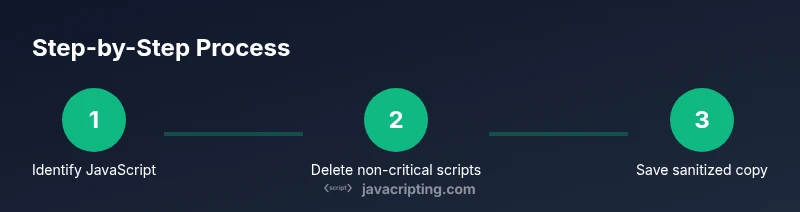
- 1
Open the PDF in a trusted editor
Launch your chosen PDF editor with the document, and immediately create a backup copy. This preserves the original in case you need to revert changes. Confirm the file opens correctly and that you can access forms and basic content before inspecting scripts.
Tip: Keep the file path and backup separately organized to prevent mix-ups between sanitized and original versions. - 2
Identify JavaScript areas
Use the editor’s JavaScript auditing tools to locate all scripts, actions, and events tied to the document. Look for /JS blocks, /OpenAction, and /AA entries. Document where these scripts live so you can plan deletion without affecting essential features.
Tip: If your tool lacks a full audit view, consider exporting the document structure view or using a secondary editor for cross-checks. - 3
Delete or disable non-critical scripts
Remove non-essential scripts and disable script execution where possible. Avoid deleting scripts that support critical forms or accessibility features unless you have alternatives to preserve functionality.
Tip: Prioritize removing scripts that trigger actions on open or on field changes, which pose the highest risk when a document is shared. - 4
Disable JavaScript in the viewer (optional safety net)
If available, turn off JavaScript execution in the PDF viewer’s settings to reduce runtime risk while you verify changes. This step is non-destructive to the file itself and helps confirm that no unexpected scripts remain.
Tip: Use this as a temporary safeguard during testing, not as a replacement for actual script removal in the document. - 5
Save as a sanitized copy
Save the edited document under a new, clearly labeled filename such as filename_sanitized.pdf. This prevents accidental use of the original and makes audits straightforward.
Tip: Record the exact changes in a quick changelog so reviewers can follow what was removed. - 6
Verify removal across viewers
Open the sanitized PDF in multiple readers to ensure there are no remaining scripts and that essential content and form functions still operate. Re-check occasionally as updates to readers can change how scripts are handled.
Tip: If a script seems essential, note its role and consider replacing client-side behavior with server-side validation where feasible.
Questions & Answers
Can I remove JavaScript from any PDF?
In most cases, you can eliminate embedded JavaScript with a capable editor, but some scripts may be deeply integrated and essential for certain features. Always back up first and test thoroughly.
You can usually remove JavaScript from PDFs, but some scripts may be essential for features like forms. Always back up and test.
Will removing JavaScript affect form functionality?
Forms often rely on JavaScript for validation or dynamic behavior. Removing scripts may disable or alter these features; consider replacing with server-side checks or preserving only non-critical scripts.
Forms may rely on JS; removing it can affect validation. Test forms carefully and consider alternatives.
Is there a free way to remove JavaScript from PDFs?
Free editors can remove JavaScript, but they may lack advanced auditing tools. For thorough sanitization, a paid editor with scripting controls provides more reliability.
Free tools can help, but for thorough removal you may want a paid editor with scripting controls.
How can I verify that all JavaScript has been removed?
Run a script audit again after removal and recheck essential functionality. Open the document in multiple readers to confirm no script-based actions remain.
Re-run the audit and test across readers to confirm no scripts remain.
Does disabling JavaScript impact accessibility or signatures?
Disabling JS can affect dynamic accessibility features or signature workflows in some PDFs. Plan for these cases and test critical accessibility paths and signing steps.
Disabling JS can affect accessibility or signatures in some PDFs. Test those paths carefully.
What is the recommended practice for teams?
Adopt a repeatable sanitization workflow, maintain logs, and review changes periodically. Regular audits help ensure ongoing security without compromising content.
Use a repeatable workflow with logs and regular audits for ongoing security.
Watch Video
What to Remember
- Identify all script areas before editing
- Back up originals and label sanitized copies clearly
- Remove or disable non-critical scripts first
- Verify removal across multiple viewers
- Document changes for audits