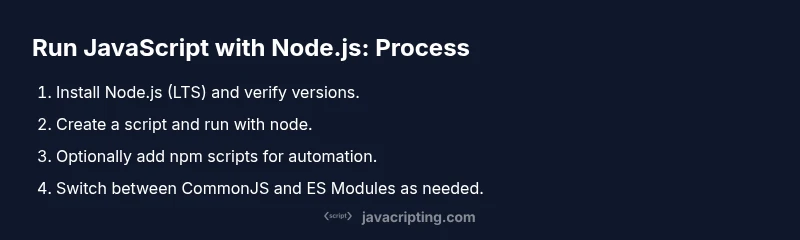
Run JavaScript with Node.js: A Practical Guide
Learn how to run JavaScript with Node.js—from installation to npm scripts, debugging, and best practices. A practical, educational guide for beginners and pros alike.


By following this guide, you will learn how to run JavaScript with Node.js, from installing Node to executing scripts and using npm for automation. Whether you’re building small utilities or server-side tooling, Node provides a practical, cross-platform runtime for JavaScript outside the browser. This quick-start outlines the essential steps and common pitfalls, so you can start coding with confidence today.
What Node.js is and why it's used to run JavaScript outside the browser
Node.js is a JavaScript runtime built on Chrome's V8 engine that lets you run JavaScript on servers, desktops, and tools rather than only in web browsers. This capability is central to modern tooling, server-side scripting, and automation. With Node, you can access file systems, networks, and processes directly from JavaScript, enabling fast development cycles and cross-platform compatibility. If you want to run javascript with node js, Node provides a practical, widely adopted environment to do so, using npm to install packages and manage dependencies. The result is a flexible platform for building utilities, CLIs, and services with familiar JavaScript semantics.
Prerequisites: install Node.js and verify your setup
Before you can run JavaScript with Node.js, you need a working Node installation. Download the LTS (long-term support) version from the official Node.js site, which bundles npm. After installation, verify your setup with simple commands to confirm the version numbers. This ensures you have a reliable baseline for development and script execution across Windows, macOS, and Linux. If you already have Node installed, skip to verification steps; otherwise, follow the install prompts and restart your terminal to refresh your PATH.
Choosing the right script approach: one-off scripts, REPL, or npm scripts
Node.js supports multiple ways to run JavaScript. For quick experiments, the REPL lets you type JavaScript and get immediate results. For repeatable tasks, a plain .js file is ideal. For automation and project consistency, npm scripts in package.json provide a portable, version-controlled workflow. Understanding these approaches helps you choose the most efficient path for each task and keeps your projects maintainable.
Running a simple JavaScript file with node
Create a file named hello.js with the following content:
console.log('Hello, world!');Then run it from the terminal:
node hello.js
You should see the output: Hello, world!. This basic pattern is the foundation for building more complex scripts and CLIs that leverage Node.js features like the filesystem, environment variables, and child processes.
Using the Node.js REPL for quick experiments
Open your terminal and type node to start the Read-Eval-Print Loop. In REPL, you can evaluate expressions line-by-line, import modules, and prototype small code blocks without creating files. For example, try 2 + 3, then experiment with require('fs').readdirSync('.') to list files. Exiting is as simple as typing .exit or pressing Ctrl+C twice.
Managing scripts with package.json and npm scripts
For scalable projects, initialize an npm package with npm init -y. Add a script in package.json, such as:
"scripts": {
  "start": "node hello.js"
}
Run it with npm run start. This approach makes scripts portable, aligns with CI workflows, and keeps dependencies explicit, simplifying collaboration and deployment across environments.
Debugging common issues when running JavaScript with Node.js
Common problems include: command not found (Node not installed or PATH misconfigured), syntax errors in your code, or module resolution failures. Check Node.js version with node -v, inspect error messages, and verify file paths. For more stubborn issues, run Node with the --trace-warnings flag or use node --inspect to attach a debugger.
Understanding CommonJS vs ES Modules in Node.js
Node.js traditionally used CommonJS with require() and module.exports. Modern Node.js supports ES modules via import/export syntax, requiring either .mjs extensions or setting type: "module" in package.json. Choosing the module system affects how you load dependencies and structure code, so plan your project's module strategy early.
Best practices for writing Node.js-friendly JavaScript
Adopt clear module boundaries, prefer asynchronous APIs, and handle errors gracefully with try/catch and promise rejection handling. Use strict mode where appropriate, keep a clean dependency graph, and separate scripts from runtime logic. Document your command-line interfaces and provide helpful error messages to improve developer experience.
Performance considerations and tooling for running JS in Node
Performance matters when scripts scale. Use node --inspect for debugging, enable warnings with --trace-warnings, and consider tooling like nodemon for automatic restarts during development. For long-running tasks, design with non-blocking I/O, streaming where possible, and proper error handling to prevent uncaught exceptions from crashing processes.
Next steps and learning path
After you can run a simple script, explore real-world projects: CLIs, small servers with Express, or automation scripts that process files. Experiment with environment variables, CLI argument parsing, and integration with npm packages. The journey from a single file to a robust Node-based tool is incremental—start small, iterate, and expand your toolkit as you grow.
Final note and call to action
Practice by building tiny utilities that solve everyday problems, then share your scripts with peers. As you gain confidence, you'll recognize Node.js as a practical engine for JavaScript outside the browser, enabling faster development cycles and broader capabilities across projects.
Tools & Materials
- Node.js installer (LTS version)(Download from the official Node.js site and install for your OS)
- Terminal or Command Prompt(Access to a shell for running node and npm commands)
- Text editor or IDE(Examples: VS Code, Sublime Text, or any editor you prefer)
- Sample script files(hello.js and a minimal package.json for npm scripts)
- Internet connection(Needed for downloading Node.js and packages)
- Optional: Node Version Manager (nvm or nvm-windows)(Useful for switching Node versions across projects)
Steps
Estimated time: 30-60 minutes
- 1
Install Node.js
Download and install the LTS version of Node.js from the official site. This provides the node command and npm for package management. Restart your terminal after installation to ensure PATH updates.
Tip: Verify installation with node -v and npm -v to confirm versions are accessible. - 2
Create a first script file
Open your editor and create hello.js with a simple console.log('Hello, world!'). This demonstrates the core pattern of running JavaScript via Node.
Tip: Save the file in a dedicated projects folder to keep your workspace organized. - 3
Run the script with Node
From the terminal, navigate to the file's folder and run node hello.js. Observe the output in the console as confirmation that Node executes JavaScript.
Tip: If you see an error, double-check the filename and path. - 4
Initialize an npm project
In your project folder, run npm init -y to create a package.json. This file will host your npm scripts for repeatable tasks.
Tip: A well-structured package.json helps future automation and collaboration. - 5
Add an npm script
Edit package.json to include a start script, e.g., "scripts": { "start": "node hello.js" }. This enables running your script with npm run start.
Tip: Use alias-friendly script names like start, build, or test. - 6
Run via npm
Execute npm run start to verify the npm script works. This demonstrates how npm orchestrates your script execution.
Tip: If your script uses more files, consider a separate scripts folder for maintainability. - 7
Experiment with command-line arguments
Modify hello.js to read process.argv and print received arguments. Run node hello.js arg1 arg2 to see how inputs flow into your script.
Tip: Keep a small parser to validate and sanitize incoming arguments. - 8
Explore modules (CommonJS vs ESM)
Experiment with require() and module.exports, then switch to import/export by configuring type: "module" in package.json or using .mjs extensions.
Tip: Decide your approach early to avoid widespread refactors later.
Questions & Answers
What is Node.js and how does it relate to running JavaScript with Node.js?
Node.js is a JavaScript runtime built on Chrome's V8 engine that lets you run JavaScript outside a browser. It provides access to system resources like the file system and network, enabling server-side scripting and tooling.
Node.js is a JavaScript runtime that runs outside the browser, letting you execute scripts on servers or desktops.
Do I need npm to run scripts with Node.js?
NPM is the default package manager that ships with Node.js and simplifies dependency management and script automation. You can run scripts without npm, but npm makes projects more portable and maintainable.
NPM is included with Node.js and helps you manage dependencies and scripts.
How do I pass command-line arguments to a Node.js script?
Command-line arguments are available in process.argv. You can read and parse them to customize script behavior, using libraries like minimist if needed.
Use process.argv to read what you pass after the script name.
Can Node.js run browser-specific APIs like window or document?
Node.js does not provide browser-specific APIs by default. You can use polyfills or node-compatible libraries, but the core environment focuses on server-side capabilities.
No—Node.js runs outside the browser and lacks built-in browser APIs.
What is the difference between CommonJS and ES Modules in Node.js?
CommonJS uses require() and module.exports, while ES Modules use import/export. Node supports ES Modules with type: 'module' or .mjs extensions; pick one and stay consistent.
CommonJS uses require, ES Modules use import; choose one approach for your project.
Watch Video
What to Remember
- Install Node.js and verify version.
- Run a simple script with node and observe output.
- Use npm scripts for repeatable tasks.
- Choose CommonJS or ES Modules early and be consistent.
- Debug effectively with built-in tools and flags.