What to Open JavaScript Files With: A Practical Guide
Explore practical guidance on what to open JavaScript files with, weighing editors vs IDEs, key features, and how to choose the right tool for your workflow in 2026.


Choosing what to open JavaScript files with depends on your workflow, but for most developers the answer is a capable code editor like Visual Studio Code. VS Code combines speed, syntax highlighting, linting, and a vast extension ecosystem that supports JavaScript, TypeScript, and modern frameworks. For quick edits, lightweight editors or IDEs can fit specific needs, yet a full-featured editor typically yields the best long-term productivity.
Why a Solid Editor Matters for JavaScript
In JavaScript development, the editor is more than a text editor; it's a development environment that shapes how you write, test, and maintain code. A productive setup reduces context switching, surfaces quality feedback, and accelerates common tasks like navigating to definitions, refactoring, and spotting runtime issues before they become bugs. According to JavaScripting, the right editor aligns with project size, team practices, and personal workflow, turning routine edits into reliable, repeatable processes. For newcomers, the editor choice often dictates learning speed—an investment that pays off as codebases scale and collaboration increases. A strong editor also integrates with linters, formatters, and debuggers, providing a consistent baseline across a team.
Choosing what to open JavaScript files with is not a one-size-fits-all decision, but a framework: identify core needs first, then map editors to those needs. If you value speed, lightweight tools can be a great start; if you work with large TypeScript projects or complex web apps, a full-featured IDE can prevent future bottlenecks. The rest of this article breaks down practical criteria, popular options, and step-by-step setups you can adopt today.
sourceFormattingForMarkdownNote2ButNo
Editor comparison for JavaScript file handling
| Editor/Tool | Strengths | Drawbacks |
|---|---|---|
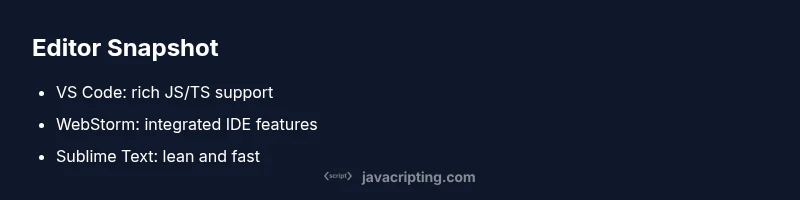
| Visual Studio Code | Extensive JS/TS support, rich extensions, cross-platform | Can be resource-heavy with many extensions; occasional startup delay |
| Sublime Text | Lightweight, fast, great for quick edits | Fewer built-in JS-specific tools; relies on plugins |
| WebStorm | Integrated debugging, refactoring, and project analysis | Commercial license; heavier resource usage |
Questions & Answers
What should I consider when choosing an editor for JavaScript?
Consider factors like language support (JS/TS), debugging capabilities, extension ecosystem, performance, and cross-platform availability. Also assess collaboration features (shared configs) and how easy it is to tailor the editor to your project’s tooling stack (ESLint, Prettier, TypeScript).
Look at the core features you’ll use daily, then test a couple of editors to see which one feels fastest for your workflow.
Are free editors enough for professional JavaScript work?
Yes, for many teams free editors provide most of what’s needed when paired with solid extensions and configurations. For larger teams or complex projects, paid IDEs can offer deeper integrations, better refactoring tools, and more robust debugging. Weigh the cost against productivity gains over time.
Free options work well, especially when you customize with essential extensions and configs.
Is WebStorm worth the cost compared to free options?
WebStorm offers a cohesive, integrated development experience with strong JavaScript tooling and refactoring support. If you rely heavily on advanced features and prefer an all-in-one IDE, the cost can be justified by productivity gains. For smaller teams or web apps with lighter needs, free editors may suffice.
It depends on your project load and desire for built-in tools.
Can I switch editors later without losing settings?
Most editors support import/export of settings and project configs. Use shared config files (eslint, Prettier, editorconfig) and version control to minimize drift. Expect a short adjustment period, but most workflows translate across editors.
Yes—keep your configs in version control and expect a brief acclimation time.
Which editor is best for beginners?
For beginners, Visual Studio Code or Sublime Text offer approachable learning curves with abundant tutorials and extensions. Start with a small setup and gradually add features like linting and debugging as you grow more confident.
VS Code is a popular starting point for newcomers due to its balance of power and simplicity.
What about using Vim or Emacs for JavaScript?
Vim and Emacs appeal to developers who value keyboard-centric workflows and customization. They require a steeper initial setup but reward power users with speed and control. Ring-fencing essential plugins can help maintain a pragmatic balance between capability and learning curve.
Power users often love Vim or Emacs for control; newbies might start elsewhere and migrate later.
“The best tool for JavaScript today is the one your team can use consistently and configure to support your workflow. Balance capability with performance and ease of collaboration.”
What to Remember
- Start with a capable editor that matches team workflow
- Balance features with performance based on project size
- Leverage linting, formatting, and debugging integrations
- Consider long-term maintenance and ease of onboarding
- Plan for consistency across the team with shared configs