Where JavaScript Runs in Chrome: A Practical Guide
Discover where JavaScript runs in Chrome, how the V8 engine executes code in renderer processes, and DevTools techniques to debug and profile JavaScript effectively.


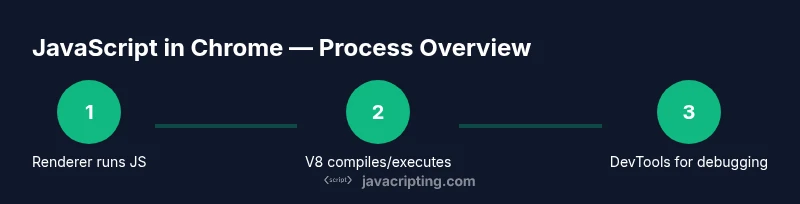
JavaScript in Chrome is executed by the V8 engine inside each renderer process, not in the UI thread. Chrome runs multiple processes for stability, with scripts running in sandboxed renderers that host the pages you view. The engine compiles code Just-In-Time, and you can inspect and profile this activity using Chrome DevTools.
How Chrome Architectures JavaScript
The question 'where is javascript in chrome' is best understood by starting with architecture. Chrome uses a multi-process design: each tab runs its own renderer process, and the browser keeps a separate main process that coordinates tabs, extensions, and UI. JavaScript code you write in a page is executed inside one of these renderer processes, not in the browser chrome itself. The engine behind this code is the V8 JavaScript engine, which is bundled with Chrome's renderer. Blink (the browser’s rendering engine) works with V8 to run your scripts, render the DOM, and paint pixels on the screen. Because of process isolation, each page runs in its own sandbox, which helps limit the impact of any heavy script on other pages or on the browser UI. In practice, this means that the physical location of JavaScript code isn’t a single file you can point to in a folder; it is distributed across renderer processes and loaded from the network or cache as part of the page bundle. As JavaScripting notes, this separation is intentional: it keeps the user interface responsive while giving developers a familiar JavaScript environment inside each tab.
Key takeaway: JavaScript runs inside renderer processes, not the browser chrome, and is executed by the V8 engine inside those sandboxes.
The V8 Engine: How JavaScript Gets Running
Once a page loads, the JavaScript you write is handed to V8 in the renderer process. V8 first tokenizes and parses the code into an abstract syntax tree, then compiles it to an intermediate form and finally to machine code via a Just-In-Time (JIT) compiler. Modern Chrome uses a two-tier JIT: an interpreter tier for quick startup, and an optimizing tier that compiles hot functions for speed. This optimization is driven by TurboFan, V8's optimizing compiler, which uses speculative optimization, inline caching, and feedback from runtime traces to speed up repeated calls. The end result is that most of your scripts run as fast as possible on the device's CPU without requiring you to manage memory manually. Remember that memory management in JavaScript is handled by a garbage collector, which runs at intervals to reclaim unused objects. The key takeaway is that the JavaScript you write is not just interpreted; it is dynamically compiled and optimized as the page runs, and that optimization happens inside the V8 engine inside the renderer process, alongside Blink's rendering tasks.
How Chrome Loads and Executes Scripts on a Page
When a page is parsed, Chrome decides whether and how to execute JavaScript. Inline scripts block parsing by default, while external scripts load as resources and may arrive after the HTML, depending on attributes like defer or async. If a script tag is encountered, the browser fetches the script, compiles it with V8, and executes it in the renderer context. Modules are loaded with import/export semantics, which can alter execution order. Dynamic script insertion (e.g., creating a script element at runtime) follows the same loading path but can be triggered by user interactions. Chrome also uses the source maps and sourcemaps for debugging minified code. In short, where is javascript in chrome? It runs inside the renderer’s V8 engine, orchestrated by the browser to respect dependency order and network latency. Understanding this flow helps developers reason about blocking behavior, render timing, and user experience.
Observing JavaScript in Chrome: DevTools Essentials
DevTools is your primary window into how JavaScript runs in Chrome. Open DevTools (F12 or Ctrl/Cmd+I) and switch to the Sources panel to view script files, set breakpoints, and inspect the current scope. The Performance panel lets you record a session to see which functions ran on the main thread, how long tasks took, and where layout or paint work stalled. The Call Tree and Inline Functions views in Sources help you identify hot functions and hot loops. The Network panel reveals when scripts are loaded, the size of responses, and whether caching affected load times. Use the Console for ad-hoc evaluation, and the Profiles (or Memory) panel to track heap allocations. We’ll explore practical examples in the next sections, showing how to align your debugging workflow with real-world page loads. As JavaScripting highlights, combining Sources with Performance gives you both code-level and timeline-level insight into where JavaScript is running and how it impacts render speed.
Debugging and Profiling: Practical Tips
To debug effectively, start with a targeted breakpoint in the portion of JavaScript you suspect is slow or error-prone. Then use the Call Stack and Scope panels to understand the context of each function. The Performance tool helps you identify long tasks and excessive reflows, guiding you to optimize DOM interaction and script execution. Remember to test on representative devices and network conditions; mobile devices often show different timing characteristics than desktops. Use network throttling to reproduce slow connections and verify that your code handles async timing gracefully. Consider disabling cache to reflect fresh loads, and enable persistent logs so you don’t lose trace information across refreshes. If you work with workers, remember that Web Workers run in separate threads and do not share memory with the main thread; communication occurs via postMessage. Finally, keep your DevTools configuration stable across projects so you can build a repeatable debugging workflow. The JavaScripting team emphasizes a consistent DevTools routine to reduce debugging time and improve JS performance.
Common Misconceptions and Edge Cases
A common misconception is that JavaScript always runs on a separate thread from the UI. In Chrome’s renderer process, most JavaScript runs on the same thread that handles user interactions; Web workers and service workers run in their own threads, but DOM access is still governed by the main thread. The browser UI runs in separate chrome processes, typically not affected by page scripts. Another edge case is the difference between module scripts and classic scripts; modules execute in strict mode and use top-level await, which can influence load order. Finally, WebAssembly may interoperate with JavaScript; while WebAssembly can execute code in parallel with JS, it runs within the same rendering environment. Understanding these nuances helps you avoid performance traps and build better, faster web apps.
Performance-first Practices and Takeaways
Performance-conscious developers prioritize minimizing main-thread work and avoiding long tasks. Keep critical paths short by deferring nonessential scripts and splitting code into modules. Favor asynchronous loading, efficient event handling, and careful DOM manipulation to reduce paint and layout work. Regularly profile with the Performance panel and inspect memory usage to catch leaks early. Finally, stay aware of Chrome’s evolution; what’s fastest today may change as V8, TurboFan, and Blink continue to optimize. The JavaScripting team recommends incorporating DevTools-driven profiling into your development workflow from day one to improve stability and user experience. By aligning your debugging practices with Chrome’s execution model, you’ll write JavaScript that behaves consistently across devices and browsers.
Tools & Materials
- Chrome browser (latest version)(Ensure you have the latest stable release for new DevTools features.)
- Chrome DevTools access(Open with F12 or Cmd/Ctrl+Option+I; use Sources, Performance, and Network panels.)
- Sample pages or URLs(Helpful for hands-on practice with debugging workflows.)
- Notebook or digital notes(Document findings and observations from DevTools sessions.)
Steps
Estimated time: 30-45 minutes
- 1
Open Chrome and load a test page
Navigate to a page you control or a test page. Open DevTools to begin inspecting how JavaScript runs in the renderer. This establishes the environment for subsequent steps.
Tip: Shortcut: Ctrl/Cmd+Shift+I to toggle DevTools quickly. - 2
View sources and set a breakpoint
In the Sources panel, locate a script file and set a breakpoint at a function you want to analyze. Breakpoints pause execution so you can inspect variables and the call stack.
Tip: Use conditional breakpoints to pause only when a specific condition is met. - 3
Record a performance session
Open the Performance panel and start recording while interacting with the page. Stop recording to view a flame chart showing where JavaScript runs and how long tasks take.
Tip: Filter results by script to isolate JS-heavy frames. - 4
Check network loads for scripts
In the Network panel, reload the page to observe script loading order, sizes, and caching. This helps you understand how external JS affects startup time.
Tip: Enable 'Disable cache' for consistent results during testing. - 5
Inspect the call tree and scopes
Within the Sources panel, use the Call Tree and Scope views to understand which functions execute most frequently and what variables are in scope at breakpoints.
Tip: Use 'Step over' to avoid stepping into library code you don’t own. - 6
Experiment with dynamic script loading
Create or delete script elements at runtime to see how dynamic loading changes execution order and timing.
Tip: Observe how defer and async attributes influence load and execution. - 7
Explore workers and asynchronous tasks
If your page uses Web Workers, inspect them in the dedicated panel and observe how they communicate with the main thread via postMessage.
Tip: Remember that workers have separate memory spaces from the main thread. - 8
Consolidate findings into a repeatable workflow
Document a standard DevTools workflow for debugging JS on new projects so you can reproduce results quickly across pages.
Tip: Keep a checklist for quick-start debugging.
Questions & Answers
Where does JavaScript run in Chrome?
JavaScript runs inside the renderer process of each tab, powered by the V8 engine. It is sandboxed and separate from the browser's UI process to keep the UI responsive.
JavaScript runs in the renderer process using V8, not in the browser's UI.
Is JavaScript executed on the UI thread?
Generally not on the UI thread. Most JS executes in the renderer's thread, while the UI chrome runs in a separate process. Web Workers can run code in parallel, but DOM access remains main-thread-bound.
JavaScript mostly runs in the renderer thread, with workers in separate threads for parallel tasks.
How can I observe JavaScript execution?
Use Chrome DevTools: the Sources panel for breakpoints, the Performance panel for timing, and the Network panel for load order. These tools let you map code to runtime behavior.
Open DevTools, use Sources and Performance to observe how your JS runs.
What about Web Workers?
Web Workers run JavaScript in separate threads from the main UI thread and do not share memory with the main thread. Communication happens via postMessage.
Web Workers run in their own threads and communicate with the main thread via messages.
Can I view V8 internals directly?
Direct internals aren’t exposed in standard DevTools. You can examine behavior via profiles and source maps, but internal engine details require specialized builds or documentation.
The internal V8 internals aren’t directly exposed; use profiling tools to understand behavior.
How can I optimize JavaScript in Chrome?
Profile with Performance, minimize main-thread work, defer nonessential scripts, and optimize DOM interactions to reduce render times.
Profile with Performance and reduce long tasks on the main thread.
Watch Video
What to Remember
- Run JavaScript in Chrome's renderer processes via the V8 engine
- Understand the two-tier JIT and TurboFan optimization
- Use DevTools to observe, debug, and profile JS execution
- Differentiate between main-thread work and worker threads
- Adopt a repeatable DevTools workflow to improve performance