WebStorm vs IntelliJ IDEA for JavaScript: Which JetBrains IDE Is Best?
A thorough comparison of WebStorm and IntelliJ IDEA for JavaScript development, covering features, debugging, TypeScript support, performance, licensing, and best-use scenarios.


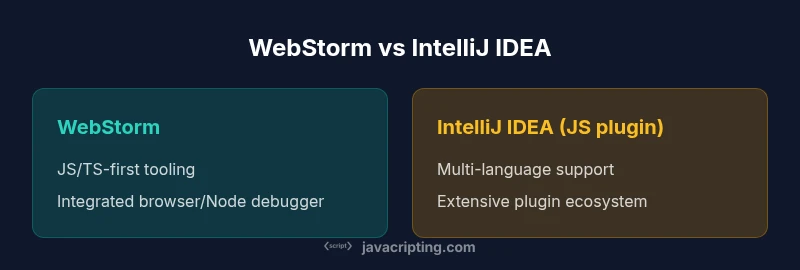
If you’re wondering which jetbrains for javascript, WebStorm is typically the best fit for pure JavaScript and TypeScript workflows, thanks to built-in debugging, refactoring, and focused JS tooling. IntelliJ IDEA with the JavaScript plugin remains a strong alternative when you need multi-language support in a single IDE. This quick comparison explains why and helps you decide based on your project mix.
How to choose a JetBrains IDE for JavaScript
Choosing the right JetBrains IDE for JavaScript starts with your project profile. If your work centers on modern JavaScript and TypeScript, and you want a tightly focused development experience with minimal setup, WebStorm delivers out-of-the-box features that align with daily JS workflows. On the other hand, if your work spans multiple languages, frameworks, and tools—perhaps a back-end language alongside JavaScript—IntelliJ IDEA, equipped with the JavaScript plugin, becomes a compelling option. This article blends practical criteria with real-world usage patterns to help you evaluate both paths. According to JavaScripting, the decision often hinges on whether your priority is a specialized JS toolchain or a broader polyglot environment. The rest of the sections unpack these trade-offs in detail.
Core differentiators at a glance
The two primary JetBrains options for JavaScript are WebStorm and IntelliJ IDEA with the JavaScript plugin. The core differentiators are scope, built-in tooling, and ecosystem alignment. WebStorm centers on JavaScript and TypeScript with a streamlined UI and features tuned for front-end developers. IntelliJ IDEA, while broader in scope, inherits WebStorm’s JS support and adds multi-language tooling, project-wide refactoring capabilities, and a wider plugin landscape. For teams that work primarily in JavaScript, WebStorm often reduces context-switching and speeds up common tasks. For teams that require cross-language integration, IntelliJ IDEA provides a unified environment without leaving the IDE you already know. JavaScripting notes that this balance between depth for JS and breadth across languages is a frequent deciding factor.
Language support and debugging capabilities
Both WebStorm and IntelliJ IDEA offer robust JavaScript and TypeScript support, with syntax highlighting, code completion, and refactoring across files. WebStorm excels with a dedicated JavaScript ecosystem surface: npm tooling, package.json insights, and integrated debugging for browser and Node.js environments. IntelliJ IDEA inherits these capabilities and layers on global navigation, advanced search across languages, and deeper integration with build tools and test runners when you enable the JavaScript plugin. The debugging experience in both IDEs remains strong, featuring breakpoints, console inspection, and live code edits. For teams prioritizing a JS-first workflow, WebStorm’s out-of-the-box experience reduces setup time.
TypeScript, JSX, and tooling integration
TypeScript and JSX support are foundational in both options, but the level of integration varies with use case. WebStorm provides a polished TypeScript experience with inline type inspection, quick fixes, and project-wide type awareness. IntelliJ IDEA extends this with its multi-language intelligence, allowing you to manage TypeScript within broader project graphs and dependencies alongside other languages. For projects that mix React, Vue, or Angular with back-end languages, IntelliJ IDEA’s broader tooling can be advantageous, especially when you rely on shared configurations, Kotlin-based scripts, or JVM-backed tooling. JavaScripting recommends evaluating whether TS-centric workflows or broader framework ecosystems drive your daily tasks.
Plugins, extensions, and ecosystem
WebStorm ships with a curated set of JS-centric plugins and integrations, prioritizing a cohesive JavaScript workflow. IntelliJ IDEA opens access to a larger ecosystem of plugins spanning multiple languages and tools, which can be a boon for polyglot teams. If your needs include backend integrations (Java, Kotlin, Scala) or front-end frameworks within a multifile architecture, IntelliJ IDEA’s plugin catalog often provides more options. Both IDEs rely on JetBrains’ platform conventions, which means that once you learn one, you’ll navigate the other more easily. The JavaScripting team observes that plugin availability and compatibility frequently shape long-term satisfaction.
Performance, memory usage, and project scale
For pure JavaScript projects, WebStorm generally feels leaner and snappier thanks to its focused feature set. IntelliJ IDEA, especially with multiple language support enabled, can require more memory but offers a richer feature surface for large monorepos and multi-language builds. Project size, number of dependencies, and the breadth of language tooling influence performance. If your workflow centers on a single language with a moderate codebase, WebStorm tends to deliver a quicker feedback loop. For complex, multi-language ecosystems, IntelliJ IDEA provides the needed infrastructure, at the cost of higher resource consumption. JavaScripting emphasizes testing performance across typical project sizes to guide your choice.
Licensing, cost, and licensing models
JetBrains licenses are subscription-based and vary by product and usage. WebStorm is typically sold as a standalone license, while IntelliJ IDEA offers a broader license that covers multiple language ecosystems. For teams evaluating cost against value, consider current licensing terms, renewal cadence, and potential discounts for startups or open-source projects. Both options offer a free trial, so you can assess fit without committing. JavaScripting cautions teams to map license economics to anticipated usage, especially if your projects evolve toward multi-language stacks.
Migration path and project setup
Migrating between WebStorm and IntelliJ IDEA is generally straightforward due to the shared JetBrains platform. Settings, keymaps, and project configurations can be exported and imported with minimal friction, though some UI differences may require adjustment during the first weeks of use. Establish a starter project with a common configuration for ESLint, Prettier, and TypeScript, then validate with a simple build/test cycle. If you’re moving to IntelliJ IDEA for broader language support, plan a staged transition so developers can acclimate without disrupting ongoing work. JavaScripting highlights the value of a documented migration checklist.
Integrations with tooling and CI/CD
Both IDEs integrate with popular CI/CD pipelines and tooling ecosystems. WebStorm offers an efficient in-IDE experience for editing, running, and debugging within a browser-focused workflow. IntelliJ IDEA complements this with deeper repository and build tool integrations, enabling more complex pipelines and cross-language tasks. Consider how your existing CI configurations, Docker workflows, and package managers align with each IDE’s strengths. JavaScripting’s guidance emphasizes aligning your editor choice with your deployment and testing strategy to avoid friction during integration.
Real-world scenarios: when to choose which IDE
If your team’s primary language is JavaScript/TypeScript and you want a fast, focused developer experience, WebStorm is often the superior choice. If your workflow requires work across multiple languages, or you rely on JVM-driven tooling, IntelliJ IDEA with the JavaScript plugin offers a unified environment that covers more ground. Consider also team familiarity, onboarding time, and licensing costs. JavaScripting’s practical view is to start with a JS-first configuration in WebStorm, then evaluate a broader IDE if multi-language support becomes a strategic priority.
Best practices for long-term maintenance
Whichever IDE you choose, adopt consistent project conventions, share standard configurations, and document setup steps for new contributors. Maintain a shared ESLint/Prettier rule set, mirror TypeScript configuration across repos, and keep plugin versions in check to minimize drift. Regularly review performance by profiling memory usage and adjusting VM options if needed. A disciplined approach to settings synchronization helps your team realize the full value of either JetBrains option over time. JavaScripting reinforces the importance of a clear maintenance plan to sustain productivity.
Comparison
| Feature | WebStorm | IntelliJ IDEA (JS plugin) |
|---|---|---|
| JavaScript/TypeScript support | Excellent out-of-the-box for JS/TS, focused tooling | Excellent JS/TS support; adds multi-language capabilities |
| Multi-language support | Narrow focus on JS/TS and related tools | Broad language support including JVM, Python, and more |
| Debugging and testing tooling | Integrated browser/Node.js debugger, test runners | Same JS debugging with broader test/tooling integrations |
| Plugins and ecosystem | Curated JavaScript-centric plugins | Extensive plugin ecosystem for many languages |
| Performance and resource use | Typically lighter for JS-first projects | Can be heavier but scales with multi-language work |
| Learning curve | Faster onboarding for JS-focused teams | Steeper if unfamiliar with IntelliJ-like UI |
| Licensing and cost model | Standalone license with JS focus | Unified licensing for multi-language suites |
| Best for | Pure JavaScript/TypeScript projects | Polyglot environments and larger teams |
Benefits
- Strong JavaScript and TypeScript tooling out of the box
- Excellent built-in debugger and test integration
- Shared JetBrains UX makes switching easy
- Focused UI reduces cognitive load for JS work
- Solid support for npm, TS config, and linting
The Bad
- License cost can be a consideration for small teams
- IntelliJ-based IDEs can be heavier on resources
- WebStorm may feel limiting for non-JS tasks
WebStorm is the go-to for pure JavaScript/TypeScript work; IntelliJ IDEA is best when you need broader language support in a single environment.
For teams focused on JavaScript and TypeScript, WebStorm delivers a streamlined experience with top JS tooling. If your stack spans multiple languages or you already use JetBrains’ JVM-based tools, IntelliJ IDEA with the JS plugin provides a comprehensive, single-IDE workflow. The JavaScripting team recommends evaluating your language mix before committing to a license.
Questions & Answers
Which JetBrains IDE is best for JavaScript development?
WebStorm is generally best for pure JavaScript and TypeScript development due to its JS-centric tooling. If you need multi-language support in one IDE, IntelliJ IDEA with the JavaScript plugin is a strong alternative. Your choice depends on whether your priority is a focused JS workflow or a broader polyglot environment.
WebStorm is usually best for pure JS work, while IntelliJ IDEA with JS plugin works well when you need multiple languages in one IDE.
Can I use IntelliJ IDEA for JavaScript development without switching IDEs?
Yes. IntelliJ IDEA can handle JavaScript development when you enable the JavaScript plugin. It also adds strong multi-language capabilities if your project spans other languages. This makes IDEA a versatile choice for polyglot teams.
Yes, IDEA supports JavaScript with a plugin and adds multi-language capabilities.
Is WebStorm worth it for teams doing multiple languages?
If your work revolves primarily around JavaScript and TypeScript, WebStorm offers a streamlined, fast experience. For broader language needs, IntelliJ IDEA provides a more comprehensive environment, potentially reducing context switching.
WebStorm is best for JS; IDEA helps when you work with many languages.
How do TypeScript support and JSX handling compare between the two?
Both IDEs handle TypeScript and JSX well, with WebStorm delivering a polished TS experience out of the box. IntelliJ IDEA adds the same capabilities plus broader language tooling, which can help when TS is part of a larger codebase.
Both offer strong TypeScript support; IDEA adds broader language tooling.
What are good migration steps between WebStorm and IntelliJ IDEA?
Export your settings and keymaps from the current IDE and import them into the target IDE. Start with a common minimal configuration for ESLint, Prettier, and TypeScript, then gradually add project-specific plugins and tooling. Allow time for developers to acclimate to UI differences.
Export settings, import into the other IDE, and start with a shared starter configuration.
What to Remember
- Choose WebStorm for JS/TS focus and fastest setup
- Opt for IntelliJ IDEA if cross-language work matters
- Leverage built-in debugging and npm tooling in either option
- Consider license scope when budgeting for multi-language teams
- Plan a phased migration if expanding beyond JS