Coding JavaScript: A Practical Guide to Getting Started
Learn practical JavaScript basics with hands-on steps, a clear setup guide, and debugging tips. This guide helps aspiring developers code with confidence and clarity.


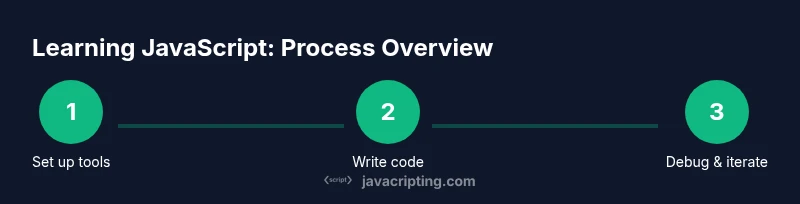
By the end of this guide, you will be able to code in javascript, set up a local environment, write a first script, and debug common issues. You’ll need a modern browser, Node.js, and a simple text editor or IDE. Follow the step-by-step process to build confidence and practical skills in coding javascript.
What is JavaScript and why it's essential for the web
coding javascript is the language of the web’s interactive parts; it runs in browsers and on servers via Node.js. This section explains the core idea and how it fits with HTML and CSS. According to JavaScripting, JavaScript lets you create dynamic pages, respond to user input, and build complex apps without reloading the page. The modern web relies on JavaScript to power animations, data fetching, and client-side logic. By learning practical javascript today, you’ll gain the ability to turn ideas into working features, from form validation to real-time updates. The fundamentals cover syntax, variables, data types, control flow, and functions, all of which form the foundation for more advanced topics like async programming and modern tooling. If you’re new to coding javascript, start with the basics and practice building tiny projects; consistency matters more than memorization. This guide uses clear, hands-on steps and concrete examples to help you progress quickly. The JavaScripting approach emphasizes practical exercises you can replicate in a real project.
Setting up a productive development environment
To start coding javascript effectively, you need a reliable setup that mirrors real-world workflows. Install a modern browser (Chrome or Firefox) for in-browser testing, and install Node.js to run JavaScript outside the browser. A lightweight, capable editor such as Visual Studio Code makes editing easier with syntax highlighting, integrated terminal, and extensions. Create a dedicated workspace folder for your practice projects, and ensure you can access commands from your terminal or command prompt. Finally, bookmark reliable documentation and communities so you can reference best practices and common pitfalls as you grow. This section helps you configure a compact, repeatable environment that supports consistent progress with coding javascript.
Core concepts you will learn
Before you dive into code, map out the core ideas you’ll master in this journey: variables and data types, operators, control flow (if/else, loops), functions (including arrow functions), arrays and objects, and basic debugging. You’ll also explore the difference between synchronous and asynchronous programming, a foundation for working with APIs and modern libraries. As you practice, you’ll build small modules that demonstrate how these concepts fit together. You’ll gradually introduce more advanced topics like promises, async/await, and modules, but only after you’re comfortable with the fundamentals of coding javascript. The goal is mastery through incremental challenges and concrete examples.
Writing your first program: hello world
Your first program is a milestone that confirms your environment is ready. Create a file named index.js and write a simple statement:
console.log("Hello, world!");
Open your terminal, navigate to the project folder, and run:
node index.js
If you see Hello, world! in the console, you’re on the right track. This practice reinforces how Node.js executes code outside the browser and how you’ll test logic quickly. As you progress, replace the string with dynamic content and experiment with variables to see how output changes.
JavaScript syntax and best practices
JavaScript syntax governs how you structure code, name variables, and declare functions. Use let for mutable bindings and const for constants to reduce accidental reassignments. Prefer template literals for readable strings:
const user = 'Alex';
console.log(`Hello, ${user}!`);
Adopt strict mode in modules to catch common mistakes, and keep your code modular by separating concerns into functions and small modules. Consistent formatting, meaningful identifiers, and thoughtful comments improve readability, collaboration, and long-term maintainability. This section ties together the syntax basics with practical, scalable patterns for coding javascript.
Debugging strategies and common pitfalls
Debugging is a critical skill. Start with descriptive console.log statements to trace values, then use your browser’s DevTools or Node’s inspect mode to pause and inspect. Watch out for common pitfalls: undefined variables, type coercion surprises, and asynchronous timing issues. Use breakpoints to pause execution at interesting lines, then step through code to observe flow and state. Always read error messages carefully; they point to the exact file and line number where things go wrong. This section provides practical strategies to diagnose issues quickly when coding javascript.
Going beyond the basics: modern tooling and ecosystems
As you gain confidence, explore tooling that scales your projects. Learn about package managers (npm or yarn), build tools (Webpack, Vite), and modern JavaScript features (optional chaining, nullish coalescing). Start experimenting with modules to organize code and with simple testing practices to verify behavior. Understanding how to integrate APIs, handle asynchronous data, and manage dependencies will elevate your ability to build real-world apps with coding javascript. This groundwork sets you up for frameworks, libraries, and server-side JS when you’re ready.
Practical learning path and next steps
Create a structured practice plan that blends short exercises with small projects. Start with a few hours each week dedicated to writing, testing, and reviewing code. Document what you learn in a personal notes file or a blog to reinforce concepts. When you’re ready, expand to small projects like a to-do list, fetch data from an API, or validate form input. The goal is consistent, incremental progress that compounds into real proficiency in coding javascript. The JavaScripting team emphasizes steady practice and hands-on projects as the most reliable path to mastery.
Tools & Materials
- Modern web browser (Chrome/Edge/Firefox)(For running in-browser tests and quick experiments.)
- Code editor (e.g., Visual Studio Code)(Essential features: syntax highlighting, extensions, integrated terminal.)
- Node.js (LTS version)(Run server-side JS and test code outside the browser.)
- Terminal or command prompt(Access to run commands and navigate files.)
- Git (optional but recommended)(Version control for tracking changes.)
- Internet access(Download tools and access docs/tutorials.)
Steps
Estimated time: 60-90 minutes
- 1
Install Node.js and a code editor
Download and install Node.js from the official site and verify the installation. Install a code editor like VS Code and configure a simple workspace. This step ensures you can run JavaScript outside the browser and edit files efficiently.
Tip: Restart your terminal after installing Node.js to refresh PATH. - 2
Create a project folder and initialize npm
In your terminal, create a new folder and navigate into it. Run npm init -y to generate a package.json file for project metadata and dependencies.
Tip: Use a descriptive project name and review package.json later for accuracy. - 3
Create index.js and write your first line
Create a file named index.js and add:```console.log("Hello, world!");```. This confirms your environment is ready to execute JavaScript.
Tip: Ensure the file is saved with the .js extension. - 4
Run your script with Node
In the terminal, run node index.js and observe the output. If you see Hello, world!, your setup is working.
Tip: If you encounter permissions issues, run in a folder you own or adjust permissions accordingly. - 5
Experiment with variables and types
Add small snippets to index.js to explore let, const, and basic data types. Use typeof to inspect values and practice basic operations.
Tip: Prefer template literals for readable output. - 6
Use the browser console for quick experiments
Open DevTools (F12) in your browser and type simple expressions in the Console. This helps validate ideas without changing files.
Tip: Try document.title or simple DOM manipulations to see immediate effects. - 7
Write small functions
Add a function like:```function greet(name){ return `Hello, ${name}!`; } console.log(greet('World'));```
Tip: Consider arrow functions for shorter syntax and lexical this. - 8
Debugging tips
Use console.log, console.error, and the debugger keyword to pause and inspect. Set breakpoints in DevTools to observe execution flow.
Tip: Avoid excessive console logging; remove debug statements in production.
Questions & Answers
What is JavaScript and how does it relate to HTML and CSS?
JavaScript adds interactivity to web pages by manipulating the DOM, handling events, and performing logic. HTML defines structure, CSS handles presentation; JavaScript ties them together to build dynamic experiences.
JavaScript makes web pages interactive by updating content in response to user actions, working with HTML and CSS to create dynamic experiences.
What’s the difference between let, const, and var?
Let and const are block-scoped, with let allowing reassignment and const preventing reassignment. Var is function-scoped and can be hoisted; modern code favors let/const to avoid bugs.
In modern JavaScript, use let for variables that change and const for constants. Avoid var unless you need legacy behavior.
Do I need to know HTML or CSS before learning JavaScript?
A basic familiarity with HTML is helpful because JavaScript often manipulates page content. Knowing CSS helps you understand styling changes that JS can trigger.
Knowing HTML first is useful, and CSS helps you see the effects of JavaScript styling changes.
Can I run JavaScript without a web browser?
Yes. Node.js lets you execute JavaScript on the server or in scripts outside the browser.
Yes. You can run JavaScript with Node.js outside the browser.
What are common debugging tools for JavaScript?
Browser devtools, Node.js debugger, and editor integrations are standard. Use breakpoints, console logging, and stack traces to diagnose issues.
Use your browser's developer tools and Node's debugger to inspect code and watch variables.
How long does it take to learn JavaScript?
This varies with practice, but a solid foundation often takes several weeks of consistent study and small projects.
With steady practice, you can reach a comfortable baseline in a few months.
Watch Video
What to Remember
- Install Node.js and a code editor
- Write and run your first JavaScript script
- Master variables, data types, and functions
- Debug effectively with DevTools and console
- Practice with small projects to reinforce learning
- Plan a progressive learning path to advance