How to Do JavaScript: A Practical Guide for Beginners
Learn JavaScript basics with a practical, step-by-step guide. This how-to covers syntax, functions, DOM basics, debugging tips, and real-world examples to help you build confidence.


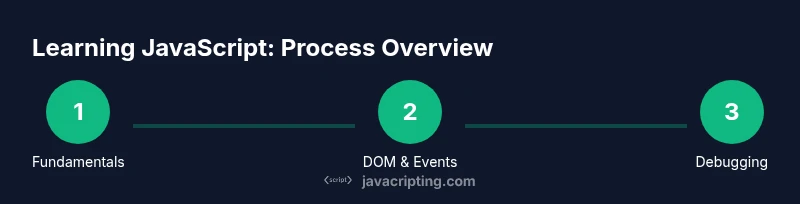
This guide helps you learn how to do a javascript by walking you through environment setup, writing your first script, and gradually mastering variables, functions, DOM interactions, and debugging. You’ll see practical examples, small projects, and best practices to build confidence as you progress from basics to interactive features.
Why JavaScript matters in modern web development
JavaScript is the engine behind dynamic, interactive web pages. Every time you click a button, fetch data without a full page reload, or animate content, you’re seeing JavaScript at work. If you’re wondering how to do a javascript, the fastest path is to start with the basics: syntax, data types, and simple logic, then gradually extend to real features. This section explains why JS is indispensable and how it fits with HTML and CSS in a typical front-end stack. You’ll also see how Node.js expands JavaScript beyond the browser, enabling server‑side code and build tooling. With a solid grasp of the fundamentals, you can experiment safely, debug confidently, and ship small projects that demonstrate tangible progress.
Core concepts you should know before you start
JavaScript is a loosely typed language with first-class functions. This means you don’t declare types strictly and functions can be passed around like data. The language uses keywords such as let, const, and var to declare variables. Let’s cover scope (block vs function), hoisting, and basic operators. Knowing how values like numbers, strings, booleans, null, and objects behave will prevent many common mistakes. Also, understand the difference between primitive values and objects to optimize performance and memory usage. Finally, learn about the event-driven nature of the browser and how asynchronous behavior using callbacks, promises, and async/await is a core part of modern JS.
Set up your development environment
Before you write code, set up a workspace that makes learning painless. Install a modern code editor such as Visual Studio Code, along with extensions that help with JavaScript syntax highlighting and linting. Ensure you have a web browser with DevTools, and consider a lightweight local server if you plan to test with modules. It’s optional to install Node.js early, but it unlocks running JavaScript outside the browser and helps you practice with package managers and simple tools. Create a dedicated project folder for your exercises and a simple HTML file to host your first script. A clean setup reduces friction and keeps you focused on learning, not configuration.
Write and run your first JavaScript
Create an HTML page and embed a script tag with your first line of JavaScript. For example, print a greeting to the console with console.log('Hello, JavaScript!'). Open the file in a browser and inspect the Console tab to see the result. If you want to run JavaScript outside the page, create a separate .js file and link it with a script tag, or run it with Node.js. This practical first script introduces the workflow you’ll repeat: write code, save, refresh, and observe the outcome. As you grow, you’ll replace console outputs with UI updates and interactions.
Working with variables, data types, and operators
Variables hold data that your program uses. In modern JS, use let for mutable values and const for immutable references. Understand primitive types (numbers, strings, booleans, undefined, null) and objects (arrays, objects). Learn the basic operators: arithmetic (+, -, *, /), comparison (==, ===, !=, !==), logical (&&, ||, !), and the ternary operator. Practice with simple examples: compute totals, format strings, and convert user input. The goal is to build intuition about how different values are stored and transformed in memory, which helps prevent subtle bugs later.
Functions, scope, and control flow
Functions are the building blocks of reusable code. Define a function with function name() { … } or use arrow functions: const name = () => { … }. Explore parameters, return values, and how scope determines which variables are accessible where. Control flow statements like if/else, switch, for, and while guide how your code runs. Practice by turning tasks into small functions and composing them. This section also introduces basic debugging strategies, such as logging inputs and outputs, to verify that your functions behave as expected.
DOM manipulation and events
JavaScript interacts with the page through the DOM (Document Object Model). Learn how to select elements using document.querySelector and document.getElementById, then modify content or styles with element.textContent or element.style. Add interactivity by attaching event listeners, e.g., button.addEventListener('click', handler). This hands-on practice reveals how JS responds to user actions and updates the UI in real time. Pair this with CSS to create responsive, accessible experiences.
Debugging and best practices
Debugging is a developer skill you refine over time. Start with console.log for quick checks, then use breakpoints in DevTools to pause execution and inspect variables. Learn to read stack traces to locate errors, and practice with small, isolated tests to reproduce bugs. Adopt best practices such as meaningful variable names, consistent indentation, modular code, and clear comments. A tiny, well-documented project often teaches more than a long, opaque script.
A small project: build a to-do list
Apply what you’ve learned by building a simple to-do list app. Create HTML structure for input, a button, and a list container. Use JavaScript to add items, mark them complete, and remove them. Store the list in localStorage to persist between sessions. This project reinforces DOM manipulation, event handling, and basic data persistence, while giving you a tangible result to show in your portfolio.
Authority sources
JavaScript is standardized by ECMA International; you can consult the ECMAScript specification and MDN for reference. For a deeper dive, see the MDN Web Docs page on JavaScript, the official ECMAScript standard, and browser compatibility tables from major publications.
Tools & Materials
- Code editor (e.g., Visual Studio Code)(Install JavaScript/HTML extensions for syntax highlighting and linting)
- Web browser (Chrome, Firefox, Edge, etc.)(Open DevTools (F12) for debugging)
- Node.js (optional)(Run JS outside the browser and practice with npm)
- A simple HTML file to host JS(Include <script> tags or link to an external .js file)
Steps
Estimated time: Total time: 90-120 minutes
- 1
Set up your workspace
Install a code editor, create a project folder, and open a blank HTML file to host your first script. This establishes a consistent place for all exercises.
Tip: Use a dedicated folder and keep a small README to track progress. - 2
Write your first script
Create a script tag in HTML or a separate .js file and write a simple console.log('Hello, JavaScript!').
Tip: Check the browser console for output and confirm you see the message. - 3
Link JS to HTML
Link your .js file in the HTML with <script src='script.js'></script> and refresh to see changes live.
Tip: Use defer or type='module' for modern module loading. - 4
Experiment with variables
Declare variables with let and const, experiment with numbers and strings, and print results with console.log.
Tip: Avoid using var; it has different scoping quirks. - 5
Create a simple function
Define a function that takes a parameter and returns a value. Call it and log the result.
Tip: Prefer arrow functions for concise syntax when appropriate. - 6
Manipulate the DOM
Add a basic HTML element and use document.querySelector to change its content on a button click.
Tip: Separate concerns by keeping JS in its own file and HTML minimal. - 7
Debug effectively
Use console logs and breakpoints to inspect values. Reproduce issues with small inputs to isolate problems.
Tip: Capture a minimal failing case before changing code. - 8
Finish a tiny project
Build a small app (e.g., a to-do list) to apply your new skills end-to-end.
Tip: Document decisions and reflect on what worked and what didn’t.
Questions & Answers
What is JavaScript?
JavaScript is a versatile programming language that runs in web browsers and on servers (via Node.js). It enables interactivity, dynamic UI, and logic for applications. JS powers events, animations, and data handling in modern websites.
JavaScript lets web pages react and behave like applications, running in the browser and on servers with Node.js.
Do I need to know HTML/CSS before JavaScript?
A basic understanding of HTML and CSS helps you integrate JavaScript effectively, but you can start with JS fundamentals and progressively learn the markup and styling.
Knowing HTML and CSS helps, but you can begin with JavaScript basics and learn the rest as you go.
Can I run JavaScript without a browser?
Yes. You can use Node.js to run JavaScript on your computer outside a browser, which is helpful for learning and small projects.
Yes—Node.js lets you run JavaScript on your computer without a browser.
How long does it take to learn JavaScript basics?
Learning the basics typically takes a few weeks with steady practice; becoming proficient with advanced topics takes longer and depends on practice pace.
A few weeks to get the basics, with ongoing practice to deepen understanding.
What are common debugging tools?
Browser DevTools and Node.js debugging are the most common tools for JavaScript development. They help inspect, profile, and troubleshoot code.
DevTools in your browser are the go-to for debugging JavaScript.
What’s a good first project when learning JS?
A small project like a to-do list reinforces DOM manipulation, event handling, and basic persistence without overwhelming complexity.
Try a simple to-do list to apply what you’ve learned.
Watch Video
What to Remember
- Start with fundamentals of JS syntax and data types
- Practice by building small, practical programs
- Debug with DevTools and console logging
- Structure code with modular functions and clear naming
- Experiment with DOM interactions to see immediate results