Does JavaScript Go in HTML or CSS? A Practical Guide
Learn where JavaScript belongs in web development, how to structure HTML, CSS, and JS, and best practices for maintainable, fast pages. This guide explains placement, patterns, and common pitfalls.


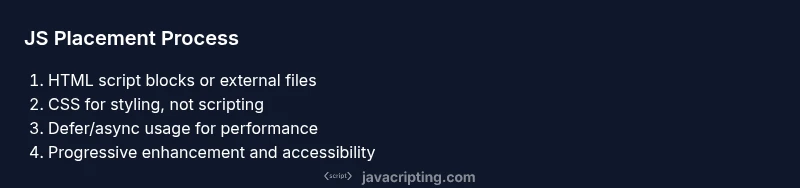
JavaScript belongs in HTML as script blocks or in external .js files, not in CSS. CSS handles styles; JavaScript adds behavior. In practice, place your code in separate files and include them with a <script> tag (preferably deferred) or use a small inline script for simple interactions. This separation keeps concerns clear and improves maintainability, performance, and debugging.
does javascript go in html or css: a quick note
In modern web development, does javascript go in html or css? The short answer is that JavaScript belongs in HTML (via script tags) or in separate .js files, not in CSS. CSS handles presentation, while JavaScript adds behavior and interactivity. This article unpacks where to place your code, why, and how to organize it for maintainability. According to JavaScripting, understanding this separation helps beginners avoid common pitfalls and speeds up debugging. As you read, keep in mind the core principle of separating structure (HTML), presentation (CSS), and behavior (JavaScript).
The role of the JavaScript engine and the DOM
Browsers expose a JavaScript engine that executes code and manipulates the Document Object Model (DOM). When a page loads, scripts can run to attach event listeners, modify elements, and respond to user actions. This execution happens regardless of where the script tag sits in the HTML—head or body—with defer or async attributes influencing when the code runs. The key idea is that JavaScript is the behavior layer, not the style layer.
Placing JavaScript in HTML: script tags and attributes
The most common pattern is to place JavaScript in HTML using <script> tags. You can include inline code:
<script>
  console.log('Hello from inline JS');
</script>
Or reference an external file:
<script src="app.js" defer></script>The defer attribute ensures the script runs after the document has been parsed, which improves page rendering. For critical scripts that must run as soon as possible, you might use async, but be mindful of dependencies. Using external files helps with caching and maintainability.
Using JavaScript in CSS: limitations and patterns
CSS cannot execute JavaScript. If you see a claim that JS runs in CSS, it is usually a misunderstanding. However, JavaScript can control CSS by toggling classes, injecting inline styles, or updating CSS custom properties (variables). A common pattern is to add or remove a class on the root element to switch themes or layouts:
document.documentElement.classList.toggle('dark-theme');This separation keeps the styling concerns in CSS while JavaScript handles the behavior that triggers style changes.
External JavaScript files: best practices
For robust projects, place JavaScript in separate .js files rather than inline code scattered across HTML. This improves caching, reduces HTML size, and helps teams collaborate. Use meaningful file names like app.js, gallery.js, or form-validation.js. Consider modular code with imports/exports if you’re using modern JavaScript modules. Keep scripts small and focused; large monolithic files are hard to maintain and test.
Inline scripts vs external scripts: trade-offs
Inline scripts load quickly but bloat HTML and hinder caching. External scripts load once and can be cached across pages, speeding subsequent loads. Inline scripts are sometimes acceptable for tiny, page-specific functionality, but prefer external files for maintainability and performance. If you must inline, keep it minimal and avoid duplicating code across pages.
Progressive enhancement and accessibility
A good rule of thumb is to deliver a functional baseline with HTML and CSS, then progressively enhance with JavaScript. Ensure essential features work without JS, and provide semantic markup for screen readers. When you enable interactivity, ensure focus management and keyboard navigation remain accessible. This approach aligns with modern web standards and improves user experience across devices.
Debugging tips and setup
Debugging JavaScript starts with browser DevTools. Use breakpoints to pause code at critical moments, inspect the DOM, and watch variables. When scripts fail to load, check the network tab for 404s and verify the script paths are correct. Source maps help correlate minified code with your original files, making debugging more efficient.
Common mistakes to avoid
Avoid placing JavaScript directly into CSS or HTML event attributes like onclick, which can harm maintainability and accessibility. Do not block rendering with large inline scripts—prefer async/defer for external files. Never forget to debounce or throttle expensive handlers on scroll or resize events. Finally, avoid duplicating logic across pages; extract shared functionality into modules.
Tools & Materials
- Code editor(Examples: VS Code, Sublime Text, or Atom)
- Web browser(Chrome, Firefox, Edge, or Safari for debugging)
- HTML file(Baseline scaffold for the page)
- External JavaScript file(e.g., app.js)
- CSS file(Optional for styling demonstrations)
- Live server or local server(Helps with module loading and CORS while developing)
Steps
Estimated time: 60-90 minutes
- 1
Create HTML scaffold
Set up a basic HTML document with a head and body. This provides a stable structure to demonstrate where JavaScript will run and how it interacts with the DOM.
Tip: Include a root element (e.g., <div id="app">) to anchor DOM manipulations. - 2
Add external JavaScript file
Create a separate file (e.g., app.js) and place a simple console.log or DOM manipulation to verify loading works.
Tip: Keep file names descriptive and place in a logical folder like /static/js. - 3
Link script with defer
In the HTML head, add <script src="/static/js/app.js" defer></script>. This ensures the script runs after the document is parsed without blocking rendering.
Tip: Use correct path and test with page reload to confirm timing. - 4
Write a DOM-ready handler
Inside app.js, wait for DOMContentLoaded before querying elements to avoid null references on early access.
Tip: Prefer DOMContentLoaded for older environments; many setups rely on defer for simpler timing. - 5
Toggle a class for interactivity
Add a small feature, like a dark mode toggle, by toggling a class on the root element and styling with CSS.
Tip: Keep the interaction accessible by ensuring focus states remain visible. - 6
Keep JS modular
Split functionality into small modules or functions and export/import where supported. This improves readability and testing.
Tip: Avoid large, monolithic files; group related behavior together. - 7
Minimize inline scripts
Limit inline scripts to a tiny bit and favor external files for caching benefits and maintainability.
Tip: If you must inline, keep it to a few lines and document its purpose. - 8
Test across devices
Check behavior on desktop and mobile, and test keyboard navigation and screen readers to ensure accessibility.
Tip: Use responsive design mode in DevTools to simulate various viewports.
Questions & Answers
Can JavaScript run directly inside HTML attributes or CSS files?
No. JavaScript should run from <script> tags or external .js files. Inline code in attributes is fragile and hard to maintain, while CSS is strictly for styling. You can still trigger CSS changes via JS by toggling classes.
No. Use script tags or external files for JavaScript; attributes and CSS are not for running code.
Is it ever OK to put JavaScript in CSS?
JavaScript cannot execute from CSS. However, you can have JS modify CSS by changing classes or updating CSS variables. This keeps behavior separate from presentation.
JavaScript doesn't run in CSS, but you can have JS update CSS variables or classes.
What is the difference between inline and external scripts?
Inline scripts load with the HTML and can hinder caching, whereas external scripts are cached by the browser and offer clearer organization. External files are generally preferred for larger projects.
Inline scripts load with the page and don’t cache well; external scripts cache and keep code organized.
When should I use defer vs async for scripts?
Use defer when scripts rely on the DOM being parsed. Use async for independent scripts that don’t rely on the DOM before they finish. In many cases, external scripts with defer provide predictable loading.
Defer waits for the DOM; async runs as soon as it’s ready. Choose based on dependencies.
Where should script tags be placed in HTML for best performance?
Place script tags with defer in the head or at the end of the body to avoid blocking rendering. External scripts are preferred for caching and maintainability.
Put scripts in the head with defer or at the end of the body to avoid slowing the page.
How do I debug JavaScript loaded from HTML?
Use browser DevTools, set breakpoints, and inspect the console. Check the Network tab to verify script loading and ensure paths are correct.
Open DevTools, set breakpoints, and inspect the loaded script in the Network tab.
Watch Video
What to Remember
- Decide on HTML/JS separation early and stick to it.
- Prefer external scripts with defer to optimize performance.
- Use progressive enhancement for accessibility and resilience.