How Do You Get JavaScript: A Practical Beginner's Guide
Learn exactly how to obtain and run JavaScript on your computer—whether in a browser or with Node.js—plus setup tips and a starter project.


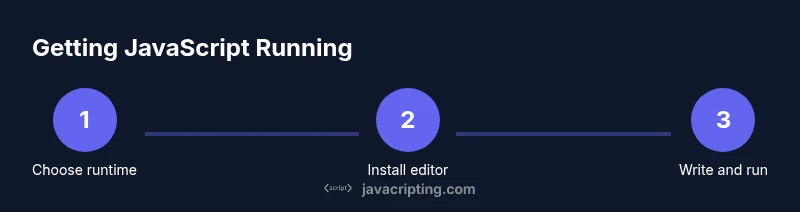
According to JavaScripting, how do you get javascript is about using the right runtime, a text editor, and a simple script. The quick answer is: 1) choose a browser or Node.js as your runtime, 2) install a modern code editor, 3) write and load a basic .js file. This guide walks you through each step safely and clearly.
What JavaScript is and where it runs
JavaScript is a versatile, high-level programming language designed to run in web browsers and on servers via runtimes like Node.js. It powers interactivity in modern websites, handles logic, data manipulation, and communication with APIs. When you ask how do you get javascript, you’re really learning where to obtain the language runtime and how to start writing code that the browser or server can execute. In practice, JavaScript runs in a JavaScript engine (like V8 in Chrome) embedded in the environment that loads your code. You can write scripts in a simple text file, embed them in HTML, or run them directly in a runtime console. As you begin, focus on understanding the basic flow: write code, save it, load it in an environment, and observe the results. This foundation makes learning more advanced topics faster.
How JavaScript is delivered in browsers and runtimes
Web browsers come with built-in JavaScript engines that execute scripts embedded in web pages. The browser loads an HTML document, encounters a script tag or a linked .js file, and passes the code to its engine for execution. On the server or in development, Node.js and other runtimes provide the same language without a browser UI. The difference is the environment: browsers expose a DOM (document object model) and browser APIs; Node.js gives access to the filesystem, network, and command line tools. When you start with how do you get javascript, you’ll often see the same language implemented in different contexts, but the runtime determines what features are available. This section helps you map your goals to the right environment, whether you want client-side interactivity or server-side scripting.
The journey from source to execution
JavaScript source is plain text, written in files with a .js suffix or embedded in HTML. In modern workflows, you might see transpilation (like TypeScript to JavaScript) and bundling (combining modules for the browser). The runtime ultimately executes the final JavaScript code, but what happens between file and execution matters: the code may be transformed, loaded over the network, or loaded from local disk. Understanding this flow helps you troubleshoot and optimize performance. When you ask how do you get javascript, you’re learning to map your code from your editor to the environment where it runs, observe results, and iterate quickly.
Getting JavaScript on your machine: runtimes and environments
To begin, decide whether your primary goal is browser-based interactivity or server-side scripting. For browser work, you can use any modern browser to run JavaScript directly or via embedded HTML. For server-side development, Node.js provides a runtime that executes JavaScript outside the browser, with access to the filesystem and network. If you plan to manage dependencies or build projects, install a package manager and consider a simple project scaffold. In this phase, avoid downloading unnecessary tools; start minimal and add components as your needs grow. This approach aligns with practical learning and reduces setup friction.
Choosing a code editor and configuring your workspace
Your code editor is your primary workspace. Choose a modern editor like VS Code, Sublime Text, or Atom, and enable essential features: syntax highlighting, linting, and an integrated terminal. Configure a consistent project structure (src for source, dist for compiled output) and set up a basic .gitignore so you don’t commit node_modules or large binaries by mistake. Install helpful extensions for JavaScript (linting, intellisense, and debugging). A clean, predictable workspace makes it easier to focus on how do you get javascript and get results quickly.
Your first JavaScript file: a practical example
Create a simple file named hello.js with a single line of code:
console.log('Hello, JavaScript!');
This tiny script demonstrates core concepts: writing code, saving the file, and executing it in your chosen environment. If you prefer browser execution, link this script from an HTML page and open it in a browser to see the console output. Replacing the string with dynamic data or user input expands your hands-on learning immediately. Practically, starting small accelerates your grasp of syntax, scopes, and basic debugging.
Running and testing locally: browser vs Node
Running JavaScript in the browser typically involves including the script in an HTML file or typing expressions directly into the browser console. You’ll see results in the Console tab and can interact with the DOM. Running JavaScript with Node.js involves invoking the interpreter from your terminal, e.g., node hello.js, which prints output to the terminal. Each path reinforces different skills: interactivity in the browser and server-side logic in Node. As you grow, you’ll learn to switch between environments to match project requirements.
Core tools: package managers, bundlers, and runtimes
Beginner workflows benefit from tools that automate tasks: a package manager (npm or yarn), a local server, and a bundler or task runner. npm lets you initialize projects and manage dependencies; bundlers like Webpack or Parcel optimize modules for the browser. Runtimes like Node.js provide a consistent environment for running scripts, testing, and building servers. Start with a minimal setup, then add tooling as your projects demand it. This modular approach makes it easier to scale and keep the focus on learning how do you get javascript.
Troubleshooting and verifying your setup
If JavaScript doesn’t run as expected, start with simple checks: confirm the runtime is installed, verify your file extension (.js), and review error messages in the console or terminal. Common issues include syntax errors, missing files, or incorrect script paths. Use console.log statements to trace execution and isolate problems. As you gain experience, you’ll recognize patterns and develop a quick troubleshooting workflow that keeps you productive and focused on real questions like how do you get javascript running reliably.
Tools & Materials
- Web browser (Chrome/Edge/Firefox)(Used to run and test browser-based JavaScript.)
- Text editor (e.g., VS Code)(Enable syntax highlighting and quick fixes.)
- Node.js (optional for browser experiments)(Needed to run JavaScript outside the browser.)
- Command line/terminal access(Run commands to install tools and execute scripts.)
- A basic HTML file (optional for embedding)(Helpful for loading a script via a page.)
Steps
Estimated time: 30-60 minutes
- 1
Choose your runtime
Decide if you’ll run JavaScript in a browser or with Node.js based on your goals. A browser is best for UI interaction; Node.js is ideal for servers, tooling, and script automation.
Tip: Start with the browser to see immediate results, then add Node.js to expand capabilities. - 2
Install a code editor
Set up a modern editor like VS Code, and enable essential features: syntax highlighting, code formatting, and an integrated terminal.
Tip: Install a few essential extensions for JavaScript and debugging. - 3
Create a project folder
Make a dedicated workspace (e.g., my-js-project) with subfolders for src and dist. This clears clutter and mirrors professional workflows.
Tip: Use version control early to track changes. - 4
Write your first script
Create hello.js and add a simple console.log statement to verify the environment works as expected.
Tip: Keep the script tiny at first to ease troubleshooting. - 5
Run in the browser
Create a minimal HTML file that loads hello.js, then open the HTML file in a browser to observe console output.
Tip: Check the browser console for errors and adjust paths if needed. - 6
Run with Node.js
From the terminal, execute node hello.js to confirm a plain JS runtime works outside the browser.
Tip: Use --version to verify your Node.js installation. - 7
Add npm and a simple project
Initialize a package.json with npm init -y to start managing dependencies later on.
Tip: This step prepares you for adding libraries and tooling. - 8
Iterate and expand
Experiment with variables, functions, and basic I/O to grow confidence. Document your setup and results as you go.
Tip: Incremental learning + consistent practice yields faster progress.
Questions & Answers
What is a JavaScript runtime and why do I need one?
A JavaScript runtime is the environment that executes your JavaScript code. In a browser, the runtime includes a JavaScript engine and Web APIs; in Node.js, it provides server-side capabilities like filesystem access. You need a runtime to actually run your code and observe results.
A runtime is what runs your JavaScript code, either in a browser or on a server like Node.js.
Do I need Node.js to use JavaScript?
No for browser-based projects, but Node.js is essential if you want to run JavaScript outside the browser, build servers, or use tooling like npm. It broadens what you can do beyond client-side scripts.
Node.js is optional for beginners who only use JavaScript in the browser, but useful for server work and tooling.
What’s the difference between running JS in the browser vs Node.js?
In the browser, JavaScript often manipulates the DOM and uses browser APIs. Node.js runs on the server or locally without a GUI and exposes filesystem, networking, and CLI tools. The environment defines available APIs and capabilities.
The browser gives you UI APIs; Node.js gives you server and tooling capabilities.
How can I test my JavaScript code quickly?
Use console.log statements and the browser console or Node.js REPL for quick feedback. For larger tests, write small scripts and run them with node or include them in a web page for browser testing.
Test by printing outputs to the console, either in the browser or with Node.js.
What is npm and why is it useful for beginners?
npm is a package manager for JavaScript. It helps you install libraries, manage dependencies, and run scripts. It’s a foundational tool for modern JavaScript development.
npm helps you manage libraries and run build tasks in your projects.
Can I write JavaScript without a browser?
Yes. You can run JavaScript in Node.js or other runtimes, which is common for server-side tasks, automation, and tooling. Browsers are not required for every use case.
You can run JavaScript on your computer with Node.js, not just in browsers.
Watch Video
What to Remember
- Install a runtime (browser or Node.js) and a code editor.
- Write and run a simple .js file to verify setup.
- Understand browser vs Node.js environments and choose tools accordingly.
- Start small and iterate with npm-based projects for growth.