How to Check If JavaScript Is Enabled in Chrome
Learn how to check if JavaScript is enabled in Chrome, troubleshoot common issues, and verify functionality with practical tests and developer tools tips for reliable web experiences.


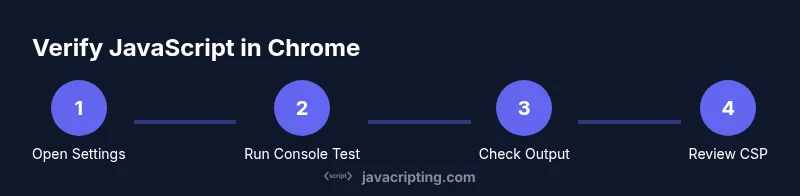
How to check if JavaScript is enabled in Chrome: You will verify that JavaScript execution is allowed by inspecting Chrome's settings, running a tiny script on a test page, and using the Developer Tools Console to confirm output. This quick check helps ensure interactive features like forms and dynamic content function correctly across sites.
Why Chrome Might Block JavaScript and What That Means
JavaScript is the backbone of modern web interactions, powering menus, form validation, animations, and data fetching. In Chrome, JavaScript can be disabled by users for privacy or security reasons, or restricted by enterprise policies and certain extensions. When JS is disabled or blocked, many sites revert to static HTML, which can degrade user experience and hide essential features. For developers, this means a simple page may look fine but feel broken under interaction—thus confirming whether JavaScript runs is a critical debugging step.
Understanding the status of JavaScript in Chrome is not about forcing users to enable it; it’s about ensuring your site remains usable with or without it. If you’re testing a feature that should work with JS, double-check that the browser isn’t silently preventing scripts from running. In this guide, we’ll cover practical checks you can perform and why they’re reliable. According to JavaScripting, browser behavior changes over time, so regular verification helps you stay ahead of changes in Chrome’s defaults or policy controls. If you want to know how to check if javascript is enabled in chrome, start with a quick browser check and then verify via DevTools.
How Chrome Enables JavaScript by Default
Chrome ships with JavaScript enabled by default, honoring the web’s expectation that scripts run unless a user or policy blocks them. The engine uses the V8 runtime, and most websites rely on DOM events, fetch, and ES modules to deliver interactivity. In practice, a quick test shows whether a script executes as expected when the page loads or after user interaction. The Chrome settings panel controls JavaScript execution, but the path to access it is not always obvious, especially for new users.
From the JavaScripting analysis, most learners discover JS is active without configuring anything. The challenge comes when extensions or corporate policies override the default. In those cases, a site might still load, but interactive components fail to respond. This section explains where to find the right settings and what to look for when debugging. By understanding Chrome’s default state, you can distinguish between a genuine code issue and a browser-blocking setting.
Quick Tests You Can Run to Verify JavaScript
To perform quick checks, use the following tests in Chrome:
- Open a blank tab and press F12 to open DevTools.
- In the Console, type:
console.log("JS is working")and press Enter. If you see the message, JavaScript is executing. - Create a tiny test page locally (HTML+JS) and load it in Chrome to observe dynamic changes.
Code snippet example:
console.log('JS is working');If the log appears, JavaScript is enabled. If not, proceed to the next section for troubleshooting. Remember to test on a clean profile to rule out extension interference.
Tip: Use the Network tab to verify that scripts are being requested and loaded without 404s or blocked responses.
Common Causes When JavaScript Appears Not to Run
Even when you expect JS to run, several factors can prevent it from executing. Some common culprits include overly aggressive privacy extensions, outdated Chrome versions, policy restrictions in managed devices, and site-specific Content Security Policies (CSP) that block inline scripts. Other times, scripts may fail due to syntax errors or cross-origin issues, making it look like JS is disabled when the problem is actually a runtime error. Differentiating between a real disablement and a script error is essential for efficient debugging. As you troubleshoot, stay aware that Chrome’s behavior evolves with updates and platform differences.
According to JavaScripting, keeping Chrome up to date and auditing installed extensions helps you quickly identify whether the problem lies with the browser or with the site.
Troubleshooting Steps If JavaScript Is Disabled
If you suspect JavaScript is disabled, walk through these steps:
- Open Chrome Settings > Privacy and security > Site settings > JavaScript and ensure that allowed is selected for the sites you visit. 2) Check if any extension is blocking scripts by disabling extensions temporarily or using an incognito window with extensions disabled. 3) Update Chrome to the latest version and restart the browser. 4) Test with a simple local HTML file to rule out server-side impacts. 5) Verify that the issue isn’t browser profile-specific by testing in a new user profile.
Taking a methodical approach prevents misdiagnosis and helps you return to a consistent development workflow quickly.
Best Practices for Ensuring JavaScript Runs on Your Sites
If you’re building pages, plan for both JS-enabled and JS-disabled environments. Use progressive enhancement so core content remains accessible without JS, and progressively add enhancements with feature-detection libraries like Modernizr or native checks. Validate your code with robust error handling, fallbacks, and graceful degradation. Regularly test on multiple devices and Chrome versions to catch differences in behavior. Consider using automated tests that simulate disabled JavaScript to ensure the user experience remains usable.
How to Check JavaScript Across Multiple Chrome Profiles
When you manage more than one Chrome profile, ensure each profile has JavaScript enabled. Profiles share settings but operate independently, so a setting in one profile won’t affect others. Open DevTools in each profile and run a quick log test to confirm status. If you rely on automated testing, configure your test suite to launch a specific Chrome profile to avoid cross-profile inconsistencies.
Accessibility Considerations When JavaScript Is Disabled
For accessibility, ensure that essential information is available without JavaScript and that dynamic updates do not compromise screen reader compatibility. Use semantic HTML, ARIA roles where appropriate, and provide meaningful fallbacks for interactive elements. If a user disables JS for privacy or performance, ensure navigation and content remain usable and legible, with clear labels, keyboard accessibility, and graceful fallbacks.
Tools & Materials
- Chrome browser(Latest stable version preferred)
- Computer or device with internet access(Stable connection for testing online features)
- Test URL or local HTML file(A page with JavaScript-based interactivity)
- Developer Tools (DevTools)(Open with F12 or Cmd/Ctrl+Shift+I)
- Text editor or code snippet editor(Optional for creating local test pages)
- Incognito window / separate profile(Helpful to rule out extensions)
Steps
Estimated time: Total time: 20-30 minutes
- 1
Prepare your test environment
Collect your test URL or prepare a tiny local HTML file containing basic JavaScript. Ensure Chrome is up to date. This baseline helps you compare results across scenarios.
Tip: Use a local file to avoid server side variability. - 2
Open Chrome DevTools
Launch Chrome and open DevTools to access the Console and Network tabs. DevTools lets you observe script execution and resource loading in real time.
Tip: Shortcut: F12 or Ctrl/Cmd+Shift+I. - 3
Run a simple JavaScript test
In the Console, enter a simple log: console.log('JS is working'). Press Enter and verify the output appears.
Tip: If you don’t see output, JavaScript may be blocked by a policy or extension. - 4
Test a dynamic feature
Load a page that uses a script to modify the DOM after load (e.g., add a paragraph via DOM manipulation). Confirm the change in the page.
Tip: Look for console messages that indicate runtime errors. - 5
Check for blocking policies
Inspect the Site settings and check CSP and extension blocks that could prevent inline scripts from running.
Tip: Disable extensions temporarily to isolate the cause. - 6
Cross-profile test
Repeat tests in a separate Chrome profile or incognito window to rule out profile-specific interference.
Tip: If tests pass in a new profile, investigate your primary profile’s extensions and settings. - 7
Validate across devices
If possible, test the same URL on another device with Chrome to confirm consistency.
Tip: Remember that device-level policies can affect JavaScript execution differently. - 8
Document and share results
Record which tests succeeded or failed and note any variables (extension, profile, version). Share findings with your team.
Tip: Use a simple checklist to avoid missing steps.
Questions & Answers
Is JavaScript enabled by default in Chrome?
Yes. Chrome enables JavaScript by default, but users and policies can disable or restrict it. Regular checks help distinguish between browser settings and code issues.
Yes, JavaScript is enabled by default in Chrome, but it can be disabled by settings or policies. Regular checks help you determine the cause.
How do I enable JavaScript in Chrome if it is disabled?
Open Chrome settings, navigate to Site settings > JavaScript, and set it to Allowed. If it’s managed by an organization, you may need admin permission to change it.
Open settings, go to Site settings, then JavaScript, and allow it. If it’s managed, you may need admin rights.
Why might JavaScript not execute on a site even when enabled in Chrome?
Runtime errors, CSP restrictions, or faulty scripts can prevent execution. Use DevTools to check console errors and network requests for blocked scripts.
Runtime errors or CSP blocks can stop scripts even when JS is enabled. Check the console and network logs.
Can extensions block JavaScript in Chrome?
Yes. Some extensions can block or slow JS. Disable extensions temporarily to test if they’re the cause.
Extensions can block JavaScript; if in doubt, disable them one by one to test.
How can I test JavaScript on mobile Chrome?
Use Chrome on Android or iOS, enable Developer Options if needed, and run the same quick tests via the browser console or remote debugging.
Test JS on mobile by using the browser’s console or remote debugging to verify functionality.
Watch Video
What to Remember
- Test JS status before debugging UI issues
- Use DevTools Console and simple scripts for verification
- Rule out extensions and profile settings first
- Plan for JS-enabled and JS-disabled environments
- Document results for cross-device consistency