How to Check JavaScript in Chrome
Learn practical, Debug-friendly methods to check and inspect JavaScript in Chrome using DevTools, Console, and Sources with hands-on examples and best practices.


With Chrome DevTools, you can quickly verify your JavaScript behavior, locate errors, and inspect runtime values. This guide shows how to use the Console, Sources, and Network tools to inspect code, break on conditions, and validate logic. By following these steps, you’ll diagnose issues faster and improve debugging efficiency. This quick answer sets up the core workflow before diving into deeper details.
Why check JavaScript in Chrome? What you gain
According to JavaScripting, mastering Chrome DevTools for JavaScript checking empowers developers to verify runtime behavior quickly, catch errors at the source, and understand how code interacts with the page and network. Chrome is the dominant platform for front-end debugging because its tools are tightly integrated with the browser’s execution environment. When you inspect a page, you’re not guessing—you’re observing real-time values, call stacks, and asynchronous flows as the code runs. In practice, this means faster iteration, fewer guesswork fixes, and a clearer picture of how your logic executes in the user’s environment. By consistently validating scripts in Chrome, you reduce the risk of “works on my machine” myths and build confidence in your code.
Beyond basic checks, you’ll learn to tailor your debugging workflow to your project, whether you’re validating a small utility or diagnosing a complex SPA. JavaScripting’s approach emphasizes practical, hands-on exploration: start with the Console, then drill into sources, breakpoints, and network activity. The result is a robust, repeatable process you can apply to every feature or bug.
- Understand how your code executes in real-time
- Verify values, types, and state at critical moments
- Pinpoint where bugs originate in the call stack
- Validate network interactions and script loading behavior
- Build a reliable, repeatable debugging routine for teams
If you’re new to DevTools, expect a gentle learning curve and fast wins as you gain familiarity with the panels and shortcuts. The Chrome DevTools suite is powerful, but you don’t need to master every feature at once—start with the essentials and expand as needed.
note":null},{
Tools & Materials
- Chrome browser (latest stable)(Ensure you have the latest features and bug fixes for DevTools.)
- Stable internet connection(Needed to load test pages and fetch resources.)
- A test web page or local project(Have a page where you can safely run and modify JavaScript.)
- Code snippets or a small repo for testing(Optional but helps reproducibility.)
- Notepad or note-taking app(Jot down failing conditions and steps.)
Steps
Estimated time: 20-45 minutes
- 1
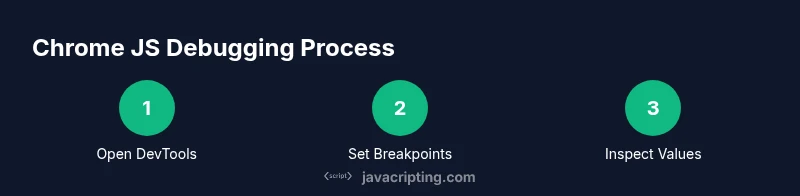
Open Chrome DevTools
Open Chrome, load your test page, and press Ctrl+Shift+J (Windows/Linux) or Cmd+Option+J (macOS) to open DevTools. This gives you access to Console, Sources, Network, and more. The reason for this step is to establish the debugging environment you’ll use throughout the guide.
Tip: Familiarize yourself with the DevTools layout; you’ll revisit each panel in later steps. - 2
Inspect the Console for logs and errors
Switch to the Console tab and look for error messages, warnings, and explicit logs from your code. Console.log statements are your first line of insight, showing current variables and flow. If there’s an error, note the message and stack trace.
Tip: Filter messages by level (Errors, Warnings, Logs) to reduce noise. - 3
Reload page and reproduce the issue
Reload the page to reproduce the bug while keeping DevTools open. If you have hot module replacement or dynamic content, ensure you observe the exact moment the issue occurs. This step confirms the problem is reproducible in the current session.
Tip: Enable Preserve log in the Console to keep messages after reload. - 4
Locate the script in Sources
Go to the Sources panel and browse the file tree to find the JavaScript file or module involved. You can use the search (Ctrl/Cmd+P) to jump to a filename quickly. Understanding where the code lives is critical for targeted debugging.
Tip: If you’re unsure which file runs first, check the page’s HTML references and module imports. - 5
Set breakpoints at key lines
Click the line number to set a breakpoint or use conditional breakpoints for specific states (e.g., when a variable equals a value). Breakpoints pause execution so you can inspect variables, call stacks, and the location in code.
Tip: Use conditional breakpoints to avoid pausing for every iteration, especially in loops. - 6
Step through code to inspect state
Use Step Over, Step Into, or Step Out to move through the code. Inspect variable values in the Scope panel and watch expressions as the code executes. This reveals how data changes over time.
Tip: Add quick watch expressions for variables you want to monitor closely. - 7
Pause on exceptions and network checks
Enable Pause on Exceptions to automatically stop on thrown errors. Check the Network tab to see script loading, timing, and caching behavior. Look for failed requests or slow responses.
Tip: Disable caching in Network settings during debugging to ensure fresh responses. - 8
Use Snippets for quick experiments
In Sources, use Snippets to run small, isolated JavaScript tests without altering your page. This helps validate hypotheses quickly and safely.
Tip: Keep snippets small and well-named so you can reuse them later. - 9
Review asynchronous flows
Async code (promises, async/await) often causes subtle bugs. Use async stepping, Inspect the Promise state, and verify then/catch chains. If a bug relates to timing, add logs around awaits to understand sequencing.
Tip: Consider using async/await with try/catch to simplify error handling. - 10
Inspect network and cache impact
If your script depends on external resources, verify that network requests complete and caching behavior doesn’t serve stale code. Tools like Network and Coverage help you assess impact and load order.
Tip: Test in different network conditions to see how loading affects JS behavior. - 11
Document findings and iterate
Summarize the root cause, fix, and validation steps. Re-run through the debugging steps to confirm the solution resolves the issue and doesn’t introduce new bugs.
Tip: Create a reusable checklist to speed up future debugging sessions.
Questions & Answers
What is Chrome DevTools and why should I use it for JavaScript debugging?
Chrome DevTools is the built-in debugging suite in Chrome that lets you inspect HTML, CSS, and JavaScript execution. It provides Console for logs, Sources for code navigation and breakpoints, and Network for resource loading. Using DevTools helps you observe real-time behavior and diagnose issues without leaving the browser.
Chrome DevTools is your built-in debugging tool in Chrome for inspecting JavaScript execution and network activity.
How do I set a breakpoint in Chrome?
Open Sources, find the JS file, and click the line number to set a breakpoint. You can also set conditional breakpoints that pause only when a condition is true. Breakpoints pause code execution so you can inspect variables and the call stack.
Set a breakpoint by clicking a line number in Sources, or use a conditional breakpoint to pause only when a condition is met.
What if I don’t see any logs in Console?
Ensure the script is loaded and not filtered out by log level. Check filters and disable any console API overrides. If logs appear later, reload the page with DevTools open to capture them.
If you don’t see logs, verify that you’re viewing the right console scope and that your code actually runs.
How can I debug asynchronous code effectively?
Pause on exceptions, inspect Promises, and use async/await with try/catch to surface errors clearly. Add logs around awaits to understand sequencing and use the Network panel to see if resources load in time.
Asynchronous debugging benefits from pausing on errors and closely watching Promises and awaits.
Can I debug JavaScript on mobile Chrome?
Yes. Use remote debugging with Chrome on desktop to connect to a mobile device, inspect the page, and apply the same debugging workflow. This mirrors desktop DevTools behavior on mobile environments.
You can debug JavaScript on mobile by setting up remote debugging with Chrome on your computer.
What should I do if a script is minified or bundled?
Use source maps when available to map minified code to original sources. If not, locate the entry point and use breakpoints on the compiled code, then infer the source logic from surrounding context.
For minified code, source maps are ideal; otherwise, use breakpoints strategically to trace execution.
Watch Video
What to Remember
- Master DevTools to rapidly verify JS behavior
- Use Console, Sources, and Network in a targeted sequence
- Leverage breakpoints and watches to inspect runtime values
- Handle async code with proper debugging strategies
- Adopt a repeatable workflow for reliable debugging