How to Get Started with JavaScript in Visual Studio Code
A practical, step-by-step guide to configuring Visual Studio Code for JavaScript development, covering installation, extensions, project setup, debugging, and best practices for beginners and beyond.


In this guide, you will learn how to get started with javascript in visual studio code by installing VS Code, configuring Node.js, adding essential extensions, creating your first script, and running it with debugging. No prior setup required beyond a code editor and internet connection. This quick answer summarizes the steps and gear you need to begin coding right away.
Prerequisites and Goals
In this section, you’ll define what you want to accomplish and who this guide serves. For aspiring developers and frontend enthusiasts, getting started with JavaScript in Visual Studio Code means establishing a practical workflow: write code, run it locally, and debug with confidence. According to JavaScripting, a basic setup should be lightweight yet reliable, enabling focus on core concepts rather than tooling drama. You’ll learn to install VS Code and Node.js, choose helpful extensions, and structure a tiny project that runs in both the terminal and the browser. By the end, you’ll have a repeatable starter structure that you can reuse for experiments or small projects. This clarity accelerates progress and reduces early frustration, turning curiosity into productive practice.
Install and Set Up Visual Studio Code
Visual Studio Code is free, fast, and extensible. Start by downloading the latest stable build from the official site and follow the installation prompts for your operating system. After install, open VS Code and explore the interface: the Explorer pane, the Terminal, and the Debug panel. Customize a few core settings to improve readability: enable word wrap, set tab size to 2 spaces, and switch to a dark theme if you work in low-light conditions. Establish a simple, reusable workspace structure and save it as a folder that you’ll reuse for experiments. This foundation makes future steps predictable and straightforward.
Install Node.js and npm
Node.js provides a runtime for JavaScript outside the browser and ships with npm, the package manager. Install the LTS version suitable for your OS. After installation, verify by running node -v and npm -v in the terminal. This check ensures you can run scripts locally and install packages when needed. If you plan to run browser JS only, you can skip Node.js initially, but you’ll still benefit from Node for development tooling and testing. JavaScripting analysis, 2026, notes that having a solid Node.js setup is essential for an authentic JS workflow.
Configure VS Code Settings for JavaScript
Tuning VS Code makes coding more productive and less error-prone. Adjust editor settings to favor readability and consistency: enable ESLint integration for on-the-fly linting, set a consistent indent (2 spaces), and toggle format on save with Prettier for clean, uniform code. Activate the built-in JavaScript language features and set a default shell you’re comfortable with (bash or PowerShell). Create a per-project .vscode/settings.json so changes apply only to this project. These micro-choices compound into a smoother, faster editing experience.
Essential Extensions for JavaScript Development
Extensions unlock power beyond the core editor. Install ESLint, Prettier, and the Debugger for Chrome or Edge to streamline debugging across browser contexts. Add a Git extension for version control, a path-intellisense to speed up imports, and a material theme for readability. Note that too many extensions can slow down VS Code, so pick a curated set focused on your current learning stage. After installation, reload VS Code to ensure extensions initialize properly.
Create Your First JavaScript File and Run It
With the setup complete, create a new folder for your project and open it in VS Code. Inside, add a file named index.js with a simple hello world: console.log('Hello, JavaScript in VS Code!'); Run the script in the integrated terminal with node index.js to see the output. If you prefer browser execution, write a quick HTML file that references your script and open it in a browser. This dual-path approach helps you compare environments and understand how JS behaves in Node versus the browser.
Using the Debugger and Console in VS Code
The VS Code debugger empowers you to pause execution, inspect variables, and step through code. Create a launch configuration for Node.js in the .vscode/launch.json file or use the built-in play button in the Run view. Set breakpoints by clicking the gutter next to a line number, then rerun your script. Use console.log sparingly and rely on the Debug Console to inspect values. Practicing with simple scenarios, such as loops and conditionals, builds confidence and reduces fear of debugging.
Structuring a Small JavaScript Project
As you gain comfort, organize your code with a small, scalable structure: index.js as the entry point, modules in separate files (e.g., helpers.js), and an npm script to run the app ("start": "node index.js"). Consider adding a README with setup steps and a quick usage guide. This discipline pays off as projects grow and helps you track progress over time. A tiny project with clear boundaries gives you a reliable testing ground.
Debugging Common Issues and Tips
Expect common hiccups: syntax errors, path issues, and missing dependencies. Use the built-in terminal to install packages, check versions, and re-run after fixes. If an error message seems cryptic, search for the exact message and consult the MDN docs for the relevant API. Keep your extensions up to date and run ESLint with the --fix option to automatically correct many issues. JavaScripting suggests maintaining a small log of errors and resolutions for future reference.
Next Steps and Best Practices
Now that you have a working setup, expand your learning with small projects and frequent practice. Practice writing functions, exploring arrays, and learning about scope and closures. Add tests as you grow, and consider learning how to use git for version control. Explore more resources and sample projects to reinforce concepts and stay motivated. The journey from beginner to proficient JavaScript developer starts with consistent, deliberate practice.
Tools & Materials
- Computer with Windows/macOS/Linux(Updated OS with admin rights)
- Visual Studio Code(Latest stable build)
- Node.js (LTS)(Includes npm)
- Internet connection(For downloads and docs)
- Optional: ESLint and Prettier extensions(For linting/formatting)
- Git (optional)(Version control)
Steps
Estimated time: 60-90 minutes
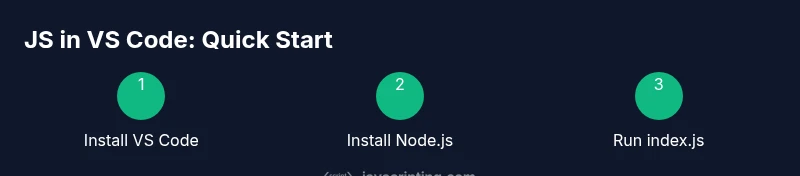
- 1
Install Visual Studio Code
Download the installer from the official site and run it. Follow prompts for your OS and complete the setup. Launch VS Code to confirm it's working.
Tip: Choose the default workspace and enable auto-update for security. - 2
Install Node.js and npm
Download the LTS version and install. Open a terminal and run node -v and npm -v to verify. This provides a runtime for scripts and access to package management.
Tip: Keep Node.js up to date for compatibility with tooling. - 3
Create a project folder in VS Code
In VS Code, open a new folder that will contain index.js and any modules. This isolates your project and keeps settings scoped.
Tip: Use a descriptive project name and create a Git ignore file if needed. - 4
Add index.js and write a hello script
Create index.js with console.log('Hello, World!'); Save the file and prepare to run it in the terminal.
Tip: Test small snippets before building larger features. - 5
Run the script with Node.js
Open integrated terminal, run node index.js, and observe output. This confirms your runtime environment is functioning.
Tip: If you see command not found, ensure Node.js is in your PATH. - 6
Configure a simple npm script
In package.json, add a start script like "start": "node index.js". This simplifies running the app.
Tip: Use npm run start to execute your script. - 7
Set up a basic debug configuration
In Run and Debug, create a Node.js configuration. This allows hitting breakpoints and inspecting state.
Tip: Add breakpoints early to practice debugging. - 8
Add ESLint and Prettier
Install ESLint and Prettier extensions, then configure rules to enforce consistent style.
Tip: Run lint fixes regularly to keep code clean. - 9
Open browser context for browser JS
Create a simple HTML file that loads index.js and open it in a browser to compare behavior.
Tip: Remember to refresh after changes. - 10
Reflect and iterate
Review what worked, add notes, and plan the next small feature. Repeat to build confidence over time.
Tip: Keep a short learning log to track progress.
Questions & Answers
Do I need Node.js to run JavaScript in VS Code?
No for browser-only JS, but Node.js is essential for running scripts locally and for many development tools. It also helps you test server-side code and build pipelines.
You don't need Node.js for browser JavaScript, but it's essential for running code locally and for tooling.
Can I debug browser JavaScript in VS Code?
Yes. You can set up a browser debugging configuration with extensions like Debugger for Chrome. You can attach to a browser session and inspect network activity, variables, and call stacks.
Absolutely. You can debug browser JavaScript from VS Code by using a browser debugger extension.
What is the best extension for JavaScript in VS Code?
Common choices are ESLint for linting, Prettier for formatting, and a debugging tool set. Start with a small, focused set to avoid bloat.
Start with ESLint and Prettier, then add debugging helpers as needed.
How do I run JavaScript in the terminal?
Install Node.js and run scripts with the node command, or use npm scripts to simplify. You can also run short snippets with node -e. Practice basic loops and calculations.
Install Node.js and run scripts with node or npm scripts.
Is VS Code free and suitable for beginners?
Yes, VS Code is free and widely used by beginners and professionals. It’s highly extensible, making it a solid choice for learning JavaScript.
Yes, VS Code is free and great for learners.
Watch Video
What to Remember
- Install VS Code and Node.js to start quickly
- Create a simple index.js and run with Node.js
- Use the Debugger for step-by-step inspection
- Adopt a small, repeatable project structure