How to Make a JavaScript File: A Practical Guide
Learn how to create and save a JavaScript file, choose the right extension, write clean code, and run it in Node.js or the browser with practical, step-by-step instructions.


By the end of this guide you will be able to create, save, and run a standalone JavaScript file. You’ll learn how to choose the right file extension, write a simple script, and execute it in Node.js or directly in your browser. You’ll also see practical tips for organizing your project from the start.
What is a JavaScript file and why it matters
A JavaScript file (.js) holds code that can run in browsers and in Node.js. For beginners, the simplest path to learning is to create a dedicated file named app.js and run it from your terminal or directly in the browser console. This approach aligns with the phrase how to make a javascript file, giving you a concrete starting point. According to JavaScripting, creating a standalone script outside HTML is a foundational skill you will build upon as you progress. The JavaScript file becomes the building block for functions, Modules, and interactive behavior on the web. JavaScript files benefit from clear organization, explicit naming, and consistent formatting as you gain experience. As you practice, you’ll see how small files compose larger applications and how tooling improves portability and debugging across environments.
Choosing the right file extension and encodings
The standard extension for executable JavaScript files is .js. Use UTF-8 encoding to avoid character issues, especially when your code includes non-ASCII strings. In a browser context, the .js file is loaded via a script tag, while in Node.js you run the file from the command line. If you work on projects with both frontend and backend components, keeping a consistent extension and encoding helps prevent surprises, like syntax errors or misread characters. To keep things predictable, set your editor to save files using UTF-8 without a Byte Order Mark (BOM), and avoid mixing encodings in the same project. This practice reduces subtle issues when collaborating with others.
Setting up your workspace
Choose a workspace that fits your workflow: a dedicated project folder, your preferred editor, and a terminal. Install a current LTS version of Node.js so you can run JavaScript outside the browser, and configure your editor with JavaScript linting and formatting. Create a folder structure that separates source files, tests, and assets. This setup reduces friction when you scale your projects and makes it easier to onboard teammates. Consider adding a README.md to explain the file structure and a simple package.json for project metadata, even for small scripts.
Writing your first JavaScript file
Create a new file named app.js and add a simple statement to verify everything works. For example:
// Hello World example
console.log('Hello, world!');
Save the file and run it from Node.js with node app.js or load it in an HTML file using a script tag like <script src="app.js"></script>. This quick test confirms the basic workflow and shows how console output appears in the browser's developer console or the terminal. If you see Hello, world!, you’ve successfully created and executed a JavaScript file.
Running your script in Node.js vs in the browser
There are two primary ways to run a JavaScript file: server-side with Node.js or client-side in a browser. For Node.js, open a terminal, navigate to the directory containing app.js, and run node app.js. You’ll see the console output directly in the terminal. For browser execution, create a minimal HTML file and include your JS file with <script src="app.js"></script>. Open the HTML file in a modern browser and view the console to observe the same output. Each method serves different learning and development goals, and practicing both builds versatility.
Debugging and testing strategies
Effective debugging starts with small, testable pieces of code. Use console.log statements to print values at key points, and inspect the browser’s DevTools or Node.js console for the results. If an error occurs, read the error message carefully, check file paths, verify Node.js installation, and ensure the script is correctly referenced in HTML. Keep a habit of running incremental changes often to isolate issues quickly, and use descriptive messages in your logs to reduce guesswork during debugging.
Organizing code for scalability
As your project grows, split functionality into modules and export/import functions to keep code maintainable. In Node.js, you can use CommonJS (require/module.exports) or ES modules (import/export) depending on your environment. In browser contexts, prefer ES modules with type="module" in script tags. Plan your module boundaries early to prevent tight coupling and to enable easier testing. A modular approach also helps you reuse code across scripts and projects, aligning with best practices in JavaScript development.
Best practices for file management and versioning
Maintain a consistent naming convention for files (e.g., app.js, main.js, utilities.js) and organize them into folders like src, tests, and dist. Use version control (Git) from day one and write meaningful commit messages that describe what changed and why. Regularly run linting and formatting tools to ensure code quality, and include a simple README with setup and run instructions. By establishing a clean baseline early, you’ll avoid headaches as the project grows and you’ll make collaboration smoother for teammates.
Authority sources
To deepen your understanding of JavaScript file behavior and standards, consult reputable sources. The following links provide authoritative guidance on JavaScript syntax, browser loading behavior, and module systems:
- https://developer.mozilla.org/en-US/docs/Web/JavaScript
- https://www.w3.org/TR/javascript/
- https://www.ecma-international.org/publications/standards/ecma-262/
These resources help you stay current with language features, browser compatibility, and evolving best practices for both client and server environments.
Common mistakes and how to fix them
New developers frequently encounter issues such as incorrect file paths, forgetting to save, or mixing HTML script loading with inline code. Always double-check the script tag path, ensure the file is saved with a .js extension, and verify that the file is accessible from the page or the terminal. When problems arise, reproduce with the smallest possible example, isolate variables, and gradually reintroduce complexity. Adopting a minimal, incremental approach reduces debugging time and builds confidence.
Quick troubleshooting checklist
If your script isn’t running, start with a basic checklist: confirm the file has a .js extension, verify Node.js is installed, ensure the correct directory is active in the terminal, and check that HTML properly references the script. Look at the browser console or terminal output for error messages and trace stacks. Finally, ensure your environment uses a compatible JavaScript version for your code to prevent syntax or runtime errors.
Next steps and learning path
Once you are comfortable creating a basic JavaScript file, explore modules, asynchronous programming (promises/async/await), and common patterns in JavaScript development. Practice by building small utilities, implementing simple APIs, and gradually introducing testing and bundling tools. As you expand your toolkit, you’ll be able to tackle more complex projects with confidence and clarity.
Tools & Materials
- Visual Studio Code (or any modern editor)(JS syntax highlighting and integrated terminal)
- Node.js (latest LTS)(Needed to run JS files outside the browser)
- Web browser (Chrome/Firefox)(For in-browser testing)
- Command line Terminal(Navigate folders and run commands)
- Optional lightweight editor(If you prefer a simpler tool)
Steps
Estimated time: about 25-40 minutes
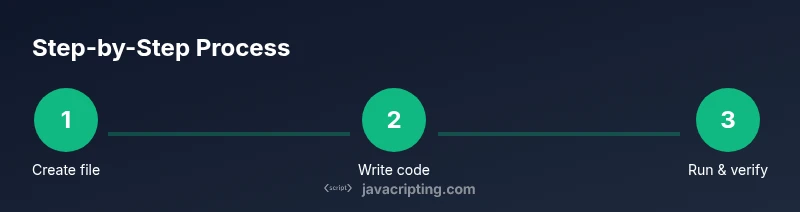
- 1
Create the JavaScript file
Open your editor, create a new file named app.js in a project folder. This file will contain your JavaScript code that runs in Node.js or the browser. Use a descriptive name to reflect its purpose.
Tip: Save the file with the .js extension and place it in a dedicated project folder. - 2
Write your first lines of code
In app.js, type a simple statement like console.log('Hello, world!'); This verifies the file is valid JavaScript and helps you see output in the console.
Tip: Use quotes consistently and end statements with a semicolon for clarity. - 3
Save and run with Node.js
Open the terminal, navigate to the folder containing app.js, and run: node app.js. You should see Hello, world! printed in the terminal.
Tip: If you see an error, check the file path and the Node.js installation. - 4
Run in the browser
Create a minimal HTML file that includes <script src="app.js"></script> and open it in a browser. The console will show the same output if you use console.log.
Tip: Place the HTML in the same directory as app.js for easy testing. - 5
Expand and modularize your code
As you grow, move functions into separate files and import/export them using modules. This keeps code organized and reusable.
Tip: Plan module boundaries early to avoid circular dependencies. - 6
Debug and iterate
Use console.log and browser devtools to inspect values. Fix issues, reload, and re-run. Iteration is the path to robust scripts.
Tip: Remove console statements or gate them behind a debug flag before production.
Questions & Answers
What is a JavaScript file and how is it different from a script tag?
A JavaScript file (.js) stores code as a standalone resource. A script tag embeds JavaScript inside HTML. Linking a .js file via <script src='...'> lets the browser fetch and execute code separately.
A JavaScript file is separate from HTML and is loaded via a script tag.
Do I always need a .js extension?
For executable JavaScript outside HTML, use the .js extension. In-browser code can also be placed inside script tags, but external files are better for organization.
Yes, use the .js extension for standalone files.
Can I run JavaScript files without Node.js?
Yes, you can run JavaScript in the browser by including it in HTML. Node.js is necessary for server-side execution from the command line.
You can run in the browser or with Node.js, depending on your goal.
How do I reference a JavaScript file in HTML?
Place a script tag in your HTML: <script src="app.js"></script>. The browser will fetch and run the file when the page loads.
Use a script tag with the src attribute.
What are common errors when creating a JS file?
Typical issues include syntax errors, incorrect file paths, and forgetting to serve files from a web server when testing locally.
Watch for file paths and syntax mistakes.
Watch Video
What to Remember
- Create a .js file for standalone JavaScript.
- Use console.log to test output early.
- Node.js enables server-side execution.
- HTML can reference a .js file for browser use.