How to handle javascript alert in selenium
Learn how to handle javascript alert in selenium across Java, Python, and JavaScript bindings. This guide covers switching to alerts, accepting, dismissing, and implementing waits.


You will learn how to reliably handle JavaScript alerts while testing with Selenium. This guide covers detecting an alert, switching context, and performing accept, dismiss, or input actions across common language bindings. You’ll also see waits and best practices to avoid flaky tests. Whether you’re using Java, Python, or JavaScript (Node), this article shows code snippets and troubleshooting tips to keep alerts under control.
What is a JavaScript alert and how Selenium handles it
A JavaScript alert is a modal dialog that interrupts the current page, requiring user interaction before the script can continue. In modern web apps, alert, confirm, and prompt dialogs may be triggered by client-side code in response to user actions, network events, or dynamic state changes. Selenium, as a browser automation tool, cannot interact with these dialogs until it gains control of the browser's alert context. The Selenium WebDriver API exposes a way to switch focus to the alert via the switchTo().alert() method (Java, Python, JavaScript bindings have similar semantics). Once you have a reference to the Alert object, you can accept, dismiss, or read the alert text, and, in the case of prompts, send input. This is essential for stable test automation, because an unhandled alert will block subsequent commands and lead to failures.
In this guide, you'll learn how to detect and handle these alerts across language bindings. We'll cover explicit waits to avoid flaky tests, patterns for prompts, and cross-browser considerations. According to JavaScripting, robust alert handling is essential for stable Selenium tests. We'll also show practical examples and best practices to ensure your test flow remains smooth even when alerts appear unexpectedly.
You may see exceptions such as NoAlertPresentException or UnhandledAlertException if you try to interact with an alert at the wrong time. The right approach is to wait for an alert to be present before switching to it, and to plan your test steps around the dialog lifecycle. The section that follows introduces these concepts and sets the stage for reliable alert handling.
Common challenges with alerts in Selenium
Alerts and prompts introduce several pitfalls that can derail automated tests if not handled correctly. First, an alert may appear asynchronously after a user action or a background process; unless you wait for the alert, your next command may fail with NoAlertPresentException. Second, prompts require input; if you try to dismiss a prompt without sending keystrokes, you may get an UnexpectedAlertPresentException or the input may be ignored. Third, multiple alerts can stack or appear in different orders, especially in dynamic pages, which makes deterministic handling tricky. Fourth, some browsers render the alert differently or have subtle timing differences that affect how switchTo().alert() behaves.
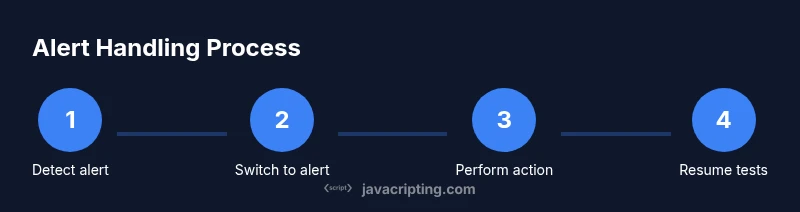
To minimize these issues, adopt a consistent pattern: wait for an alert before interacting, switch to the alert once it appears, perform the desired action (accept, dismiss, or send keys), and then resume test steps after confirming the page is back in a usable state. If you work across languages, apply the same sequence using the language's bindings: Java's driver.switchTo().alert(), Python's driver.switch_to.alert, or JavaScript's await driver.switchTo().alert(). The more predictable you make the alert lifecycle, the fewer flaky tests you will have.
A practical tip is to design tests so that the alert is part of the flow rather than an unplanned interruption. For instance, if a login flow triggers a confirmation dialog, ensure your test asserts the dialog text and the resulting page state after acceptance. This approach reduces false positives and clarifies where a failure occurs.
Core techniques to handle alerts across languages
Across language bindings, the core actions are the same: switch to the alert, read its text if needed, and perform one of accept, dismiss, or sendKeys. Here are representative patterns for the three most common bindings:
-
Java: WebDriver driver = new ChromeDriver(); Alert alert = driver.switchTo().alert(); String text = alert.getText(); alert.accept(); // or alert.dismiss()
-
Python: from selenium import webdriver; from selenium.webdriver.support.ui import WebDriverWait; from selenium.webdriver.support import expected_conditions as EC; wait = WebDriverWait(driver, 10); alert = wait.until(EC.alert_is_present()); print(alert.text); alert.accept()
-
JavaScript (Node.js): const {Builder, By, until} = require('selenium-webdriver'); await driver.wait(until.alertIsPresent(), 10000); const alert = await driver.switchTo().alert(); await alert.accept();
For prompts, add input before accepting: alert.sendKeys('your input'); alert.accept();
When reading alert text, do so before you accept since the alert is dismissed after the action. Also remember to reset the driver state by continuing with next steps only after the alert is gone.
One common pitfall is that some alerts appear inside iframes; in that case ensure you switch to the correct frame first, then switch to the alert. The same conceptual steps apply across browsers, but testing on Chrome, Firefox, and Edge helps ensure consistent behavior.
Waiting strategies and reliability
Explicit waits are the backbone of robust alert handling. Use WebDriverWait (or its language-appropriate variant) to wait for the alert condition rather than sleeping a fixed time. A typical approach is:
- Wait for alert presence (EC.alertIsPresent).
- Switch to the alert and perform action.
- After dismissal, optionally wait for a post-alert condition (e.g., a UI element becomes visible).
Examples:
Java: WebDriverWait wait = new WebDriverWait(driver, 10); Alert alert = wait.until(ExpectedConditions.alertIsPresent()); System.out.println(alert.getText()); alert.accept();
Python: wait = WebDriverWait(driver, 10) alert = wait.until(EC.alert_is_present()) print(alert.text) alert.accept()
JavaScript: await wait.until(EC.alertIsPresent(), 10000); const alert = await driver.switchTo().alert(); await alert.accept();
For flaky tests, increase the wait slightly or introduce a secondary check of the page state after the alert is handled. That said, avoid over-waiting, which slows tests. Using conditional waits tied to the UI state reduces flakiness and speeds up suites.
A caution: some frameworks automatically dismiss alerts on test failures; verify your framework's behavior so that an unhandled alert does not crash the test runner.
Handling prompts and sending input
Prompt dialogs require text input before acceptance. The sequence becomes:
- Wait for the prompt to appear, switch to the alert, use send_keys to input text, then accept.
- If the test asserts the input results, verify the UI updates accordingly after the alert closes.
Code examples for sending input:
Java: alert = driver.switchTo().alert(); alert.sendKeys("example"); alert.accept();
Python: alert = driver.switch_to.alert; alert.send_keys("example"); alert.accept()
JavaScript: const alert = await driver.switchTo().alert(); await alert.sendKeys("example"); await alert.accept();
Be aware that not all prompts support sendKeys; some browsers may restrict input or require a different approach. Always validate that the input was applied as expected by the page after dismissing the alert.
Cross-browser considerations and best practices
Alerts are generally supported across major browsers, but behavior can vary with headless modes, driver versions, and browser updates. Test in at least Chrome and Firefox (and Edge if your audience uses it) to catch differences in text rendering, timing, or the availability of alert_is_present in the binding. A practical practice is to isolate alert logic into a small utility that logs the alert text and outcome, so failures reveal whether the issue was the alert content or the subsequent page state.
The JavaScripting team recommends using a centralized alert handler that encapsulates switchTo().alert() interactions and provides consistent logging across languages. This reduces duplication and helps teams maintain reliable tests as browsers evolve.
Practical patterns and test examples across languages
To solidify these concepts, review the following recurring patterns and map them to your language of choice. Start with a helper method that waits for an alert, then handles accept/dismiss or sendKeys depending on the test scenario. For prompts, ensure the input value is derived from test data and validated after the alert closes. Always verify the page state post-alert to confirm the intended flow proceeded.
In Java, Python, and JavaScript bindings, you can adapt the same structure to your test framework (JUnit, PyTest, Mocha, etc.). By applying these patterns consistently, you’ll reduce flakiness and improve test readability. The JavaScripting analysis shows that explicit alert handling patterns contribute to more stable automation pipelines. The JavaScripting team recommends documenting alert expectations in your test plans and reusing a shared utility across projects.
Tools & Materials
- Selenium WebDriver(Supports Java, Python, and JavaScript bindings)
- WebDriver binaries (ChromeDriver, GeckoDriver)(Match browser version)
- A supported language binding (Java, Python, or JavaScript)(Use your project language)
- Test framework (JUnit, PyTest, Mocha, etc.)(Optional for test structure)
- IDE or code editor(For developing and running tests)
Steps
Estimated time: 15-25 minutes
- 1
Identify alert presence with explicit wait
Set up an explicit wait to detect alertIsPresent before switching context. This prevents NoAlertPresentException and ensures the test only proceeds when the dialog is ready for interaction.
Tip: Use a conservative timeout (e.g., 5-15 seconds) to balance reliability with test speed. - 2
Switch to the alert
After the wait confirms an alert, switch context to the alert object so you can read text or interact with it.
Tip: Read the text if your test asserts alert content before taking action. - 3
Accept the alert
Call the accept() method to confirm the alert's action and resume normal page interaction.
Tip: Prefer accept for OK/Yes confirmations to continue flow. - 4
Dismiss the alert
If the user action requires cancellation, call dismiss() to close the alert and revert the action.
Tip: Ensure the subsequent UI reflects the cancellation. - 5
Handle prompts with input
For prompts, send the required input with sendKeys(), then accept to confirm the data is applied.
Tip: Validate the effect of the input on the page after the alert closes. - 6
Resume test and verify state
After the alert is dismissed or accepted, continue with the next steps and verify the expected page state.
Tip: Optionally wait for a specific element to reappear to confirm flow continuation.
Questions & Answers
What is a JavaScript alert and why does Selenium need to switch context?
A JavaScript alert is a modal dialog that interrupts the page. Selenium can interact with it only after switching context to the alert using driver.switchTo().alert().
Alerts pause page interactions; Selenium must switch to the alert to proceed.
Which method switches focus to the alert?
The standard method across bindings is switchTo().alert(), which returns an Alert object used to accept, dismiss, or read the alert text.
Use switchTo().alert() to grab the alert and act on it.
Can I interact with prompt alerts (input)?
Yes. Prompts support sendKeys() to input text before calling accept(). Not all prompts accept input, so check behavior in your target browser.
If the prompt supports text, send input then accept.
What should I do if there is no alert present when I switch?
If no alert is present, catch the exception and handle it as part of the test flow, possibly retrying or logging a clear failure.
Handle the absence gracefully with proper checks and logs.
Why are waits important when handling alerts?
Waits synchronize your test flow with the browser's dialog lifecycle, reducing flaky failures caused by timing differences.
Waiting for the alert ensures reliability.
Are alerts cross-browser compatible in Selenium?
In general, yes, but variations exist. Always verify alert behavior across Chrome, Firefox, and Edge in your target environment.
Alerts behave similarly, but test across browsers.
Watch Video
What to Remember
- Wait for alerts before switching
- Use accept, dismiss, or sendKeys appropriately
- Test across languages and browsers
- Handle prompts with input and verify results
- Centralize alert logic in utilities