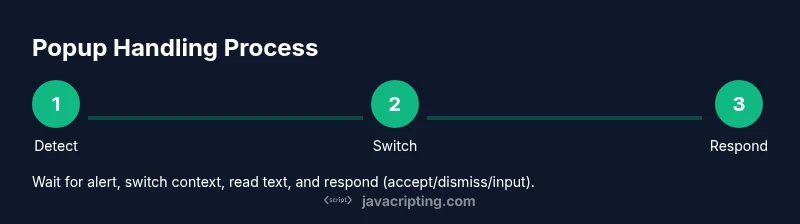
How to Handle Javascript Popup in Selenium
Learn robust techniques to manage JavaScript alerts, confirms, and prompts in Selenium across browsers with explicit waits, alert handling, and best practices.


By the end of this guide you will handle JavaScript popups in Selenium WebDriver across major browsers. You’ll learn to detect an alert, switch context with driver.switchTo().alert(), read or dismiss the message, and use explicit waits to synchronize interactions. The approach covers basic alerts, confirms, prompts, and common timing pitfalls.
Understanding JavaScript Alerts, Confirms, and Prompts
In the context of browser automation, a JavaScript alert, confirm, or prompt is a modal dialog that interrupts the page flow until the user interacts with it. When you run tests with Selenium, these popups must be addressed before you can continue interacting with the page. How to handle javascript popup in selenium is a common task for reliable test automation. According to JavaScripting, the best practice is to anticipate these dialogs, switch context correctly, and validate the content of the alert before proceeding. This mental model helps you design resilient tests and reduces flakiness when alerts appear unexpectedly.
- Alerts: show a message with an OK button and block page interactions.
- Confirms: offer OK and Cancel choices.
- Prompts: request text input before proceeding.
Key takeaway: Always plan for a popup early in test design, so your automation can pause, read, and respond predictably while keeping test determinism.
Detecting and Waiting for Alerts
Alerts are modal and block user interaction until they are addressed. In Selenium, you should detect an alert using an explicit wait rather than polling, which minimizes flaky tests. The typical pattern is to wait for the alert to be present, then switch context to it. This ensures you don’t attempt to read or dismiss a dialog before it exists. In the context of cross-browser testing, explicit waits are especially important because rendering and timing can vary between Chrome, Firefox, and Edge.
- Use WebDriverWait with alertIsPresent to stall actions until the dialog is ready.
- If the wait times out, handle the timeout gracefully (retry logic or test failure with clear diagnostics).
- Always verify the alert text before deciding how to respond to ensure you’re reacting to the correct dialog.
Implementation example (conceptual):
WebDriverWait wait = new WebDriverWait(driver, Duration.ofSeconds(10));
Alert alert = wait.until(ExpectedConditions.alertIsPresent());
``
Interacting with Alerts: Accept, Dismiss, and Text Access
Once an alert is active, you can interact with it via the Alert interface. You can read the message, accept (OK), or dismiss (Cancel) depending on the scenario. For prompts, you can send input text before accepting. Always fetch the text first to validate the content, then choose the appropriate action. After handling, switch back to the main content to continue test steps.
- Read text with getText() to verify the message.
- For a simple alert, call accept().
- For a confirm, decide between accept() or dismiss().
- For a prompt, use sendKeys("your input") before accept().
Note: Some browsers require you to interact with the dialog before any further page actions can occur.
Handling Confirms and Prompts Specifically
Confirms and prompts extend the basic alert interface with additional choices or input. A confirm dialog typically offers OK and Cancel; your test should exercise both branches to ensure the application handles user decisions correctly. Prompts require input; the test must supply meaningful data and then accept. It’s best to design test cases that cover all dialog types that can appear from a single user action, or re-trigger the action to test each path separately.
- Confirm: use accept() for OK, or dismiss() for Cancel.
- Prompt: sendKeys() with your test input before accept().
- Verify downstream effects (navigation, data changes) after each path.
Handling Multiple Alerts and Timing Pitfalls
In rare scenarios, a sequence of alerts can appear, or an alert may appear after page navigation or an asynchronous operation. The safest strategy is to consistently reset to the main content after handling each alert and re-apply waits before triggering the next action. If a new alert appears unexpectedly, handle it in a loop with a timeout to avoid infinite waits. Always clear any residual state (like text fields) before proceeding to avoid flakiness.
- After handling an alert, call defaultContent() to reset context.
- Use a short, capped loop with a timeout when dealing with chained dialogs.
- Favor explicit waits over fixed sleeps to minimize timing issues.
Cross-Browser Considerations and WebDriver Variants
Different browsers and driver implementations can exhibit subtle differences in alert handling. The core concepts—detecting the alert, switching context, reading text, and responding—remain the same, but timing and availability may vary. Ensure your Selenium drivers are up to date and test across Chrome, Firefox, and Edge to catch browser-specific quirks. You may need to adjust timeouts or leverage specific expected conditions depending on the browser.
- Keep drivers updated to align with browser versions.
- Validate alerts across all target browsers during test design.
- Consider configuring unhandled prompt behavior in Selenium 4+ if supported by your language binding to reduce intermittent failures.
Practical Best Practices and Debugging Techniques
To build robust popup-handling tests, combine explicit waits with strong validation. Log the alert text for easier debugging, take screenshots when an alert appears, and ensure you always return to the main page context before continuing. If a popup’s content changes between test runs, implement a flexible assertion strategy that focuses on essential keywords rather than exact strings. Use try-catch blocks to handle unexpected dialogs gracefully and capture diagnostic information in your test reports.
- Always log alert text and actions taken.
- Capture screenshots when an alert is encountered for reproducibility.
- Prefer explicit waits and deterministic assertions over ad-hoc interactions.
- Keep alert handling isolated so it’s reusable across tests.
Common Mistakes to Avoid
Common mistakes include attempting to interact with the page before the alert is present, neglecting to switch back to the main content after handling, and not validating the alert content before reacting. Another pitfall is assuming a single test action triggers only one dialog; some user flows can trigger multiple dialogs or different dialog types on repeated runs. Lastly, avoid hard-coded sleep durations around alerts; they lead to flaky tests and longer test suites.
- Don’t interact with the dom while an alert is open.
- Don’t forget to switch back to defaultContent() after handling.
- Don’t rely on fixed sleeps; prefer waits and retries when necessary.
Putting It All Together: A Complete Snippet
This final section shows a cohesive flow: setup, navigate, wait for the alert, read the message, and respond, then return to the main content. The example uses Java with Selenium WebDriver, WebDriverWait, and the Alert interface. It demonstrates handling a standard alert, a confirm, and a prompt in sequence to illustrate a real-world scenario. Adjust the page URL and locator logic to match your application. The steps below assume a test page that can trigger all three dialog types from a single action.
// Setup and navigation
WebDriverWait wait = new WebDriverWait(driver, Duration.ofSeconds(10));
driver.get("https://example.com/alerts");

// Trigger first alert (simple alert)
// ... trigger action ...
Alert alert = wait.until(ExpectedConditions.alertIsPresent());
System.out.println("Alert text: " + alert.getText());
alert.accept();

// Trigger second alert (confirm)
// ... trigger action ...
alert = wait.until(ExpectedConditions.alertIsPresent());
String confirmText = alert.getText();
alert.dismiss(); // or alert.accept();

// Trigger third alert (prompt)
// ... trigger action ...
alert = wait.until(ExpectedConditions.alertIsPresent());
alert.sendKeys("Sample input");
alert.accept();

// Return to main content and continue
driver.switchTo().defaultContent();
The above demonstrates a complete, end-to-end flow for handling multiple alert types. For different language bindings, adapt the class names and methods accordingly (e.g., Python: WebDriverWait(driver, 10) …, JavaScript: await page.waitForSelector). The key remains: wait for the alert, switch to it, read or respond, and return to the main context before continuing.
Authority and References
- Official Selenium Documentation: JavaScript Alerts and Prompts in WebDriver
- W3C Web APIs – Window.alert, Window.confirm, Window.prompt
- Browser-specific guidance from major browser vendors (Chrome, Firefox, Edge) on modal dialogs
Tools & Materials
- Selenium WebDriver (language bindings of your choice)(Ensure you import the correct language binding (Java shown in examples).)
- Browser drivers (ChromeDriver / GeckoDriver / EdgeDriver)(Match driver version to your installed browser version.)
- Build tool or dependency manager (Maven/Gradle or npm/pip, depending on language)(Helps manage Selenium and browser-driver dependencies.)
- Explicit wait utilities (WebDriverWait and ExpectedConditions or equivalents)(Vital for robust alert handling and test stability.)
- Test page or sample app that triggers alerts(Useful for validating alert, confirm, and prompt flows.)
- Diagnostics tools (logs, screenshots)(Helpful for debugging when alerts fail to appear or behave unexpectedly.)
Steps
Estimated time: 25-40 minutes
- 1
Set up WebDriver and navigate to test page
Install the language bindings and browser driver. Initialize WebDriver and open the page that triggers alerts. Confirm the page loads correctly before proceeding to popup handling.
Tip: Verify the correct browser driver version matches your installed browser. - 2
Wait for the alert to be present
Use an explicit wait to pause until the alert is available. This avoids flakiness caused by varying load times and asynchronous dialog rendering.
Tip: Prefer a reasonable timeout (e.g., 10 seconds) and handle timeout scenarios gracefully. - 3
Switch to the alert context
Switching to the alert allows you to interact with it and read its contents. Without switching, commands will target the underlying page.
Tip: Always retrieve the text first before performing actions. - 4
Read alert text for verification
Capture the message displayed by the alert to validate it matches expected content. This ensures you’re responding to the correct dialog.
Tip: Log the text for easier debugging and auditing. - 5
Respond to the alert (accept/dismiss)
Choose accept for OK, or dismiss for Cancel. For prompts, send your input with sendKeys before accepting.
Tip: Test both branches when possible to cover all user paths. - 6
Handle prompts with user input
If a prompt requires input, use sendKeys to provide the value, then accept. Validate resulting page state as needed.
Tip: Use representative test data to ensure end-to-end coverage. - 7
Return to the main content
After interacting with the dialog, switch back to the main document context to continue normal test steps.
Tip: Always switch to defaultContent() to reset context. - 8
Cleanup and verification
Close the driver or reset the session, and verify that no dialogs remain open. Capture diagnostics if failures occur.
Tip: Use try-catch blocks to ensure cleanup executes even when errors occur.
Questions & Answers
What is a JavaScript alert, and how does Selenium interact with it?
An alert is a browser modal that shows a message with an OK button and blocks page interaction. Selenium interacts with it by switching context to the alert via driver.switchTo().alert() and then using methods like getText(), accept(), or dismiss().
A browser alert blocks the page. Selenium switches to the alert to read or close it.
How do I handle prompts that require text input?
Prompts are alerts with an input field. Use alert.sendKeys('your text') before alert.accept() to submit, then verify the resulting page state.
Prompts need input; send keys before accepting the dialog.
What if no alert appears when I expect one?
If an alert doesn’t appear, recheck the trigger action, ensure the page actually raises a dialog, and use an explicit wait with a timeout. Consider retrying the action in a clean state.
If no alert shows up, verify the trigger and rely on waits with a timeout.
Can alerts appear inside iframes or new windows?
Alerts are tied to the top-level page. If an alert is blocked by an iframe or new window, switch back to the main content with defaultContent() and then handle the alert.
If an alert is hidden by an iframe, switch back to the main content before handling it.
How do I return to the main page after handling an alert?
After interacting with a dialog, switch back to the main context using driver.switchTo().defaultContent() before continuing with other actions.
Always switch back to the main content after handling an alert.
Watch Video
What to Remember
- Master alert switching with driver.switchTo().alert().
- Use WebDriverWait with alertIsPresent to avoid flakiness.
- Read the alert text before acting to verify the right dialog.
- For prompts, use sendKeys before accept to supply input.
- Return to the main content after handling and resume tests without assumptions.