How to handle javascript using selenium
Learn how to handle JavaScript with Selenium in JavaScript testing. Setup, waits, executing scripts, and patterns for robust automation of dynamic pages.


By the end of this guide you will learn how to handle javascript using selenium to automate dynamic pages. You’ll set up a JavaScript testing environment, control the browser, and implement reliable waits for asynchronous content. This quick answer highlights essential steps and prerequisites for practical Selenium testing.
Why Selenium with JavaScript matters for dynamic testing
Dynamic pages rely on client-side JavaScript to render content, fetch data, and update the UI without full page reloads. Selenium WebDriver, paired with JavaScript (Node.js), lets you automate real browser sessions to verify that these dynamic elements behave as expected across environments. The combination helps you reproduce user interactions, validate asynchronous flows, and catch timing issues before they reach users. According to JavaScripting, integrating Selenium with JavaScript reduces flaky tests and speeds up feedback loops when testing modern web apps. This is a practical foundation for how to handle javascript using selenium in real projects.
In practice, you’ll model user journeys—login, search, form submission, and navigation—and verify that JavaScript-driven changes occur correctly. You’ll also learn how to distinguish between server-driven content and client-side updates to tailor your waits and assertions. The goal is reliable automation that mirrors real users while keeping tests maintainable across releases.
Prerequisites and environment setup
Before you begin, ensure your development environment is ready for JavaScript-based Selenium tests. You’ll need Node.js and npm installed, plus a browser driver compatible with your chosen browser. This section outlines the minimal setup, along with recommended project structure to keep tests organized from day one. Remember, the aim is repeatable, maintainable automation that scales as your app grows. As you plan, align your setup with broader testing goals—regression coverage, cross-browser checks, and integration with CI pipelines.
Key decisions include selecting a test runner (e.g., Mocha or Jest), choosing a driver (ChromeDriver, GeckoDriver), and whether to use explicit waits for reliability. With a solid foundation, you’ll be able to tackle more advanced scenarios where JavaScript-driven UI updates influence test outcomes. JavaScripting emphasizes starting with a simple, explicit plan before adding complexity.
Installing and configuring Selenium with Node.js
In Node.js projects, you install the Selenium WebDriver package and its helpers, then wire up a basic test scaffold. Start with npm init -y to create a package.json, then install selenium-webdriver and a test runner if you plan to integrate CI. A minimal script demonstrates how to instantiate a WebDriver, open a page, and perform a few basic interactions. This stage is essential to build confidence before adding JavaScript execution and waits.
Configuration tips:
- Pin dependency versions that are known to work with your browser version.
- Keep WebDriver binaries in sync with browser updates.
- Abstract driver setup into a reusable helper to reduce duplication across tests.
JavaScripting notes that consistent configuration reduces flaky results when dealing with dynamic content and JavaScript-heavy pages.
Handling JavaScript execution and waits
JavaScript-heavy pages often require executing scripts within the page context or waiting for certain conditions before assertions. Selenium WebDriver for JavaScript provides executeScript and executeAsyncScript for this purpose. Use executeScript to return values or manipulate the DOM, and executeAsyncScript for longer-running client-side operations that must complete before continuing.
Waiting strategies are critical: implicit waits can lead to flaky results on highly dynamic pages, so prefer explicit waits with the until module to poll for specific conditions. Examples include waiting for an element to be clickable, a script to return a truthy value, or a network request to finish. When used correctly, waits reduce race conditions and stabilize tests that rely on JavaScript updates.
Real-world tip: combine a short, explicit wait for the initial condition with a longer timeout for the overall operation to avoid indefinite hangs while still preserving test speed.
Practical patterns for robust tests
Adopt patterns that keep tests readable and maintainable as you scale. A Page Object Model (POM) helps encapsulate selectors and behaviors, reducing duplication and making tests resilient to UI changes. When testing JavaScript-driven flows, separate concerns between navigation, UI actions, and assertions. Use helper utilities to handle common JavaScript tasks, like retrieving element properties, computing dynamic values, or triggering events that would otherwise be brittle if done inline.
Key patterns include:
- Explicit waits wrapped in small utility functions.
- Reusable page objects with clear methods (e.g., login, search, submit).
- Centralized error handling and retry logic for transient failures.
JavaScripting analysis shows that test maintainability improves significantly when you structure tests around user intents rather than low-level DOM manipulations. This makes it easier to onboard new engineers and keep test suites aligned with product goals.
Debugging and common pitfalls
Debugging Selenium tests that interact with JavaScript can be tricky because failures may arise from timing, state, or network variability. Common pitfalls include overly aggressive implicit waits, brittle selectors, and assuming client-side code runs identically across browsers. Use console logs and browser devtools emulation to investigate executed scripts, and add targeted waits where necessary. When a script fails, isolate the condition, re-run with a longer timeout, and verify the page’s state before reattempting.
Best practices:
- Keep selectors resilient to minor UI changes.
- Log meaningful messages when waits time out.
- Test driver code separately from test assertions to isolate failures.
The JavaScripting team recommends a cycle of smaller, focused tests with clear setup and teardown to detect where JavaScript interactions break.
Advanced topics and real-world scenarios
As applications evolve, JavaScript-driven content becomes more complex, requiring advanced synchronization and error handling. You may encounter dynamic loading indicators, virtualized lists, or single-page app (SPA) routing. Techniques such as mutation observers, polling for element visibility, and handling iframes are often necessary. Consider integrating network stubs to stabilize tests when external APIs influence JavaScript flows. Always balance test coverage with execution time to avoid long-running suites.
In production-grade projects, merge these techniques with continuous integration checks, cross-browser testing, and quality metrics to ensure your Selenium tests remain valuable as the codebase changes. The focus remains on reliable automation that captures user behavior and validates the app under realistic conditions.
Tools & Materials
- Node.js (LTS recommended)(Ensure npm comes with Node.js)
- npm(Included with Node.js, used to install packages)
- Selenium WebDriver (selenium-webdriver)(npm install selenium-webdriver)
- ChromeDriver or GeckoDriver(Match browser version; place in PATH)
- A code editor (e.g., VS Code)(For writing tests and scripts)
- Test runner (Mocha or Jest)(Optional; helps CI integration)
- Browser with JavaScript rendering(Actual browser for end-to-end tests)
Steps
Estimated time: 90-120 minutes
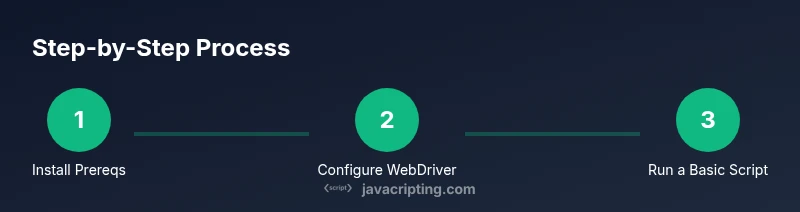
- 1
Install prerequisites
Install Node.js and npm, then set up your project folder. This creates a stable base for Selenium tests and ensures compatible tool versions.
Tip: Use LTS versions to minimize breaking changes. - 2
Create project and install dependencies
Initialize npm with a package.json and install selenium-webdriver. Optionally add a test runner like Mocha for structured tests.
Tip: Lock versions to avoid unexpected breaks after browser updates. - 3
Configure WebDriver setup
Create a reusable helper to initialize WebDriver with your browser choice and base options. Centralizing setup makes tests easier to maintain.
Tip: Abstract driver creation to reduce duplication across tests. - 4
Open a page and locate elements
Use WebDriver to navigate to a URL, then locate elements with robust selectors and interact with them (click, type, etc.).
Tip: Prefer data-testid attributes for stable selectors. - 5
Execute JavaScript in the page
Leverage executeScript to interact with page state or retrieve values not exposed through the DOM. This is essential for JavaScript-heavy pages.
Tip: Return values from executeScript when possible for assertions. - 6
Wait for dynamic content
Implement explicit waits for conditions like visibility, presence, or custom JS flags. Avoid long, blind sleeps.
Tip: Combine short explicit waits with a reasonable overall timeout. - 7
Handle asynchronous scripts
Use executeAsyncScript for long-running client-side operations and ensure a callback completes before continuing.
Tip: Always provide a timeout for async scripts to prevent hangs. - 8
Add error handling and retries
Wrap flaky actions in a retry utility and log meaningful errors to diagnose failures quickly.
Tip: Use a small retry count and exponential backoff to avoid test flakiness. - 9
Run tests and review results
Execute the test suite, review results, and iterate on failures. Integrate with CI for consistent feedback.
Tip: Capture screenshots on failures to aid debugging.
Questions & Answers
How do I wait for JavaScript to finish loading on a page using Selenium with JavaScript?
Use explicit waits with WebDriver's until conditions to poll for specific states, such as element visibility or a custom JS flag. Avoid relying on fixed delays. Combine with a reasonable timeout to prevent long hangs.
Use explicit waits with until conditions to detect when JavaScript-driven changes finish, rather than fixed delays.
Can Selenium WebDriver execute custom JavaScript in the browser?
Yes. Use executeScript to run JavaScript in the page context and optionally return values for assertions. For longer operations, use executeAsyncScript with a callback.
Yes, you can run custom JavaScript with executeScript, and for longer tasks, use executeAsyncScript.
Is Selenium suitable for testing complex SPAs with heavy client-side logic?
Selenium can test SPAs, but you must design robust waits, selectors, and error handling for dynamic DOM updates. Consider combining with network stubs and Page Object models for maintainability.
Selenium works for SPAs if you plan waits and selectors carefully and keep tests maintainable.
What are best practices for organizing Selenium tests in JavaScript?
Use a Page Object Model, centralized configuration, explicit waits, and modular helpers for JavaScript actions. Run tests with a CI workflow and linting to maintain quality.
Organize with Page Objects, explicit waits, and modular helpers; run in CI for consistency.
Should I rely on implicit waits or explicit waits for dynamic pages?
Prefer explicit waits. Implicit waits can hide timing issues and cause flaky tests when combined with dynamic content and multiple scripts.
Explicit waits give you precise control and reduce flaky results.
Watch Video
What to Remember
- Master explicit waits for dynamic content.
- Use executeScript and executeAsyncScript judiciously.
- Adopt a Page Object Model to improve maintainability.
- Structure tests for reliability and CI readiness.