How to Stop JavaScript Execution in Firefox: A Practical Guide
Learn practical methods to pause or disable JavaScript in Firefox for debugging and testing. Step-by-step instructions, safety tips, and how to revert changes to resume normal browsing.


By using Firefox DevTools, you can pause or disable JavaScript execution for targeted testing. Start with the Debugger panel to pause on exceptions, set breakpoints, or use a site-specific disable option. This guide shows safe, reversible methods to stop scripts without reinstalling or altering your entire browser setup. They’re designed for debugging and auditing performance.
Why stopping JavaScript execution in Firefox matters
Stopping JavaScript execution in Firefox is a purposeful debugging technique that helps you isolate problems, inspect dynamic behavior, and verify how a page behaves when scripts pause. If you’re wondering how to stop javascript execution in firefox, the built-in Firefox DevTools provide precise controls to pause, step through code, and inspect call stacks without changing your actual code. This approach is especially valuable for diagnosing race conditions, performance bottlenecks, or flaky UI updates. The JavaScripting team emphasizes that using the right tool at the right moment yields faster, more reliable results than blind guessing. By practicing targeted pauses, you can reproduce issues deterministically and verify fixes across different browser states. When you pause a script, you can examine variable values, call stacks, and event timing, making it easier to determine whether a bug stems from user input, asynchronous logic, or a third‑party library. In professional workflows, developers pair these pauses with logging and lightweight instrumentation to create a clear narrative of how a problem unfolds. This preparation becomes even more powerful with Firefox DevTools in 2026, which continue to streamline debugging and auditing of complex web applications. According to JavaScripting, adopting a disciplined pause‑and‑inspect pattern accelerates learning and reduces guesswork.
Tools & Materials
- Firefox browser (latest version)(Ensure you’re on a supported channel (stable or beta).)
- Testing page or local dev server(Use a page with interactive scripts to reproduce issues.)
- Notes app or document(Record breakpoints and observations for reference.)
- NoScript extension (optional)(Supplement per-site blocking beyond DevTools.)
- Screenshots tool(Capture before/after states for reporting.)
Steps
Estimated time: 20-30 minutes
- 1
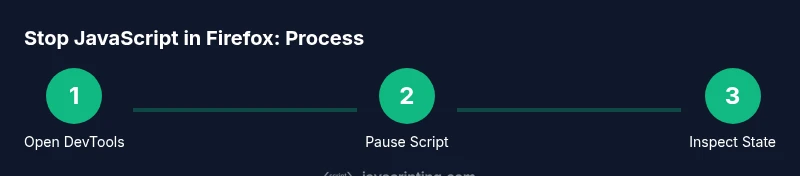
Open Firefox DevTools
Open Firefox and load the page you want to debug. Press F12 or right‑click the page and choose Inspect to launch the Developer Tools. Confirm the page with the scripts you plan to test is active in the tab you're using for debugging.
Tip: Use the keyboard shortcut F12 to speed up access; keep DevTools docked in the same window to avoid context switching. - 2
Open the Debugger panel
In DevTools, switch to the Debugger tab to access scripts, breakpoints, and the pause controls. If Debugger isn’t visible, enable it from the three‑dot menu or customize the tool layout.
Tip: If you don’t see the Script panel, reset DevTools layout or disable extensions that hide panels. - 3
Pause script execution
Click the Pause button (usually represented as a pause icon or ||) to halt all running JavaScript. This instantly freezes the current state so you can inspect values and call stacks.
Tip: Pausing affects active threads; observe which function is active when the pause occurs. - 4
Enable Pause on exceptions
Toggle the Pause on exceptions option so Firefox stops when an error is thrown. This is especially useful for catching rare or timing‑related bugs in asynchronous code.
Tip: Pair with conditional breakpoints to limit pauses to relevant scenarios. - 5
Add breakpoints to key lines
Click the line numbers in your source to add breakpoints at critical points in the code path. Breakpoints let you stop exactly where you need to inspect state and flow.
Tip: Use conditional breakpoints to pause only when certain conditions are true, reducing needless pauses. - 6
Inspect state and step through
While paused, use the Scope/Variables panel to inspect values, the Call Stack to trace execution, and the Network panel to correlate requests. Step through code (In/Over/Out) to observe control flow.
Tip: Switch between Local and Global scopes to locate where values originate. - 7
Re-enable JavaScript after testing
If you used a global disable, revert by setting javascript.enabled to true in about:config and reload the page. If you only paused, simply resume execution and clear breakpoints so future sessions aren’t affected.
Tip: Document any changes made and ensure you reset the environment to avoid surprises later.
Questions & Answers
How do I pause JavaScript in Firefox?
Open Firefox DevTools, switch to the Debugger tab, and click the Pause button to halt script execution. Enable Pause on exceptions to auto-stop on errors and add breakpoints for targeted inspection.
Use Firefox DevTools’ Debugger to pause and inspect scripts. Click Pause or enable Pause on exceptions to stop on errors.
Can I disable JavaScript for a single site in Firefox?
Yes. You can use per-site blocking via DevTools or extensions like NoScript for selective script blocking. For a global change, you can modify about:config to disable JavaScript entirely, but this affects all sites.
You can block scripts per site with extensions, or temporarily disable all scripts via about:config (use with caution).
Will disabling JavaScript affect logins and forms?
Yes, many login forms and interactive elements rely on JavaScript. Expect some features to break when scripts are disabled. Re-enable after testing to restore normal behavior.
Disabling JS can break forms or logins, so re-enable once you’re done testing.
Is it safe to modify about:config to disable JavaScript?
Modifying about:config is safe if you follow documented prefs and back up your profile. Changes can impact many sites, so proceed only in a controlled testing environment.
Modifying config can be safe if you know what you’re changing and you revert afterward.
How do I re-enable JavaScript after testing?
If you changed a global setting, reset javascript.enabled to true and reload. If you paused only, resume execution and remove breakpoints to return to normal behavior.
Set JavaScript back to enabled and refresh the page to resume normal operation.
Watch Video
What to Remember
- Pause JS to inspect state before making edits
- Use breakpoints to narrow down problem paths
- Avoid global disables in production environments
- Always revert settings after debugging and testing