What to Do If JavaScript Is Not Working: Troubleshoot Now
Urgent, step-by-step guide to diagnose and fix JavaScript not working issues across browsers. Learn checks, diagnostics, and proven fixes to get your pages running again fast.


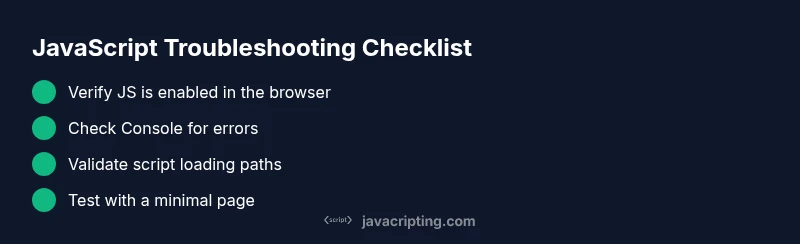
If JavaScript isn’t working, start with the basics: ensure JS is enabled and not blocked by CSP or extensions, then check the browser console and network tab for errors. Move quickly through a structured diagnostic: verify script paths, test in a minimal environment, and apply targeted fixes. This fast path helps you regain control fast while you gather details for deeper debugging.
Check the Basics: Confirm JavaScript Is Enabled and Not Blocked
Begin with the simplest checks. Verify that JavaScript is enabled in your browser settings and that your device or enterprise policy isn’t disabling it. If you’re on Chrome, navigate to Settings > Privacy and security > Site settings > JavaScript, and ensure the domain in question is allowed. Also confirm you’re not in a mode that disables scripts, such as a reader view or a restricted profile. If a user is testing on a corporate machine, a policy could silently block scripts; verify with IT if needed. This foundational step often resolves the majority ofone-click blockers and lets you move forward with confidence.
Inspect Console for Errors
Open DevTools (F12 or right-click > Inspect) and switch to the Console. Look for syntax errors, TypeError, ReferenceError, or network-related issues like 404s for script files. Copy exact error messages and stack traces; they point to the failing file and line of code. If you see messages about blocked resources, CSP or extensions are common culprits. The Console is your first map — it shows where the failure originates and what to fix first.
Verify Script Loading: Paths and Network Requests
Reload the page with DevTools open, and inspect the Network tab, filtering for JavaScript files. Look at status codes: 200 means loaded; 404 means the file is missing; 403 indicates blocked access. Confirm that each script’s URL is correct, including relative paths, file names, and domains. If you bundle scripts, ensure the built output matches what your HTML references. Watch for mixed-content warnings on HTTPS pages that attempt to load HTTP assets. Script attributes like defer or async can impact load timing and execution order; review these as part of troubleshooting.
Test with a Minimal Page: Isolate the Issue
Create a tiny HTML page that only loads a single script and a minimal body. If this page runs, the problem likely lies in your larger application (ordering, dependencies, or a conflicting library). If the minimal page still fails, the issue is environmental (browser, extension, or CSP). This isolation helps you pinpoint root cause quickly. Add one piece at a time and test after each change to trace exactly where the failure happens.
Common Causes: Ad Blockers, Extensions, and CSP
Extensions and ad blockers can block legitimate scripts by mistake, especially if the site loads from third-party domains. Test in an incognito window or disable extensions temporarily. CSP (Content Security Policy) can prevent inline scripts or certain sources from loading; review your server headers or page meta tags to ensure you’re not blocking your own scripts unintentionally. Third-party scripts failing to load can cascade into a whole-app failure, so verify each dependency is loaded in the correct order. Finally, check your own code for syntax errors that halt execution.
Debugging Techniques: Breakpoints, Logging, and Repro Steps
Use breakpoints to pause execution and inspect variable state and call stacks. Instrument code with console.log() statements to trace values and flow. Build a minimal reproduction case and maintain a log of environment details (browser, version, OS). Leverage linting and type checks to catch syntax or type errors early. Make sure features you use are supported in your target browsers or polyfilled where necessary.
Best Practices: Resilient JavaScript and Progressive Enhancement
Aim for code that runs gracefully with or without JavaScript. Use progressive enhancement so content remains accessible if scripts fail. Defer non-essential scripts and load critical logic first to improve reliability. Validate input on both client and server, and handle errors without breaking the rest of the page. Maintain lean dependencies and update them regularly to prevent regression. Finally, test widely across devices and browsers to catch edge cases early.
When to Seek Help and Document the Issue
If the issue persists, collect artifacts: exact error messages, network logs, and a minimal reproduction that others can run. Share a link to a public repo or a sandbox that demonstrates the problem. Ask teammates or community forums with a clear repro and environment details. In team settings, use an issue tracker to annotate failure modes, steps to reproduce, and observed behavior for faster resolution.
Steps
Estimated time: 15-60 minutes
- 1
Verify environment and JS enabled
Confirm the browser has JavaScript enabled and that any corporate policies aren’t disabling it. Check the page in a different browser to rule out a browser-specific issue. If you rely on CSP, note the policy and prepare to adjust in a controlled way.
Tip: Document the current settings before changing CSP or disabling extensions. - 2
Open DevTools and read errors
Launch DevTools, inspect Console for errors, and switch to Network to see how scripts are loaded. Copy error messages and stack traces for later reference. Identify whether the issue is syntax, missing files, or blocked requests.
Tip: Filter Network by JS to focus on script requests quickly. - 3
Check script loading paths
Review script tags or bundler outputs to ensure URLs and file names are correct. Confirm 200 status on script files and that dependent bundles load in the proper order. Look for 404s or mixed-content warnings.
Tip: If using a bundler, verify the build artifacts match the references in HTML. - 4
Isolate with a minimal page
Create a tiny page that only loads one script. If it runs, the problem is in your application code; if not, it’s environmental. Use console logs to track execution order and confirm where it stops.
Tip: Incrementally reintroduce features to identify the breaking point. - 5
Apply targeted fixes and retest
Fix the most likely cause first (JS disabled, bad path, CSP). Re-run tests across the same environment. If the issue persists, move to the next suspected cause and re-test after each change.
Tip: Treat fixes as hypotheses; test with a controlled baseline. - 6
Validate across devices and browsers
After a fix, test on multiple devices and browsers to ensure consistency. Consider a staged rollout and monitor for regressions.
Tip: Keep a changelog of what you changed and when.
Diagnosis: Your browser console shows errors or nothing happens when scripts should run.
Possible Causes
- highJavaScript is disabled in the browser
- highScript path is incorrect or file not found
- mediumContent Security Policy (CSP) blocking scripts
- mediumAd blockers or extensions blocking scripts
- highSyntax error in code
- lowAsynchronous loading order issues
Fixes
- easyCheck browser settings to ensure JavaScript is enabled
- easyVerify the script URL and file location; check 404 errors in Network tab
- mediumReview CSP headers and meta CSP; adjust or whitelist script sources
- easyDisable ad blockers or whitelist your site; test in incognito
- mediumOpen your code editor, fix syntax errors, run linting tools, and re-test
- easyEnsure proper script loading order (place <script> tags correctly, defer/async usage)
Questions & Answers
Why won't JavaScript run after a browser update?
Browser updates can affect script execution or security settings. Test with a minimal page, verify extensions, and review CSP; adjust settings as needed.
Browser updates can change how scripts run; start with a minimal test page and check extensions and CSP.
How do I know if the problem is in my code or the browser?
Create a minimal reproduction to isolate the issue. If it reproduces across browsers, it's likely code; if it only happens in one browser, it's environment-specific.
Make a tiny reproduction to see if it’s your code or the browser.
Can extensions block JavaScript from running?
Yes. Disable extensions or use incognito mode to test; if it works, an extension is interfering.
Extensions can block scripts; try incognito or disable them to test.
What is CSP and why would it block scripts?
Content Security Policy controls where scripts can load. If misconfigured, it can block legitimate sources; adjust headers or meta tags accordingly.
CSP restricts script sources; fix headers to allow needed scripts.
Is it safe to modify production JavaScript for testing?
Prefer a staging environment for tests. Do not push debugging changes directly to production without validation.
Test in staging first; avoid risky changes on live production.
Watch Video
What to Remember
- Verify JS is enabled and not blocked.
- Check Console and Network tabs first for clues.
- Isolate with a minimal reproduction to locate the fault.
- Test fixes across browsers to prevent regressions.