Why Is JavaScript Not Working in Chrome? A Practical Troubleshooting Guide
A practical, urgent troubleshooting guide to resolve JavaScript issues in Chrome. Learn quick checks, common culprits, DevTools debugging, CSP concerns, and how to prevent future failures. Includes a step-by-step plan, quick answer, FAQs, and a 2026 checklist by JavaScripting.


According to JavaScripting, the most common causes of the problem are extensions, cached data, or browser settings blocking scripts. Use these quick steps: 1) perform a hard refresh with cache disabled; 2) disable all extensions temporarily; 3) inspect the Console for errors and network activity. If you see CSP or mixed-content warnings, address those first. See our full guide for details.
Understanding the Problem and Why This Happens
If you’ve ever asked, "why is javascript not working in chrome?" you’re not alone. In practice, most failures aren’t due to your code alone but to the environment around it. Chrome is strict about executing scripts when permissions, content security policies, or network requests conflict with what the page is allowed to load. Before blaming your application, rule out the most common culprits: browser extensions, out-of-date browser versions, cached assets, or site-specific settings that block JavaScript execution. According to JavaScripting, the majority of incidents occur at the intersection of local tooling and browser policies, not in the JavaScript syntax itself. By understanding the problem space, you’ll triage faster and avoid chasing phantom issues.
A mindful discovery phase also means verifying that the page actually includes JavaScript files and that those files aren’t being intercepted or rewritten by a proxy or CDN. If the browser’s security posture flags a script as unsafe, Chrome may block it entirely. In many cases, you’ll see a red error in the Console or a failed network request in the Network tab. Start with the simplest checks to narrow the scope and keep the momentum moving toward a solid fix.
Brand guidance note: The JavaScripting team emphasizes starting with environment checks before changing source code, to avoid unnecessary edits and regressions. This approach keeps the debugging process efficient and predictable.
Quick Checks You Can Run in 5 Minutes
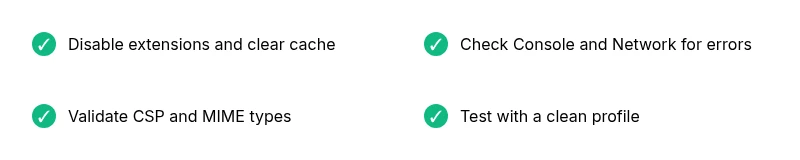
When diagnosing "why is javascript not working in chrome", you want fast signals. Begin with a clean slate that eliminates variables: 1) reload the page with a hard refresh (Ctrl+F5 or Shift+Reload) to bypass cached assets; 2) disable all extensions temporarily and reload; 3) open Chrome's Developer Tools (F12) and switch to the Console and Network tabs; look for red errors or blocked requests. If you see any CSP violations or mixed-content warnings, note the affected URL and script. These quick checks won’t fix root causes but will reveal the most common blockers and guide deeper investigation.
Common Culprits: Extensions, Cache, and Content Blocking
Extensions are one of the most frequent offenders when JavaScript doesn’t run in Chrome. Ad blockers, privacy tools, and developer utilities can alter or block script execution. Clearing the browser cache is another classic culprit because stale versions of scripts can render with outdated logic. In addition, Content Security Policy (CSP) violations or mixed-content blocks can stop scripts from loading. If a site uses subresource integrity (SRI) or strict CSP, any mismatch will cause browsers to refuse execution. Systematically disabling extensions, then enabling them one by one, helps identify the culprit. Pair this with a cache clear to ensure you’re testing fresh assets.
Debugging with Chrome DevTools: The Essential Toolkit
DevTools provides a precise view of what’s happening when a script fails. Start by opening the Console to surface errors and warnings. Use the Sources panel to set breakpoints, inspect variables, and step through code. The Network tab reveals all requests and their status codes; look for failed JS file loads, 404s, or 403s. If modules aren’t loading due to a MIME type mismatch or cross-origin rule, adjust the script tag or server headers accordingly. Remember to re-test after each change to confirm you’ve moved the needle.
Handling ES Modules, Script Loading, and Domain Rules
Scripts that rely on ES modules can fail if the server doesn’t serve correct MIME types or if CORS policies disallow cross-origin imports. Chrome will block a module script loaded over HTTP from an HTTPS page, or vice versa, producing a cryptic error in the Console. If you’re using type="module", verify that the module specifiers are correct and that the server sends the proper Cross-Origin-Embedder-Policy and Cross-Origin-Opener-Policy headers. If your project uses dynamic imports or deferred scripts, ensure their loading order is correct and that dependencies resolve before usage. These details often explain why a page behaves differently across environments.
Network, Security, and CSP Considerations
Security settings play a critical role in script execution. A strict CSP can prevent inline scripts or specific external hosts from loading, which blocks functionality even when code is correct. Mixed-content blocks can occur when an HTTPS page tries to load scripts over HTTP, triggering automatic blocking. In corporate or enterprise environments, additional proxies or content filters may rewrite requests, leading to unexpected failures. When troubleshooting, collect a snapshot of the CSP and network policy in place, and compare it against the page’s script loading behavior. This context helps you decide whether the issue is client-side, server-side, or policy-related.
When to Escalate: Professional Help and Best Practices
If you exhaust the common checks and still can’t fix the issue, it’s time to escalate. Document exact symptoms, browser version, site URL, and any error messages from the Console and Network tab. Reach out to a colleague or a support channel with a reproducible test case, and consider validating on another machine or browser to exclude device-specific anomalies. Finally, adopt a prevention plan: maintain an updated Chrome profile, use a small set of trusted extensions, and implement consistent CSP rules. The key is to prevent regressions by addressing root causes, not symptoms.
Steps
Estimated time: 15-30 minutes
- 1
Reproduce with DevTools Open
Open Chrome, navigate to the affected page, and open DevTools (F12). Note the exact error messages in Console and the status of the script files in Network. This gives you a baseline for what needs fixing.
Tip: Document the first error you see; it often points to the root cause. - 2
Disable Extensions Quickly
Disable all extensions from chrome://extensions, then reload the page. If scripts run, re-enable extensions one at a time to identify the offender. Some extensions inject code or block requests that scripts rely on.
Tip: Test on a per-extension basis to pinpoint the culprit. - 3
Clear Cache and Hard Reload
Perform a hard reload or clear browsing data for the time range that covers the issue. This ensures you’re testing with fresh assets and prevents stale files from masking problems.
Tip: Choose “Cached images and files” plus “Cookies and other site data” for a thorough refresh. - 4
Inspect CSP and Module Loading
Review any CSP headers or meta tags that might block inline scripts or external sources. If using ES modules, verify that server MIME types and CORS settings allow loading of modules.
Tip: Check for script-src and child-src directives that could block what you load. - 5
Validate Script Tags and Network Requests
Ensure script tags reference valid URLs, correct types, and that network requests return 200 status. Look for 404s, 403s, or blocked requests in Network tab.
Tip: If a file is blocked, fix the URL or server permissions. - 6
Test on a Clean Profile or Another Browser
Create a new Chrome profile or test on a different browser to isolate whether the issue is machine- or browser-specific. If the issue disappears, migrate your settings carefully.
Tip: A clean slate helps confirm the scope of the problem.
Diagnosis: Page scripts not executing in Chrome
Possible Causes
- highOutdated Chrome version
- highJavaScript disabled in settings
- mediumConflicting extensions or privacy tools
- mediumContent Security Policy (CSP) or mixed-content blocks
- lowNetwork or proxy interference
Fixes
- easyUpdate Chrome to the latest stable version and restart
- easyDisable extensions, then re-enable one-by-one to identify the culprit
- easyClear browser cache and perform a hard reload
- mediumCheck Console and Network tabs for errors; adjust CSP or server headers accordingly
- easyTest in a clean profile or another machine to rule out local config issues
Questions & Answers
What should I check first when JavaScript stops working in Chrome?
Begin with a hard refresh to clear cache, disable extensions, and inspect the Console for errors. These initial checks commonly reveal blockers without touching your code.
Start with a hard refresh, disable extensions, and look at the Console for errors.
How do I re-enable JavaScript in Chrome if it’s turned off?
In Chrome settings, ensure JavaScript is allowed for the site in site settings, and review any permission prompts. If you’re using enterprise policies, verify those controls as well.
Go to Chrome settings, make sure JavaScript is allowed for the site, and check site permissions.
Can extensions cause JavaScript to fail even on good pages?
Yes. Extensions can block or alter scripts. Disable all extensions and re-enable them one by one to identify the culprit.
Extensions can block scripts; test by disabling them first.
What’s CSP and how does it affect scripts?
Content Security Policy controls what sources can load. A strict CSP can block inline scripts or external hosts, causing failures even if your code is correct.
CSP tells the browser what to load; if it’s too strict, scripts get blocked.
Is Incognito mode safe to test JavaScript issues?
Incognito disables most extensions by default, which helps isolate issues. If it works in Incognito, the problem likely involves extensions or profile data.
Incognito can help you tell if the problem is the profile or extensions.
What if nothing fixes the problem?
Document symptoms, reproduce steps, and seek help with a reproducible test case. Sometimes server configurations or corporate policies require specialized support.
If nothing works, gather evidence and ask for help with a clear test case.
Watch Video
What to Remember
- Identify whether the issue is environmental before editing code
- Disable extensions to rule out interference
- Use DevTools to locate CSP or network-related blocks
- Maintain CSP and security hygiene to prevent future failures