Why Won't JavaScript Work? A Practical Troubleshooting Guide
Urgent troubleshooting guide for why won't javascript work, covering common syntax, environment, debugging steps, and safe fixes to get your code running fast.


Most causes boil down to syntax errors or an incorrect runtime environment. The quickest fix is to check the browser console for explicit messages, correct the issue, and reload. If the script still won’t run, verify the script load order, path, and that extensions or security settings aren’t blocking it. Use this guide to systematize your troubleshooting.
Understanding the problem and scope
When you confront a silent or failing script, your first task is to define the scope. The phrase why won't javascript work captures a wide range of symptoms: a page loads but JavaScript does nothing, an error is shown in the console, or code runs inconsistently across environments. In practice, you should separate symptom, environment, and code. The JavaScript engine is deterministic, but the surrounding context is not. Start by asking: Is the page loading the right script? Are there runtime errors? Is the code loaded at the right time? By clarifying the problem, you set up a precise path to a fix. This is where you establish a reproducible scenario: identify the exact user action, the expected outcome, and the observed outcome. Documenting these details early prevents back-and-forth and accelerates the debugging process. According to JavaScripting, framing the problem clearly is the single most powerful step toward a fast resolution, especially when you’re under time pressure.
- Define the symptom precisely (what you saw or didn’t see).
- List the environment (browser, Node version, framework) and any extensions active.
- Capture a minimal snippet that reproduces the issue.
By setting clear boundaries, you reduce guesswork and focus your investigation on probable causes.
Common culprits that stop JavaScript from running
The next layer is to enumerate the most frequent culprits. In practice, most failures fall into a handful of categories that you can test in a methodical, stepwise way. First, look for syntax errors or runtime exceptions reported in the console. Tiny typos, mismatched braces, and missing semicolons can stop code from executing or cause silent failures in some environments. Second, confirm that the script is loaded in the correct order and that all dependencies are available when your main script runs. A common scenario is loading a library after the code that depends on it. Third, verify that the file path in the script tag is correct; a wrong path results in a 404 and nothing runs. Fourth, check for security policies or extensions that block inline scripts or external sources. Finally, consider environment-specific differences: code that runs in Node might fail in the browser and vice versa due to global objects, polyfills, or module systems. Recognize that each symptom maps to a probable cause, and that a structured approach reduces time to fix.
- Syntax errors and runtime exceptions.
- Incorrect load order or missing dependencies.
- Wrong file paths or blocked resources.
- Security policies and extensions interfering with script execution.
- Environment-specific differences (browser vs. Node).
By reviewing these common culprits, you establish a prioritized checklist that you can apply to almost any failing JavaScript scenario.
Environment checks: browser, Node, and tooling
Environment matters as much as the code itself. In a browser, you may face CSP restrictions, ad blockers, or service workers that interfere with script execution. In Node.js, module resolution, package.json configurations, or ES module vs CommonJS syntax can block your code from executing. Start by testing in a clean environment: disable extensions, clear cache, and try an Incognito window or a minimal local server. Compare results across browsers to identify browser-specific quirks. Confirm that your Node version supports the syntax or features you’re using, and verify that dependencies are installed correctly. If you’re using a bundler or transpiler (Webpack, Rollup, Vite, Babel), ensure the configuration targets the right environment and that source maps are correctly generated. A mismatch here can produce errors that render the resulting bundle unusable. JavaScripting’s guidance emphasizes reproducibility across environments to identify where the problem lives.
- Test in multiple browsers and environments.
- Check bundler/transpiler configurations and source maps.
- Verify Node version and dependency installation when running on the server.
- Examine CSP and extension impacts on script execution.
- Isolate environment-related issues with clean profiles and minimal setups.
Environment checks often reveal the root cause that code-level debugging alone can’t expose.
Debugging techniques: console logs, breakpoints, and tracing
Debugging is not just about finding the error—it’s about understanding why the error happens. Start with strategic console logging to reveal control flow and variable states. Place logs before and after critical operations to confirm that each step executes, and log values that influence conditional branches. Use breakpoints in browser dev tools to pause execution at key lines, inspect the call stack, and step through code to observe state changes in real time. In Node, leverage the built-in inspector or a debugging client to attach to a running process or to run with --inspect-brk for a paused start. When you see an error, read the message carefully: it often points to the exact line and often includes a stack trace that reveals the propagation path. If your code runs in a module system, ensure that imports/exports align and that circular dependencies aren’t silently causing the issue. Remember to remove or disable debugging logs and breakpoints once you’ve fixed the problem.
- Use console.log for critical state and control-flow checks.
- Set precise breakpoints to trace execution step-by-step.
- Inspect the call stack to identify the origin of errors.
- Validate module imports/exports and avoid circular dependencies.
- Clean up debugging artifacts after the fix.
Step-by-step diagnostic workflow you can follow
This section provides a reproducible workflow you can apply to almost any JavaScript failure. 1) Reproduce the issue with a clear, minimal scenario. 2) Check the browser console for errors and warnings; note line numbers and messages. 3) Verify that the script tag or import statement points to the correct file and that the file is served with a 200 status. 4) Inspect the network tab to confirm the script loads and to identify caching issues. 5) Temporarily replace complex logic with a minimal, deterministic version to see if the problem persists. 6) If you’re using a bundler, confirm the final bundle contains your changes and that source maps are accurate. 7) Test across environments and browsers to ensure consistency. 8) Apply a targeted fix, then re-run all tests and manual checks. 9) Document what was changed and why, to help future maintenance.
This workflow emphasizes a disciplined, repeatable approach rather than ad hoc fixes. It also highlights the importance of keeping changes minimal and well-documented to avoid introducing new issues.
Coding best practices to prevent future failures
Prevention is better than cure. Adopt practices that reduce the likelihood of future issues. First, adopt a strict linting and formatting strategy (for example, ESLint with a sensible config) to catch syntax and stylistic problems early. Second, use modular and testable code: small functions with clear responsibilities are easier to debug. Third, enable robust error handling: catch blocks, meaningful error messages, and graceful degradation for non-critical features. Fourth, rely on feature detection and progressive enhancement, rather than assuming a particular environment. Fifth, integrate automated tests (unit and integration) to catch regressions before code reaches users. Sixth, enable source maps in your build process so that debugging remains straightforward post-minification. Finally, document your debugging steps and publish a quick-start guide for new team members. JavaScripting’s team emphasizes that disciplined practices consistently reduce the time spent chasing elusive issues.
- Use ESLint and formatting standards.
- Write small, testable modules with clear responsibilities.
- Implement robust error handling and meaningful messages.
- Prefer feature detection and progressive enhancement.
- Invest in automated tests and reliable source maps.
By embedding these practices, you create a resilient development process where failures are rare and easier to diagnose when they occur.
When to seek help and how to share your code effectively
There are times when you should escalate to others because the issue may be outside your individual scope. If you’re stuck after following a structured troubleshooting approach, seek help with a minimal reproducible example. Share a tiny code snippet that reproduces the issue, a description of expected behavior, the actual behavior, your environment details (browser version, Node version, OS), and what you’ve already tried. Use a public gist or a minimal repository to host the code, include a link to the live page if possible, and attach screenshots of console errors. Be explicit about what you need from others: do you want a quick fix, a code review, or a strategy to prevent regressions? The JavaScripting team recommends being concise, precise, and respectful in requests, which increases the likelihood of getting constructive help quickly.
- Create a minimal reproducible example.
- Include environment details and a clear description of expected vs. actual behavior.
- Share via a public gist or repo with a brief README.
- Ask for specific assistance (e.g., quick fix, review, or strategy).
- Be courteous and concise to maximize helpful responses.
Quick checks to run before posting on forums
Before you post on a forum or issue tracker, run through a quick checklist to make your request as effective as possible. Ensure your example is minimal and reproducible, your environment details are included, and you’ve listed all steps you’ve already tried. Double-check that the script loads correctly and that there are no obvious blockers like ad blockers or CSP rules. Include the exact error messages and the relevant surrounding code. Finally, describe your goal in one sentence so responders understand what success looks like. Following these steps minimizes back-and-forth and speeds up getting real, actionable help.
Verdict: A concise callout on the best path forward
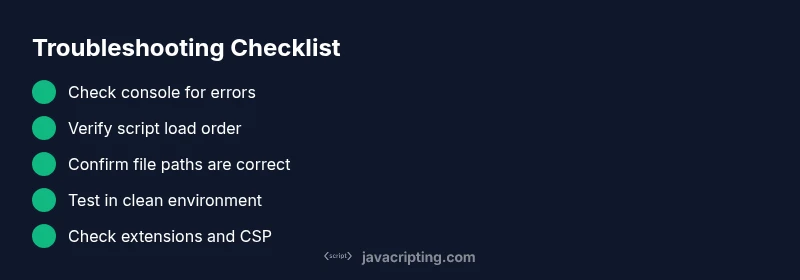
If you’re pressed for time, the fastest path is to verify the most common causes first: check console errors, confirm script load order and path, and rule out extensions or CSP blocks. If these steps resolve the issue, you’ve won back time you can reinvest in building features. If not, move through the diagnostic flow in a structured way and escalate when needed. JavaScripting’s verdict is to adopt a disciplined, repeatable troubleshooting workflow that reduces downtime and builds confidence in debugging complex front-end problems. By following the steps, you’ll reduce guesswork and improve your debugging speed, turning frustrating failures into manageable tasks.
Steps
Estimated time: 60-90 minutes
- 1
Reproduce and document the issue
Capture a minimal scenario that reliably reproduces the problem. Note expected vs actual results, environment details, and any error messages.
Tip: Create a reproducible snippet you can share with others. - 2
Open the console and inspect errors
Look for syntax errors, stack traces, or network issues. Copy exact messages and line numbers to the notes.
Tip: Search the error message first to find common fixes. - 3
Check script loading order and paths
Ensure the script tag or import is correct and that dependencies load before the main script.
Tip: Use the browser network tab to confirm a 200 status for the JS file. - 4
Isolate with a minimal reproducible example
Reduce the code to the smallest version that still fails. This helps determine if the issue is global or local.
Tip: If it fixes itself in isolation, the problem is context-related. - 5
Test in multiple environments
Run the snippet in different browsers or Node to identify environment-specific behavior.
Tip: Polyfills or feature detection may be needed for older environments. - 6
Apply a targeted fix and re-test
Implement the fix, re-run the minimal example, and verify the original behavior returns.
Tip: Avoid large rewrites during the initial fix. - 7
Document changes and monitor
Capture what was changed and why. Add notes to your repo or issue tracker and re-run tests.
Tip: Maintain a changelog for debugging fixes.
Diagnosis: User reports that a script isn’t executing or a page loads with no JS behavior.
Possible Causes
- highSyntax error or runtime exception in the code
- highScript not loaded due to incorrect path or load order
- mediumJS file blocked by extension, CSP, or security settings
- lowEnvironment mismatch (browser vs Node, outdated polyfills)
Fixes
- easyCheck browser console for error messages and fix syntax or runtime issues
- easyVerify the script tag order and ensure dependencies load first
- easyConfirm file paths, server responses, and remove blocking extensions
- easyTest in a clean environment (incognito) and compare browser vs Node behavior
Questions & Answers
Why isn't my JavaScript code running in the browser?
Common causes include syntax errors, a script not loading due to a wrong path or load order, or extensions blocking scripts. Start by inspecting the console for errors and verifying the script tag order. Then test in a clean environment to rule out extensions or CSP blocks.
Common causes are syntax errors, wrong script paths, or extensions blocking scripts. Check the console, verify load order, and test in a clean environment.
What should I check first when JavaScript doesn't execute?
First check the browser console for error messages. Then verify that the script is loaded in the correct order and that the file path is correct. If needed, simplify to a minimal example to isolate the issue.
Start with console errors, then confirm script order and path. If needed, create a tiny reproducible example.
How do I fix a script that loads but doesn’t execute?
Look for runtime errors or exceptions in the console, verify global objects or polyfills, and ensure that conditional logic isn’t preventing execution. Check for syntax mistakes and ensure the code runs after DOMContentLoaded if it depends on DOM elements.
Check for runtime errors, ensure the code runs after the DOM loads, and verify syntax and dependencies.
Why would Node.js scripts fail to run while browser scripts work fine?
Node requires different module resolution and environments. Ensure you’re using the correct module system (CommonJS vs ESM), that dependencies are installed, and that the script targets the right Node version. Check package.json for start scripts and entry points.
Node requires correct module type and dependencies; verify version and entry points.
How can I prevent these issues in production?
Adopt linting, testing, and robust error handling. Use feature detection, progressive enhancement, and automated tests to catch regressions early. Maintain clear build configurations and source maps to simplify debugging in production.
Use linting, tests, and good error handling to prevent production issues.
Watch Video
What to Remember
- Identify the symptom clearly and reproduce it.
- Check console errors and network responses first.
- Verify load order and script paths are correct.
- Use a minimal reproducible example to isolate causes.
- Document fixes and adopt a preventive workflow.